Document Generation - Generate for Requests Widget
The Generate for Requests Widget is where the requests from the All Employees, My Team, and My Records are stored. The documents displayed here are the documents requested from the widget types previously mentioned. The HR Manager or the supervisor is the one who usually generates the requests in the Generate for Requests Widget.
Follow these steps to generate a document in a Generate for Requests Widget:
- Select a Generate for Requests Widget.
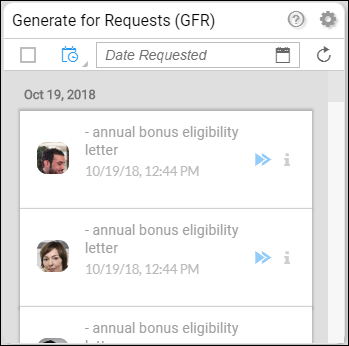
Here are the actions that you can do:
- Select all - select all the requests currently displayed. If there are more employees below, you would have to click the more button at the end and re-select all.
- Filter - the default filter is by date. The other filters are Department and Division. You can also filter by search for you to type in the name of the recipient of the document.
- Refresh - refresh the Generate for Requests Widget to see if there are new requests received.
- View details - view details of the recipient.
- Generate the document - if the document has not been generated, you can click the generate button to generate the document.
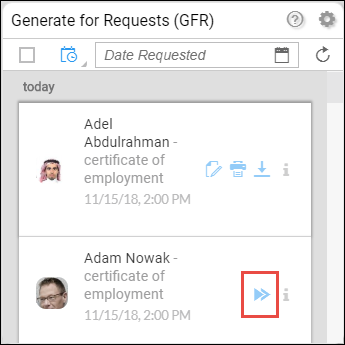
If the request has already been generated, you can
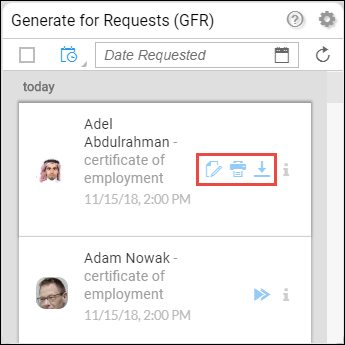
- View document - the document will appear in a new tab.
- Download - this will download the document in a PDF file format.
- Print - this will launch the print setup in your browser.