Restricting Folders, Document Templates, and Workflow Templates based on Conditions
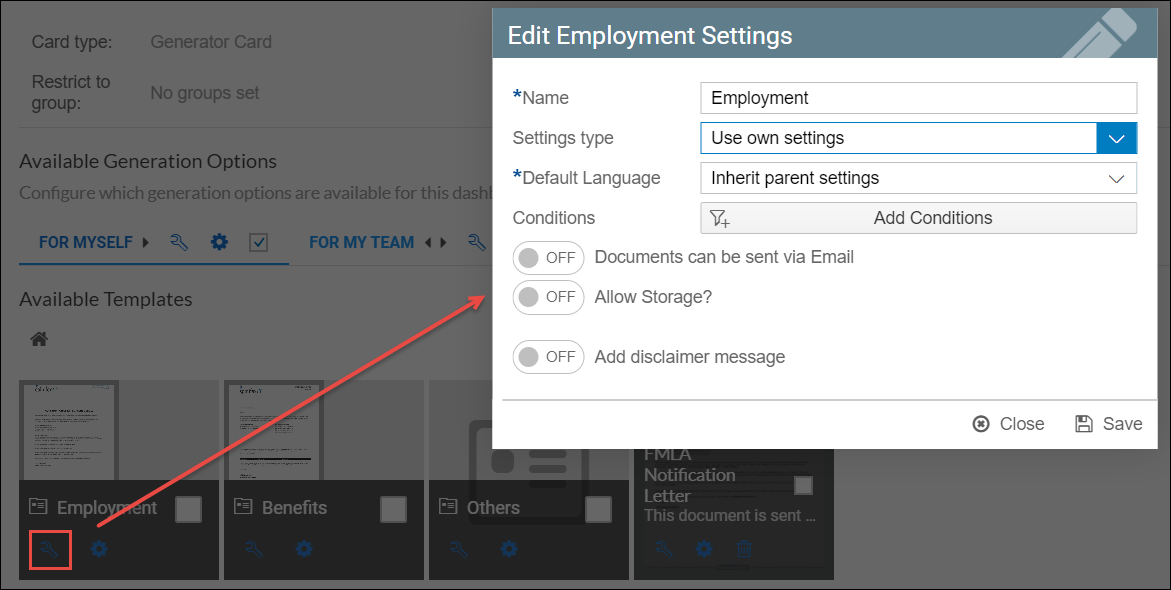
Folders, document templates, and workflow templates in the Generator Card under the For Myself, For My Team, For Others, and For Applicants tabs can be further restricted based on conditions.
Folder
Document Template
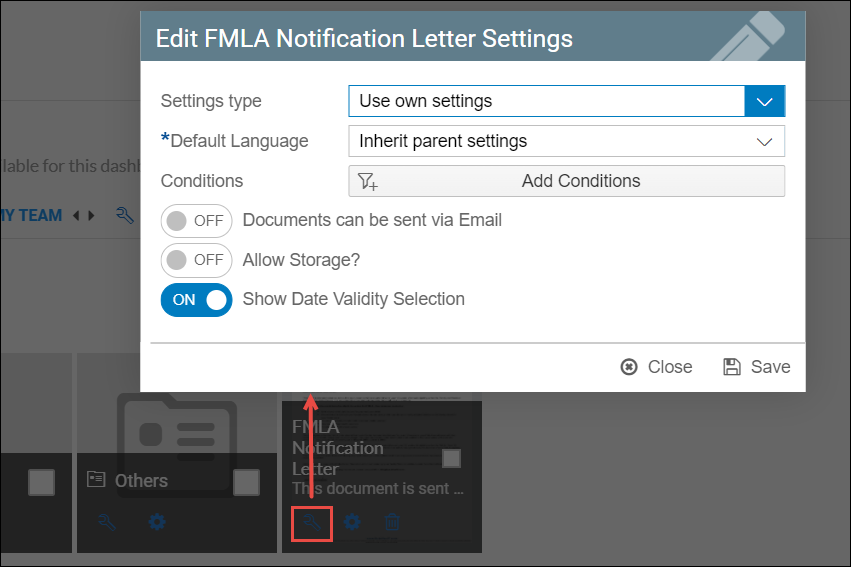
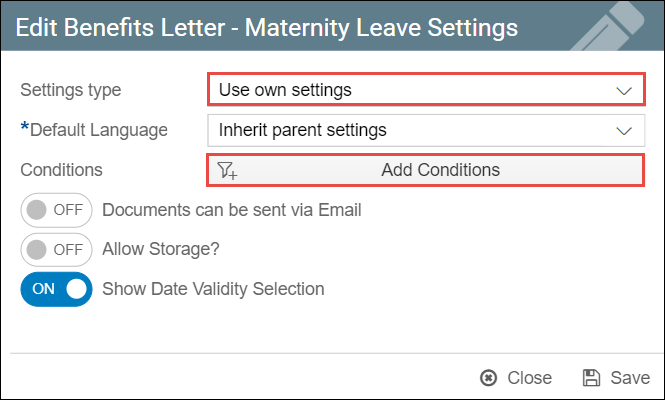
In order to view the following conditions shown on the image above, users must configure the settings type into "Use own settings".
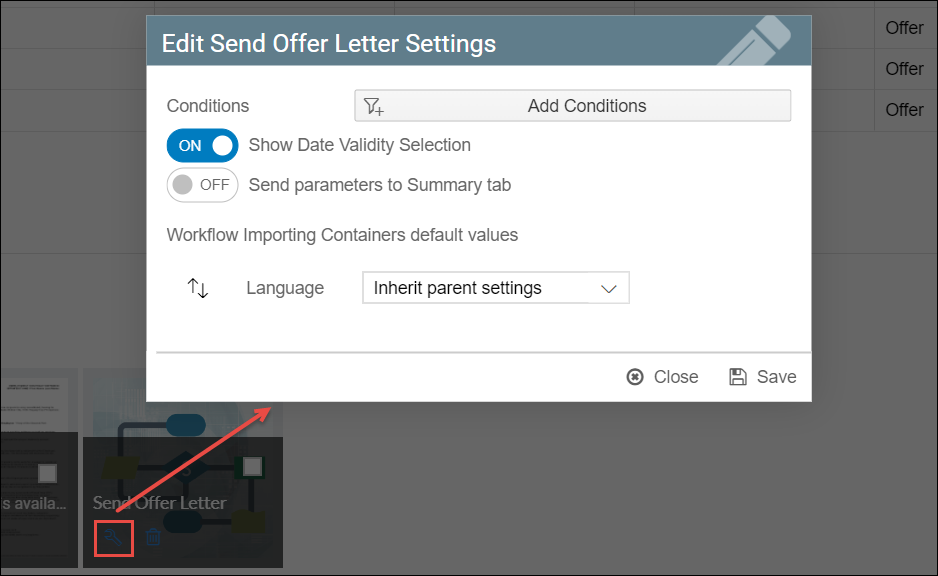
Workflow Template
For example, a basic use case would be for a gender specific document template such as a Benefit Letter containing Maternity Leave details. This document should only be visible to female employees with Maternal Leave benefits. For this case, a document in the Generator Card can be restricted by gender.
To apply conditions in order to restrict document templates visibility to certain groups (for this case, restricted to only Female employees), follow the steps below:
Prerequisites:
- A Generator Card.
- A tab in the Generator Card where the template will be added.
- A document that you will add and use for the conditions.
Steps:
- Navigate to the Generator Card and tab where the document template will be added. In this example, the Generator Card and the HR Admin (For Others type) will be used.
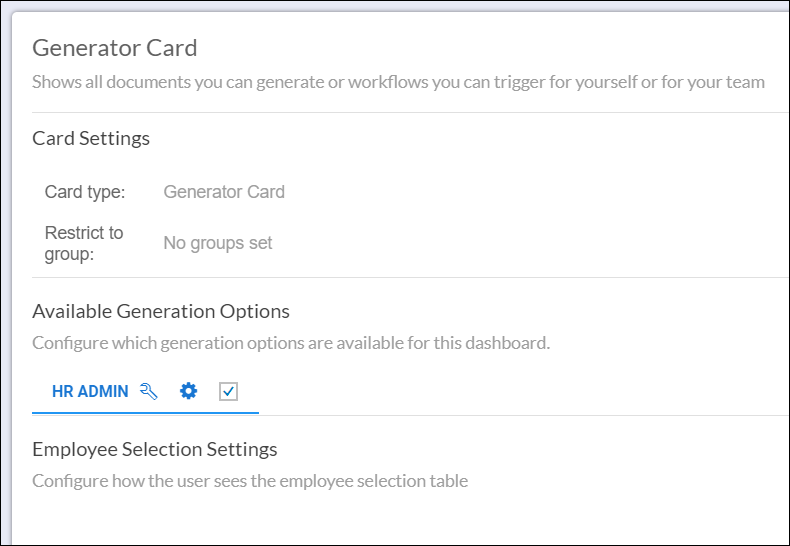
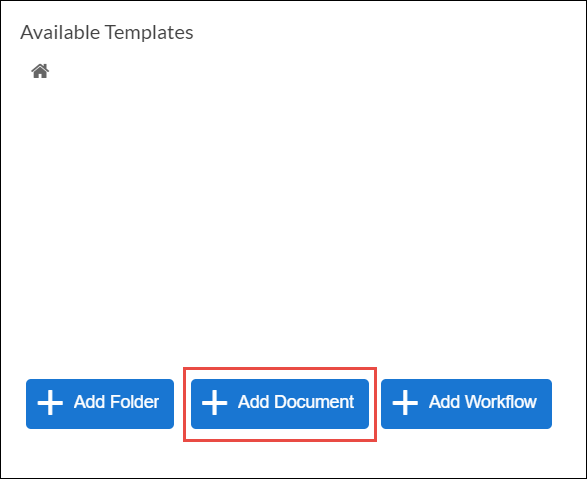
- Scroll down and click the Add Document button.
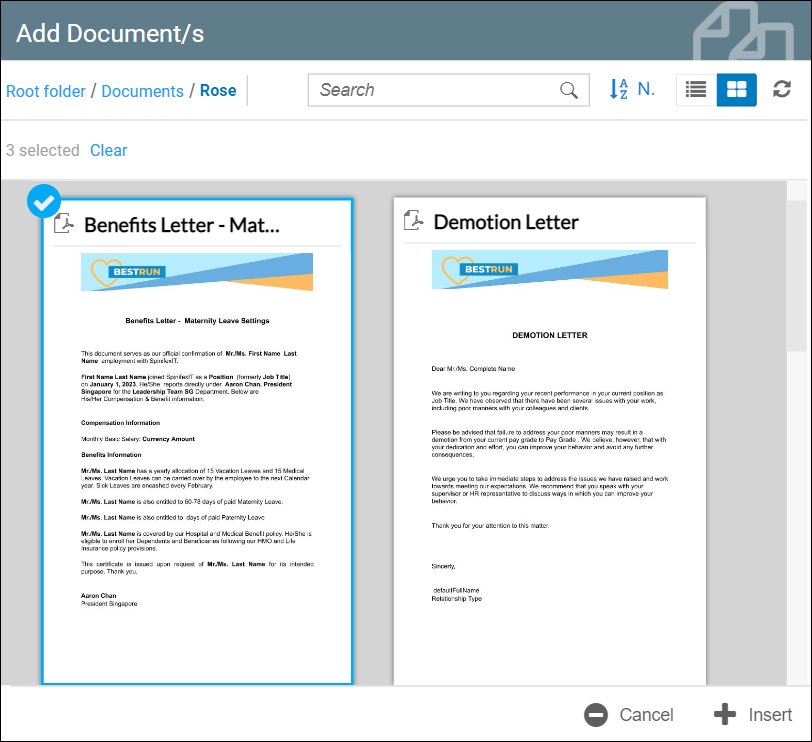
- In this example the Benefits Letter - Maternity Leave is selected.
- The document should be displayed.
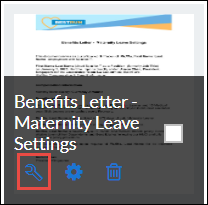
- Click the Settings button.
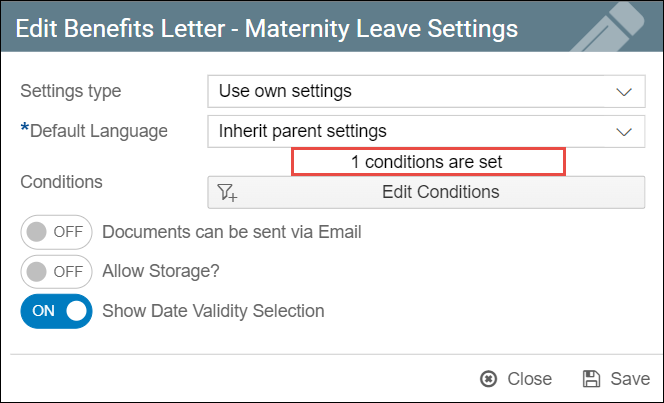
- A pop-up will be displayed. Set it to Use own settings and then click Add Conditions.
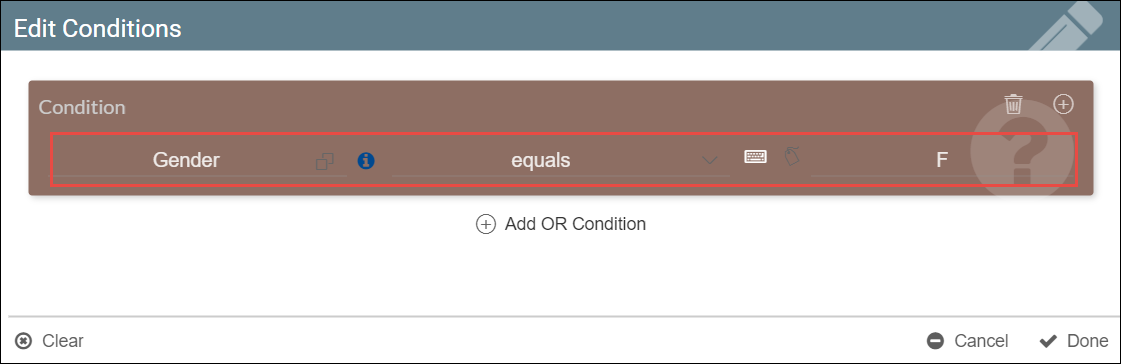
- Set the condition to Gender equals F.
- The popup will indicate that 1 condition has been set.
- Click Save.
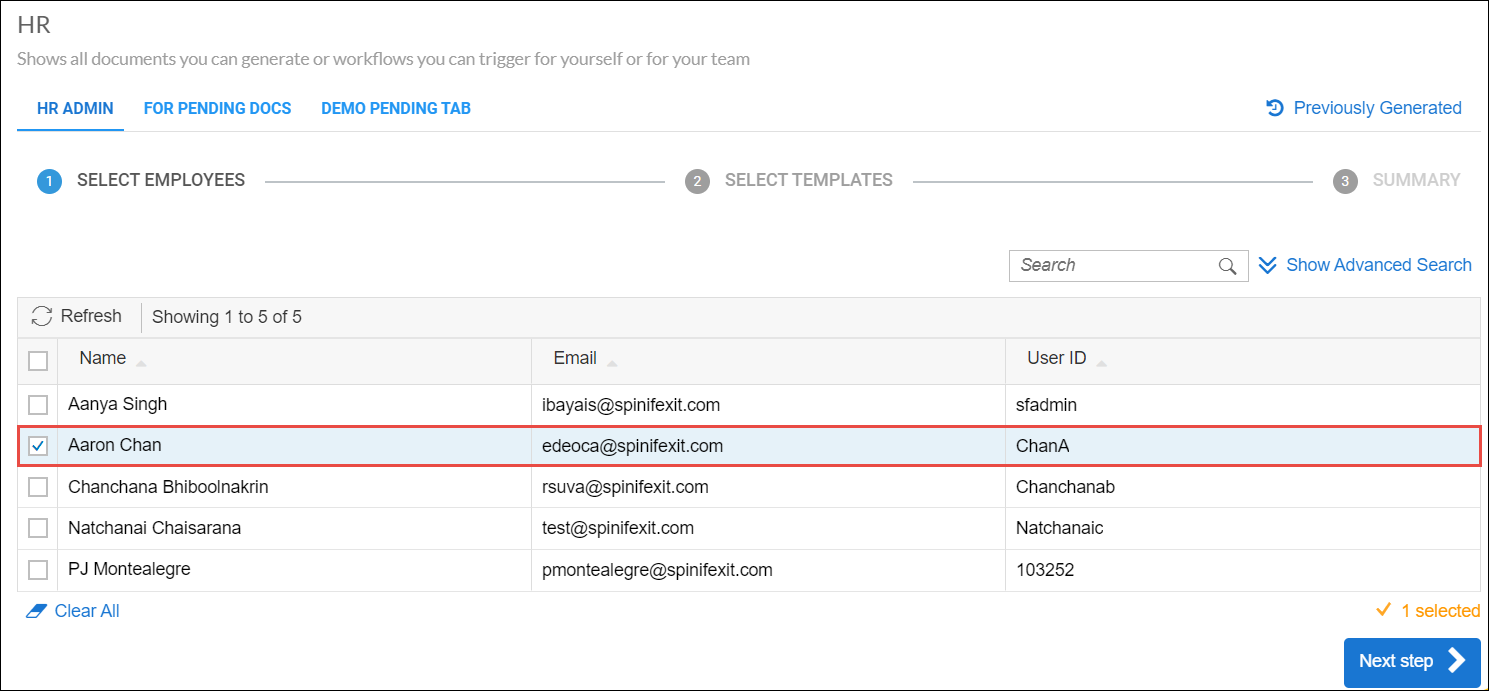
To see if the condition works, try generating a document for a male employee. Here, the male employee selected is Aaron Chan.
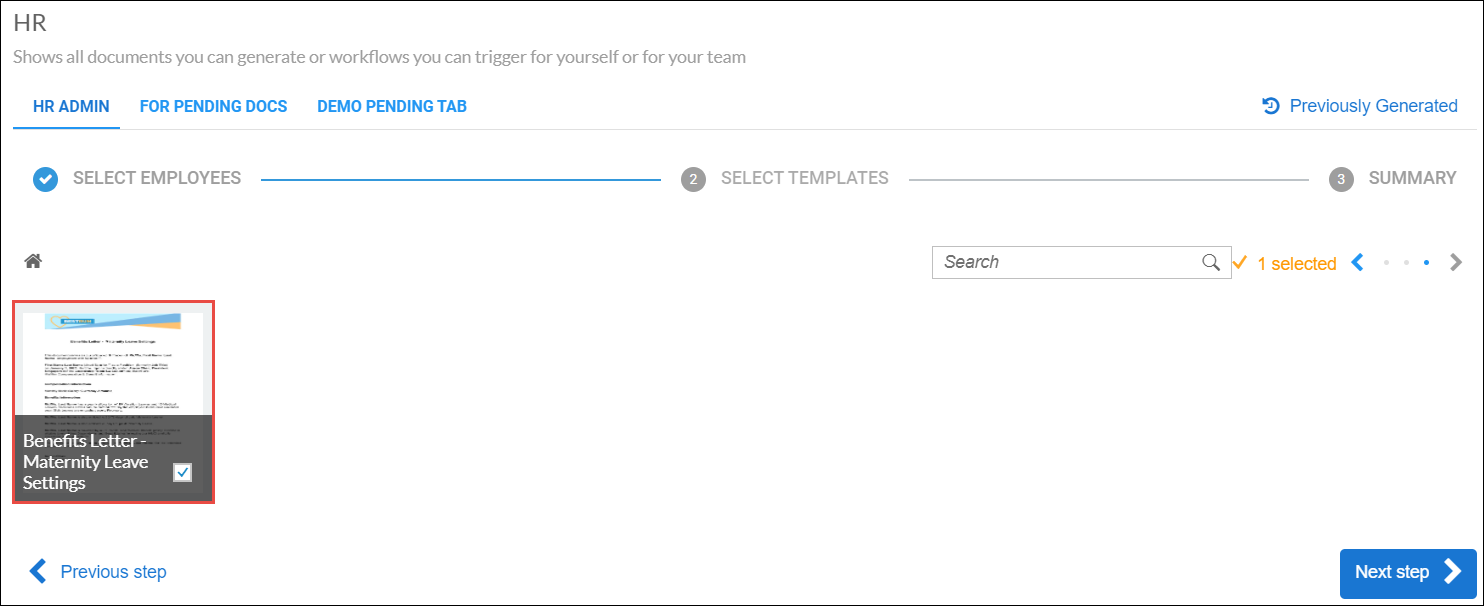
Upon clicking Next step, you'll notice that the document is locked since the gender of Aaron Chan is M for Male.
The same set of steps can be applied for Folders and Workflow Templates.