Viewing Reports for Executed Workflows for Admins, Managers and Recruiters (Workflow Report Card)
There are different types of Cards that can be created within Strato Dashboard Widget, and each of these cards serves different purposes as briefly described in this overview article: Dashboard Widget and Card Types Overview.
Since this article focuses on the use of the Workflow Report Card, it is first necessary to mention Strato's workflow template tool called the Strato Workflow Engine (click on the linked article for more information). This enables the ability to create workflow templates depending on what processes an organization needs to be automated. A good example of this is the Job Offer workflow.
If there are workflow templates already configured in your Strato system, and have some of them running, it is here in the Workflow Report Card where you can navigate through both high-level and more detailed information on what workflows are currently running in your system.
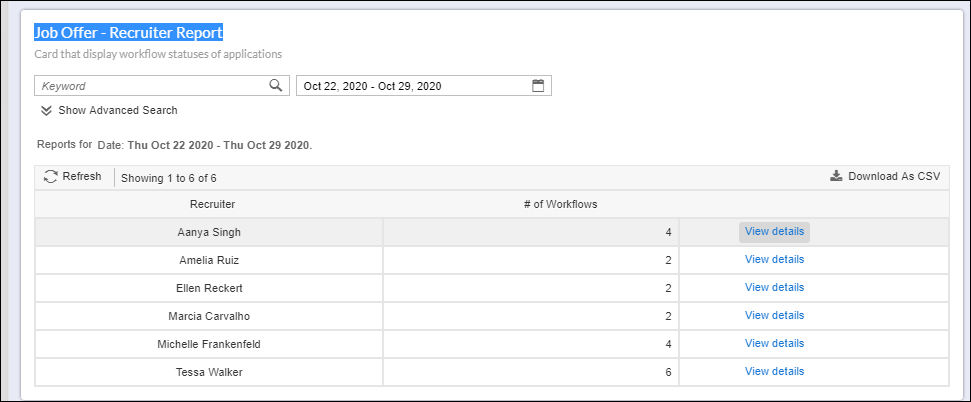
This card can also show who are the Recruiters or Managers involved in these workflows, such as in a Job Offer workflow. With this card, relevant workflow details can be easily monitored.
Using the Job Offer process for a candidate as an example, once this automated process is executed by Strato Workflow, different workflow steps take place that could start from generating the Job Offer template, routing the template to the Recruiter and Hiring Manager for approvals, to sending the document to the Candidate for acceptance.
With this scenario, when a Job Offer workflow is initiated for a candidate, HR Managers would normally want to:
- know where exactly the applicant is on the process;
- have a visibility on the workload of each Recruiter (Recruiter report);
- as well as the applications currently being handled by each Hiring Manager (Hiring Manager report)
Viewing all the running or completed workflows are done via the Workflow Admin Card while viewing the report on how many workflows (with status details) are currently being handled by each Recruiter or Hiring Manager is done via the Workflow Report Card. It is also from this card where managers can see if there is any change being requested by a candidate.
(To know how to add and configure a Workflow Report Card in your Dashboard widget, read: Adding or Configuring Workflow Report Card)
Viewing the Report Card
This sample screen below is a Workflow Report Card specific to Recruiters. From this card, you can see the number of workflows a Recruiter is handling and the details of these workflows. Depending on the configuration of the card (read: Configuring Workflow Report Card), the purpose (for Recruiter or for Hiring Manager), columns and details to be displayed on the screen will vary.
In this example, the columns configured and high-level details to show are for the Recruiter's name and the # of Workflows. More details can be viewed via the View details button.
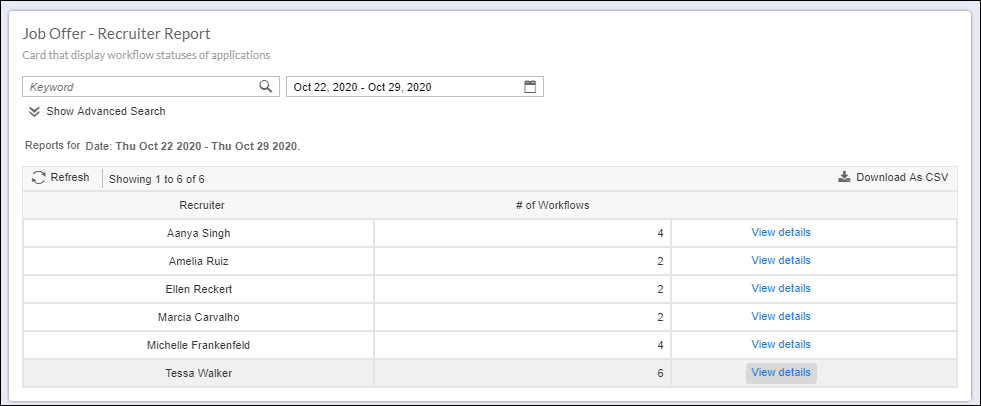
Using the Search function, you can type in a keyword and the list will return records that contain what is typed in the search. In the example shown below, the entered keyword is "Mya."
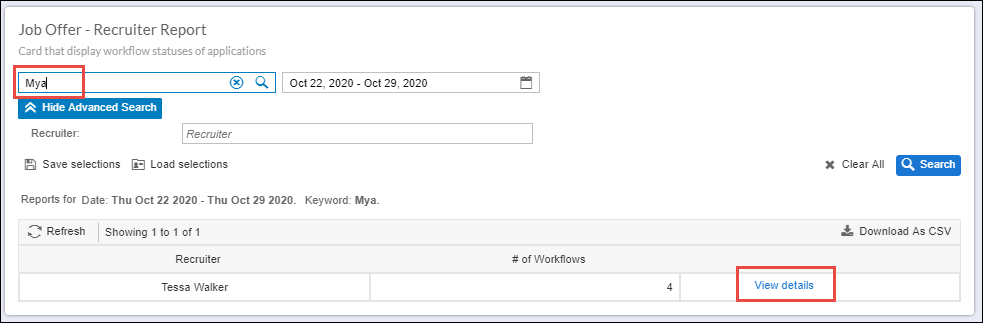
This search returned 1 result which is for the recruiter Tessa Walker. When clicking the View details for this recruiter, it showed that there are workflows running for candidates under the Manager named "Mya."
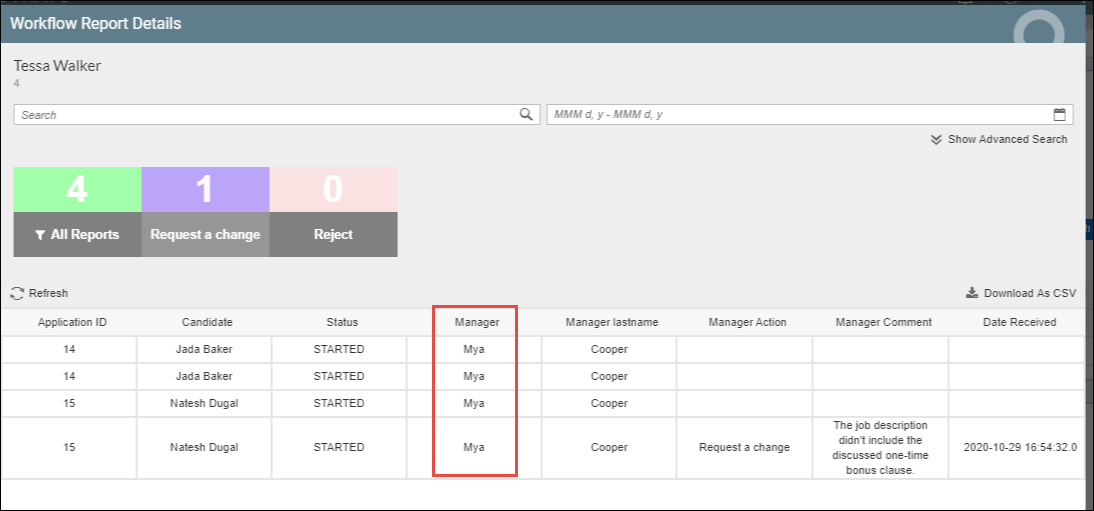
Again, the columns and the filters (color-coded filters) to show on the screen will vary on how the card is configured. The screen below is configured to display the following columns and filters:
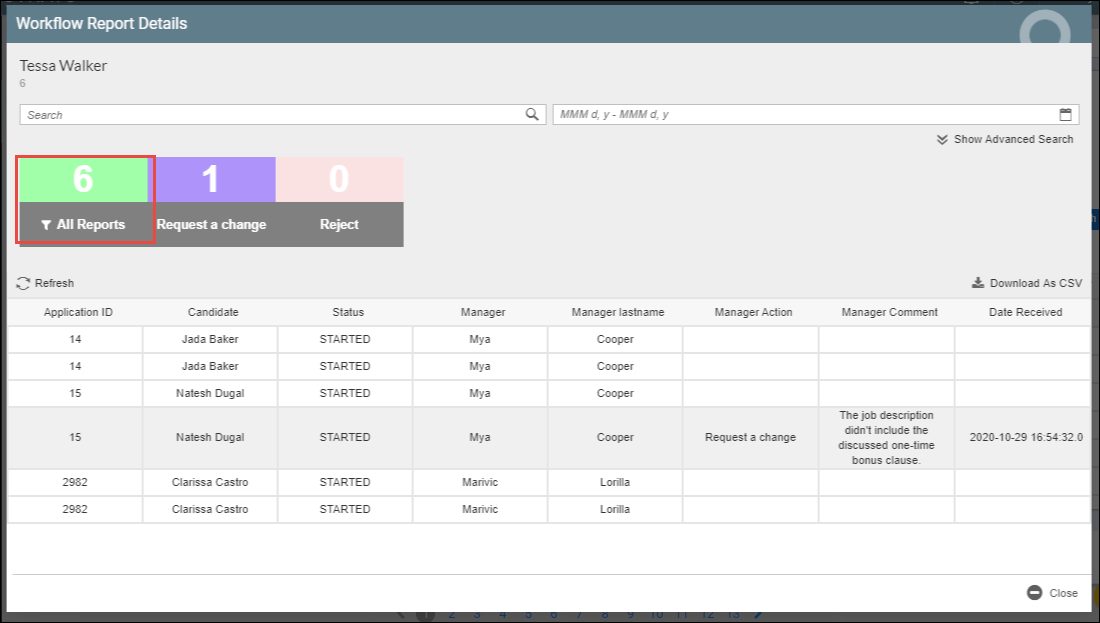
To navigate further. Clicking on the filter refines the list. In the next example below, clicking the Request Change filter returned a result for Natesh Dugal which requires a manager's action. The reason for the change can also be displayed on this screen.
