Adding/Embedding a Strato Widget as a Tile in SAP SuccessFactors
There are two parts of the process that you should do to add your widget to SAP SuccessFactors as a tile.
Getting the Widget Code from Strato
- Go to the Widget Settings panel, then select Generate HTML.

- Select the widget you would like to embed in SAP SuccessFactors. It could be a (or multiple) Strato Widget or Dashboard Widget tile. Selecting your widget will show its preview on the lower section of the box.

- Click Copy widget code. A notification saying your widget code has been copied to your clipboard will appear.
Creating a Tile in SAP SuccessFactors
- Log in to SAP SuccessFactors. Click Home >Admin Center.

- Click Company Settings > Manage Home Page.

- Select Add Custom Tile from the top menu.
- Enter a Tile Name and a Description.
- Click Next.
- Configure the Tile / Card settings for the image thumbnail:
- Type: Graphical
- Language: Choose your language (English)
- Title: (For this example: My Documents )
- Subtitle: (For this example: ESS )
- Size: 1:1. (Recommended)
- Background Image (you may leave this blank or upload something)
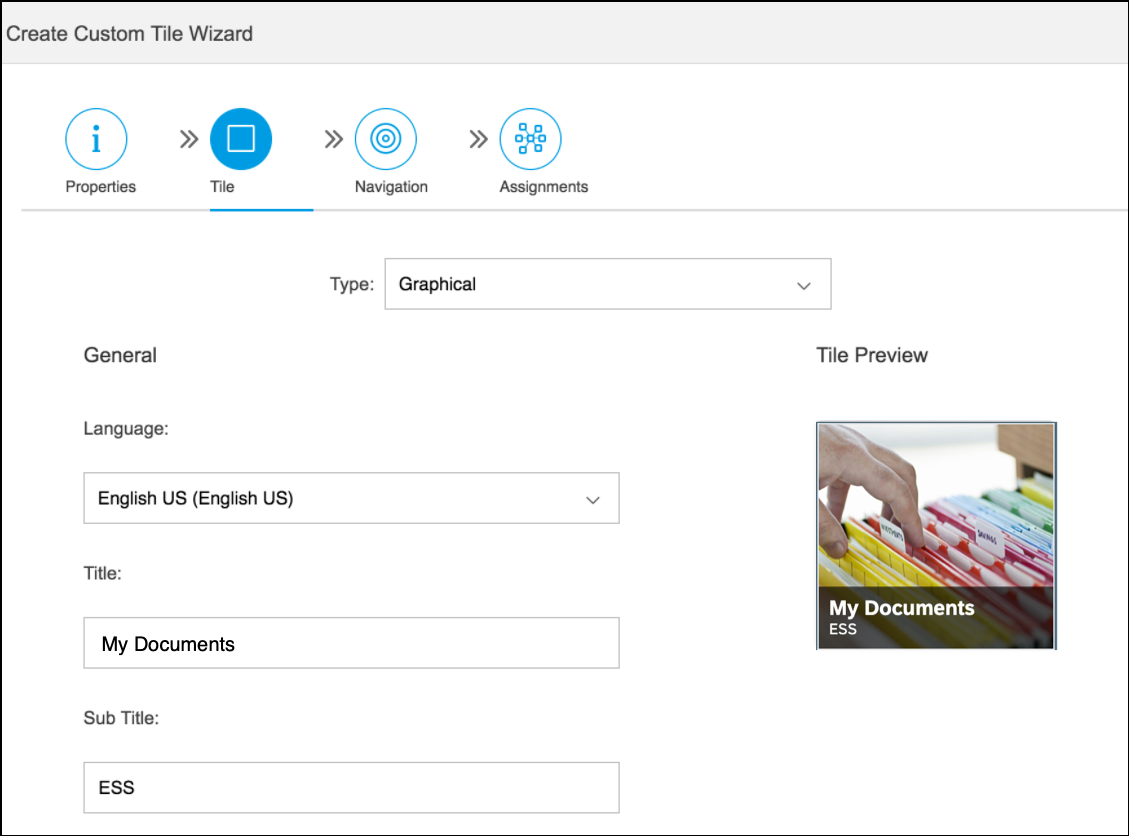
A preview of your tile will be shown on the same panel, as shown in the example above.
- Click Next when done.
- Under the Navigation tab, choose the following settings:
- Tile Target: Popover
- Width: Responsive (recommended)
- Template: Iframe
- URL: Paste the Strato widget code (either copied from the previous steps or provided by the support team)
- Since this is an Employee widget, assign the section you want your employees to access it from in the Assignments settings, and select All Employees for the Show Tile For This Group.
This way, all employees who have access to SAP SuccessFactors can generate their own documents by using this widget. - Click Finish to complete the process.
Here's an example of what your new tile looks in SAP SuccessFactors:
