Manage File Properties
File properties are used to assign metadata to documents and files in Strato Document Management. Metadata can be a set of data to describe and give information about a file or document. Properties can be assigned to files directly, or via Categories and Validity Rules.
This article covers the types of file properties and how to create a property.
This article contains the following sections:
Create a Property
To create a file property, follow the steps below. In this example, a “Cost Center” property will be created, which can be assigned to applicable documents, such as a certificate of employment.
- In the Strato sidebar, click Storage Settings.

- From Storage Settings, click Properties.

- Click Add Property.

- In the New Property screen, fill out the fields:
- Category Name: In this example, we will create a “Cost Centre” property.
- Description: This is optional.

- Select the Type of property. In this example, we will select the Datasource Field type.

- For this example, because the Datasource Field type is selected, we will select the field where the data should be captured for the property being created.
In this example, the data selected will come from the Cost Center Account SuccessFactors data field from the Employee Catalog path:
Employee Information > Employment Details > Job Information
- Click Save.
Once done, the details of the newly created file property will be displayed.

To make changes to the property's Name or Description, click Edit.
Property Types
When creating a Property, there are different property types that can be set. A property’s type determines what values or data can be set for that property.

Type | Description |
|---|---|
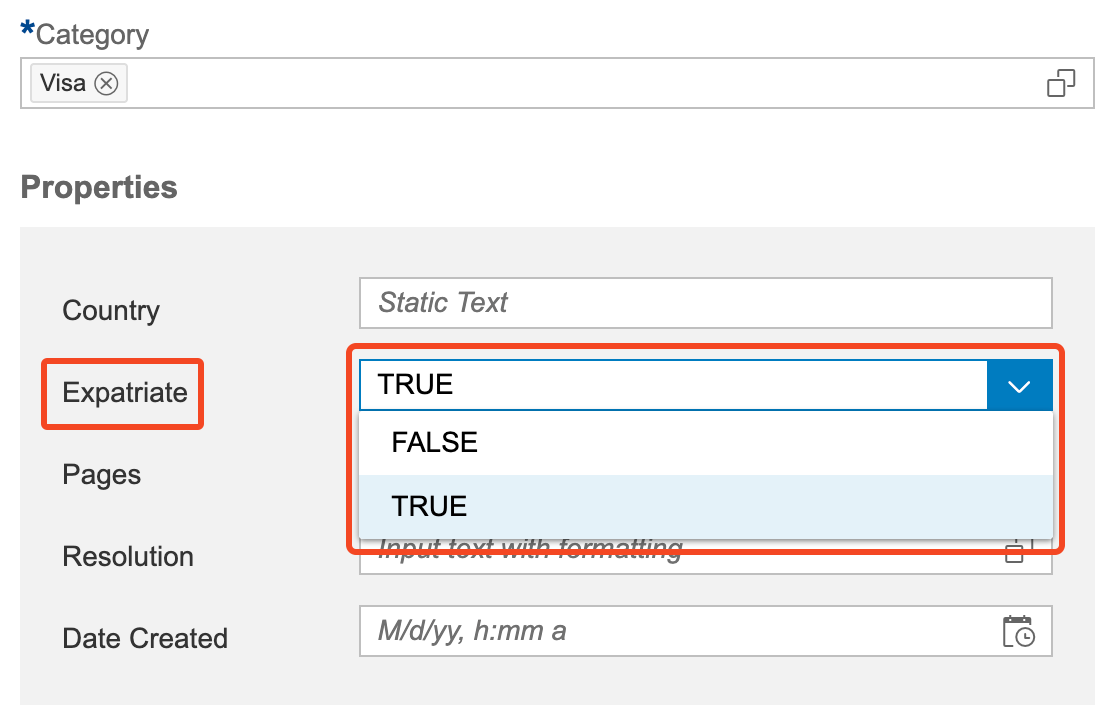
True/False | To set whether to select a True or False value. The example below uses the True/False type for the “Expatriate” property.
|
Datasource Field | To capture data coming from a Successfactors data field.
If the field is a Picklist or template parameter, it will use the list of possible values in the data entry screen.
❌
The Datasource Field property type will be deprecated in a future version. When creating or viewing properties, the Datasource Field option is shown with a warning icon and the label “Discontinued soon.”
Existing Datasource Field properties will remain visible and continue to function as expected until the deprecation. |
Date | To set a date value. |
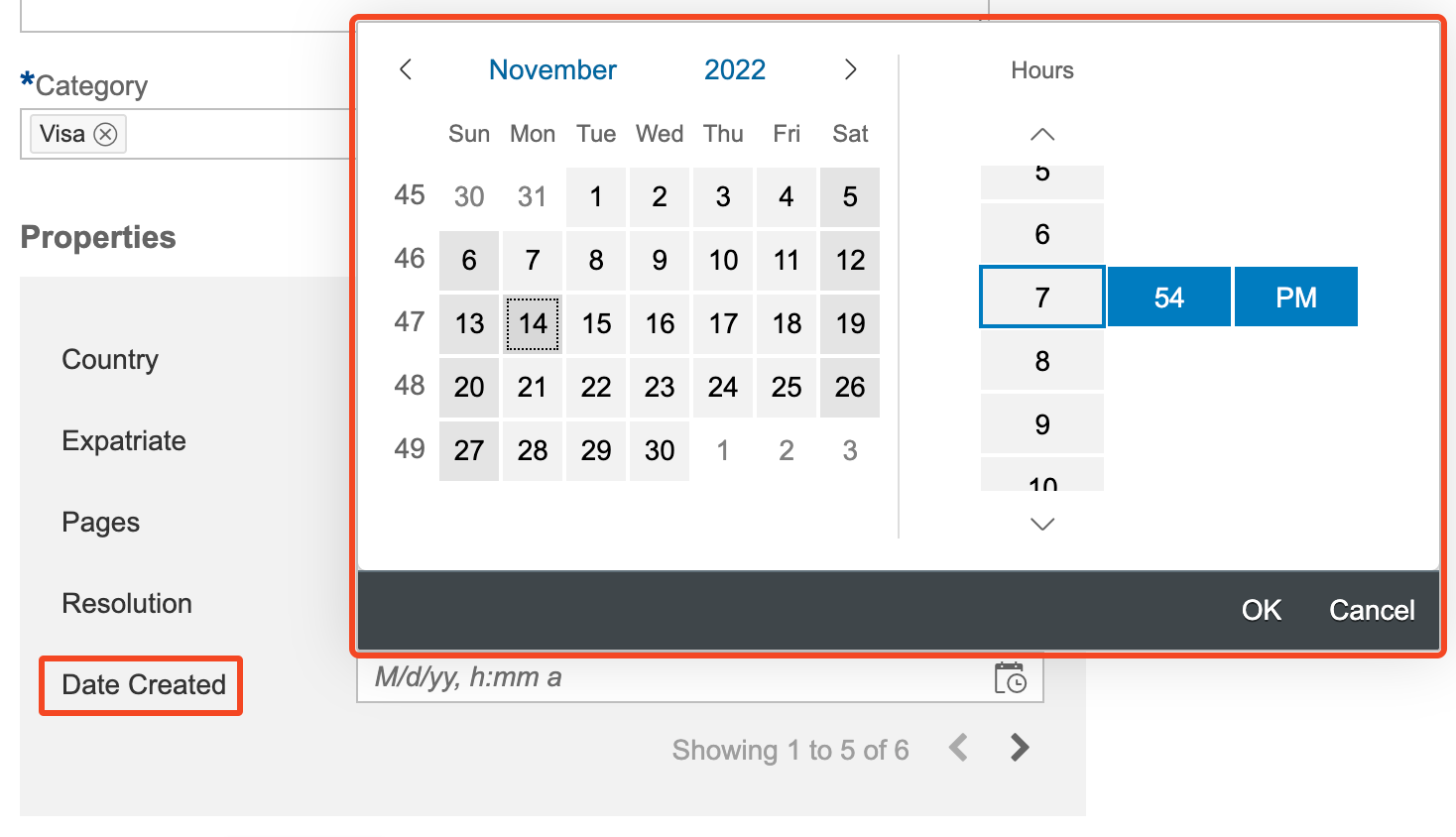
Date/Time | To set a date with a time value. The example below uses the Date/Time type for the “Date Created” property.
|
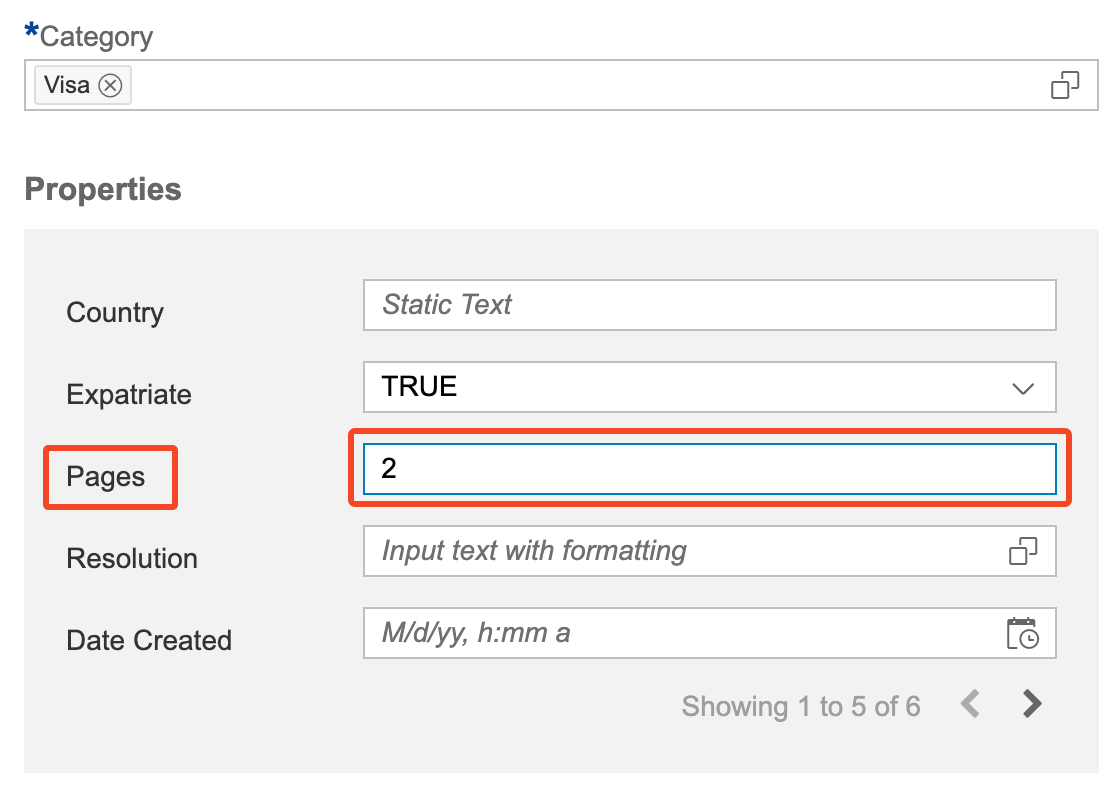
Number | To set a numeric value. The example below uses the Number type for the “Pages” property.
|
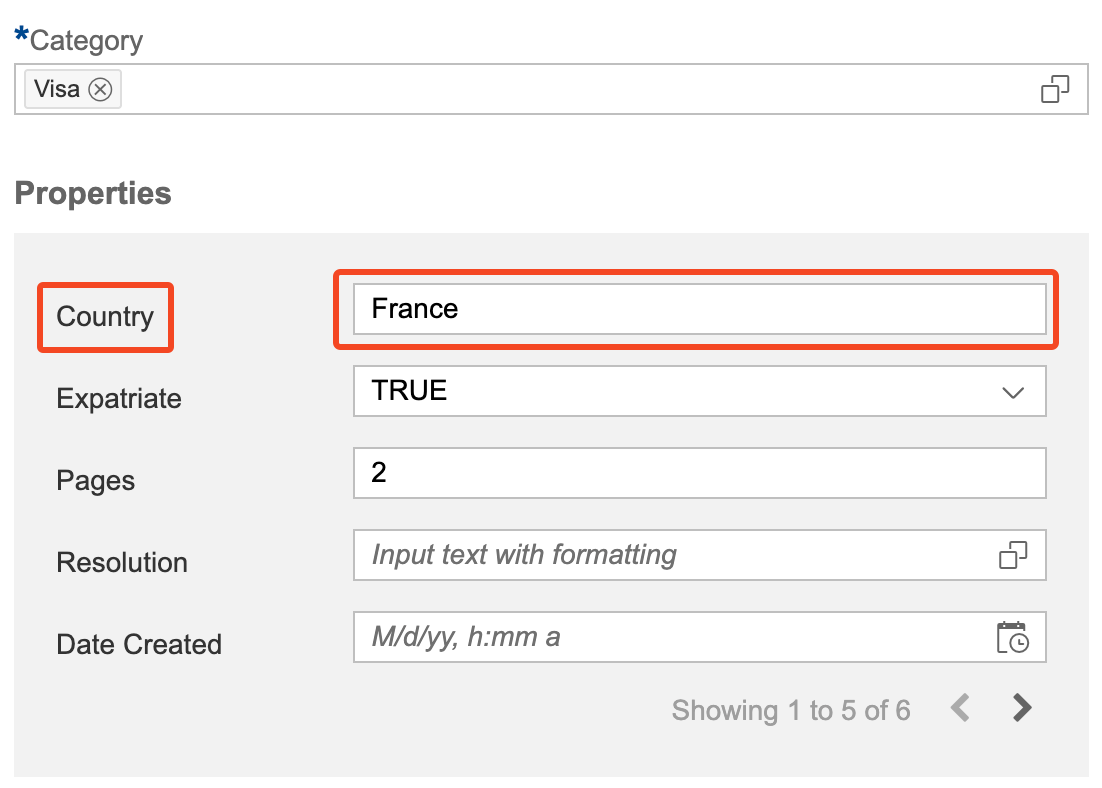
Plain Text | To enter plain text. The example below uses the Plain Text type for the “Country” property.
|
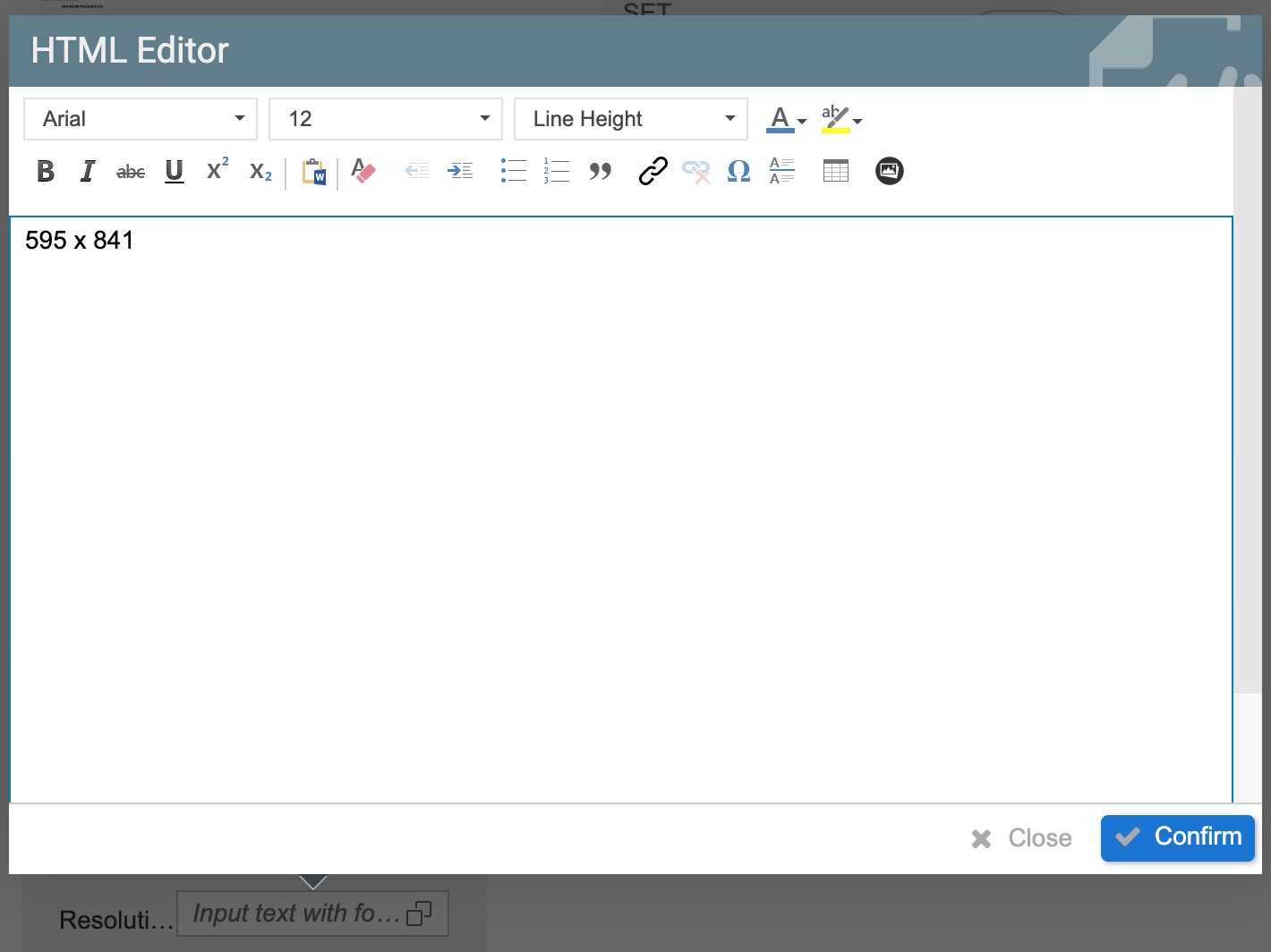
Text | To enter text via an HTML editor. The example below uses the Text type for the “Resolution” property.
|
Time | To be able to set a time value. |
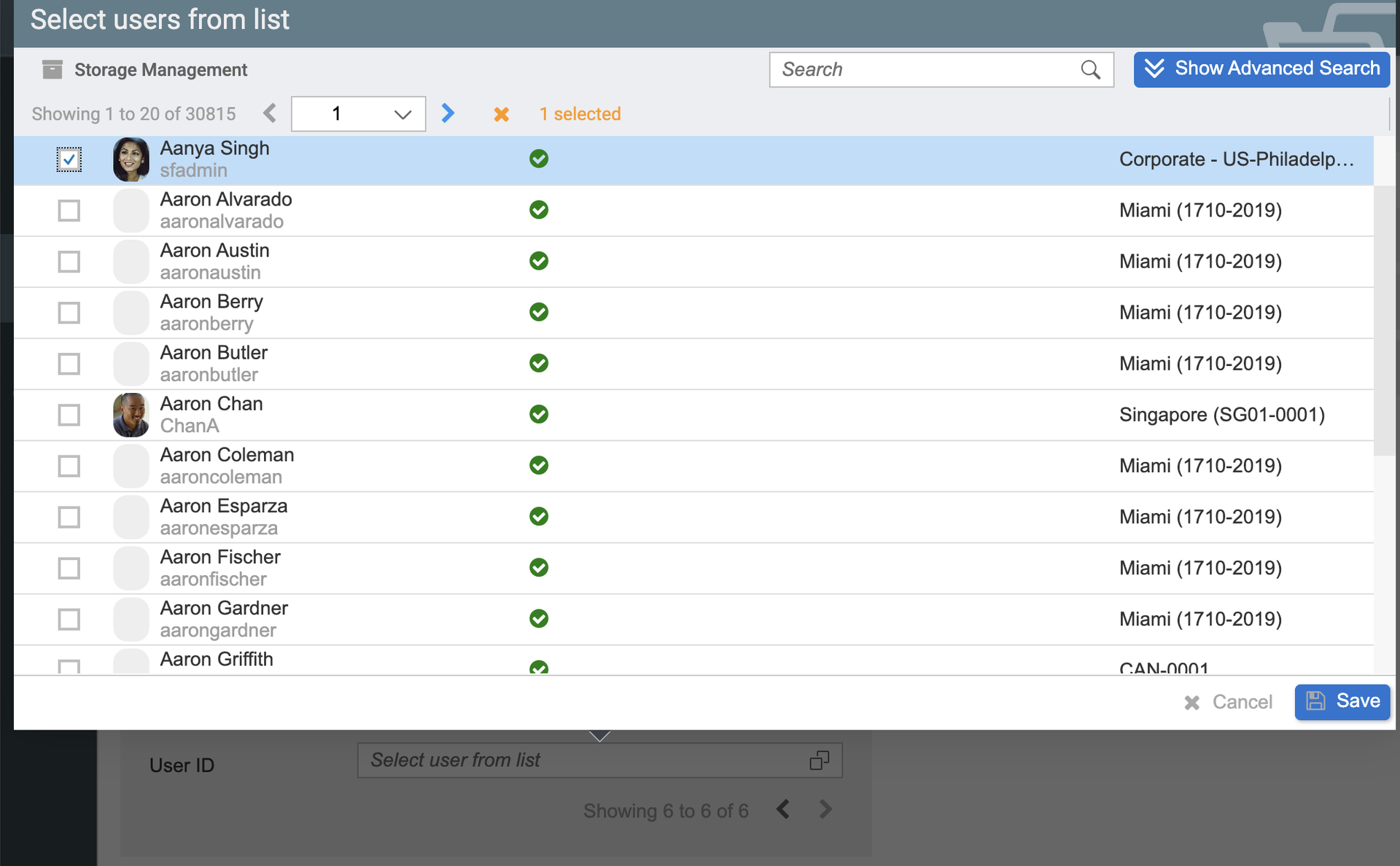
User ID | To allow using a user as an input value. The example below uses the User ID type.
|