Create User Groups
User Administrators can create their User Groups to suit their needs. This is done in the Groups tab in User Management.
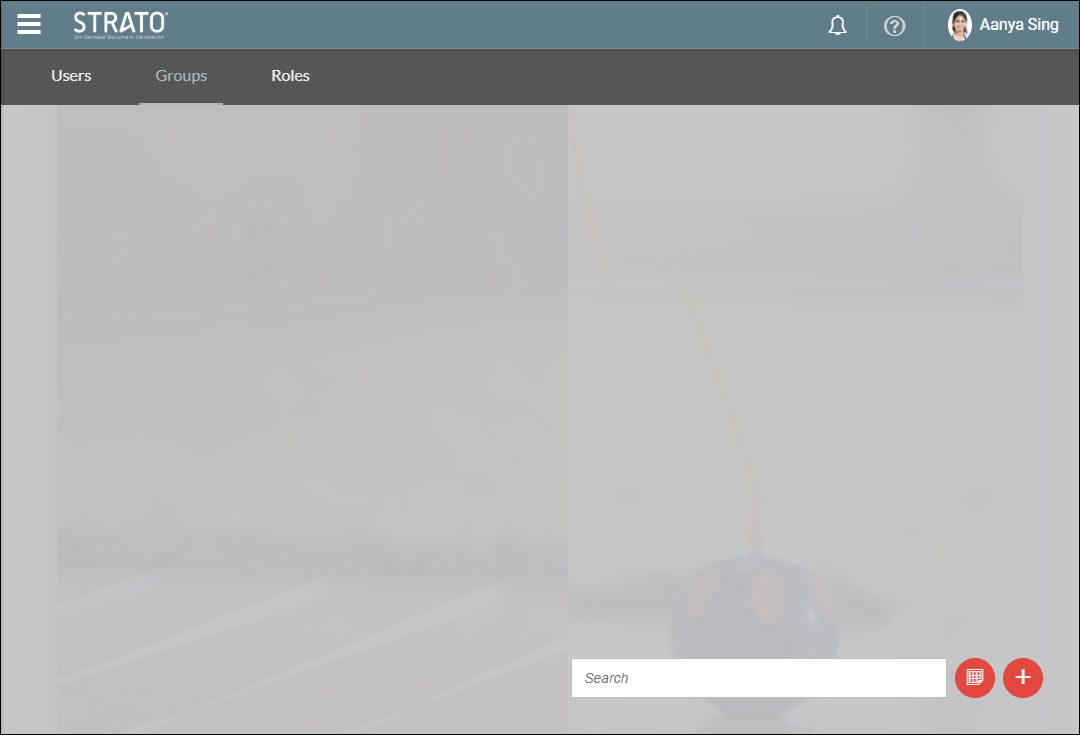
Follow the steps below to create a Group.
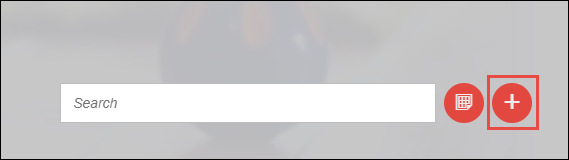
- In the Groups tab, click the Create button on the lower right corner.
- A New Group window will appear. Enter the following details:
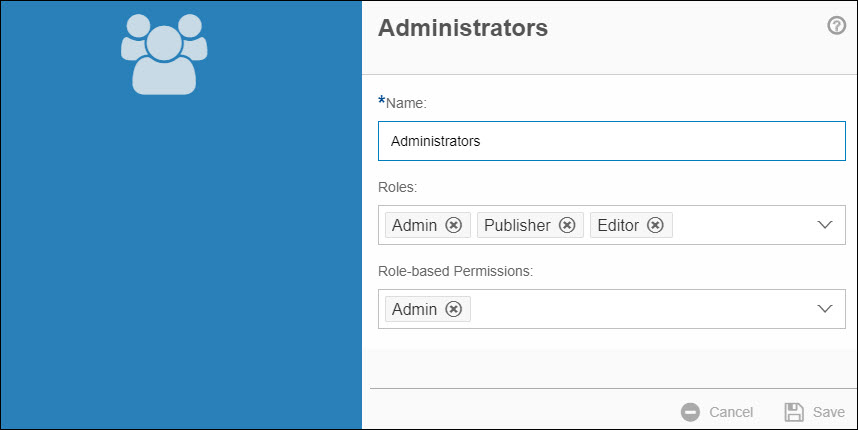
- Name - Enter a name for the group.
- Roles - Select the roles that the group will have. This is based on the roles that you have in the Roles tab.
- Role-based Permissions - This allows to assign a SuccessFactors permission group to a Strato Group (every employee under that SuccessFactors permission group will be assigned the authorisation of the Strato Group).
These are the list of the groups from the Manage Permissions Groups page from the SuccessFactors portal.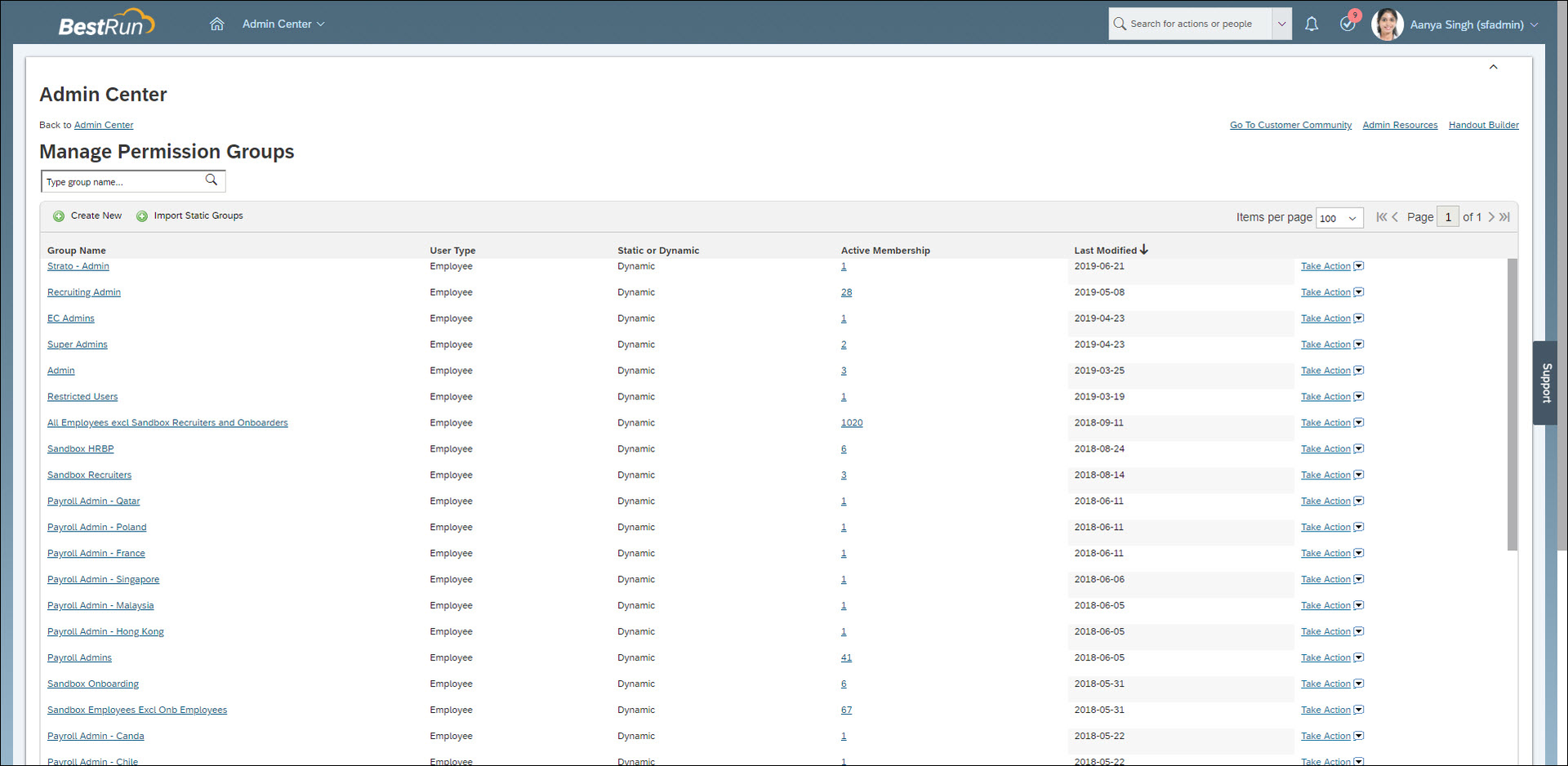
- 💡
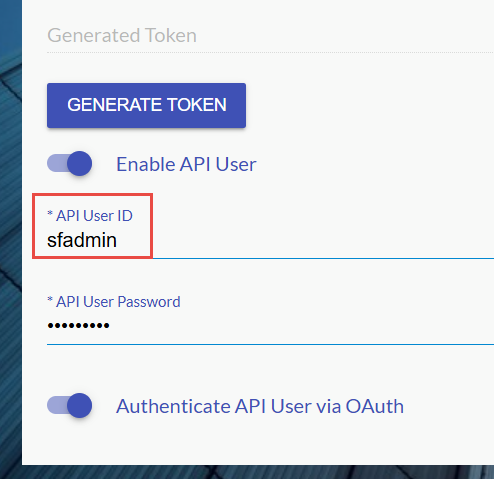
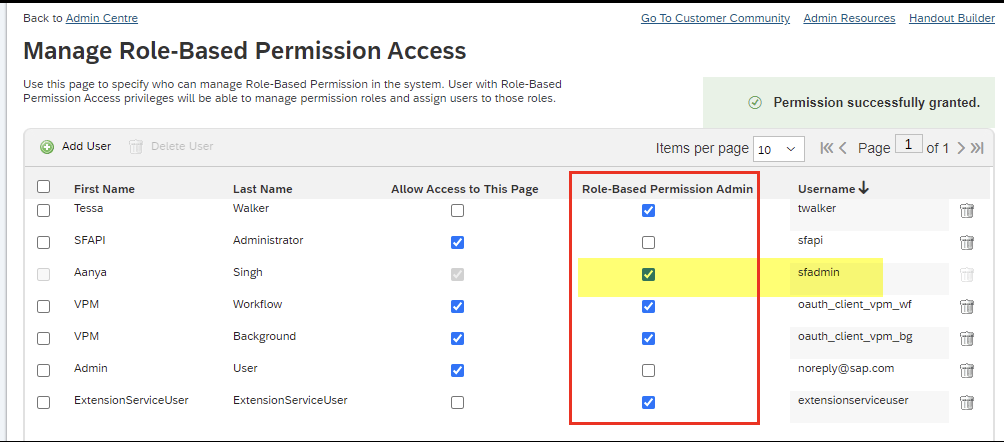
In regard to maintaining the permission access for an API user, the API user configured in the Strato admin tool should be configured in the Manage Role-Based Permission Access as shown in these screens below.
Strato admin:
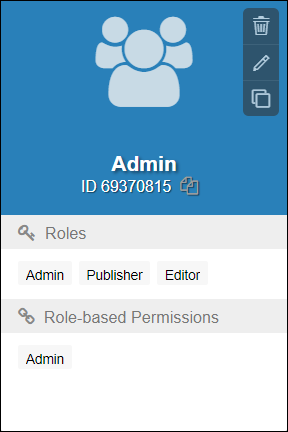
- When done, click Save. The new group will now be displayed along with its Group ID.