Set Up Signature Routing Sequence [V1]
There may be an instance wherein signing a document using a 3rd party application (such as AdobeSign) is part of your process in Strato Workflow. For this particular execution, the Sign Document (3rd Party) Step is used. (please read the linked article for the basic properties configuration of this step)
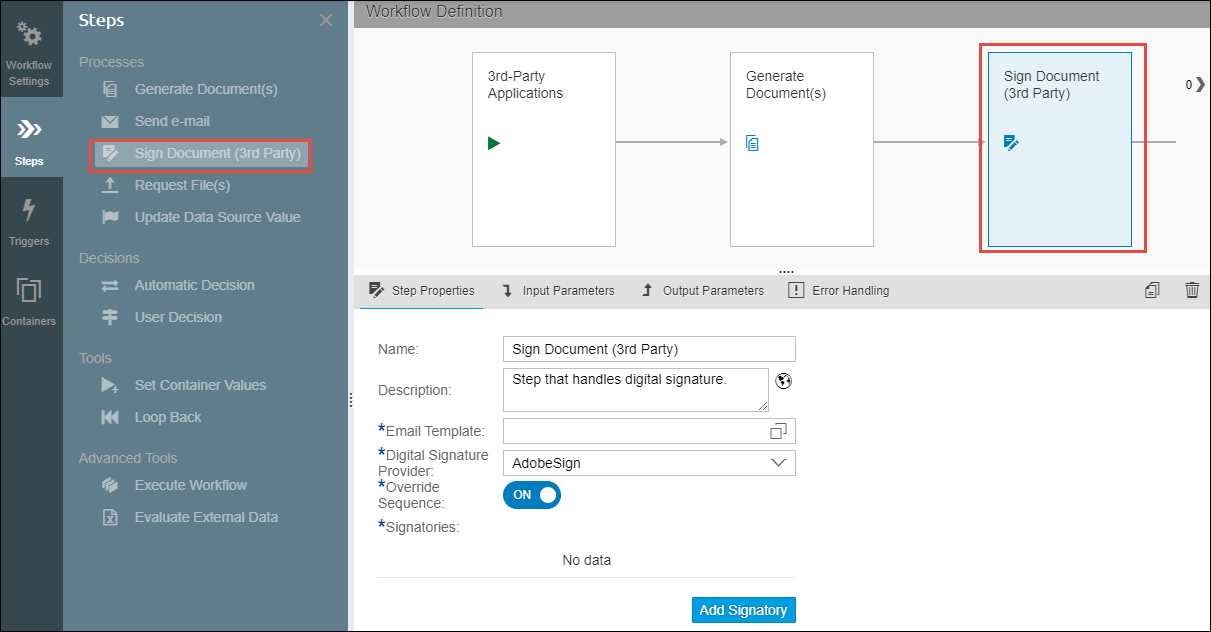
The sequence of the signatories for document routing and signing follows the setup from the Signatories field from the Step Properties screen.
Adding a signatory is simply done by clicking the Add Signatory button (as shown in the screen below). Then select an email field, and the email template to be used for that specific email. So for example, the 1st signatory is the Hiring Manager, then the email template to be used should be specific for that Hiring Manager.
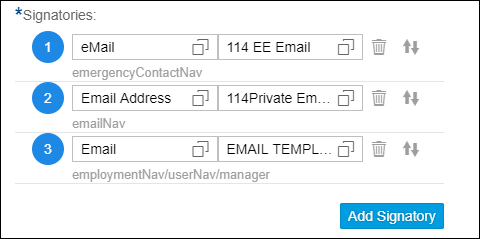
Depending on your business requirement, you can keep adding signatories. The sequence will be followed from top to bottom of the list. This sequence can be rearranged using the hold-and-drag sorting  functionality.
So in the screen above, it means that the 1st signatory is the 1st email. After the 1st signature has been successfully submitted, the document will be routed to the next email in the list, and so on.
That being said, you also have an option to override the signatory sequence and use another sequence based on your business rules or requirements. This is done by enabling the Override Sequence option from the step properties.

When enabled, this ignores the Signatories settings in the step properties and instead will execute an external sequence which is selected from the Input Parameters tab > External Signatories Sequence option:
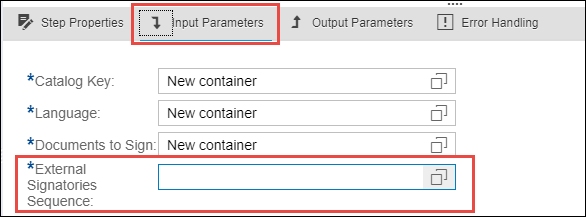
The new sequence to be followed will be retrieved from this selection. For example, a sequence coming from:
- Output parameter from the previous steps of the workflow; or
- From a field in a csv file from an Evaluate External Data step of the workflow