Enable and Use Editable Sections in Documents [V1]
Strato allows you to make further changes after you have generated your documents from the widget if the sections in your document are marked as editable. This is useful if you want to add text, details, or information that are employee specific.
How to Enable Editable Sections
- Create / edit your document.
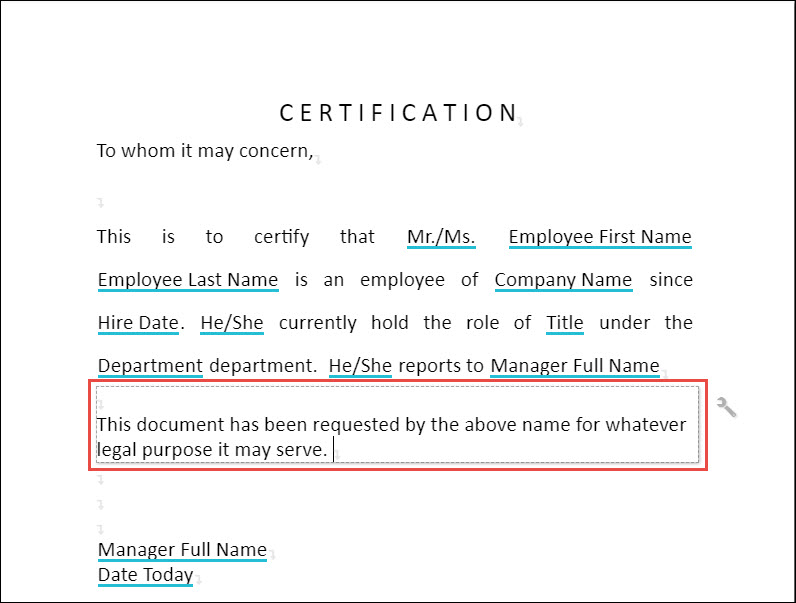
- Click a section that you want to be editable.
- Go to the Section Settings tab.

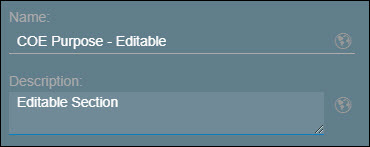
- Under General Settings, enter a name and description for your section. These are mandatory when enabling your section as editable.
- Tick the Enable box. This now indicates that your current section is editable. The section will also have an editable icon on the top right corner.


- Repeat steps 1 to 5 if you want to mark additional sections as editable.
- Save and Publish your document.
How to Use Editable Sections after generating your document from your widget
- Generate your document from your widget.
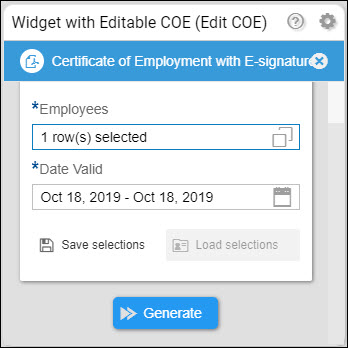
- Click view document.
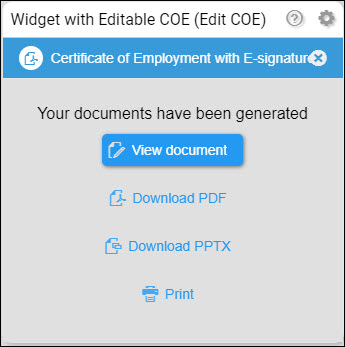
- In the preview of the document, you will see that there is an editable indicator on your screen.
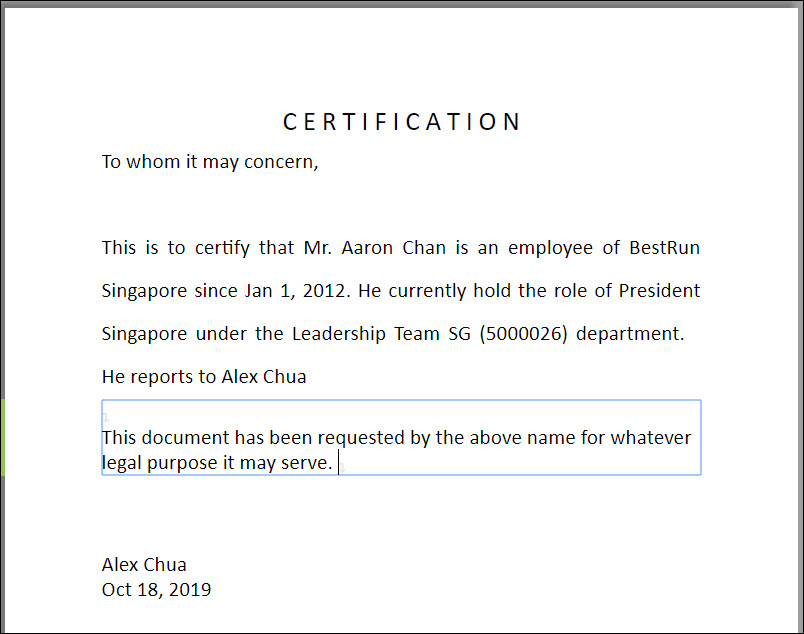
- Type in your changes.
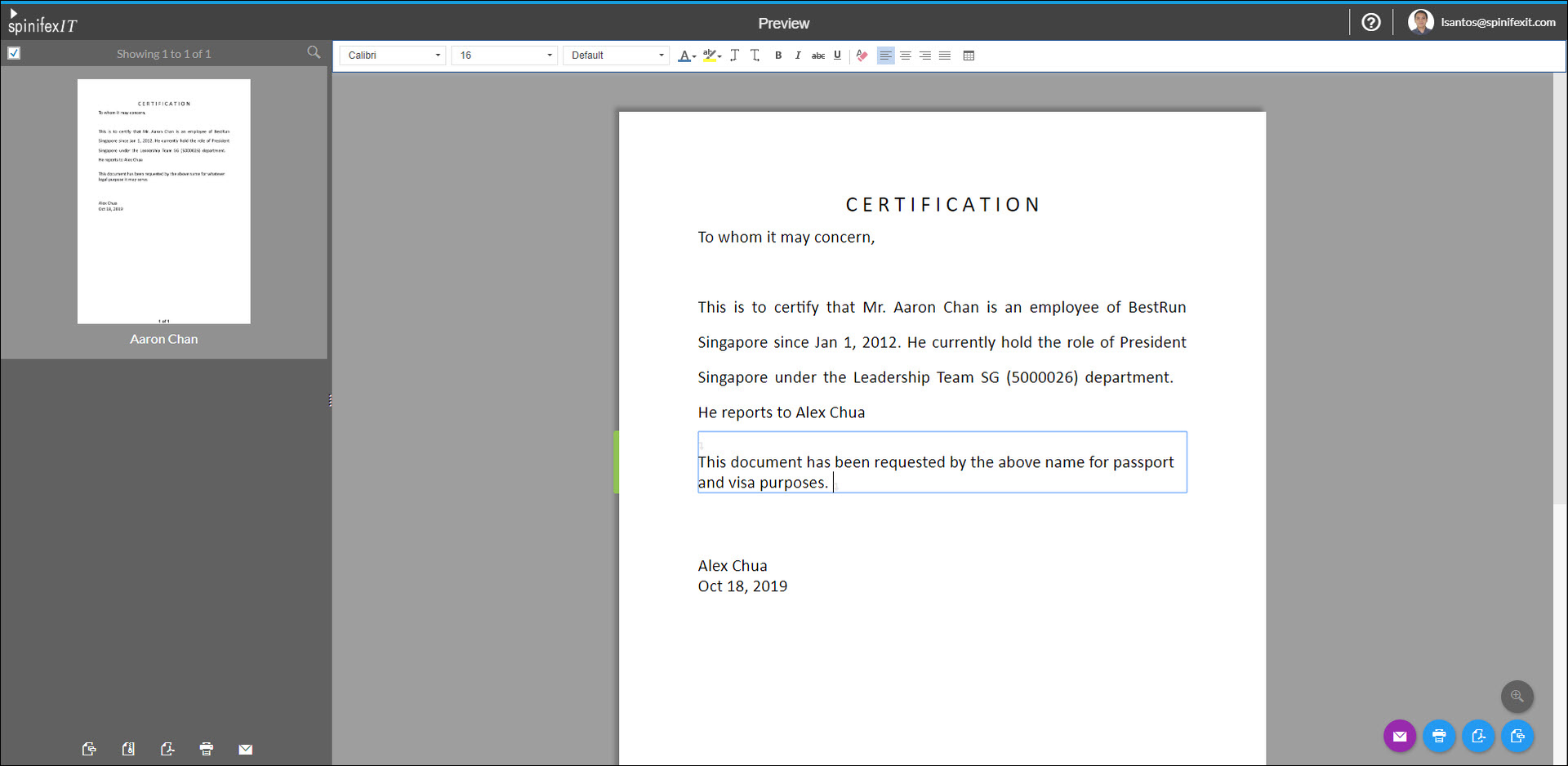
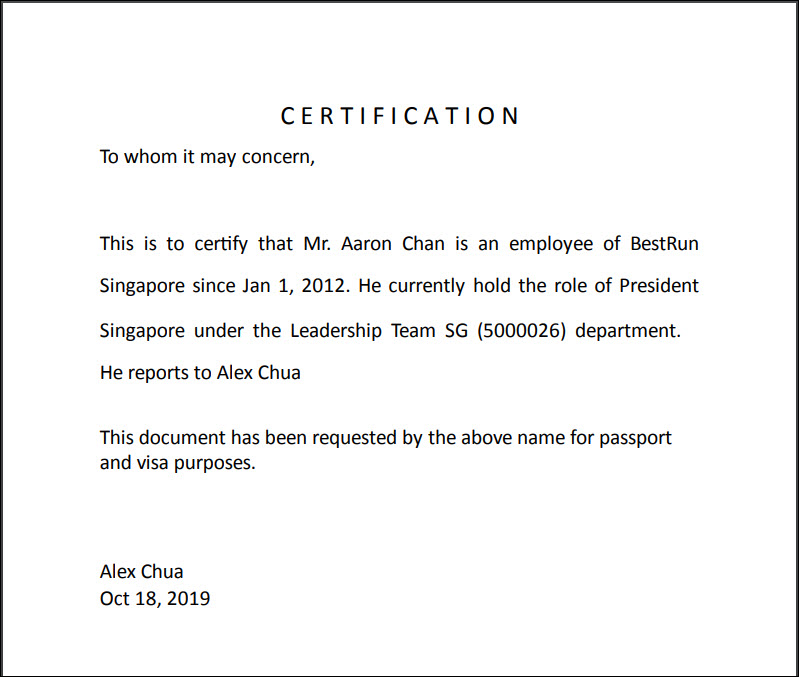
- Here's the final PDF output of including the edited section of the document.