Manage Reusable Sections (Sub-Templates)
Sections in a Document, Email, or Form Template can be saved as a Reusable Section. When a section is saved as a Reusable Section, it becomes a Sub-Template or Reusable Document which can be reused in other templates, including any conditions applied to that section. A recommended use case for a reusable section is for document headers with conditions.
This article will will explain how to create and use Reusable Sections/Documents.
Create Reusable Sections
Follow these steps to create a Reusable Section.
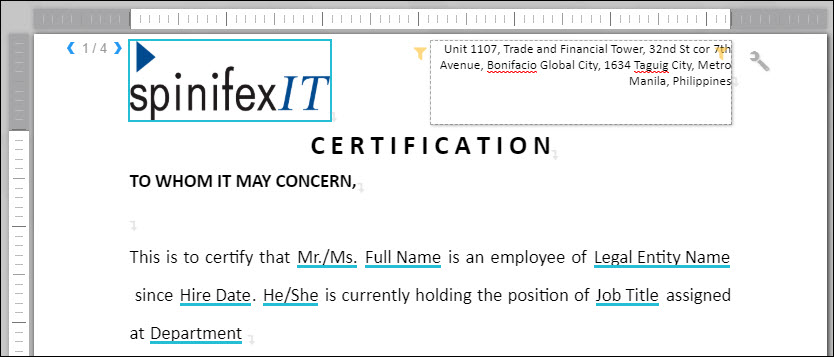
- Create or edit a document. In this example, the header has 4 conditions applied for the Location field. Depending on the location of the employee, the document will display the proper header with the correct address/location.
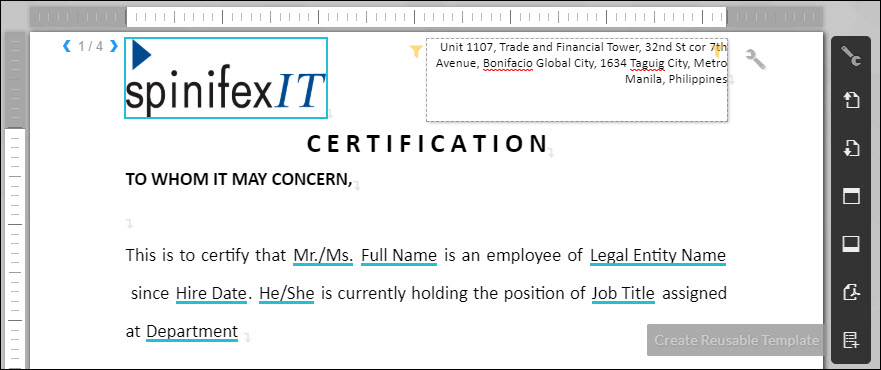
- Click the Actions button on the right side of the document, then select Create Reusable Template.
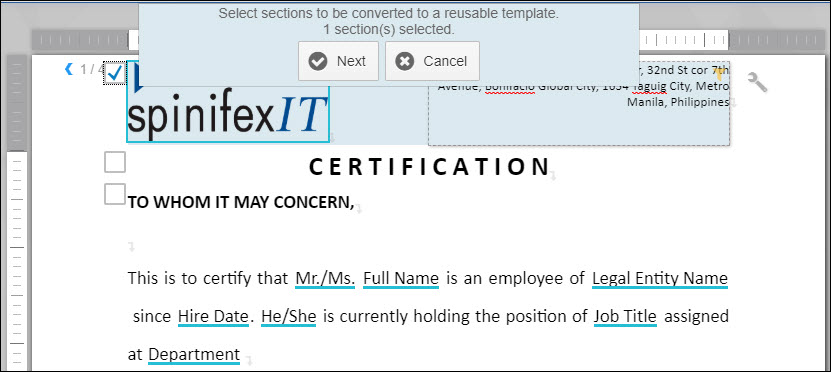
- Select the Rows that you want to be reused. For this example, all the headers with the conditions are selected. The other headers are selected one by one via the arrow.
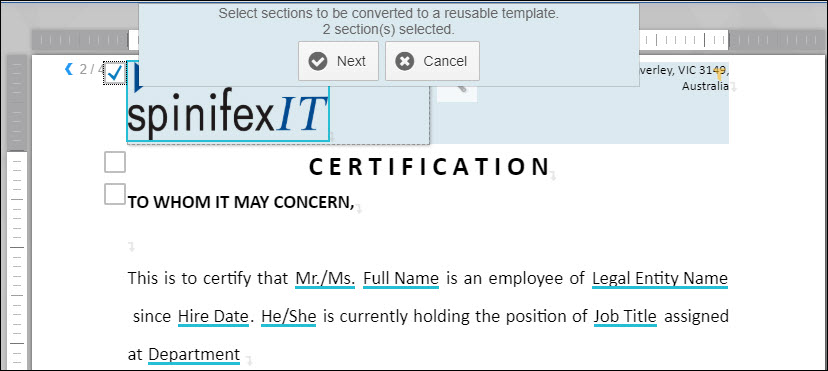
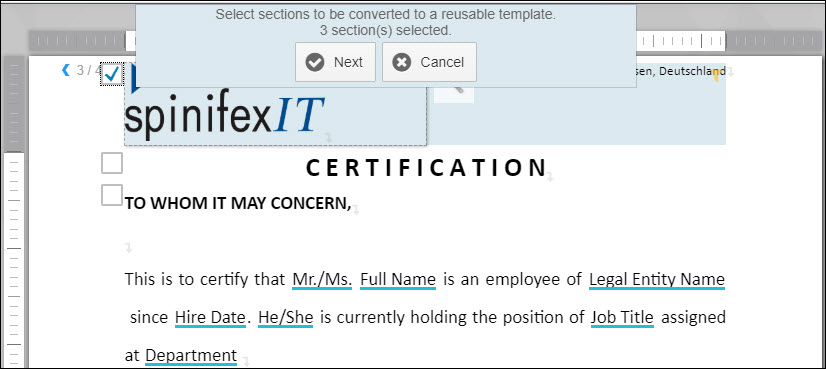
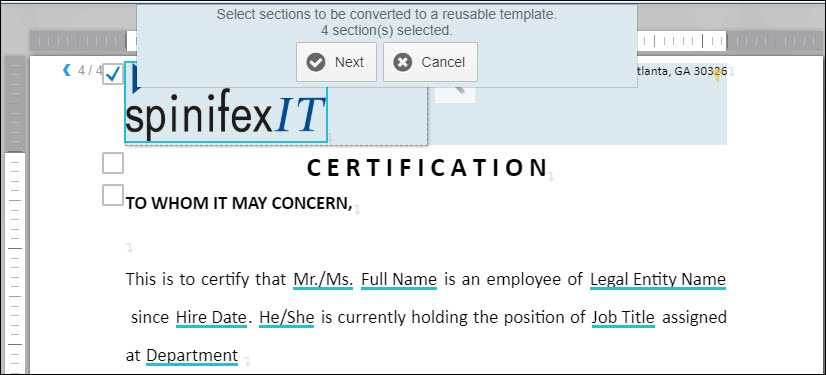
- Click Next.
- Enter a name for the Reusable Template.
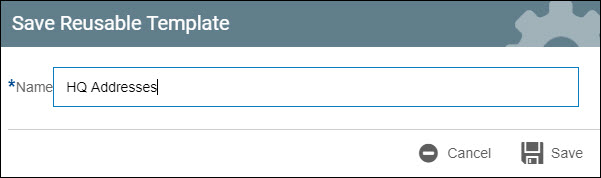
- Click Save.
- The Reusable Section will have an edit icon, confirming that it has been converted into a Reusable Document. If you need to make changes, click the Edit button.
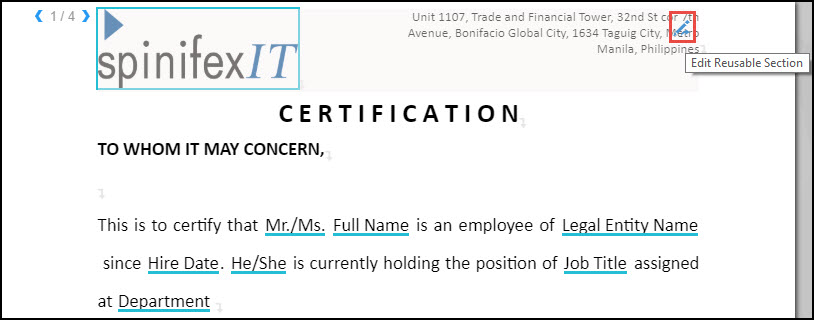
- Save and Publish the document.
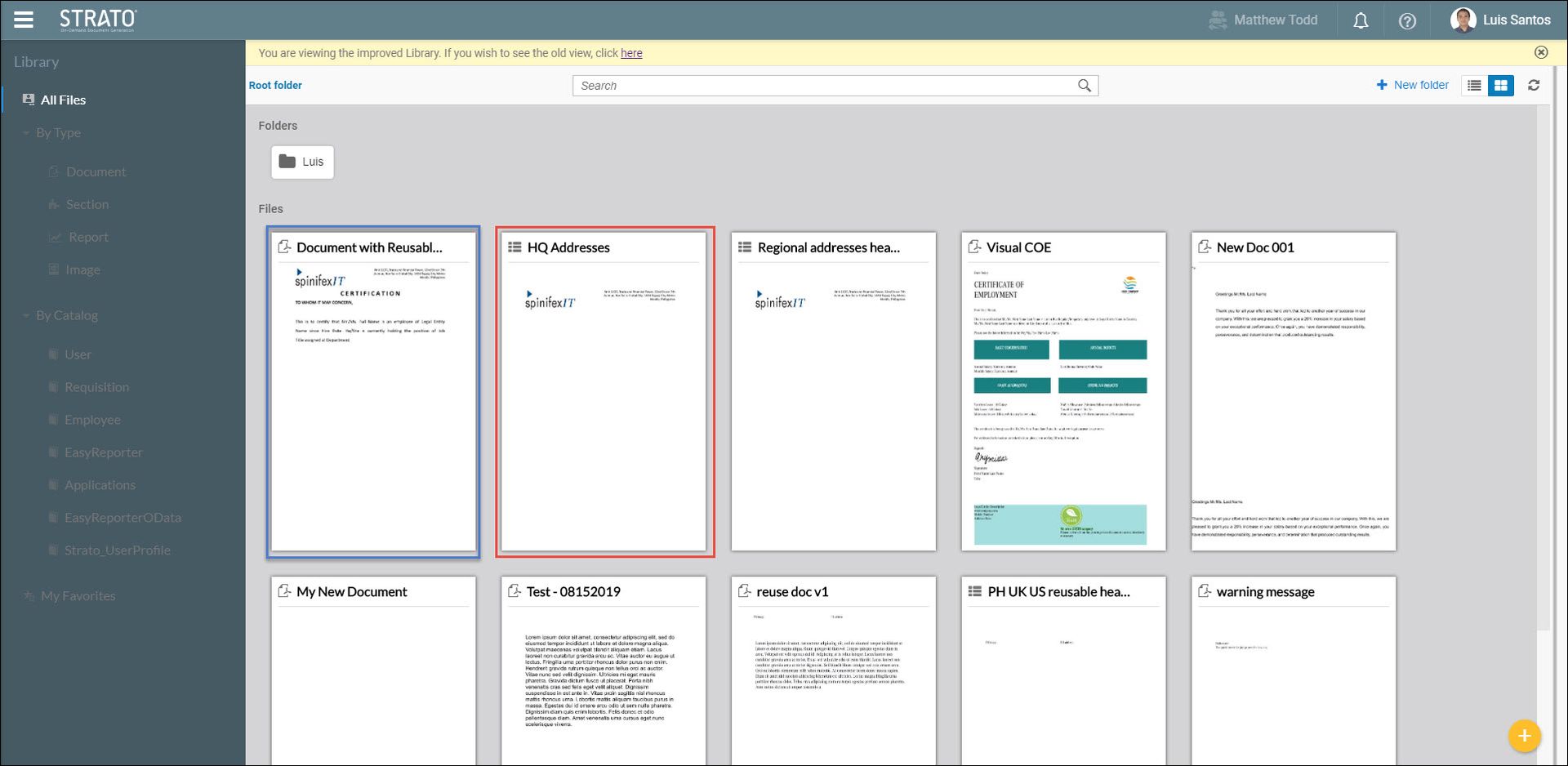
- Navigate to your Strato Library. The reusable section will be saved as a Reusable Document.
Use Reusable Sections
Follow these steps to use a Reusable Section in a document.
- Open a document.
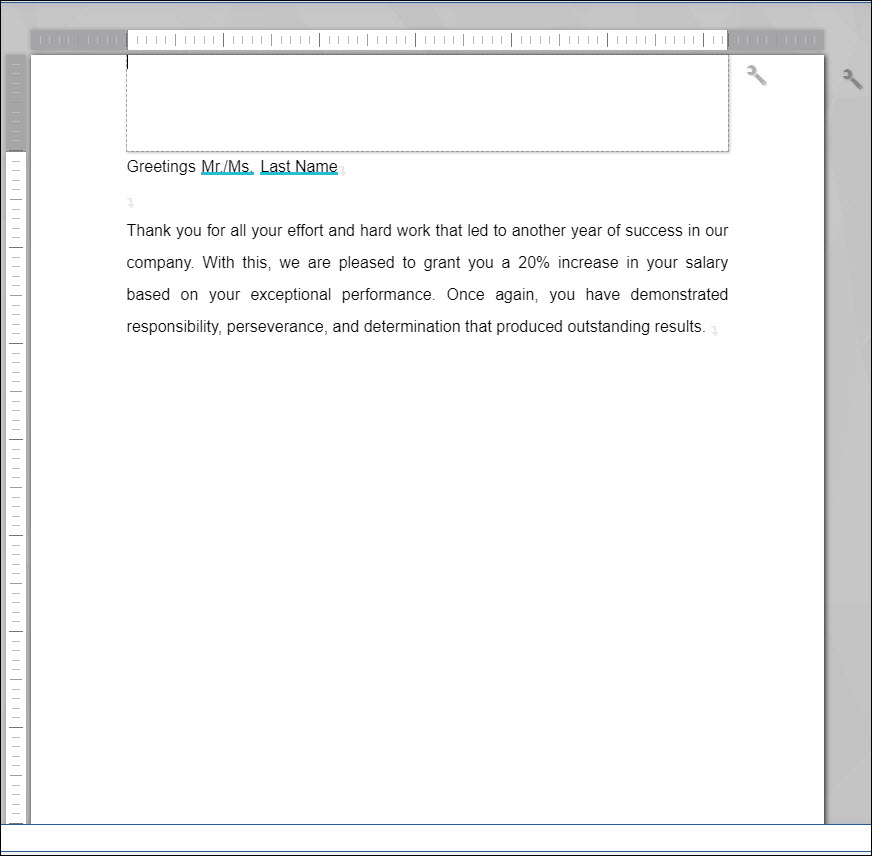
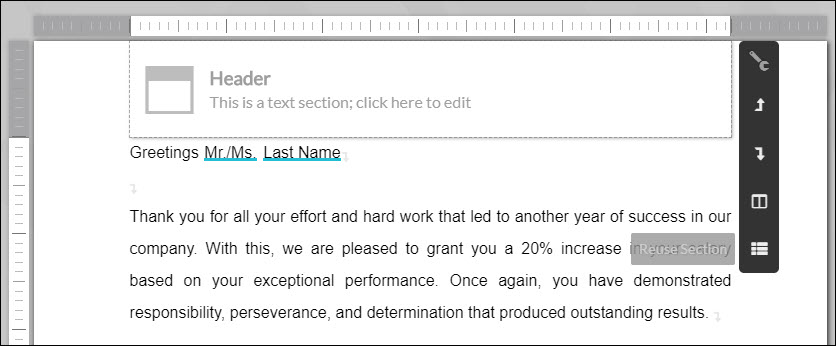
- Click the Actions button of the section where you want to use the Reusable Section, then select Reuse Section.
- Select the reusable section.
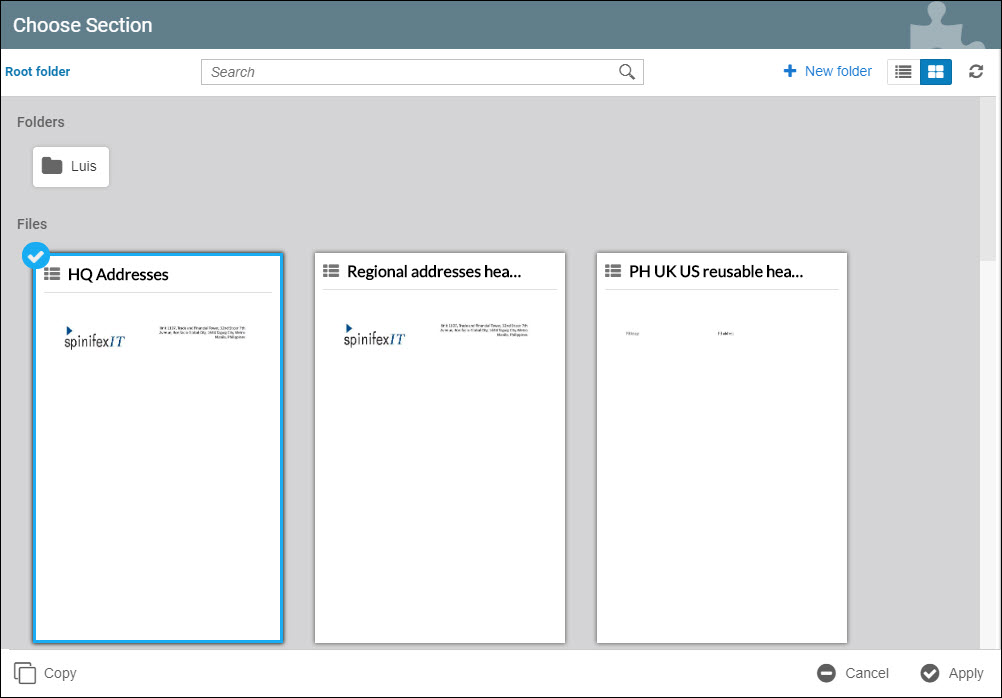
- Click Apply.
- The reusable section will be loaded into your document, with the conditions applied to it.