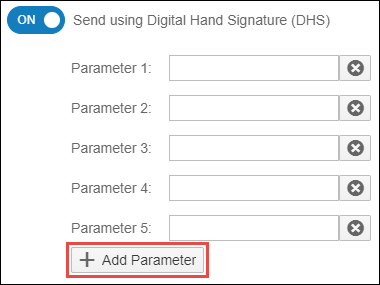
Digital Hand Signature
Similar to third-party tools like AdobeSign and DocuSign, the Digital Hand Signature (DHS) feature allows users to sign documents directly within your process workflow via the Application Widget. This article guides you through enabling DHS in the Provisioning Tool and configuring the necessary widget parameters.
Instructions
To set up the Digital Hand Signature, follow the sections below.
Enable DHS in Provisioning
- Navigate to the Strato Provisioning Tool.
- Fill in the required fields to enable the Digital Hand Signature feature for your Widgets.

Configure Widget Settings
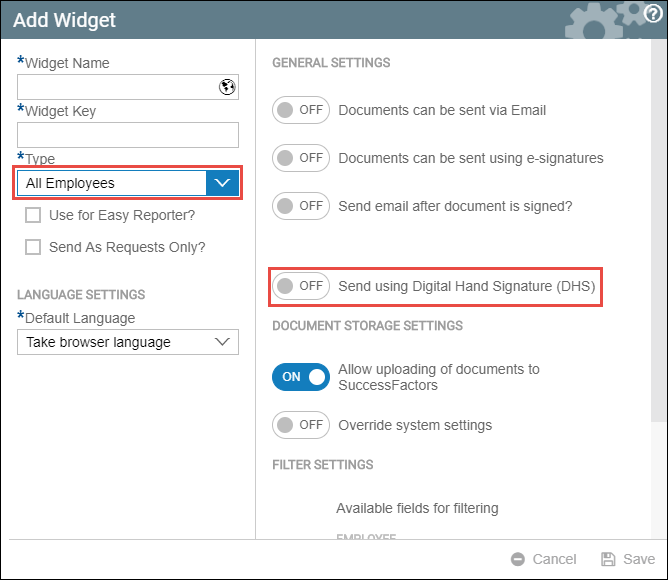
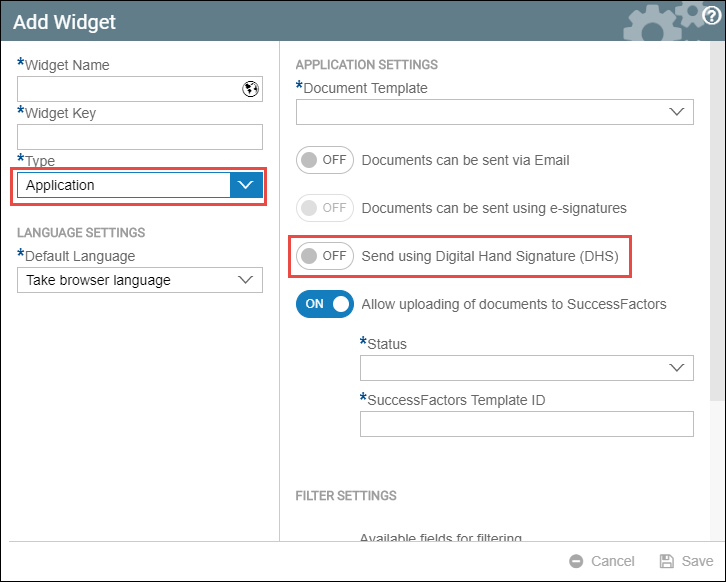
Once enabled in provisioning, an additional toggle button will appear in your Employee and Application widget settings.
Employee Widget Configuration:
- Navigate to the Employee Widget settings.
- Locate the Digital Hand Signature toggle and switch it to On.
Application Widget Configuration:
- Navigate to the Application Widget settings.
- Locate the Digital Hand Signature toggle and switch it to On.
Configure Workflow Parameters
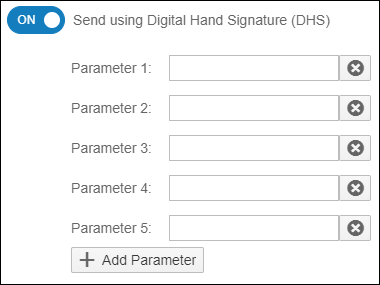
When the DHS toggle is enabled, a Parameters section will appear. These boxes must be filled to define your signature workflow.
- Enter the values in the parameter boxes that reflect your specific system workflow configuration.
- If your workflow requires additional inputs, click the Add Parameter button.