Language Settings [V1]
The Language Settings tab is used for the translations of a section.
By default, English - United States is selected.
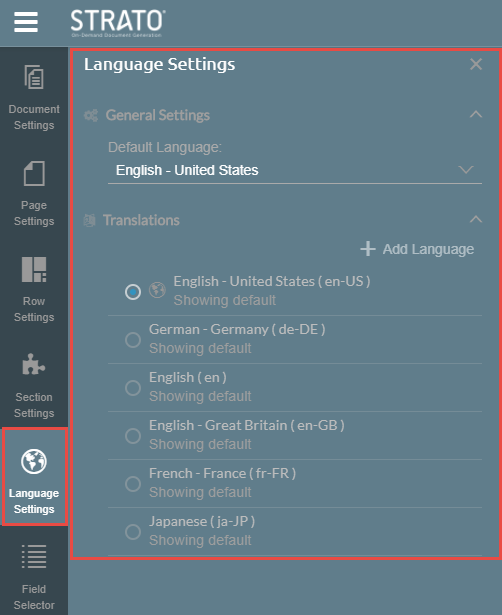
For Translations, you can add more languages just by clicking the +Add Language button.
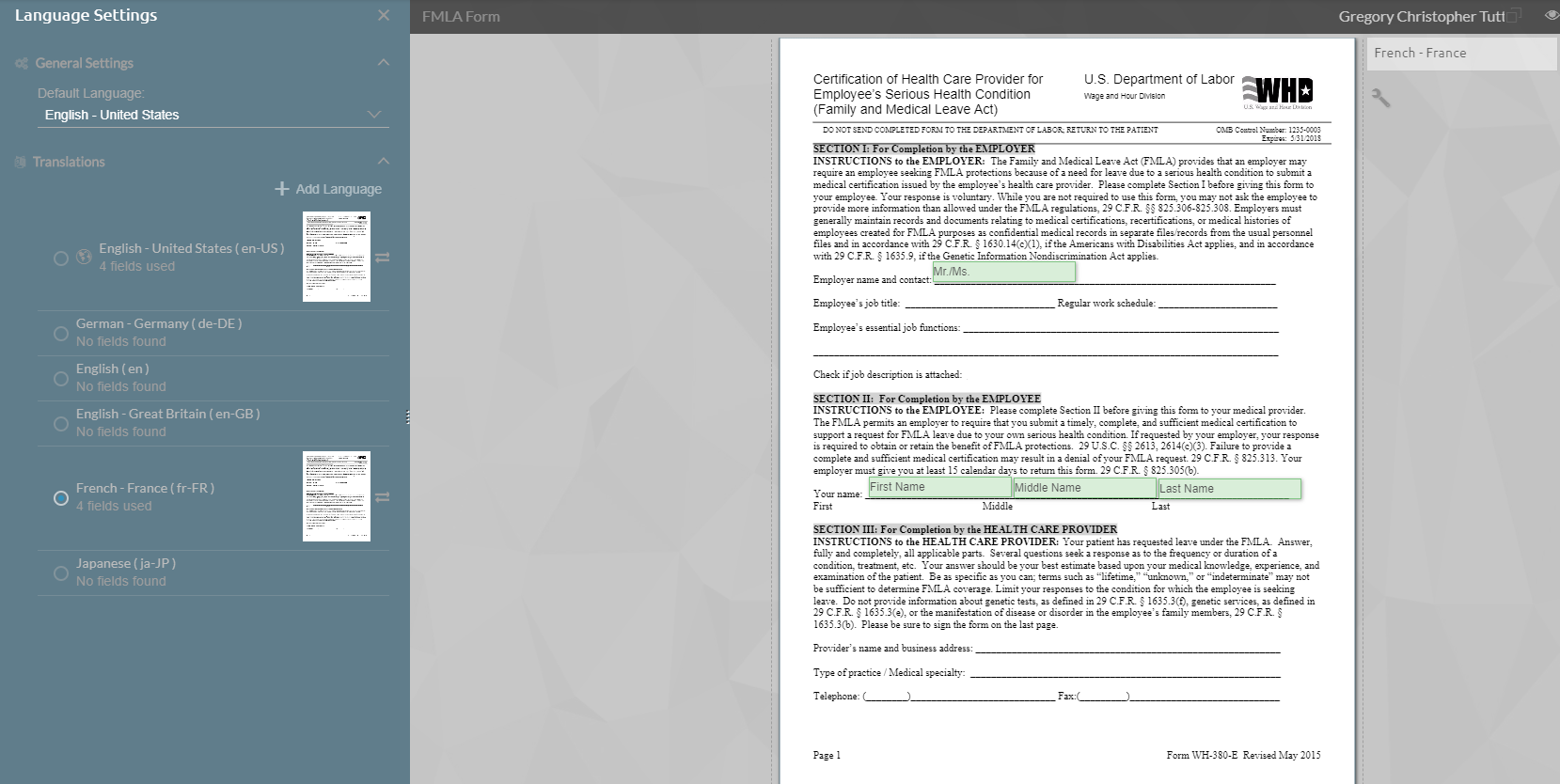
The example below shows multiple languages added, and the French translation toggled.
When translating, you can copy the original text or translate via Google Translate using the Auto Translate button.
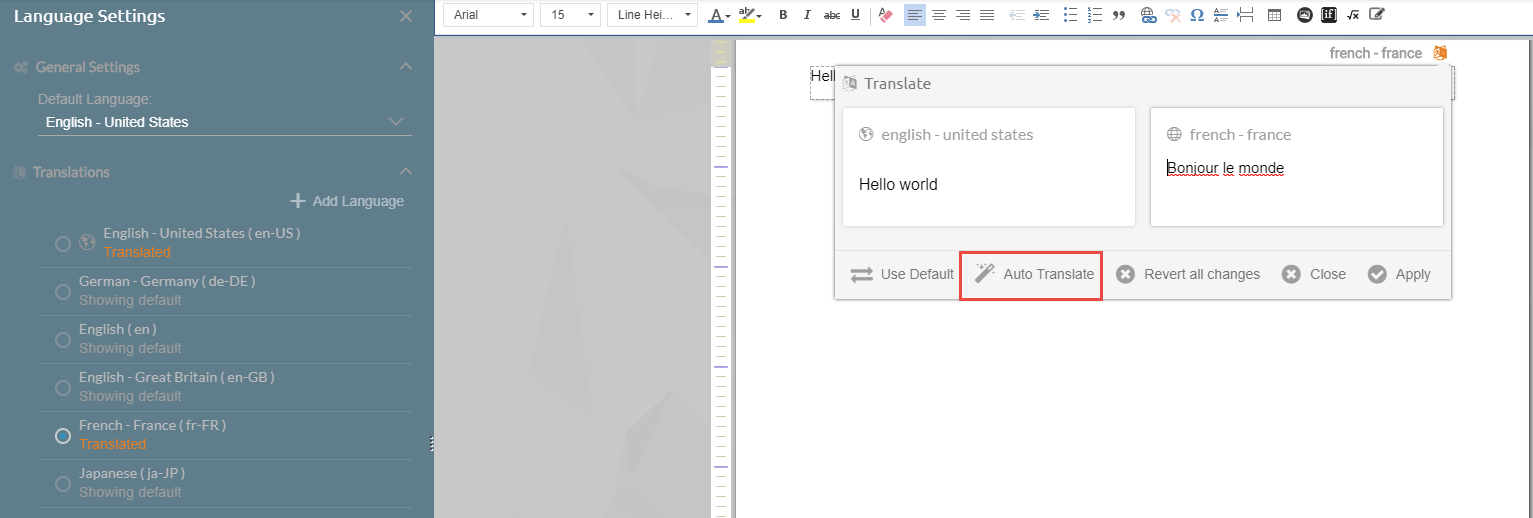
In the image above, the two languages are shown side by side.
When translating a form, the original form will be displayed and you can upload a new, or use an existing PDF file.
The PDF file will be replaced but would still maintain all the fields in the same place. You can rearrange fields if necessary. Whenever a new field is added in the original pdf, it will be automatically added to the translations at the same place.
In the screenshot below, the FMLA form is shown and the language selected is en-US. Fields are dragged and placed on top of the FMLA form.
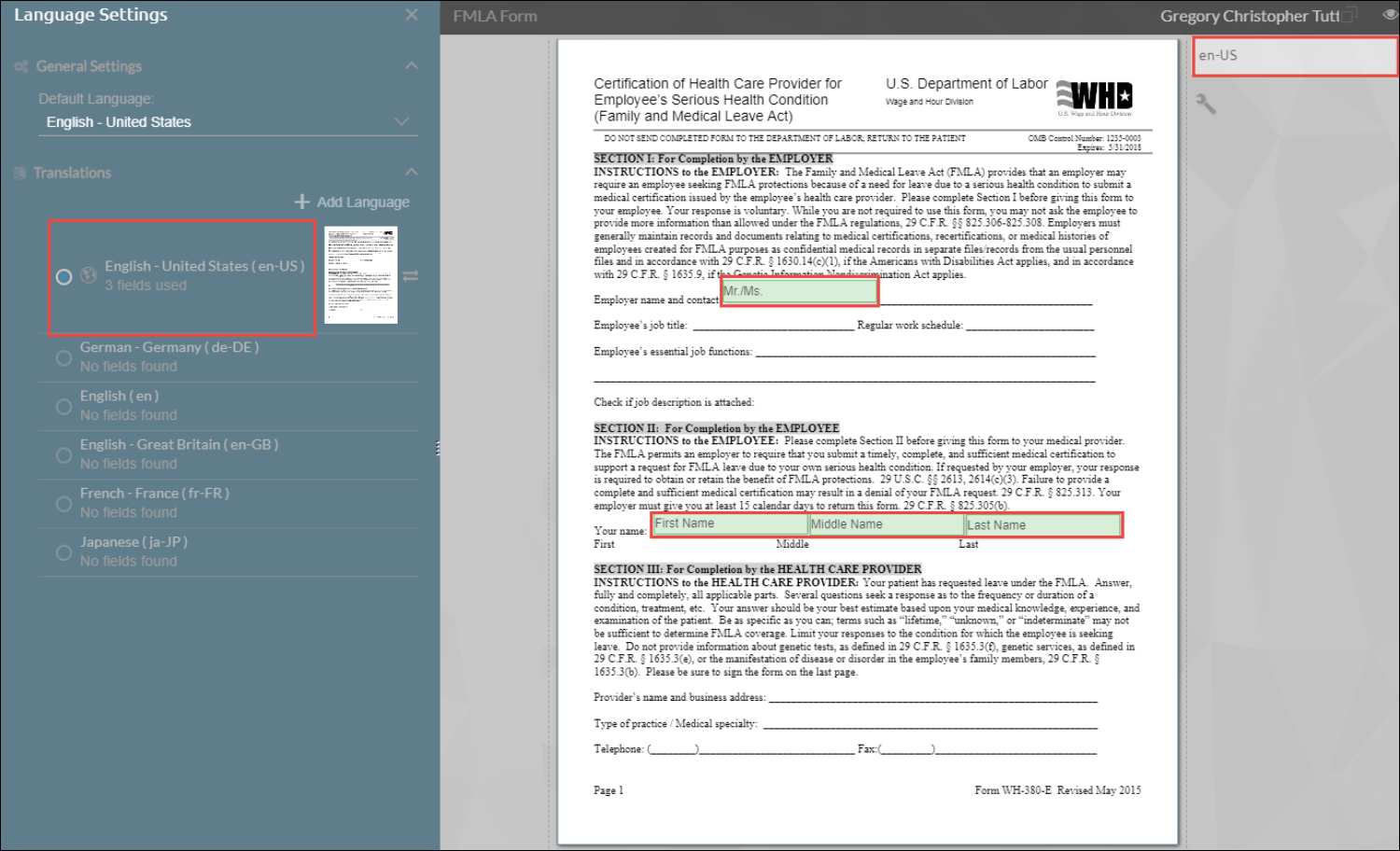
Upon clicking French, the PDF file is still the same along with the fields in the same location from the original (en-US).
Delete Language
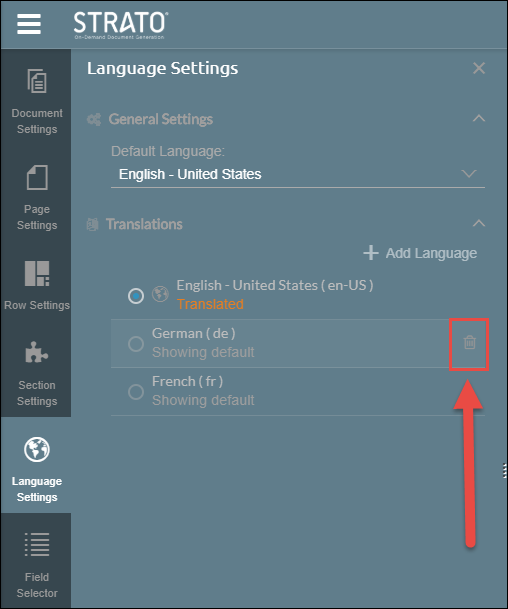
Deleting a language in the list under Translations is easily done by hovering your cursor on a language that you want to delete, and clicking the Delete icon.