Configure Data Privacy Statement
Strato is committed to ensuring the highest level of security and compliance for its users. As part of this commitment, admins can enable a Data Privacy Statement in their Strato system via the Strato Admin Tool.
The Data Privacy Statement serves as a clear overview of the organization's privacy and security practices. It provides users with important information about how their data is collected, stored, and protected within the Strato system. This feature aims to enhance and promote transparency by enabling users to make informed decisions regarding their data and privacy.
Functionality
When users log in to their Strato system for the first time, they will be presented with a pop-up notification containing the Data Privacy Statement. Through this pop-up, users can:
- Click I Agree once they have read the privacy statement and accept its indicated terms on data and privacy.
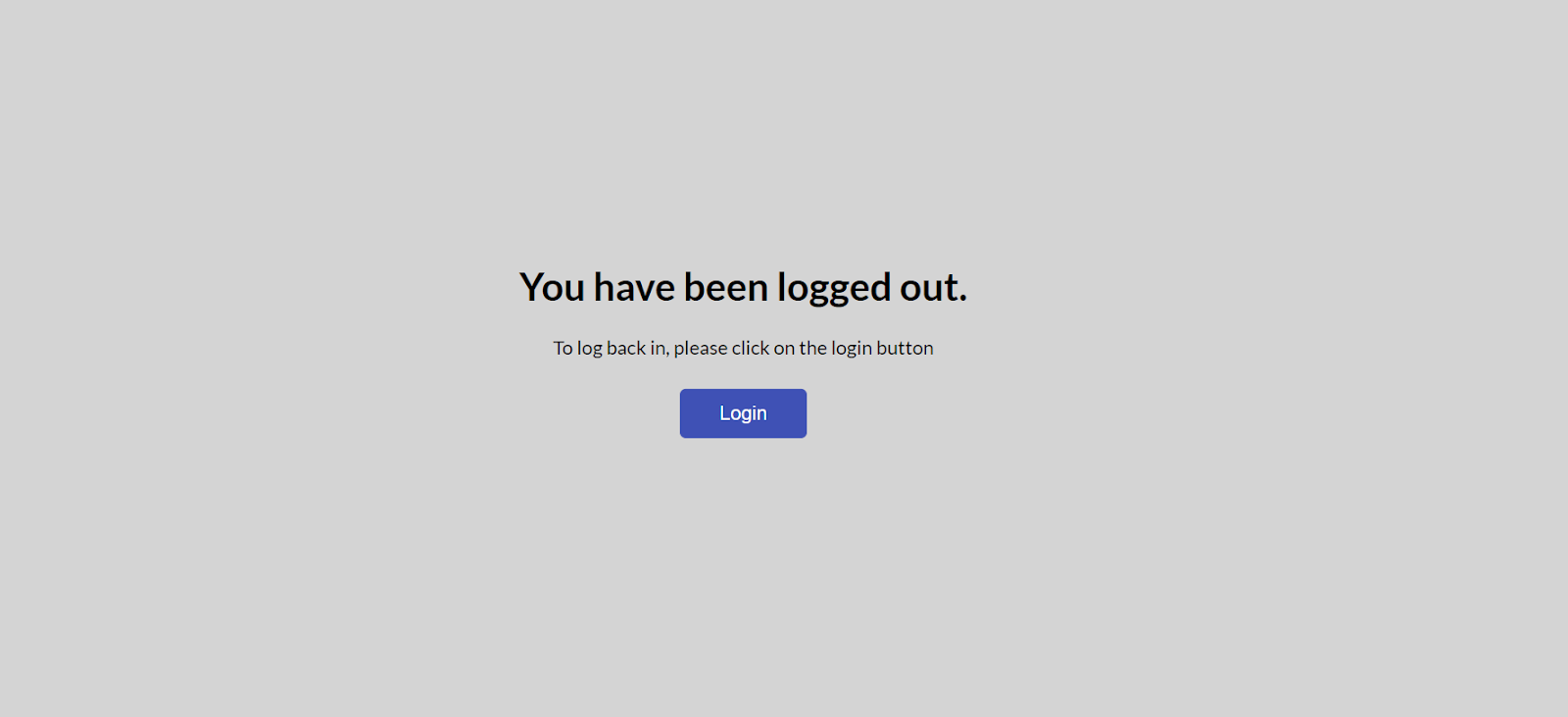
- Click Decline if they do not wish to proceed, which will automatically log out the user.
The Data Privacy Statement feature can be configured and customized via the Strato Admin Tool. Admins can easily implement the feature, make modifications as needed, and tailor the Data Privacy Statement to align with their company's specific requirements.
Admins can perform the following actions from the Strato Admin Tool:
- Enable the display of the Data Privacy Statement via the Show Privacy Statement toggle buttons
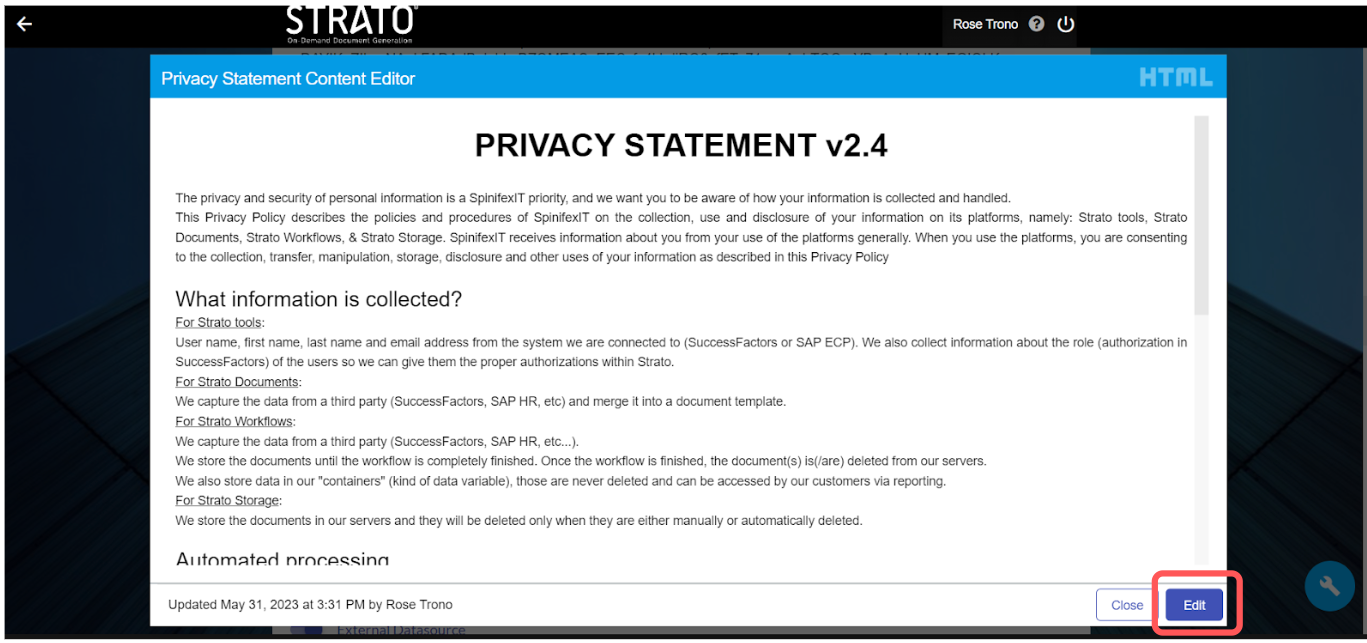
- Review and modify the statement via the View and Edit buttons
Instructions
Configure the Data Privacy Statement
For admins, follow the steps below to draft your organization’s Data Privacy Statement:
- In the Strato Admin Tool, enable the Privacy Statement section, then toggle on at least one of the options.
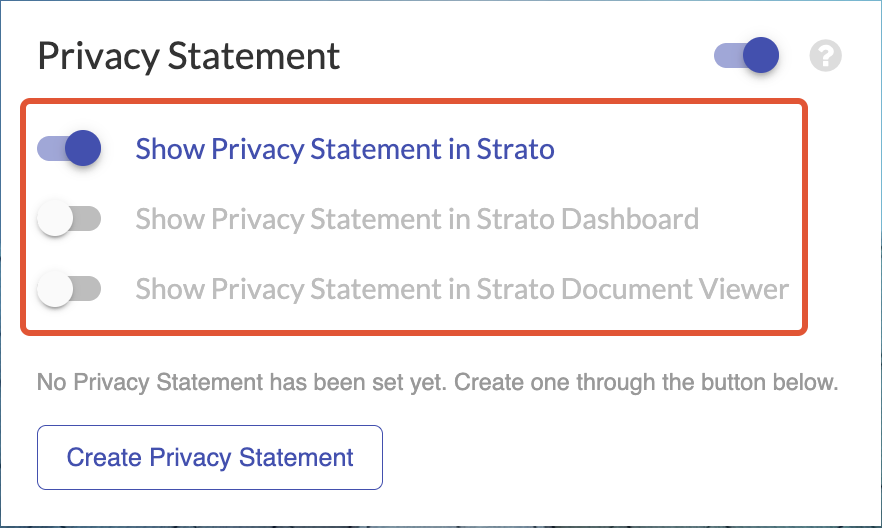
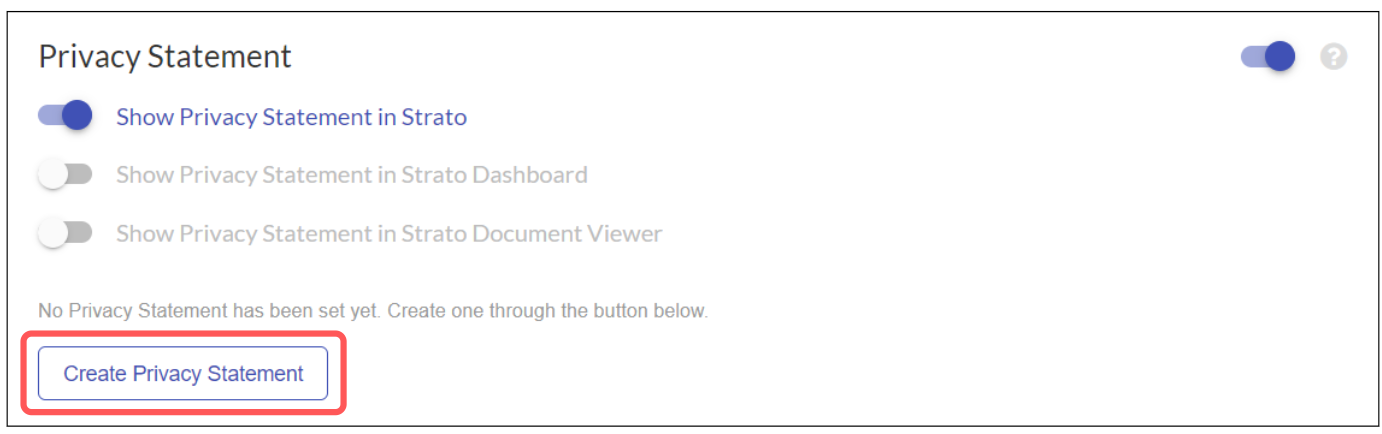
- Click Create Privacy Statement.
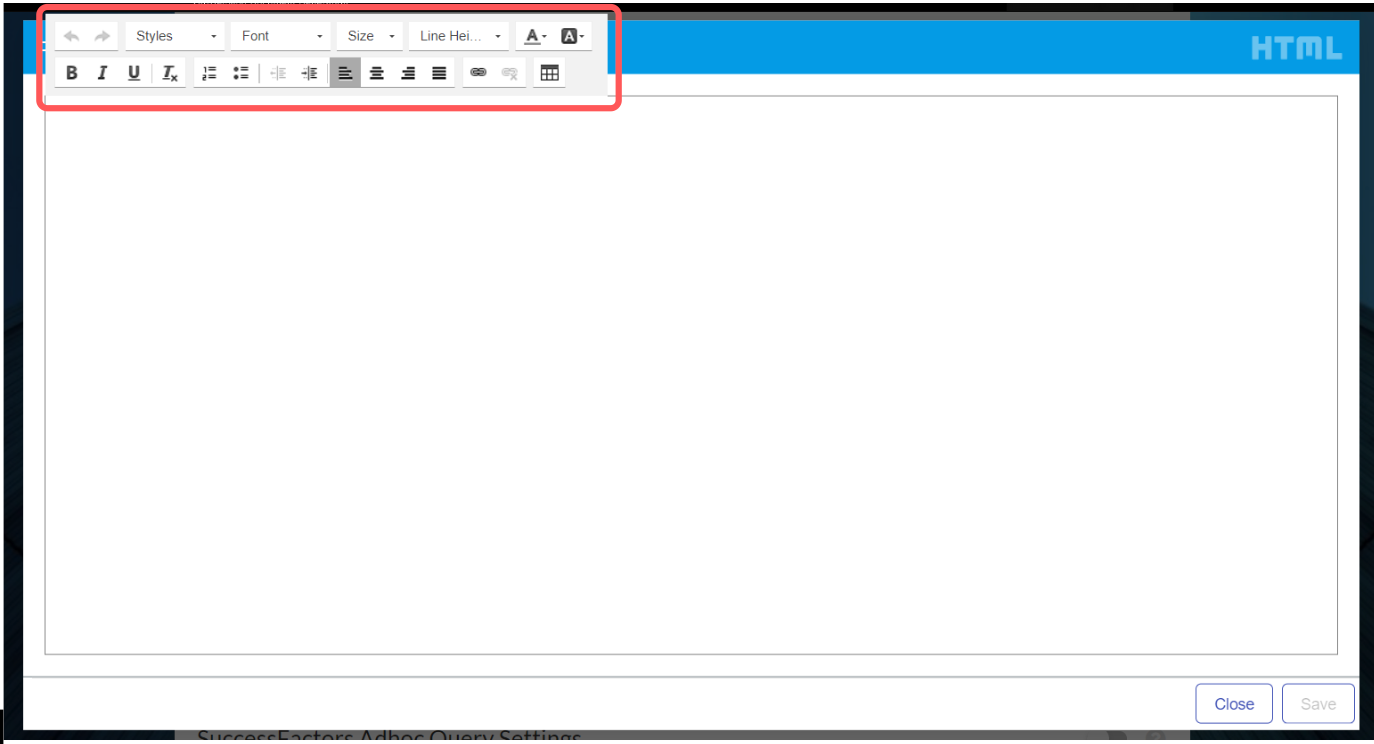
- A blank pop-up text box where you can draft your Data Privacy Statement will appear. Formatting changes can be done through the different buttons from the editing toolbar.
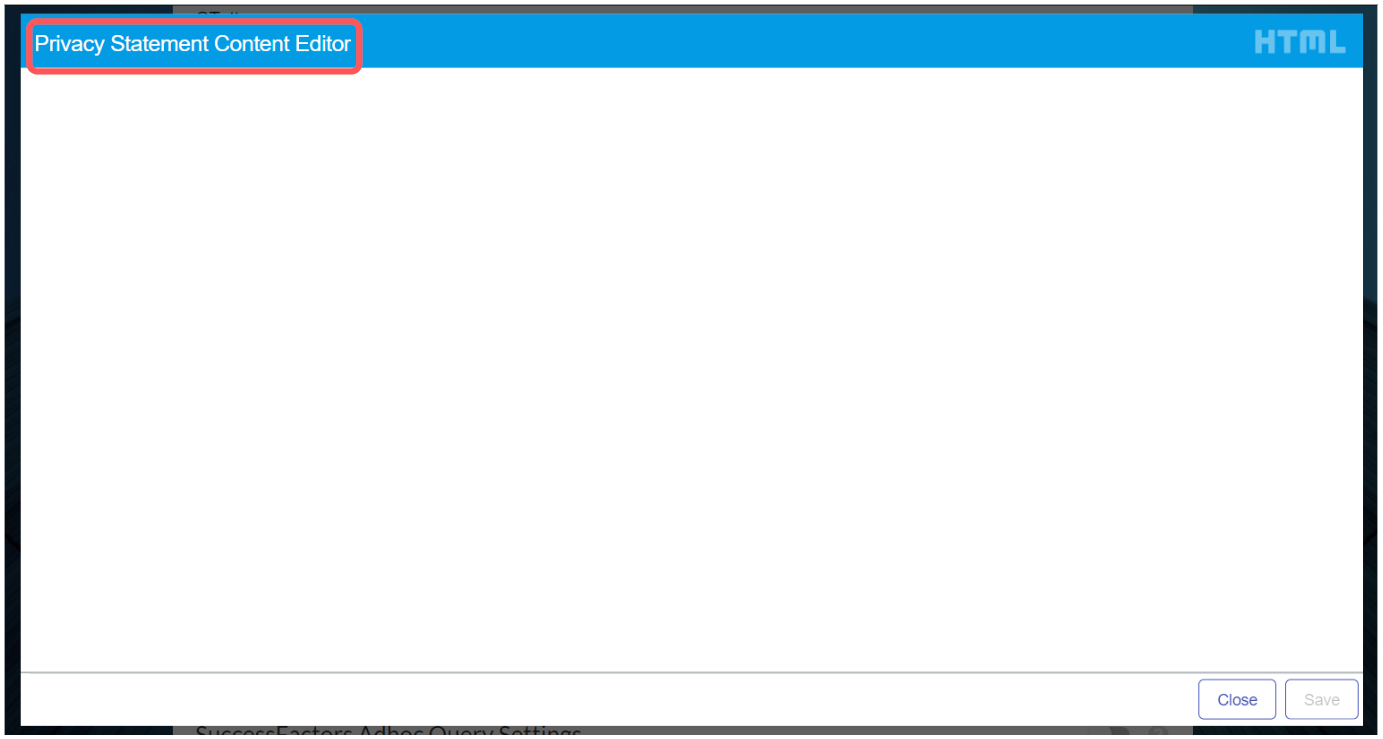
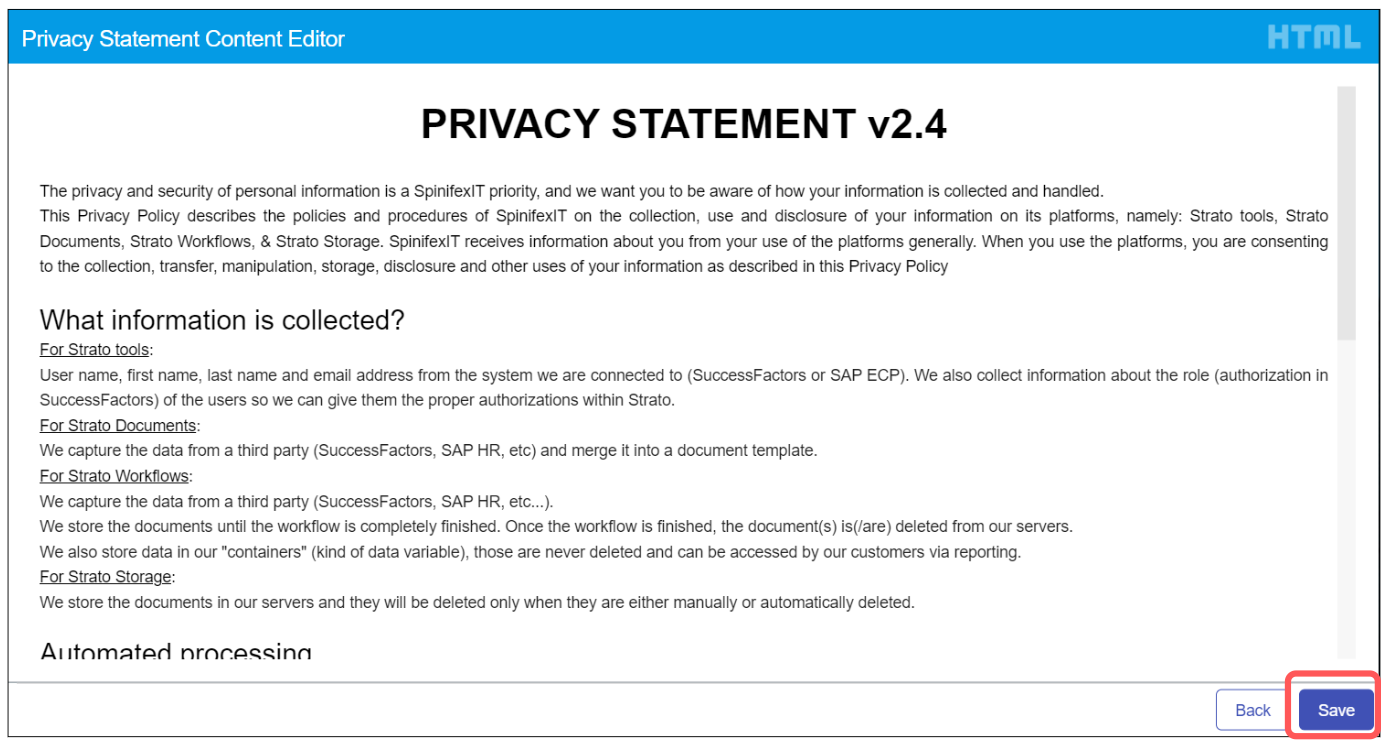
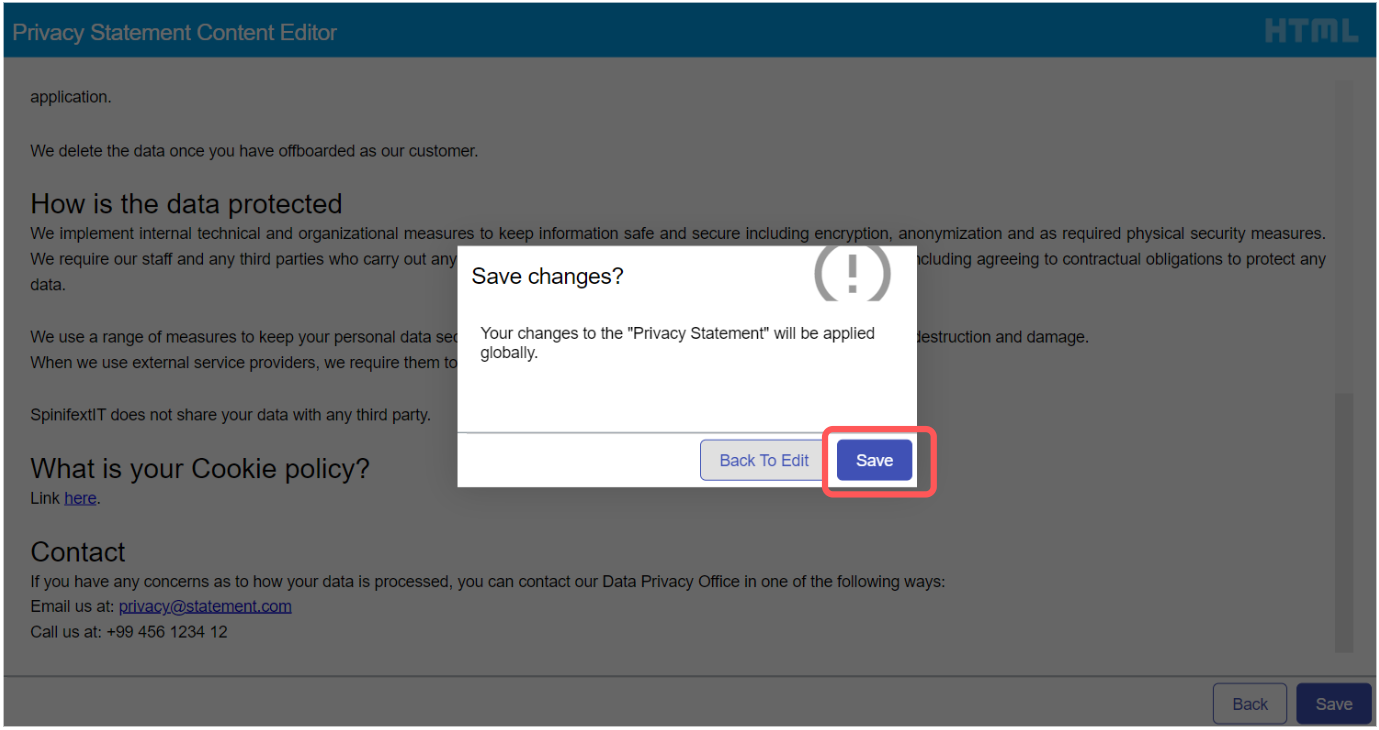
- Click Save at the bottom right corner of the pop-up window, and confirm the action via the next pop-up window to save all the changes made.
- You will then be notified that the changes have been made and saved successfully, and your organization’s Data Privacy Statement will be accessible.
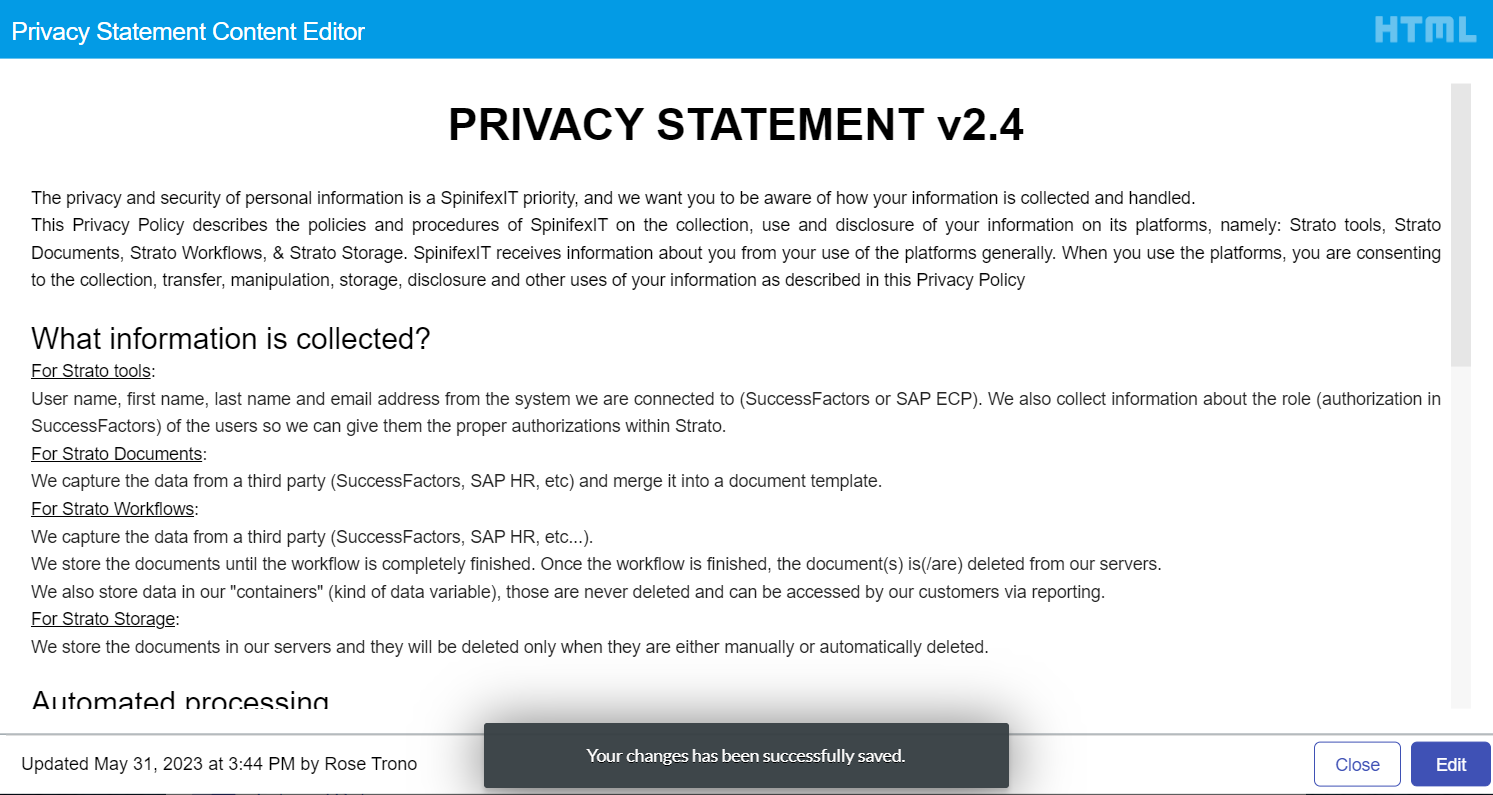
A timestamp that indicates the date and time when the last changes in your Privacy Statement have been made is displayed at the lower left corner of the Privacy Statement Content Editor pop-up window.

Edit the Data Privacy Statement
Accept or Decline the Data Privacy Statement
- Once the Data Privacy Statement pop-up appears on your screen, carefully read the statement to determine your next step.
- If you agree with the information and guidelines in the statement and wish to proceed with logging in, click I Agree.
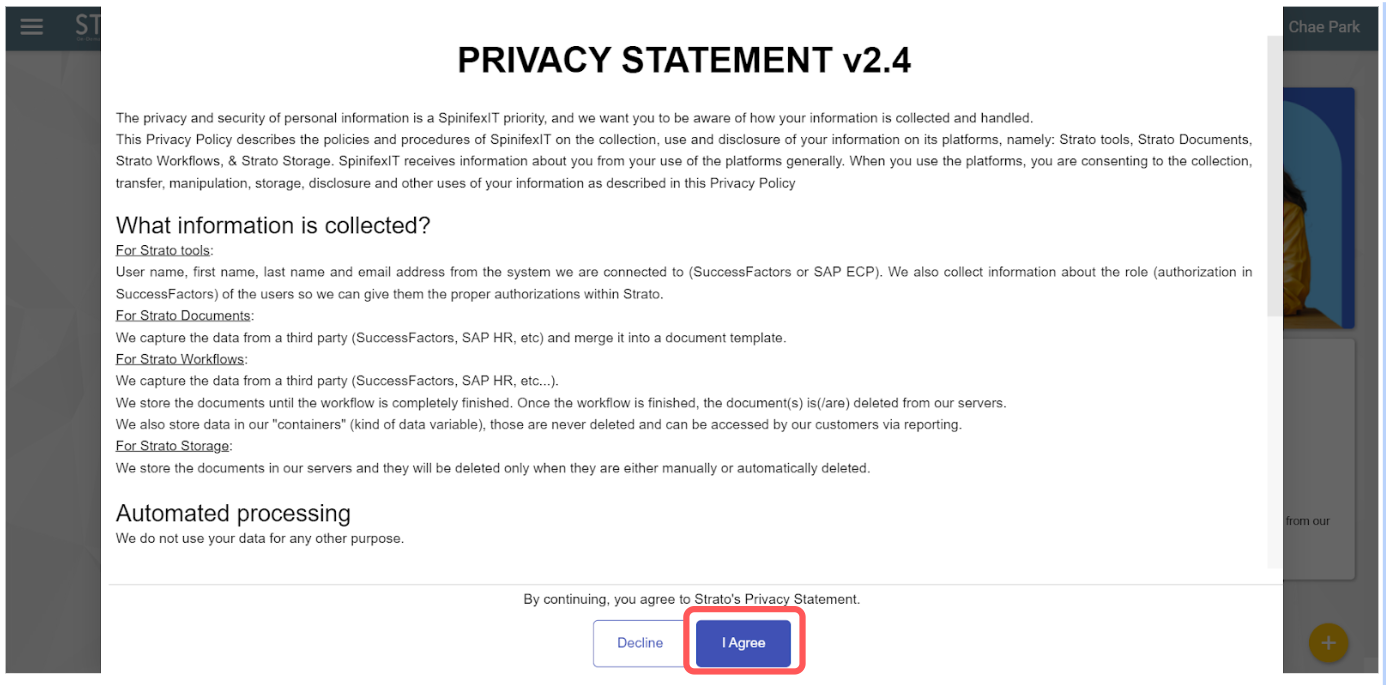
- Click Decline if you do not wish to proceed. Upon clicking this button, you will automatically be logged out of the system.