Regional Format
In Strato Forms, particularly in Numeric and Date form fields, administrators can customize the default output data format using the Strato Admin tool, reflecting the organization’s preferences. Additionally, administrators have the option to customise the output data format from the Strato Form editor through the Form Field Settings. The output data format applies to the form once attached to an email, previewed, or downloaded as a PDF.
These form fields have the capability to automatically conform to the regional settings of the user's device or browser. This adaptation occurs when the form fields are being filled in from a generated form document. It ensures that the form's data presentation is compatible with the user's regional preferences and maintains data accuracy for users globally.
Features
Regional Format Adaptation
The generated form document immediately adjusts to reflect the regional format settings of the users when filling out the Numeric and Date form fields.
Customise Output Data Format
Administrators can customise the default output format of form fields through the 'Formatting Options' panel in the Strato Admin tool and/or the 'Output Data Format' section in the Form Field Settings. This enables them to specify their preferred formats for Numeric and Date form fields.
Configuration of Output Data Format
Here are the two options to customise the output data format for Numeric and Date form fields for the Strato Form template:
Formatting Options in Strato Admin Tool
- In your Strato Admin Tool, locate the 'Formatting Options' panel from the target system, and enable the toggle button.
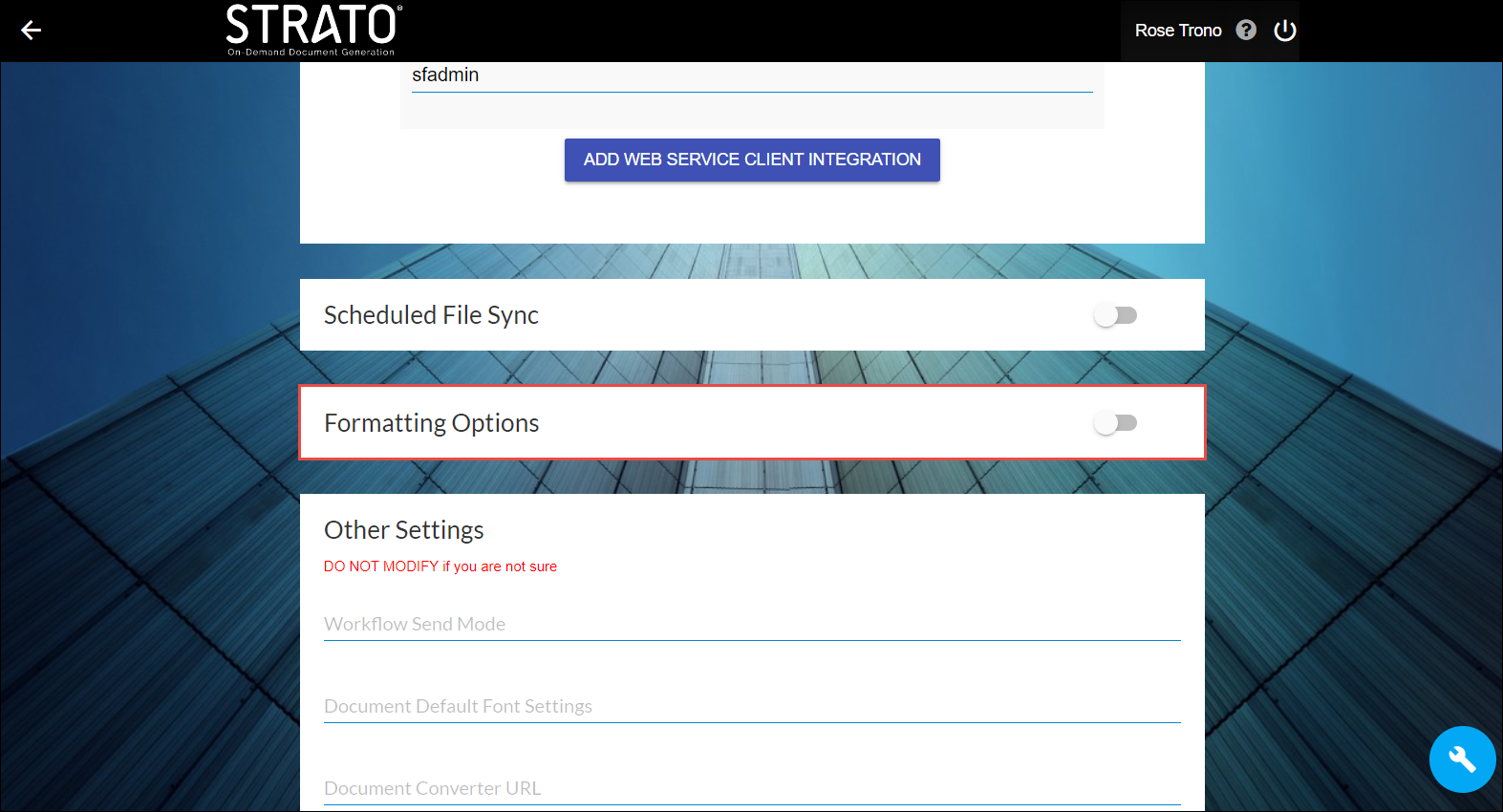
- Turn on the toggle for the field type to format, whether Numeric or Date, or both.
- For the default numeric format:
- Choose your preferred grouping separator from the dropdown list.
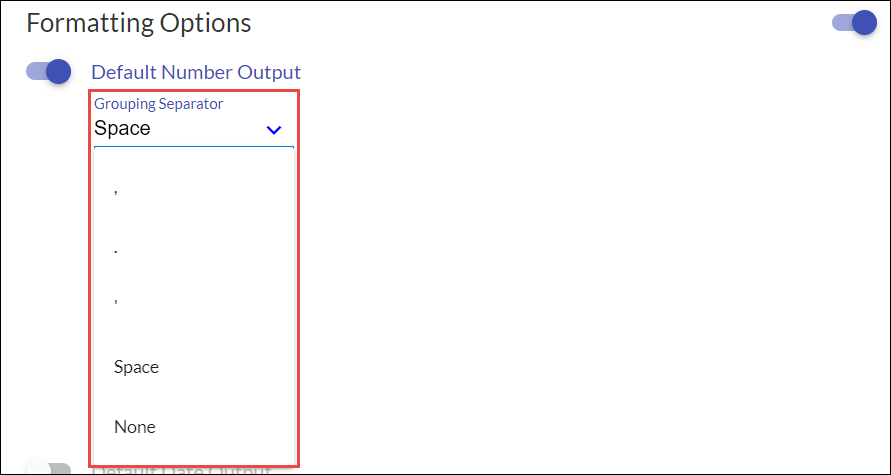
- Select the decimal separator from the dropdown list.
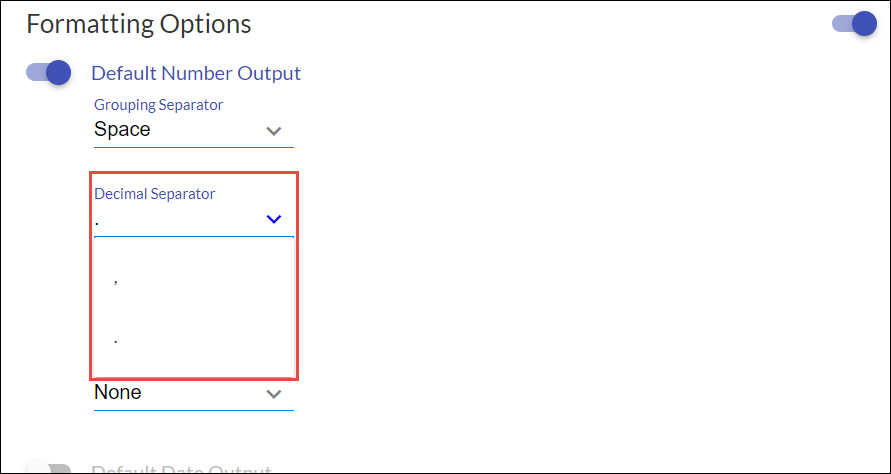
- Specify the accepted number of decimal places.
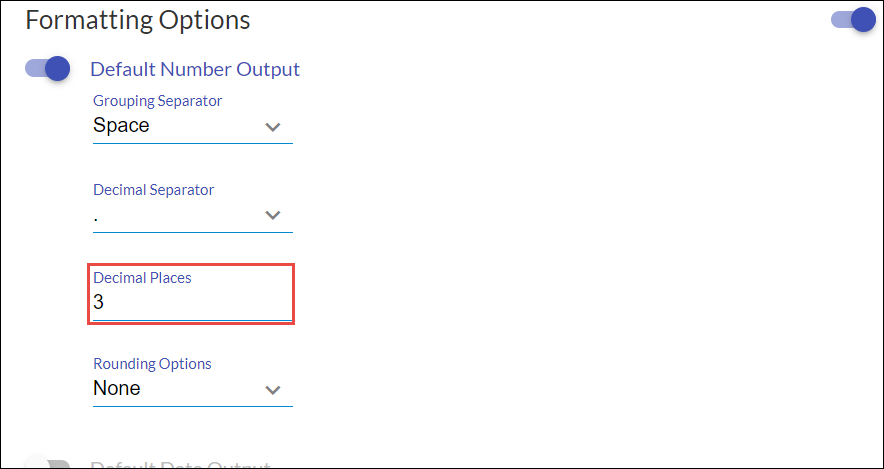
- Choose among the available rounding options.
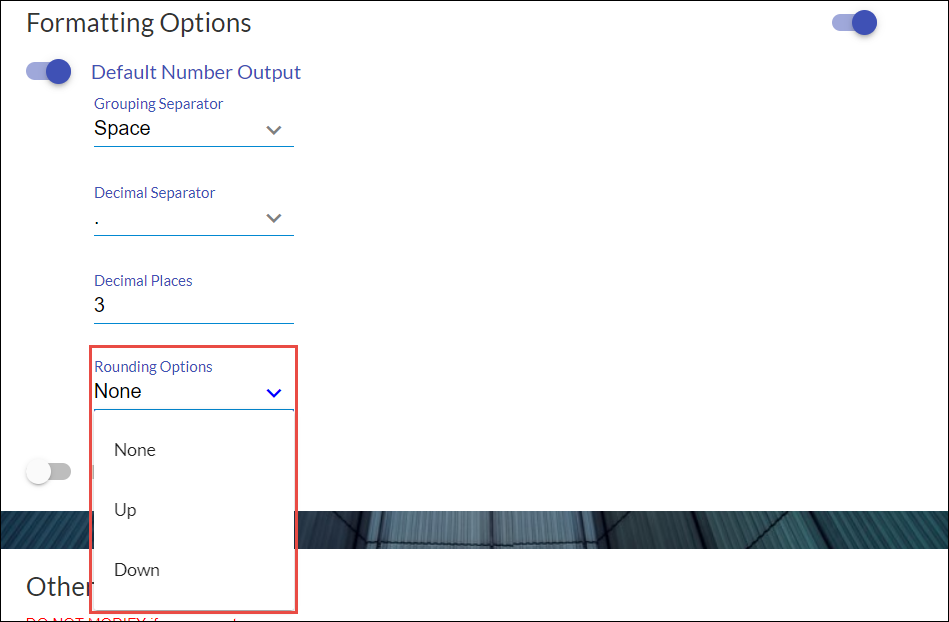
- Choose your preferred grouping separator from the dropdown list.
- For the default date format:
- Choose among the available date formats from the dropdown list.
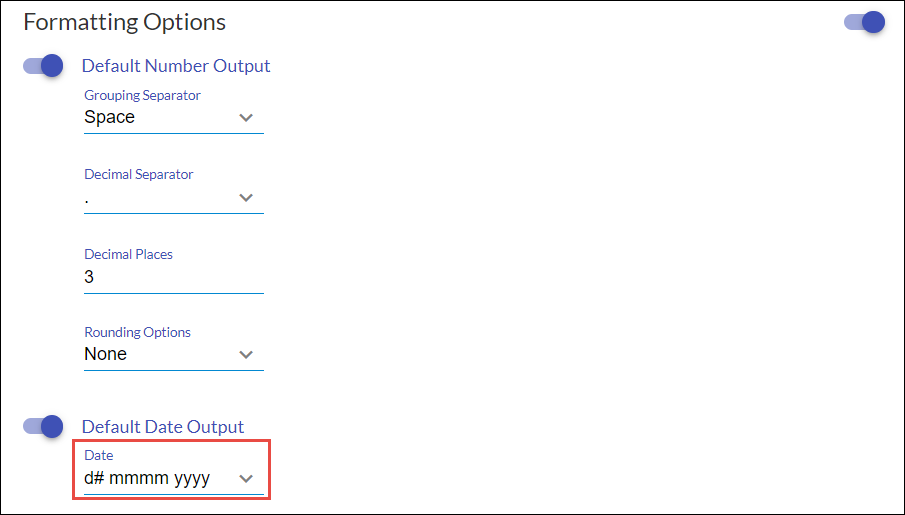
- Choose among the available date formats from the dropdown list.
- After completing the configuration, click the save button located in the floating action button at the bottom-right corner of the screen.
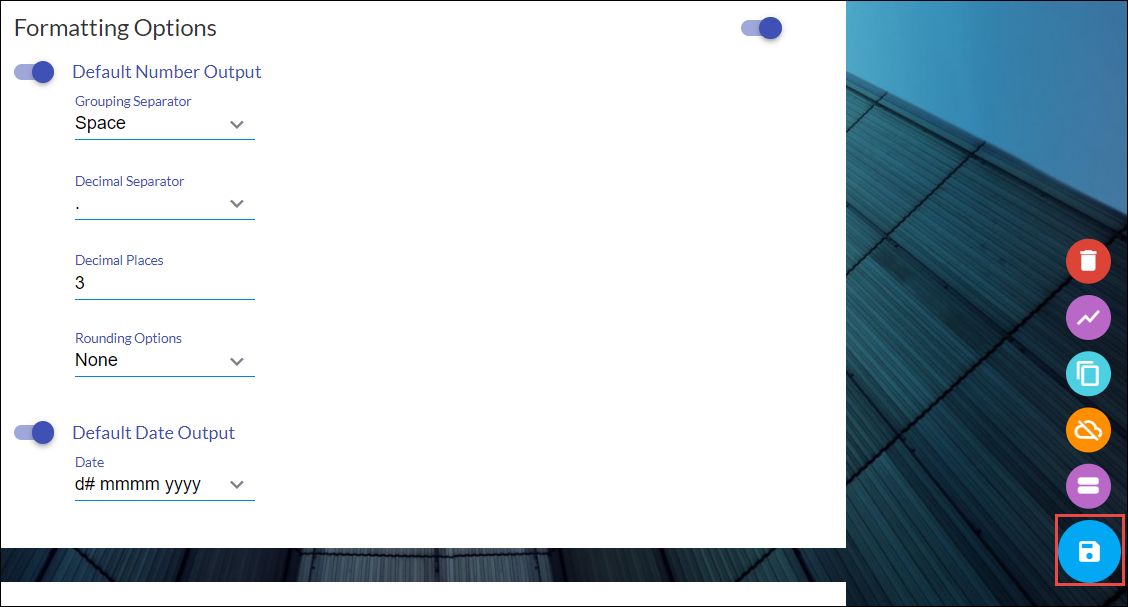
Output Data Format in Form Field Settings
- In the Strato Form template, insert a Numeric and/or Date form field or select an existing one.
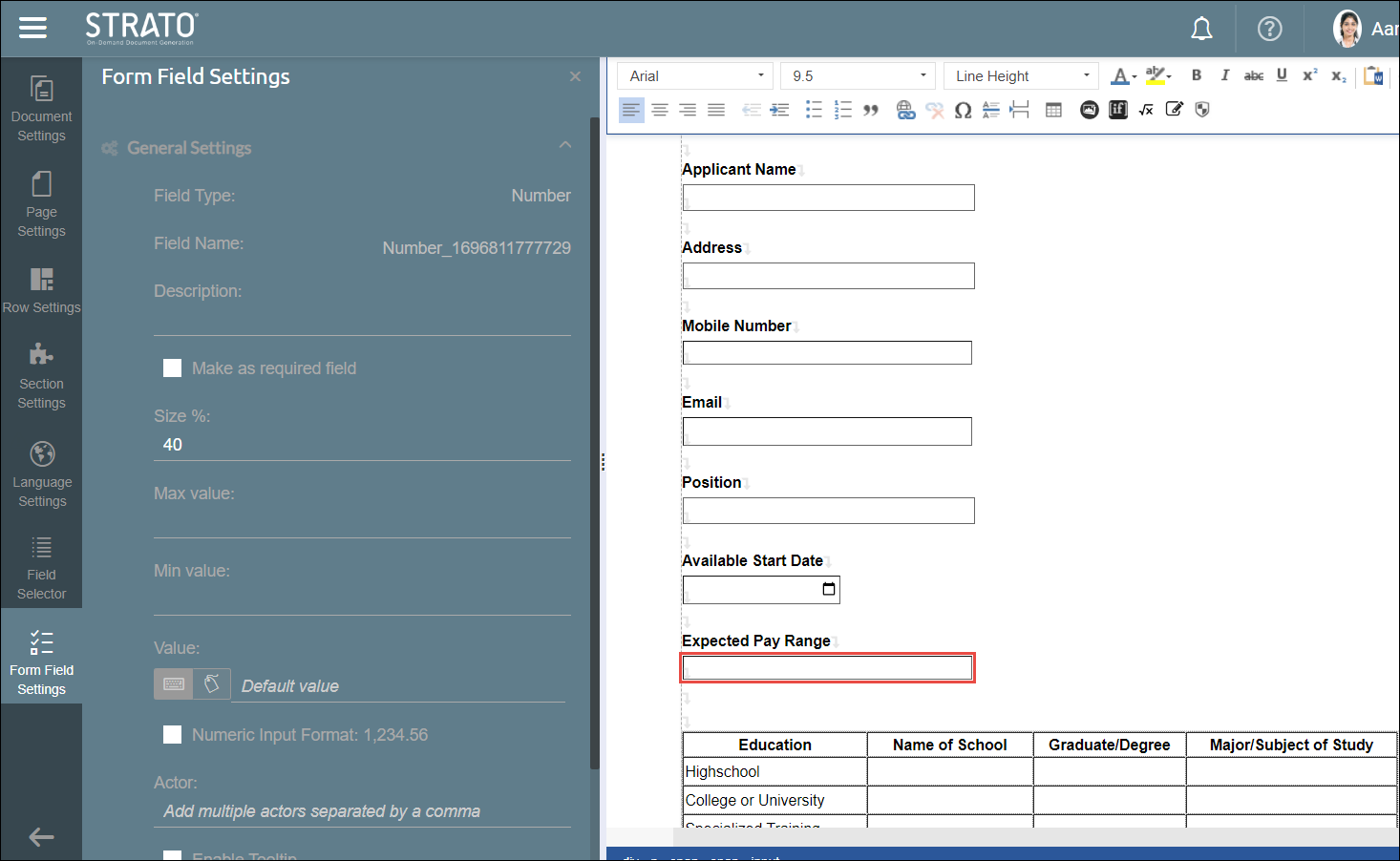
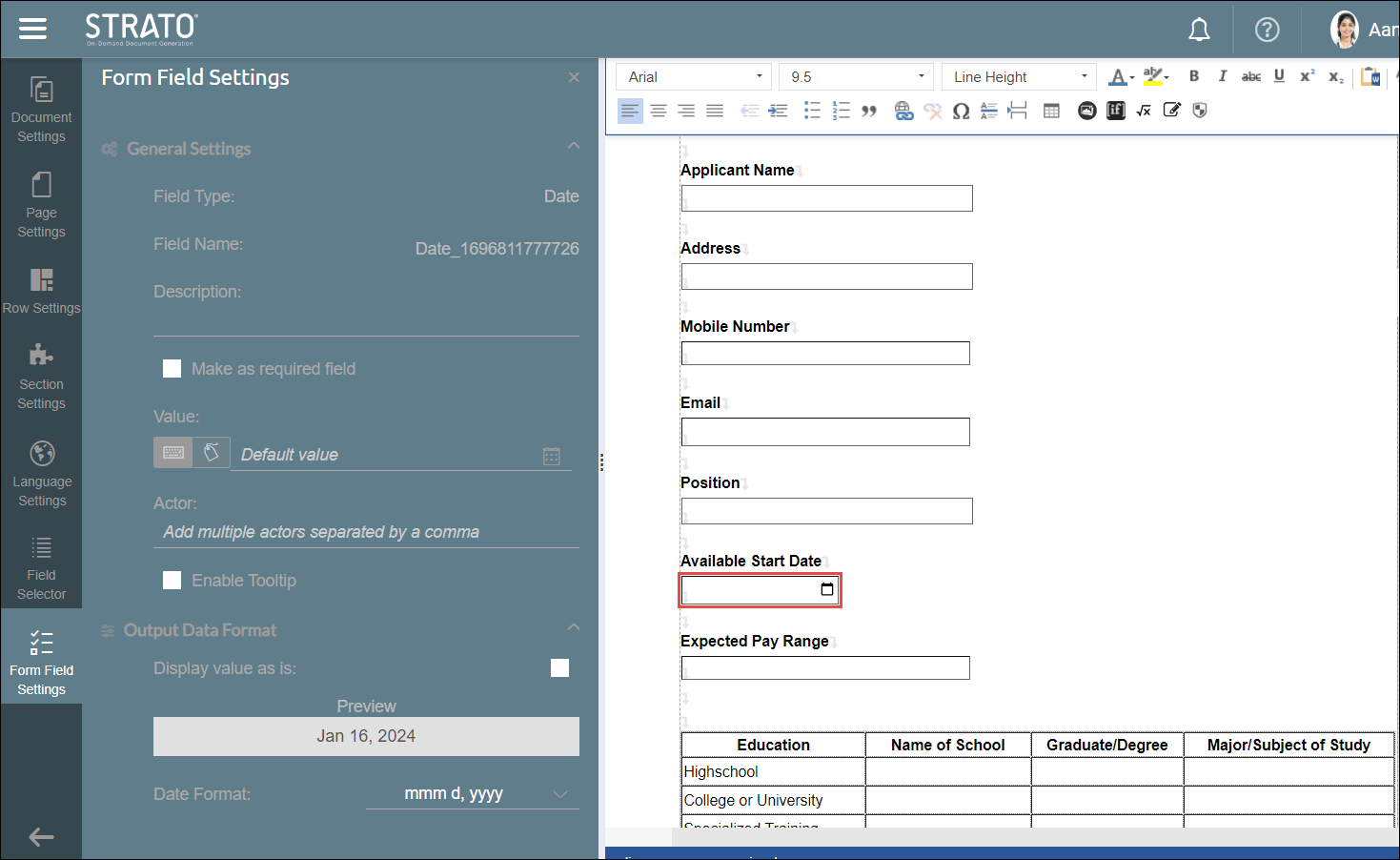
- Navigate to the "Form Field Settings" tab in the left panel. Then, locate and expand the "Output Data Format" section at the bottom of the settings. By default, the “Display value as is” is enabled.
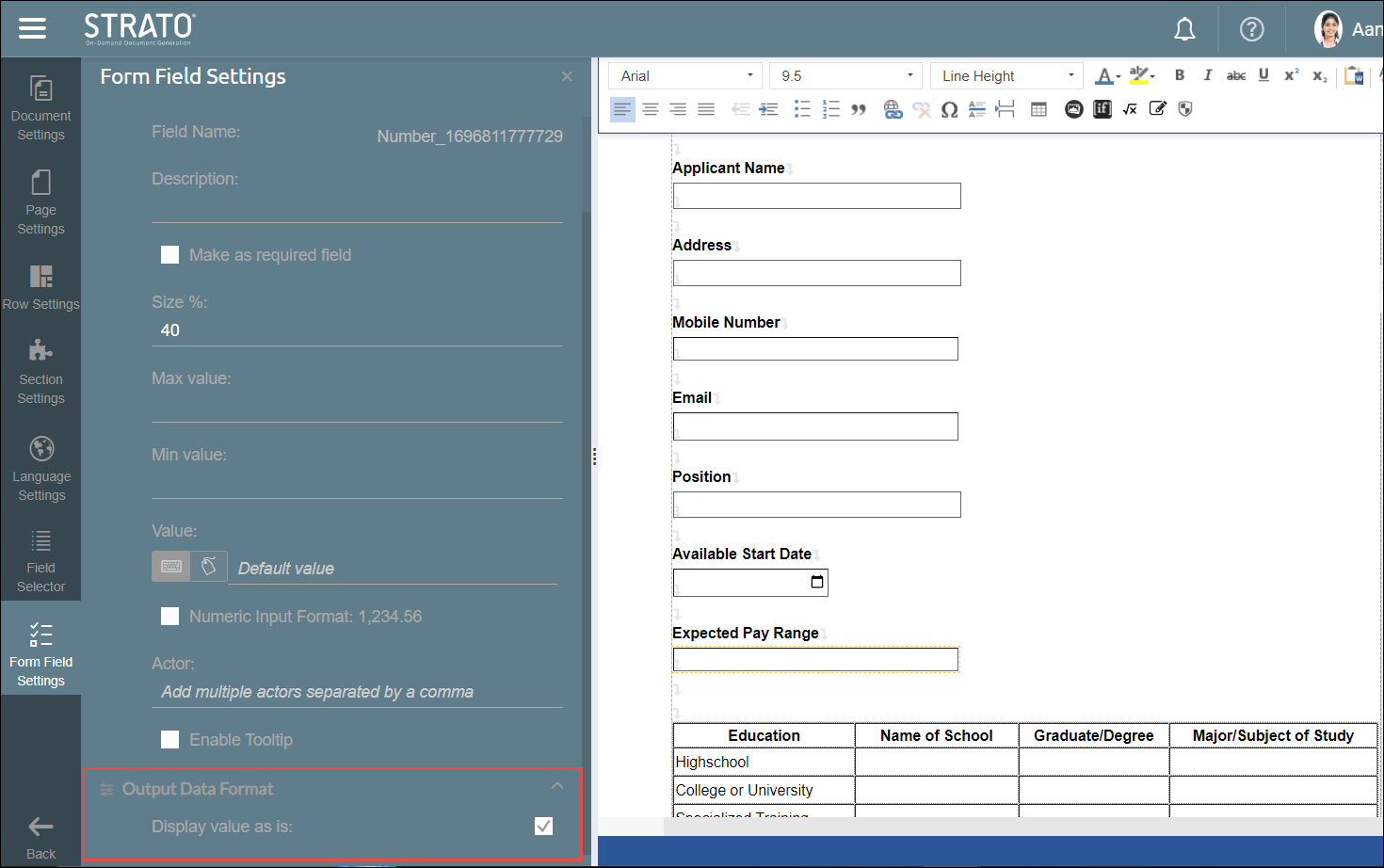
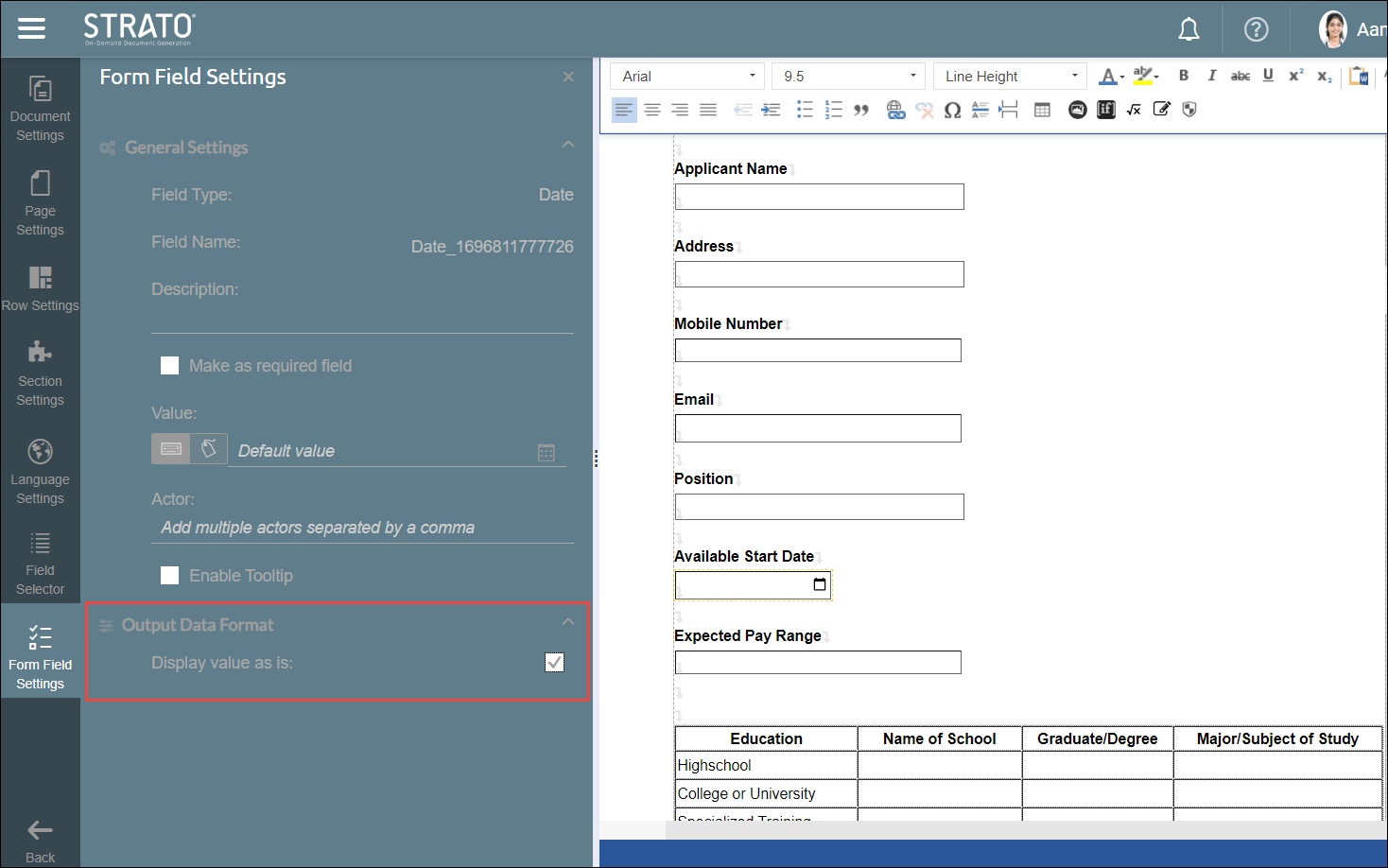
- Uncheck the "Display Value as is" checkbox.
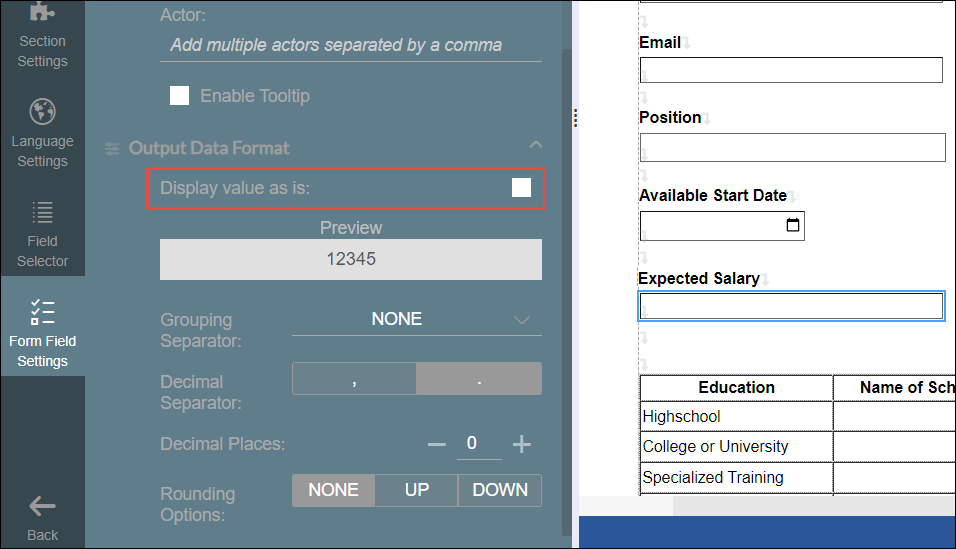
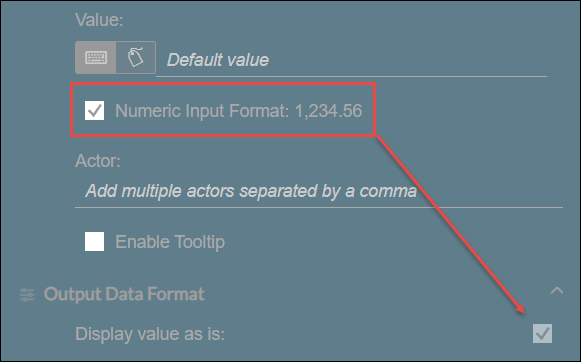
- Then, customise the output data format of the selected form field:
- For the Numeric Form Field, the following format customisation tools are available:
- Choose your preferred Grouping Separator from the dropdown list. Options include a comma, period, apostrophe, space, or none.
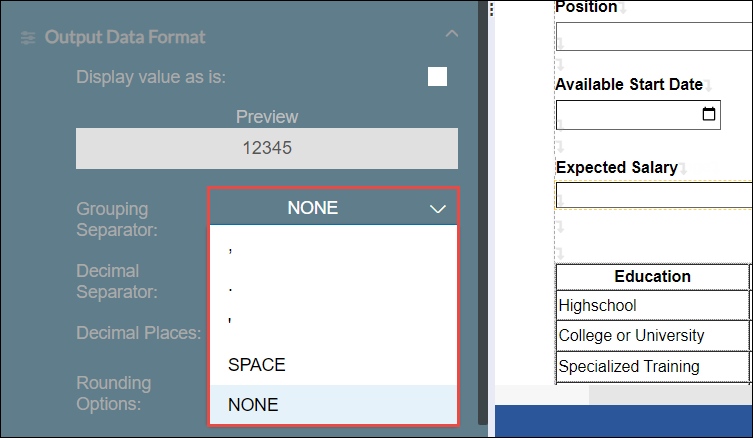
- For the Decimal Separator, choose either a comma or a period.
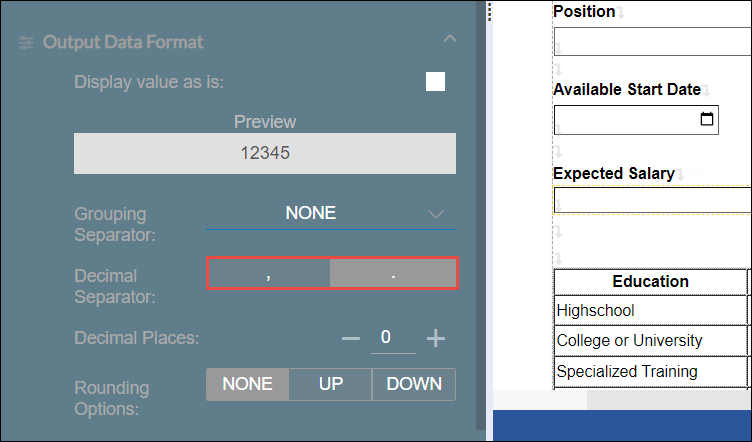
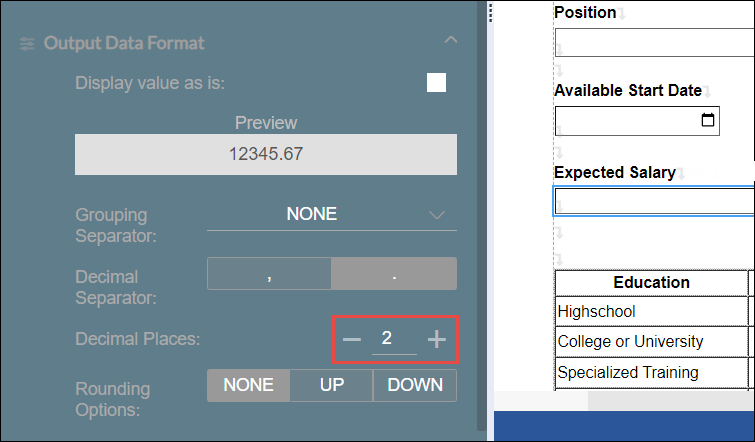
- The accepted number of Decimal Places can be specified using the "Add" (+) and "Reduce" (-) buttons.
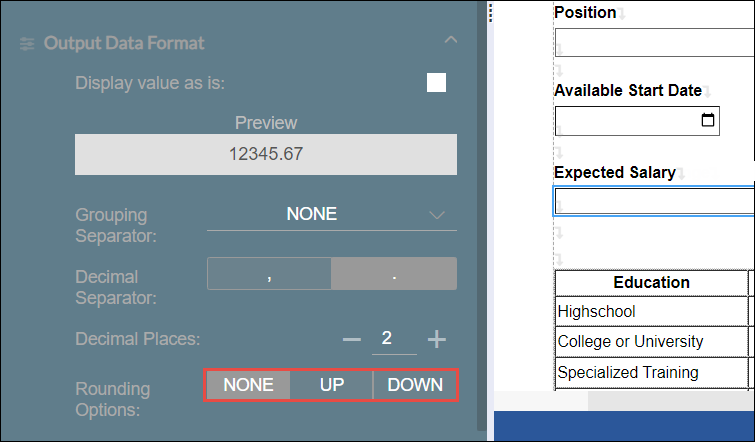
- Regarding Rounding options, choose to either leave the value as is with the "None" option or round up or down.
- Choose your preferred Grouping Separator from the dropdown list. Options include a comma, period, apostrophe, space, or none.
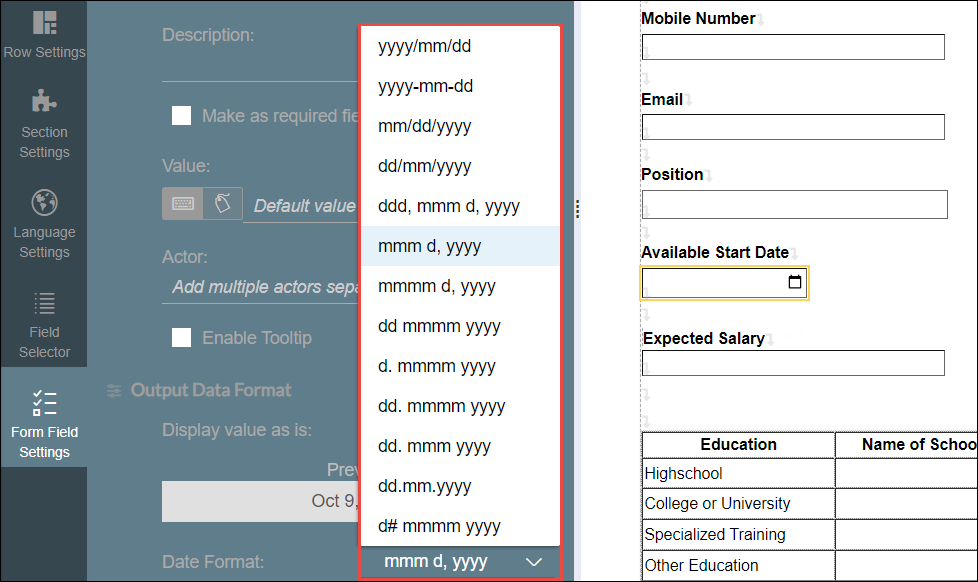
- For the Date Form Field, select the desired Date Format from the available options in the dropdown list.
- Preview the format changes applied using the sample value.
Preview from the Numeric Form Field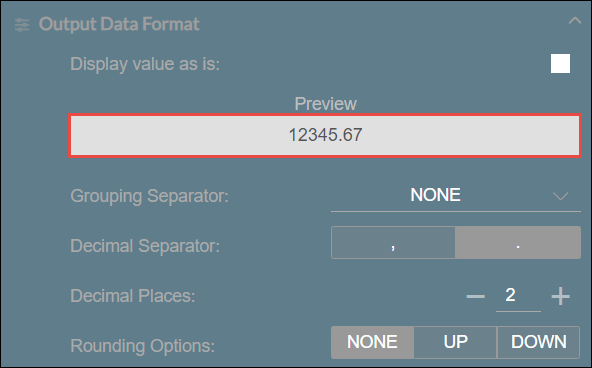
Preview from the Date Form Field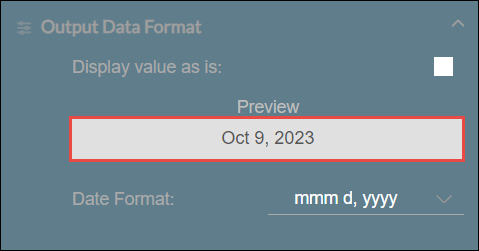
- After configuring the form field settings, save and publish to apply the changes. Then, generate the form.
Input and Output Formatting Behavior
To have a more clear understanding about the behaviour of the system formatting regarding numeric and date form fields, consider the sample use cases:
Sample Use Cases:
The company configures the format for both numeric and date fields in the Form Template Editor and Formatting Options through the Strato Admin Tool. Consider a scenario where the Language Parameter and Output Data Format in the template editor, along with the Default Number Output and Default Date Output in the Strato Admin tool, are specified and configured as follows:
Configured Format | Output Format |
Language Parameter | English United States (en-US) - 12,345.67 & MM/DD/YYYY |
Default Date Output | MMM D, YYYY |
Output Data Format | YYYY-MM-DD |
Default Number Format | 12 345.67 |
Output Data Format | 12’345 |
Input Format
Then, the company sends the Job Application form template to the employee in Germany. The input format is determined by the following scenarios:
- For Date form field values, the system will automatically adjust the date formats to the browser/device settings of the employee, which is in German format DD.MM.YYYY.
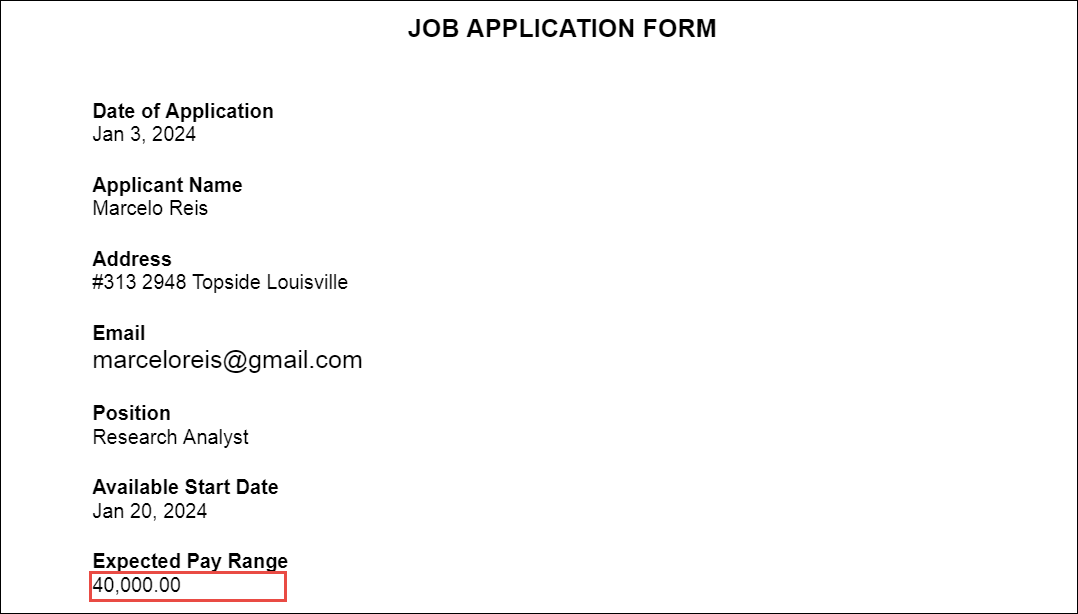
Filling Out a Generated Document - Date (German Format)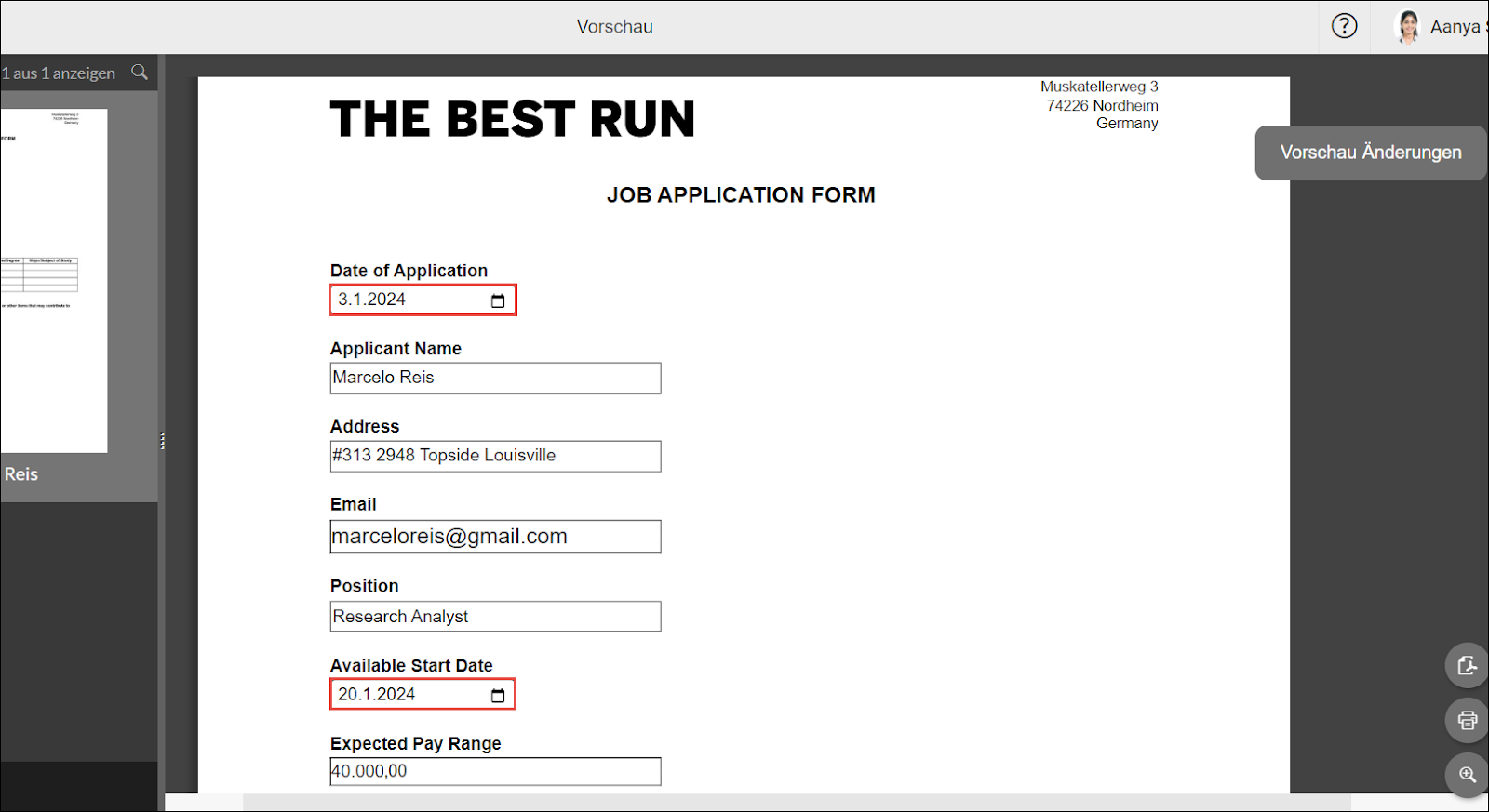
- On Numeric form fields, if the 'Numeric Input Format: 1,234.56' is enabled, the input format will be based on how the actor entered the value: 12345.67 ; Otherwise, it will be based on the end-user’s browser/device settings.
Filling Out a Generated Document - Numeric Input Format: 1,234.56 (Enabled)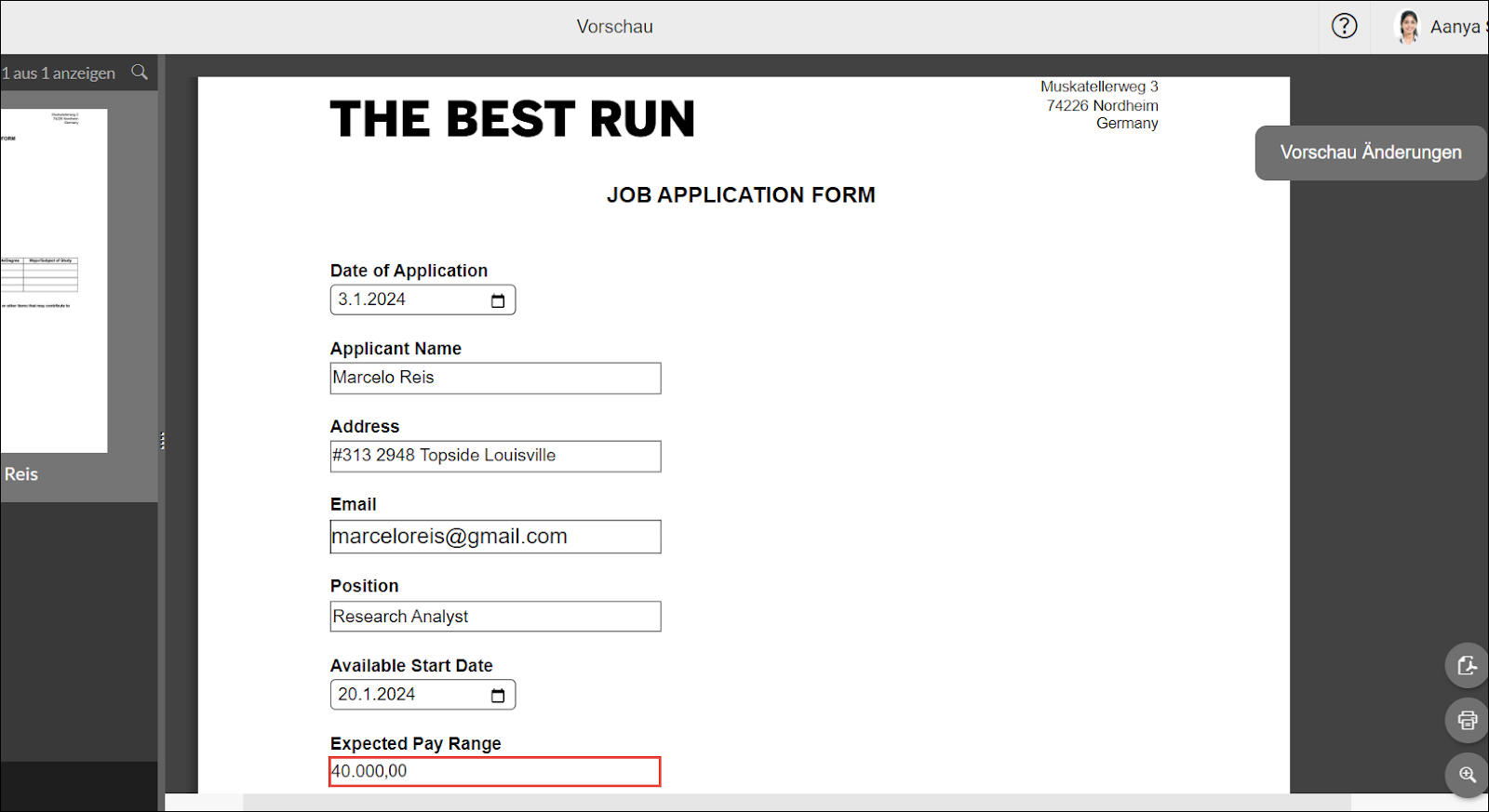
Filling Out a Generated Document (End-user’s browser/device settings: German Format)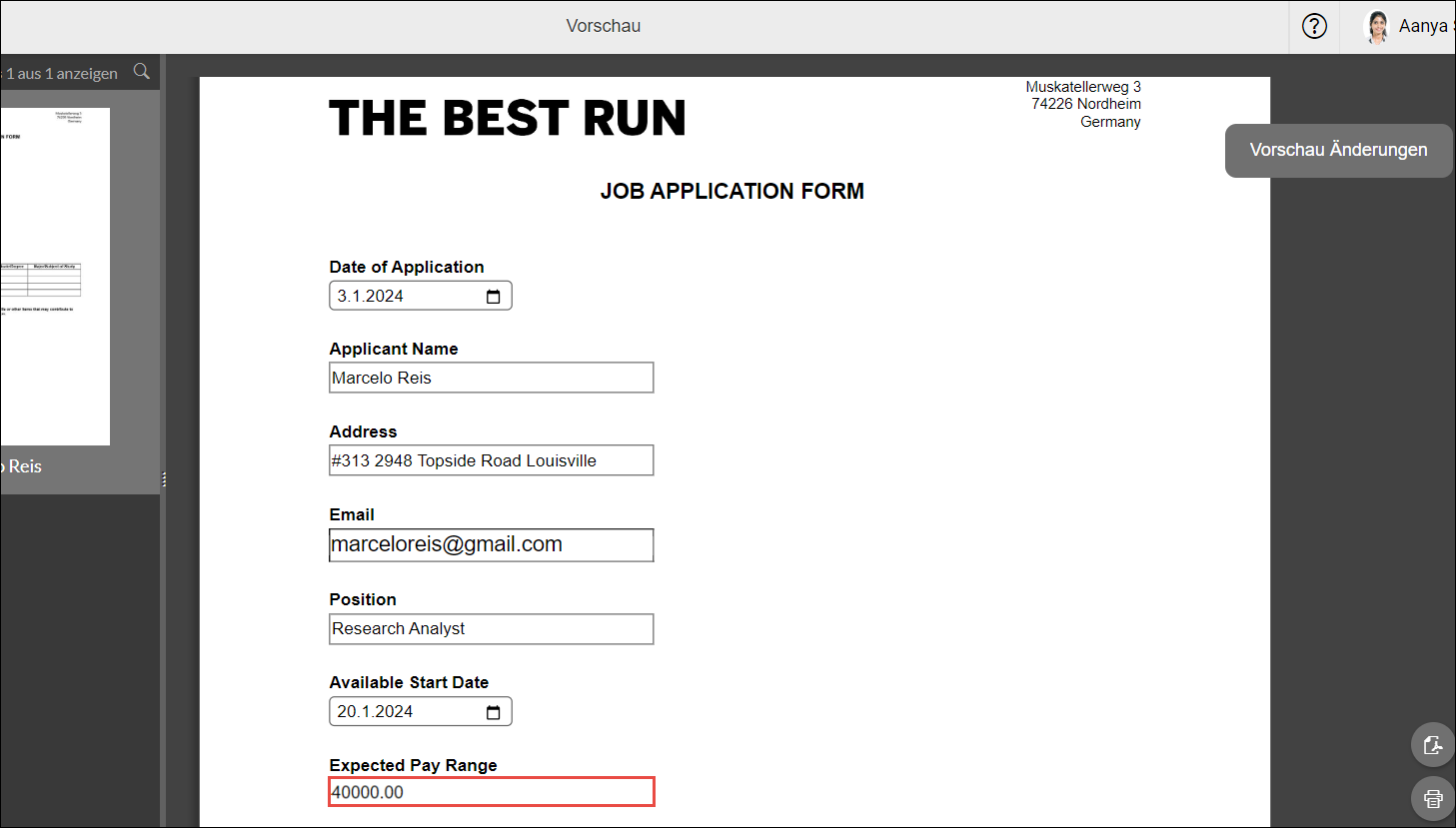
Output Format
Once the form template is downloaded, the output format for date and numeric values varies depending on the configured format and settings from the Form Template Editor and Strato Admin Tool.
Here are the possible output formats if the 'Default Number Output' and 'Default Date Output' from the Strato Admin Tool are enabled. The output format is determined by the following cases:
- For the Date form field, if 'Display value as is' is enabled, the output format will be based on the default date format from the admin tool: MMM D, YYYY ; Otherwise, it will follow the formatting in 'Output Data Format' in the form template editor: YYYY-MM-DD.
Final Form Template (Default Date Output)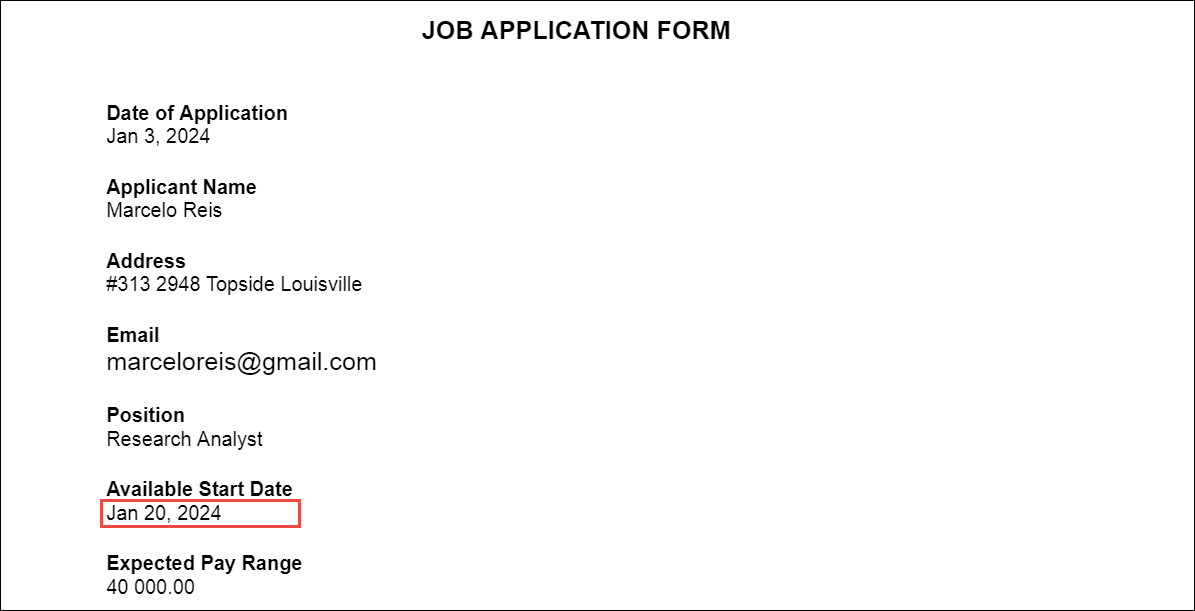
Final Form Template (Output Data Format - Date)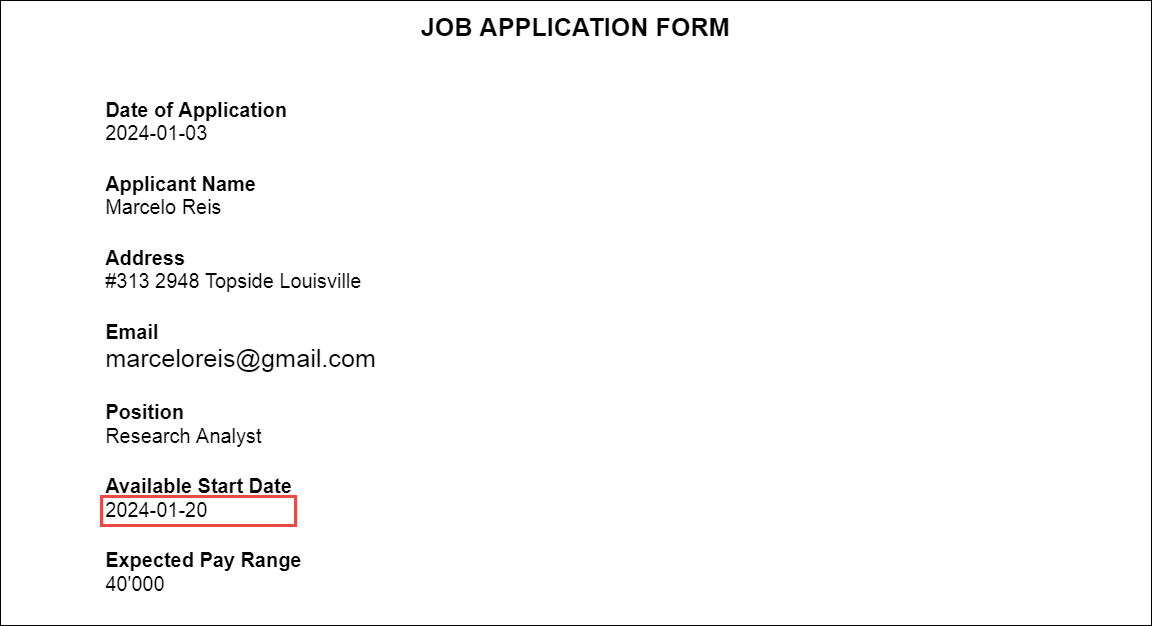
- For the Numeric form field, if both 'Numeric Input Format: 1,234.56' and 'Display value as is' from Form Field Settings are enabled, the output format will be based on the default number output from the admin tool: 12 345.67. If both are disabled, the format configuration from 'Output Data Format' will be followed: 12’345.
Final Form Template (Default Number Output)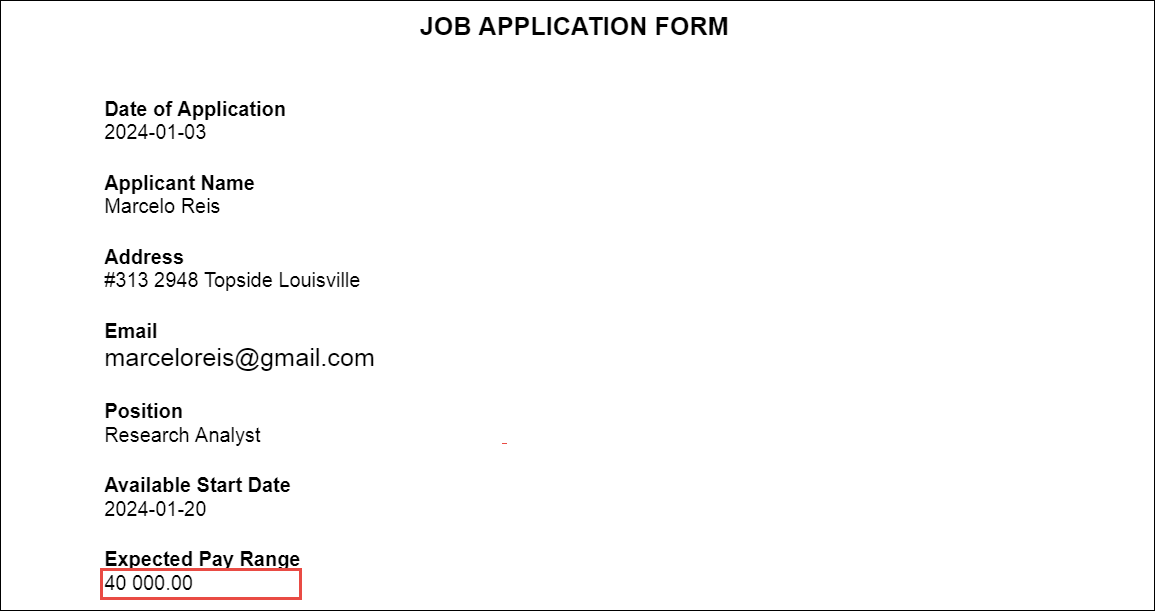
Final Form Template (Output Data Format - Numeric)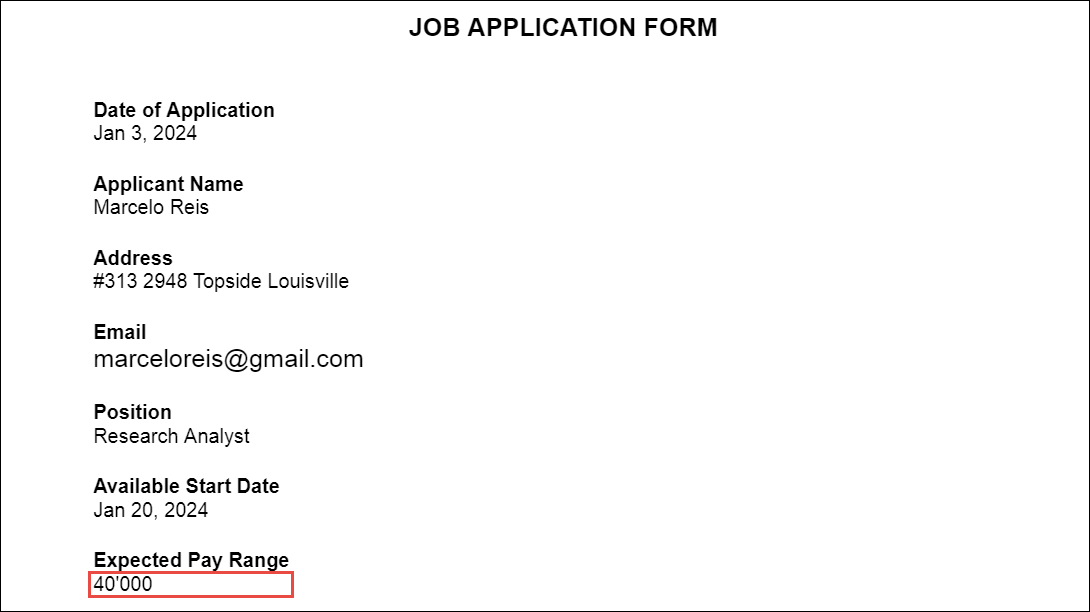

- In the Date form field, if 'Display value as is' is enabled, the output format will be based on the language parameter: MM/DD/YYYY (en-US) ; Otherwise, it will follow the formatting in 'Output Data Format' in the Form Template Editor: YYYY-MM-DD.
Final Form Template (Language Parameter: en-US)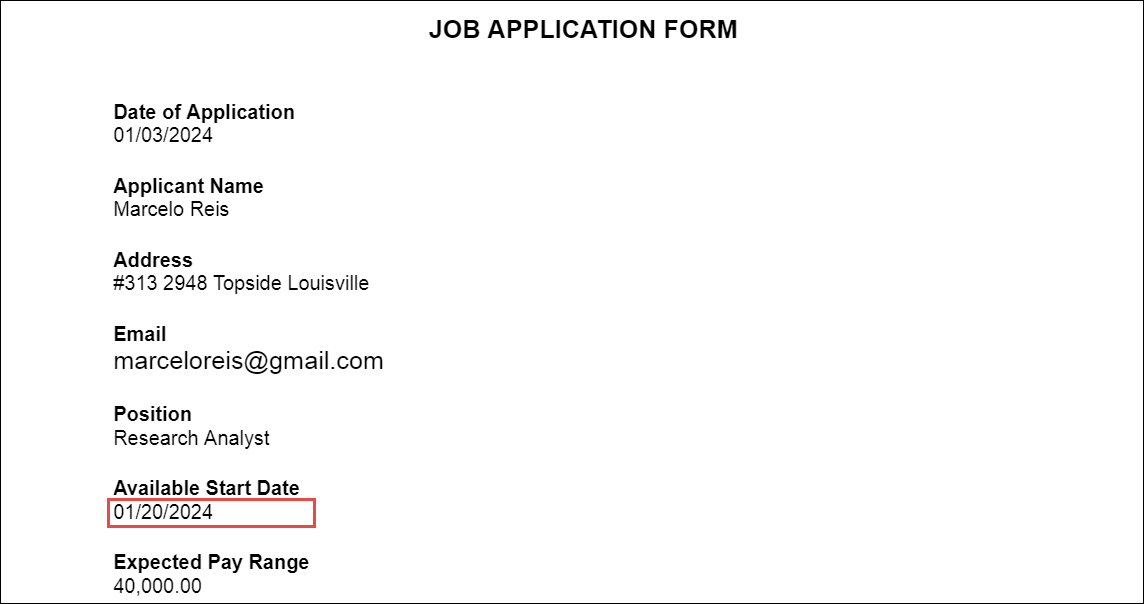
Final Form Template (Output Data Format - Date)
- For Numeric form field values, if 'Numeric Input Format: 1,234.56' and 'Display value as is' from Form Field Settings are both enabled, the output format will be based on how the actor entered the value: 12345.67. If both are disabled, the format configuration from 'Output Data Format' will be followed: 12’345.
Final Form Template (As Entered by Actor - Numeric)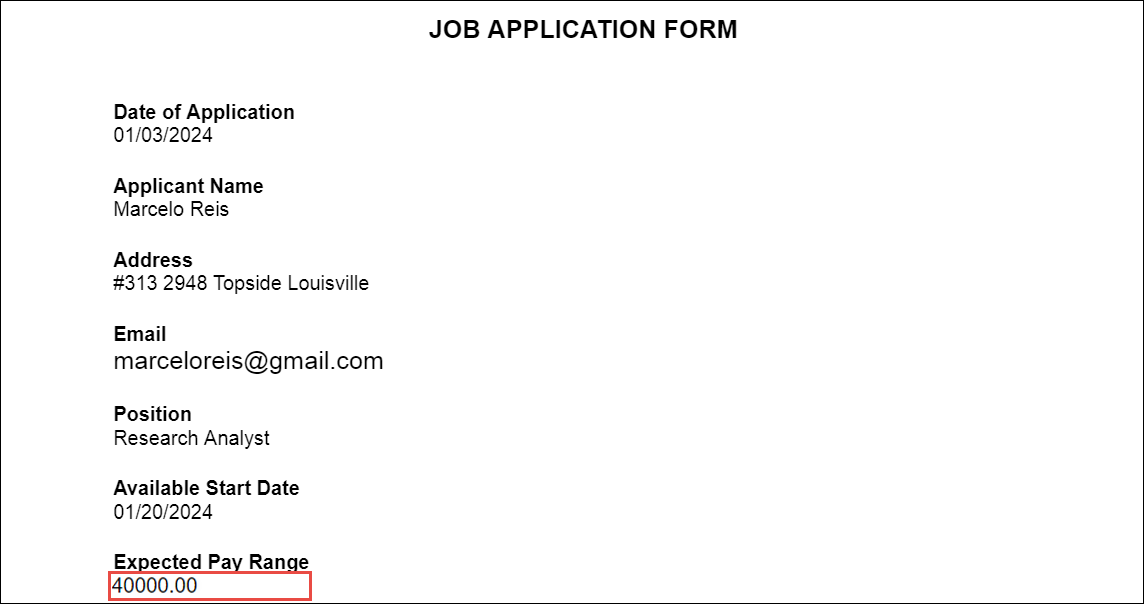
Final Form Template (Output Data Format - Numeric)