Card Type - Generator Card (Documents)
This article covers the View Mode of the Generator Card after configuring it in its Edit Mode.
Make sure that the card is enabled / toggled on from its Edit Mode, as shown in this image below, otherwise the View Mode of the card will not be visible on the screen. The View Mode is accessible via the Eye icon on the upper-right corner of the card.
The Generate Document card allows different users to generate documents for different purposes. These purposes are generating documents for yourself - Employee Self Service (ESS), for your team - Manager Self Service (MSS), for other individuals, and for applicants. These purposes are divided into tabs and will be shown or hidden depending on how the Generate Document card is configured.
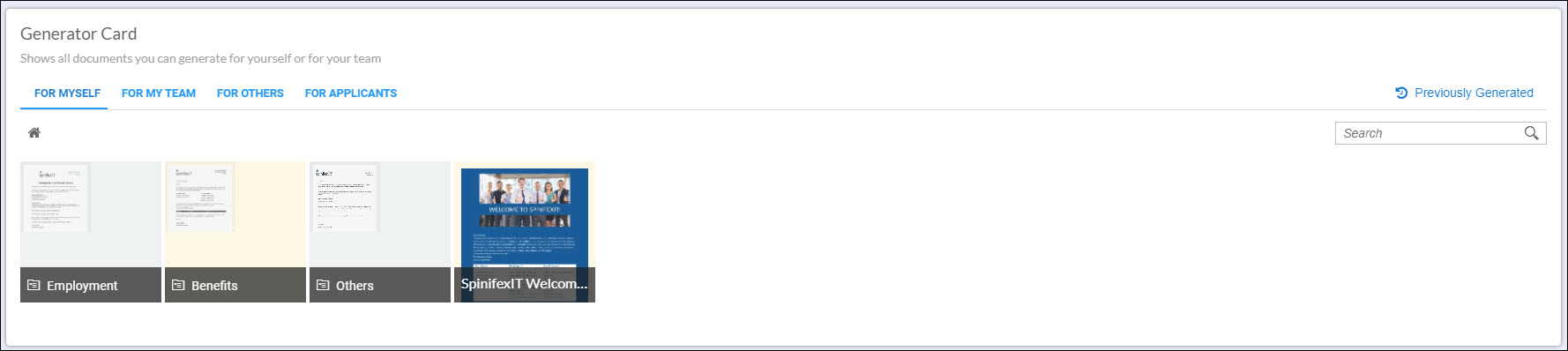
Multiple documents can be generated at the same time by ticking the box beside the name of the documents that you need.
For Myself
To generate a document, click on a document then it will begin generating, once done, the document will be greyed out with several icons available.
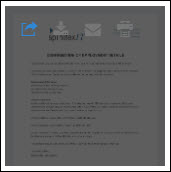
- Preview - preview the document in a new tab.
- Download - download the document as a PDF file
- Email - send the document to your email as a PDF file.
- Print - print the document via your local
For the sample use case for an ESS generator card, read: Document Generation - Employees Generating Documents
For My Team
The For My Team tab is used to generate documents for employees who are directly reporting to the currently logged-on user. This serves as the Manager Self Service (MSS) function that enables managers and admins to generated documents such as Certificate of Employment, Bonus Letters, Letter Offer, and all the other relevant HR documents for the following employees:
- Their direct reports or employees they have access under them
- Employees reporting under their direct reports
- Employees that they are the indirect manager of
To start, select your employee(s). Here, Natalie England is selected.
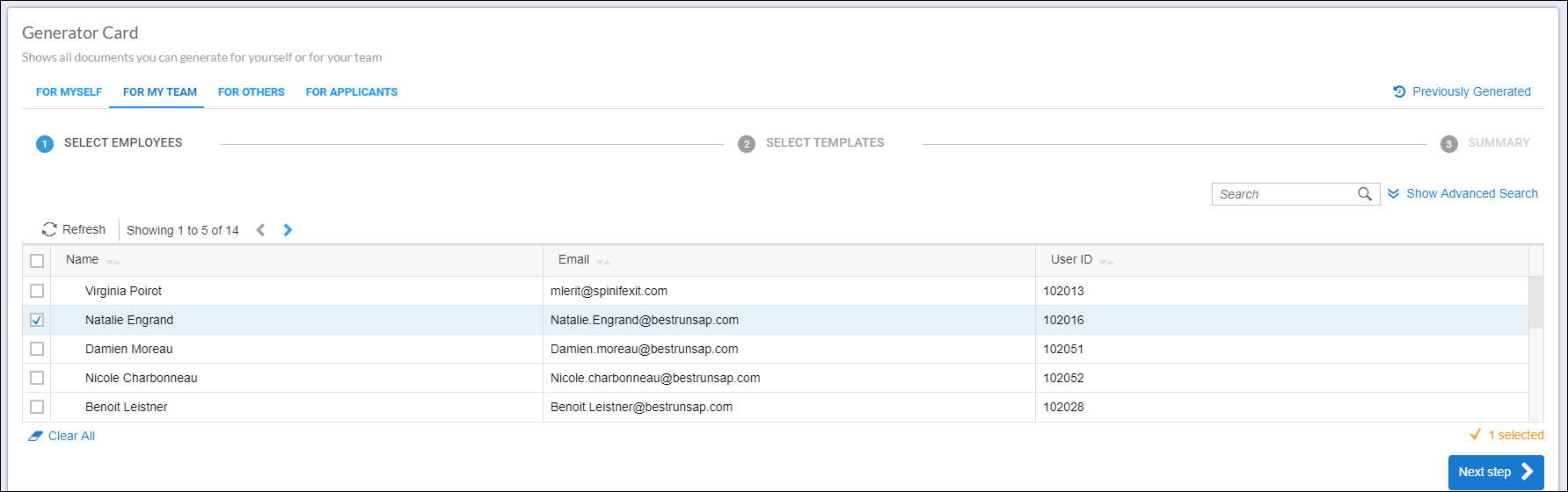
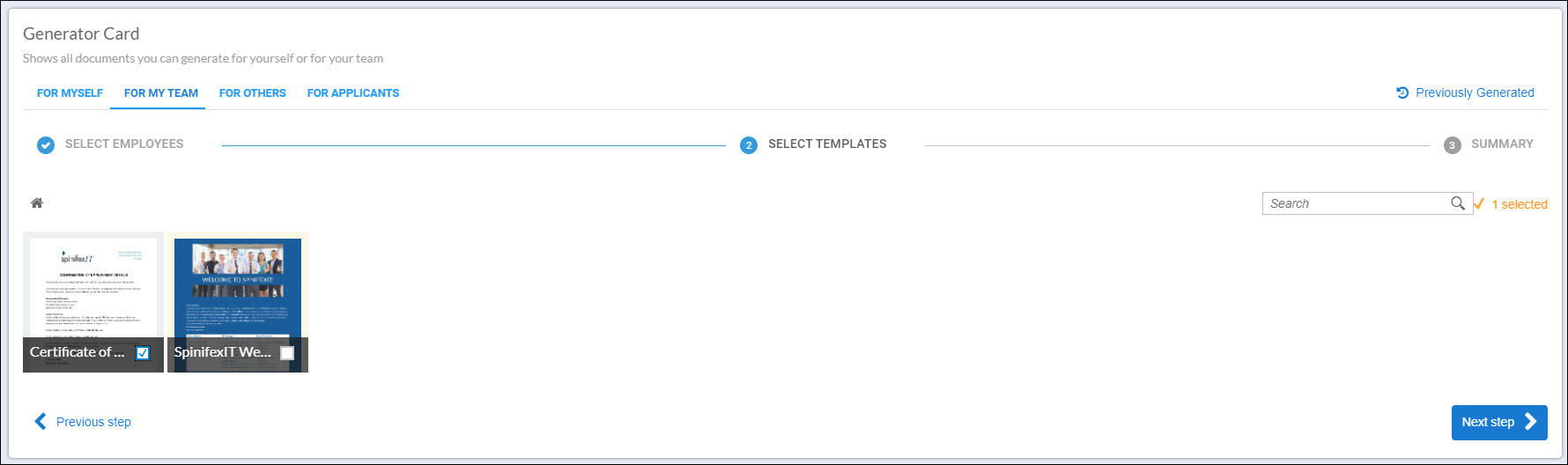
Next, select the document(s) that you will generate for the selected employee(s). Only those documents available for the selected employees will be displayed. For more information, read Restricting Document Templates based on Conditions
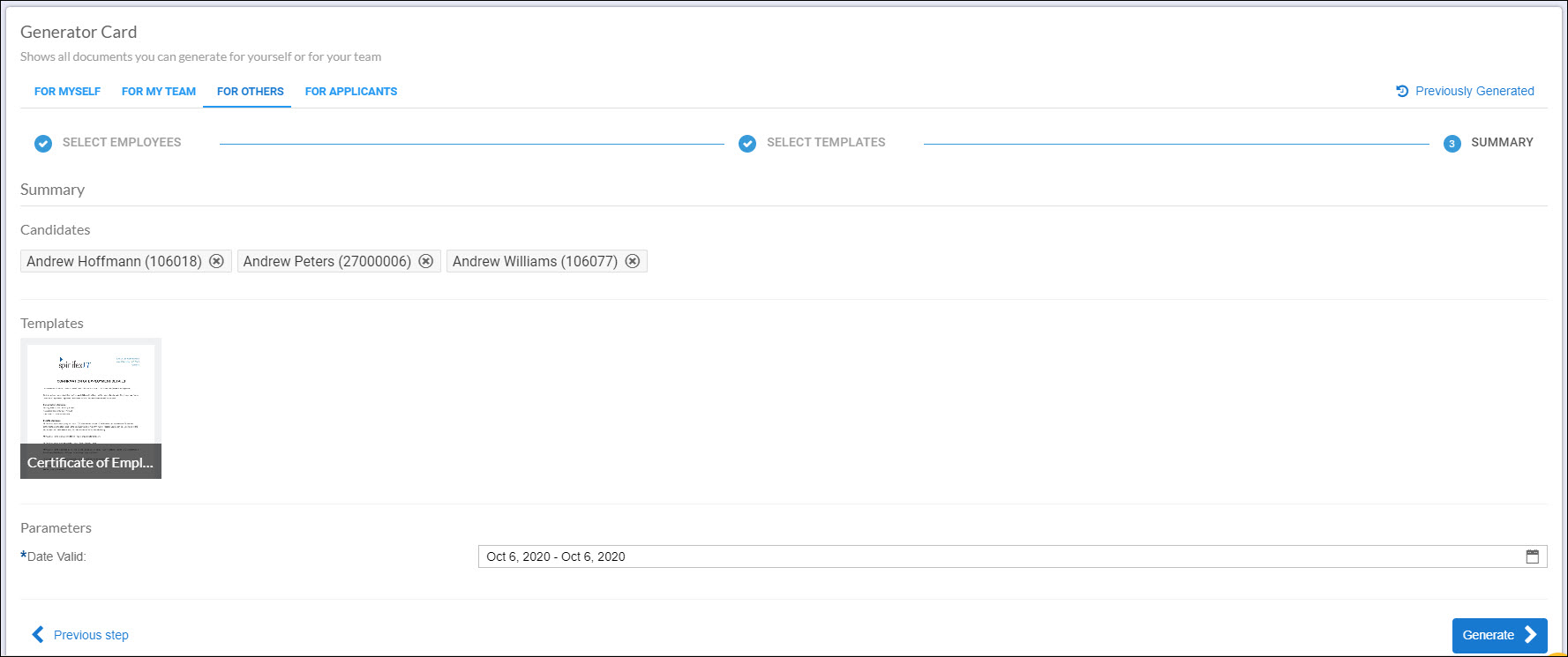
A summary will be displayed with the selected employee(s) and document(s). Enter a date range (if available) and then click Generate. If your document has any template parameters, these will also be displayed here.
Once generated, the document will display four icons similar to the icons from the For Myself section of this article.
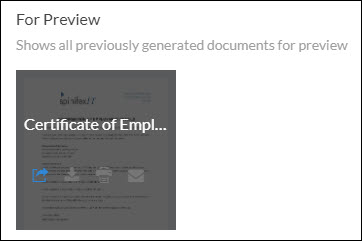
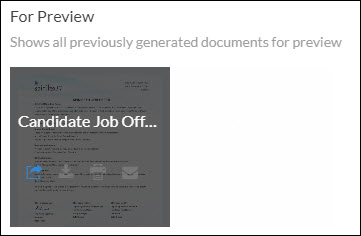
When generating documents for a large population, you can click the Previously Generated button on the top right corner to check if the document generation has finished.

For the sample use case for an MSS generator card, read: Document Generation - Managers Generating Documents
For Others
The For Others tab is mainly used by HRs to generate documents for other employees not necessarily directly under or reporting to them.
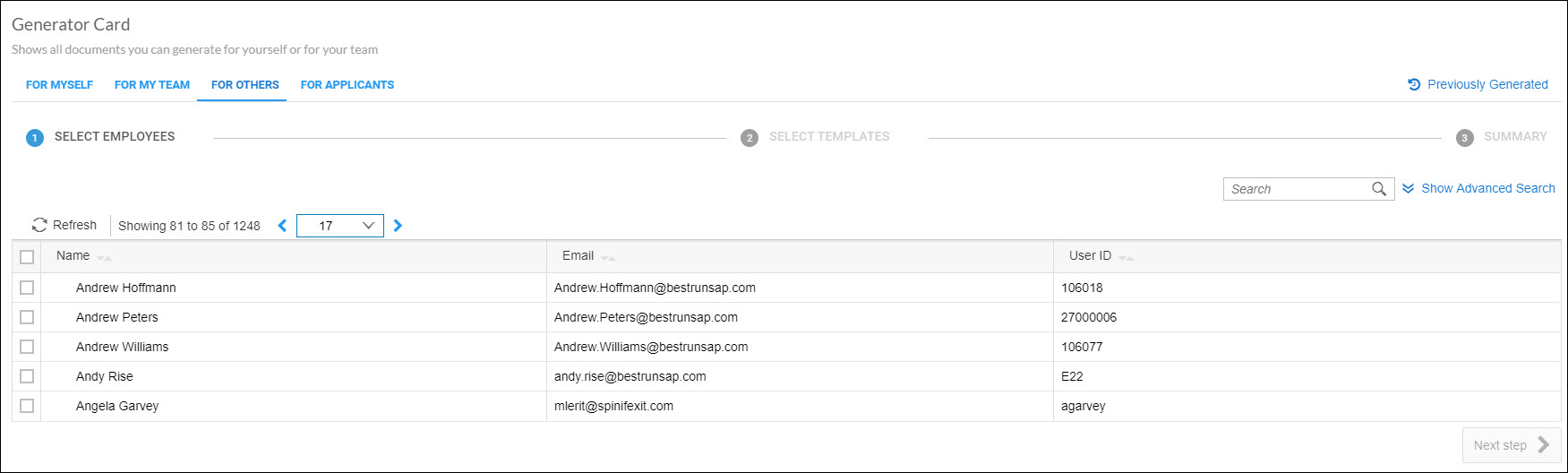
To generate a document, first, select your recipients by ticking the boxes on the left beside the names of the employees.
Next, select the document(s) that you will generate. In this example, the Certificate of Employment was selected.
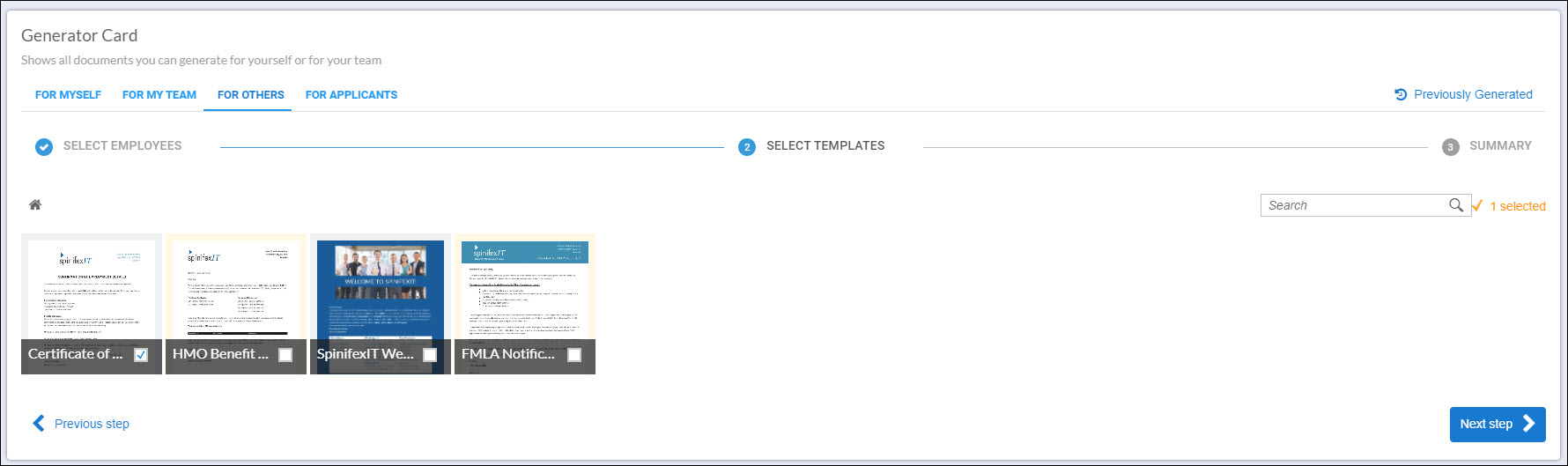
Lastly, enter a date range (if available) and click Generate. A summary is also displayed to show the employees selected as well as the document that will be generated. If your document has any template parameters, these will also be displayed here.
Once generated, the document will display four icons similar to the icons from the For Myself section of this article.
For a sample use case, read: Document Generation - HR Admins Generating Documents
For Applicants
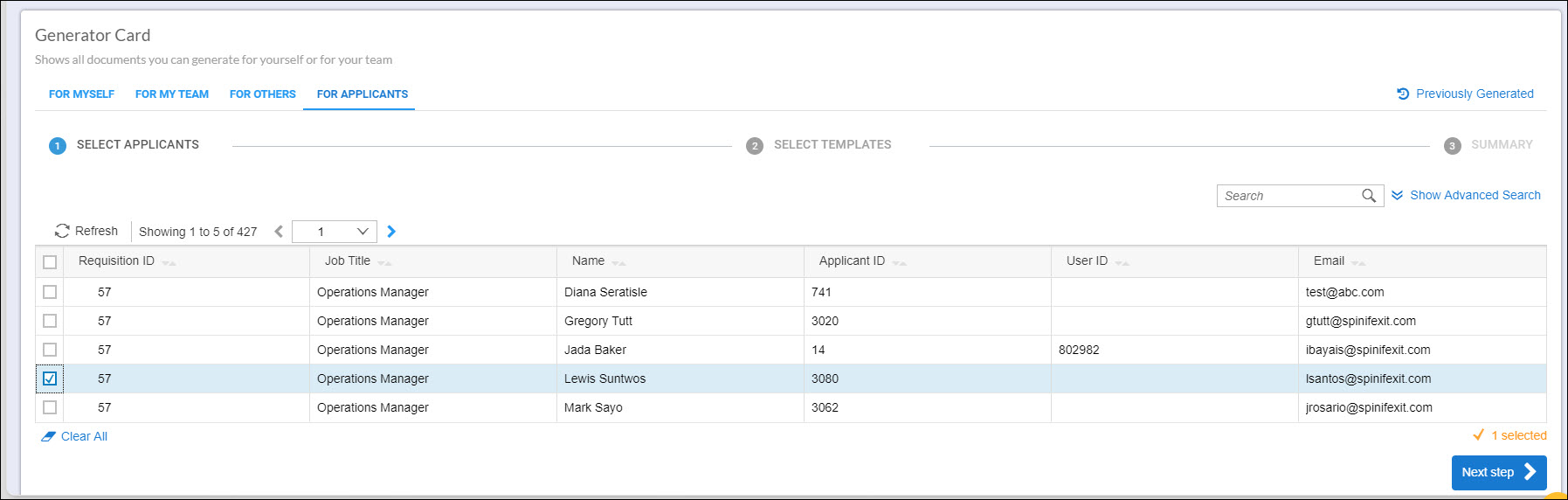
This tab is used to generate documents for candidates from your SuccessFactors recruiting module. The steps here are similar to the steps in the For Others section except that the list of individuals displayed in the first step are all candidates.
Select the candidate(s).
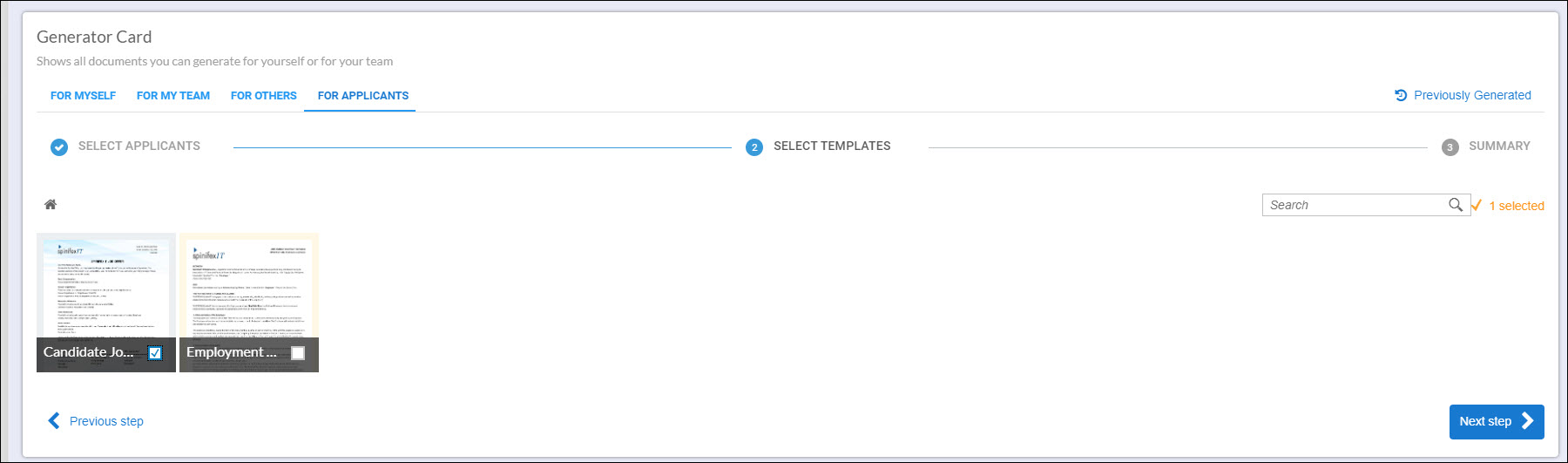
Select the document that will be generated.
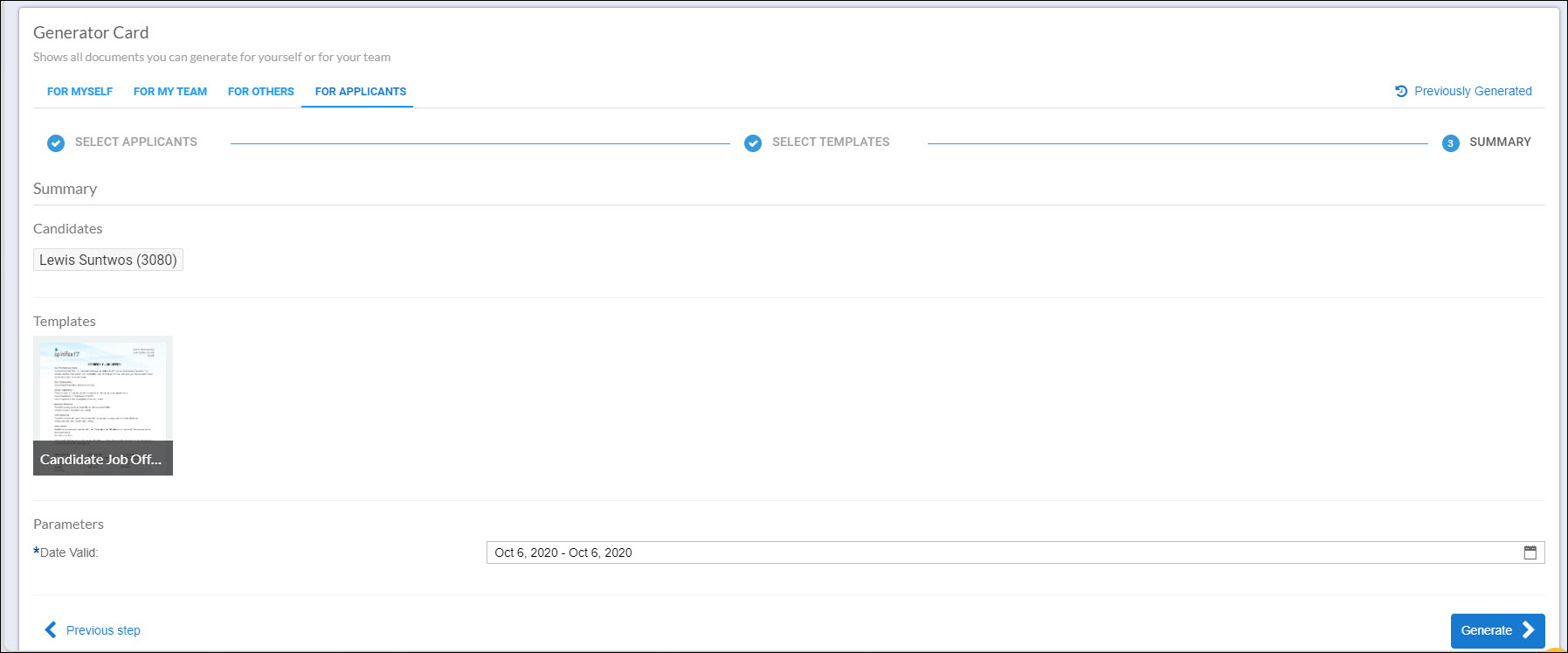
A summary is displayed for the selected candidate(s) and document(s). Enter a date range and then click Generate.
Once generated, the document will display four icons similar to the icons from the For Myself section of this article.