Policies
With Policies, admins can define the level of access a user or a group has over certain actions or objects within Strato. Actions of a module for selected objects and targets can be allowed or denied using Policies. Multiple permissions can be added to a Policy.
Requirements
Make sure that New Feature - Authorisation Framework is installed in the Upgrade Centre.
Access
You can access the Access Policy page under People Settings in the Configurations page.

Features
Policy List
When you open the Access Policy page, you will see the list of Policies and their details.

By default, four columns are shown:
- Policy Name: Unique name for each Policy.
- Description: A short description of what the Policy is.
- Updated: The most recent date and time when the Policy has been modified.
- Status: The current status of the Policy. This can either be Valid or Invalid based on the current Authorisation Settings.
View Policy
The View Policy page shows you the details of the Policy, such as the name, description, and the permissions defined. From here, you have the option to Edit or Delete the Policy.

Create Policy
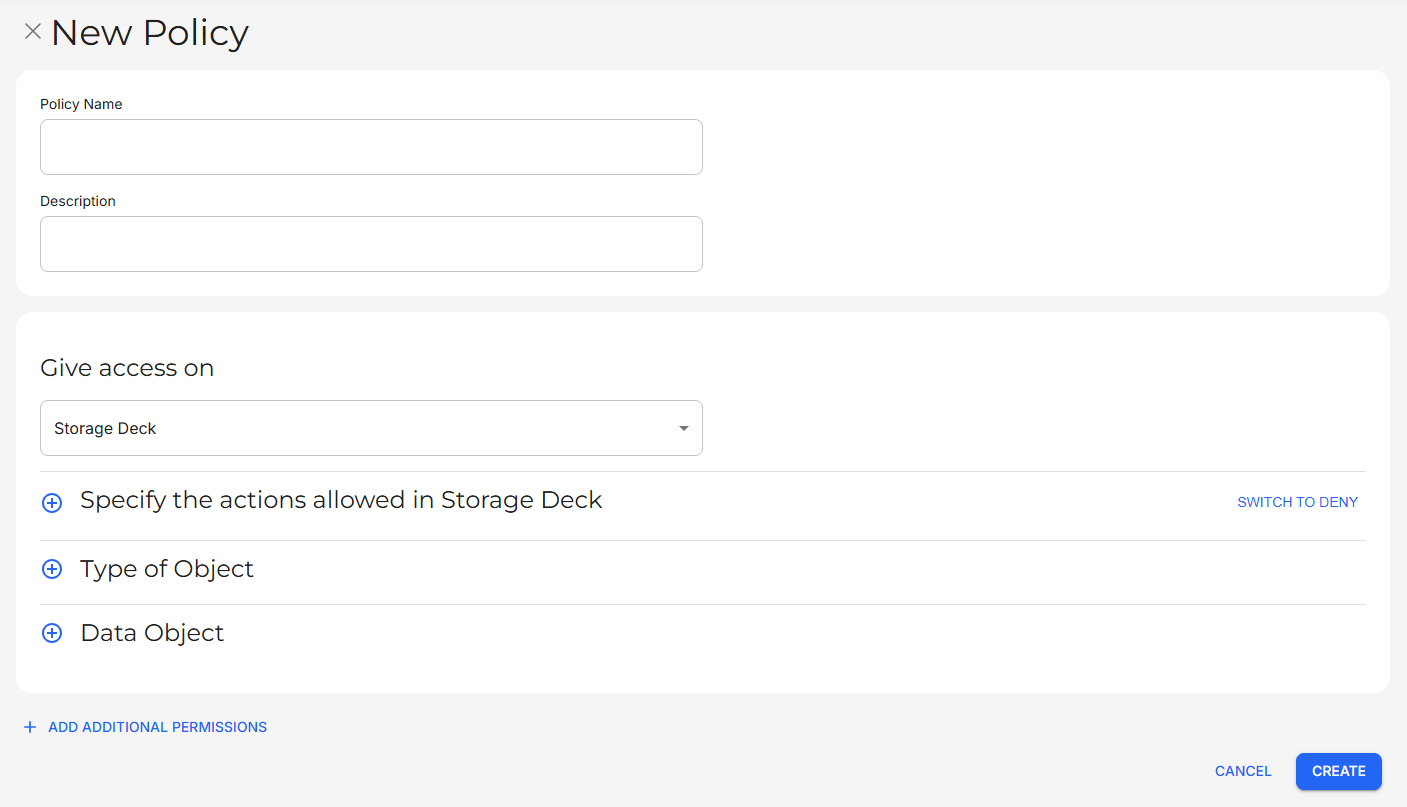
The New Policy page allows you to fill out the details for the new Policy, such as the Policy Name, Description, and Permissions.
Edit Policy
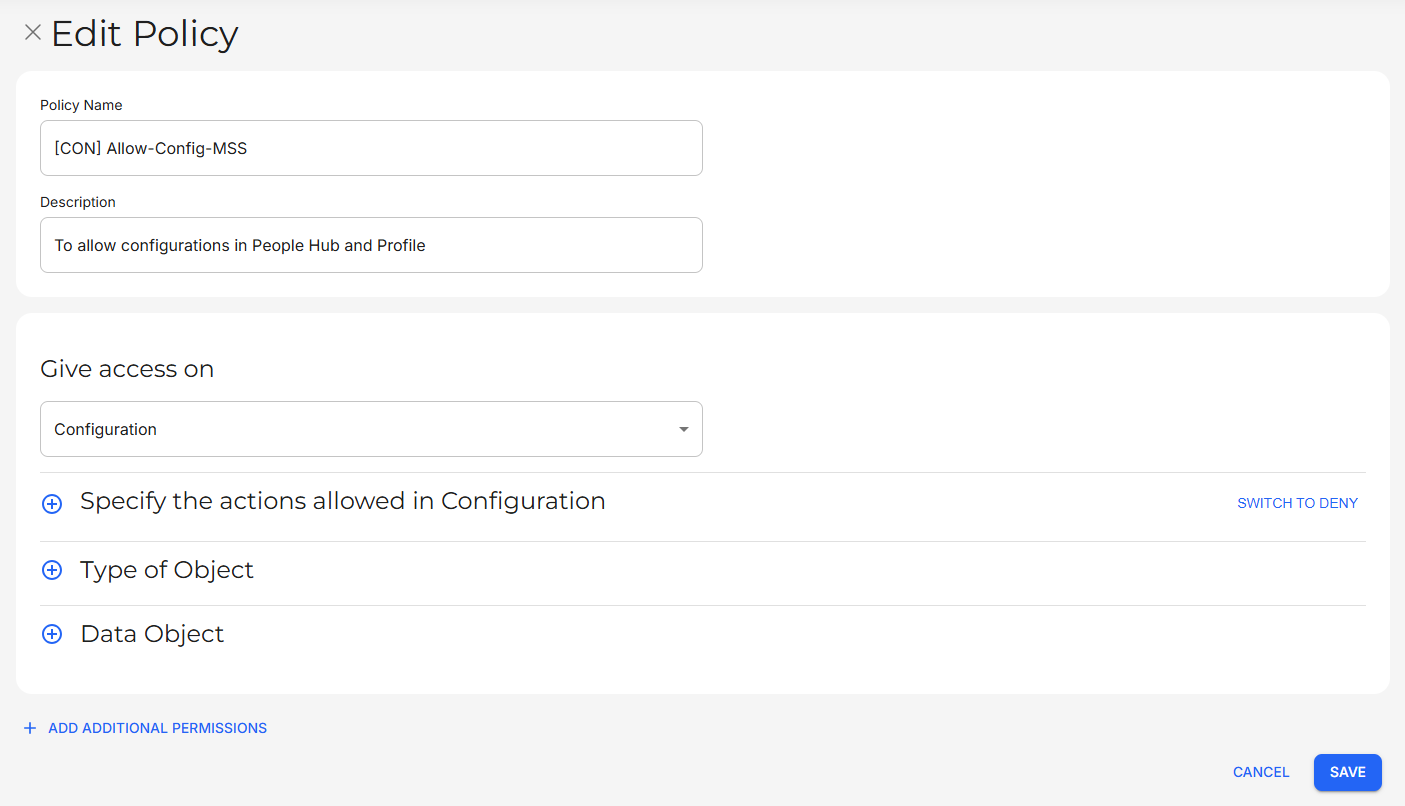
The Edit Policy page allows you to modify the details of a selected Policy. You can change the Policy Name and Description, add or remove Permissions, as well as modify existing Permissions.
Clone Policy
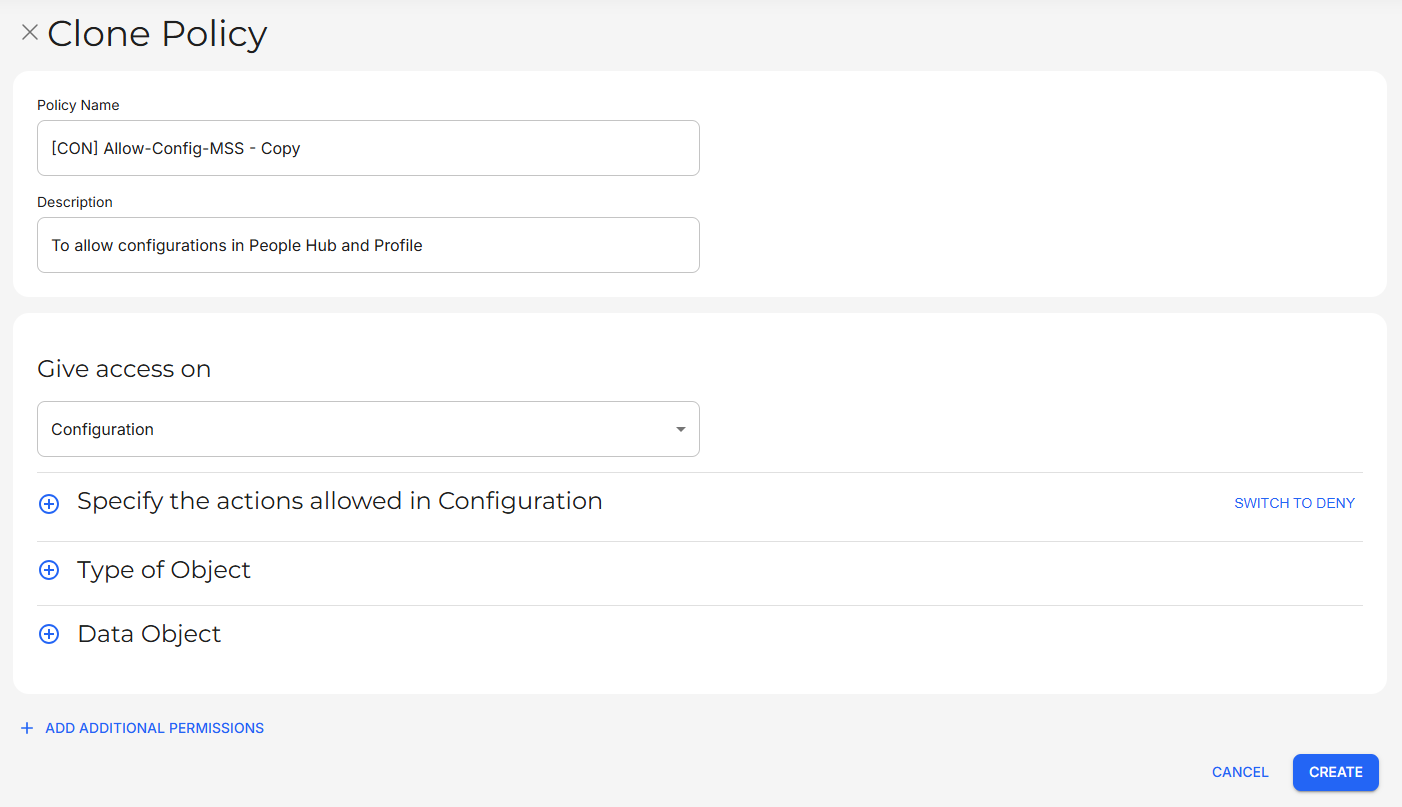
The Clone Policy page allows you to create a copy of a selected Policy. The new Policy inherits all the details of the original.
Continue Setting Up
If you have already created User Properties, it is recommended that you create and manage Policies to ensure that the proper accesses and permissions are set up.
Related articles
- New Feature - Authorisation Framework
- User Properties
- Navigate Policies
- Configure and Manage Policies