To properly view Strato while in Safari’s Private Browsing mode, you may try one of the following options:
-
Reduce Protection: While loading Strato, tap Reduce Protection (iOS) or Reload with Reduced Protections (macOS) at the top of the Safari window, then refresh the page.
Turn off Advanced Tracking and Fingerprinting Protection for Safari:
For iOS:
- Open the Settings app on your iOS device.
- Tap Apps, then tap Safari.
- Tap Advanced, then tap Advanced Tracking and Fingerprinting Protection.
- Set it to Off.
- Reload the Strato page.
Note that the instructions above are based on the latest version, iOS 18. The steps may differ based on the user’s iOS version.
For macOS:
- Open Safari on your macOS device.
- In the menu bar, click Safari, then click Settings.
- In the Settings window, click Privacy.
- Click Advanced Settings.
- Uncheck Use advanced tracking and fingerprinting protection.
- Reload the Strato page.
-
Note that the instructions above are based on the latest version, iOS 18. The steps may differ based on the user’s iOS version.
We recommend using Safari in regular (non-private) browsing mode on iOS 17+ and macOS to avoid this issue.
For additional information on Private Browsing in Safari, read
Keep your browsing history private in Safari and Maps and
Browse privately in Safari on Mac.
 Google Chrome: All versions
 Mozilla Firefox: All versions
 Microsoft Edge: All versions
 Safari: All versions
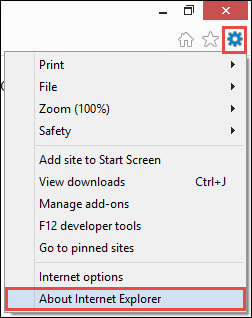
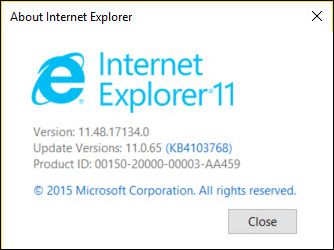
  Internet Explorer: version 11 and above only