Clear your browser's cache to refresh Strato
Some issues in Strato may be caused by the cache that is stored in your browser. Clearing the cache and restarting your browser might solve the issue. This article will guide you on how to clear the cache in the browser that you are using.
Google Chrome
- Open the developer tools. This can be done in 4 ways.
- Press F12.
- Right click anywhere within the browser page and then click Inspect.
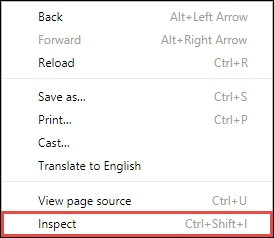
- Press CTRL () / OPTION () + SHIFT + I.
- Click the options button on the top right corner of the browser just below the close button and then click More Tools > Developer Tools.
- Press F12.
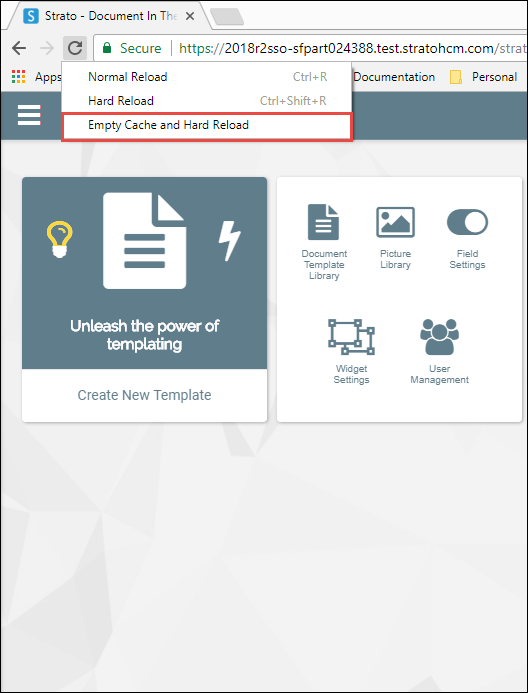
The developer tools will pop up.- Right click on the Refresh button and then click Empty Cache and Hard Reload.
- Restart your browser. Be sure to close all your browser tabs and windows.
- Launch Strato and check if any issues still exist.
Mozilla Firefox
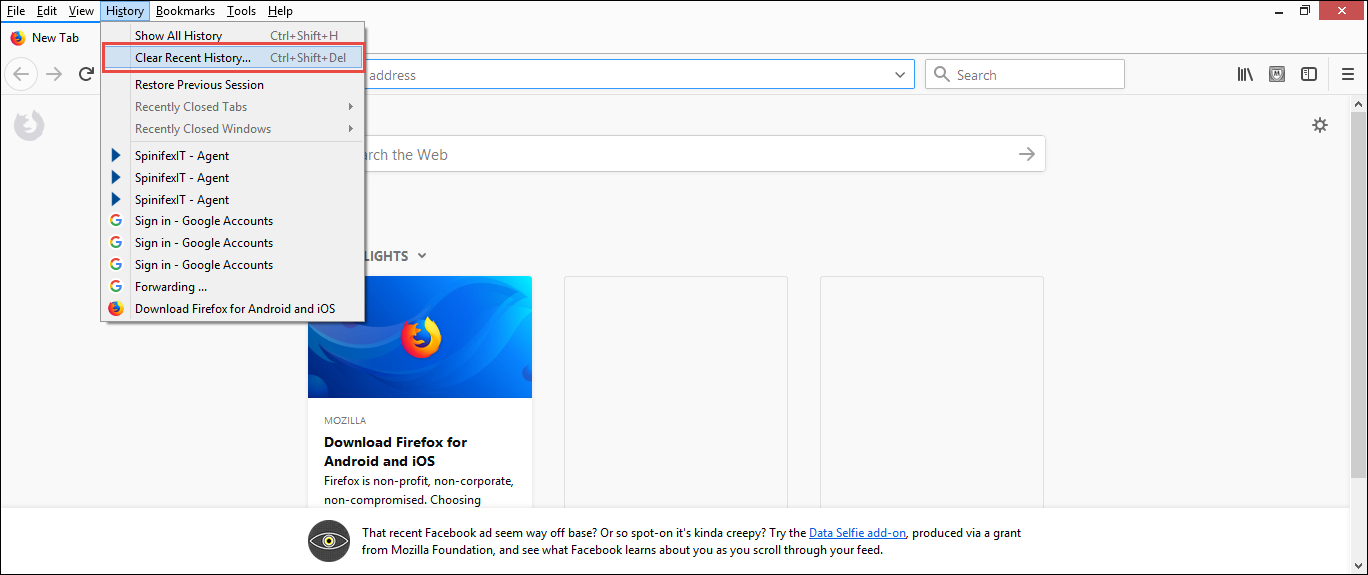
- Press ALT. From the menu bar on the top of the screen, click History > Clear Recent History. A Clear Recent History window will appear.
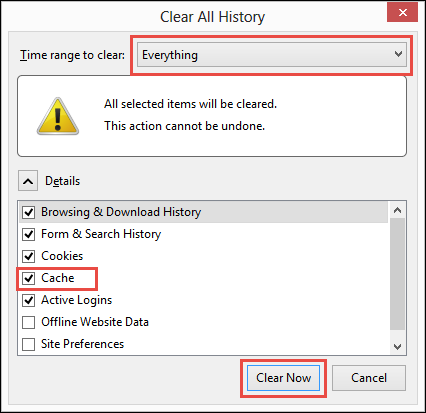
- In the Clear Recent History window, select the Time range to clear. It is recommended to clear everything. In the Details box, make sure to tick the Cache checkbox. Select other objects as needed. When done, click Clear Now.
- Restart your browser. Be sure to close all your browser tabs and windows.
- Launch Strato and check if any issues still exist.
Internet Explorer
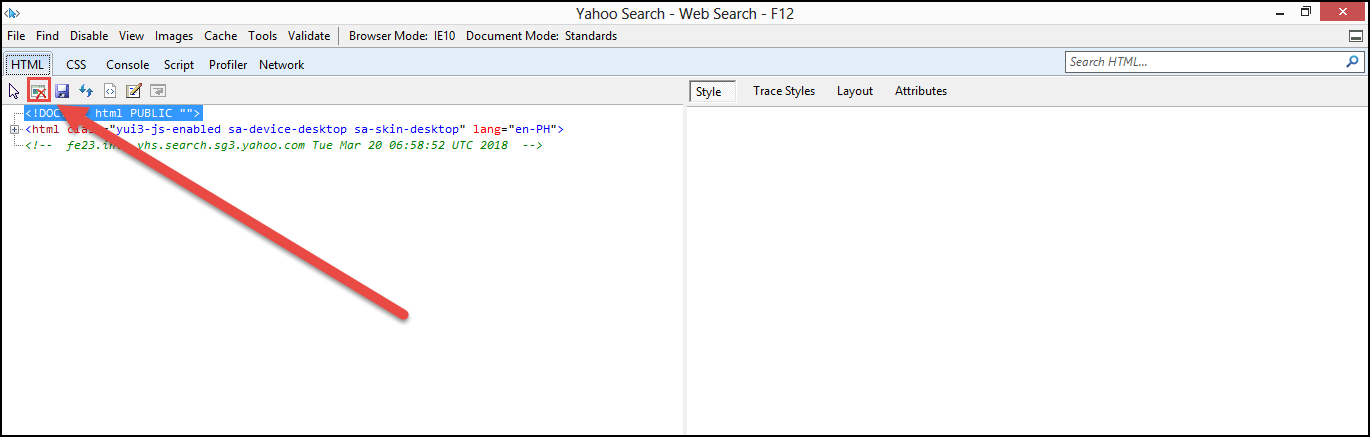
- Press F12 to open the developer tools.
- In the developer tools window, click the Clear Browser Cache button. You will be asked if you want to clear your browser cache. Click Yes.
- Restart your browser. Be sure to close all your browser tabs and windows.
- Launch Strato and check if any issues still exist.