Map Workflow Parameters in SuccessFactors Integration Centre
When creating a Strato Workflow template, the Containers (parameters) and Trigger components need to be defined in order for the workflow to know how and when it is going to be automatically executed. The Containers (from the word itself) contain the parameters or holds the variables that need to be imported or exported into the steps within the workflow. Basically, it holds the data being passed around or manipulated within the workflow. On the other hand, the Trigger component in Strato workflow determines how the workflow will be triggered to automatically start its execution.
(See how both the Containers and the Trigger components are used in Steps 7-10 of this How To article: Strato Workfow Template for a Clearance Process).
Now, part of the steps on How to Trigger Strato Workflow via SuccessFactors is to define the parameters set from the Strato Workflow Containers in the Operation Settings in SuccessFactors Integration Centre. This is done to be able to pass parameter values to the API (Application Programming Interface) call, which will allow both solutions (Strato Workflow and SuccessFactors) to communicate with each other.
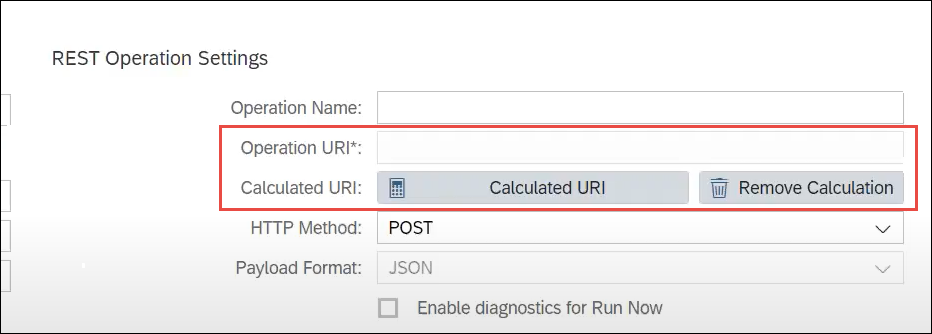
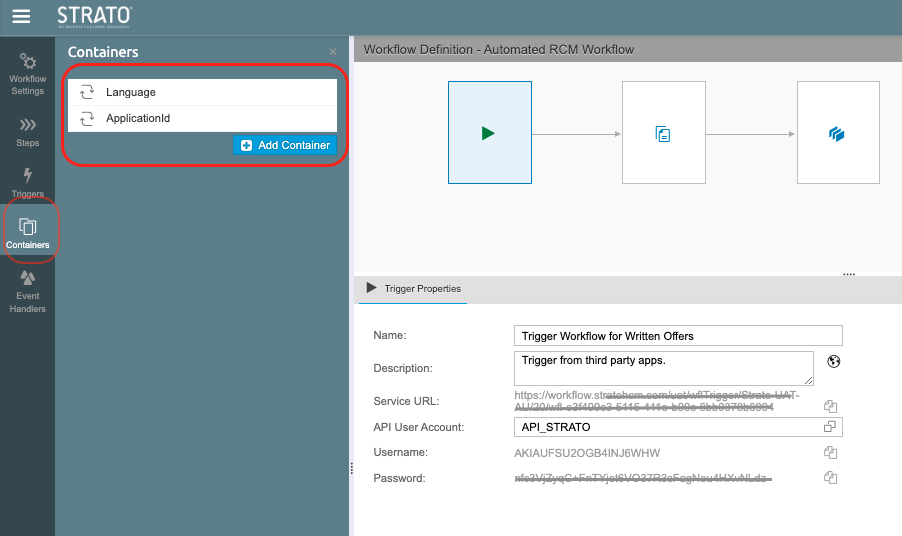
For example, let's say that the parameters set within the Containers of your Strato workflow are:
- ApplicationID (parameter for the Job Application ID in SuccessFators Recruiting)
- Language (for the Language parameter)
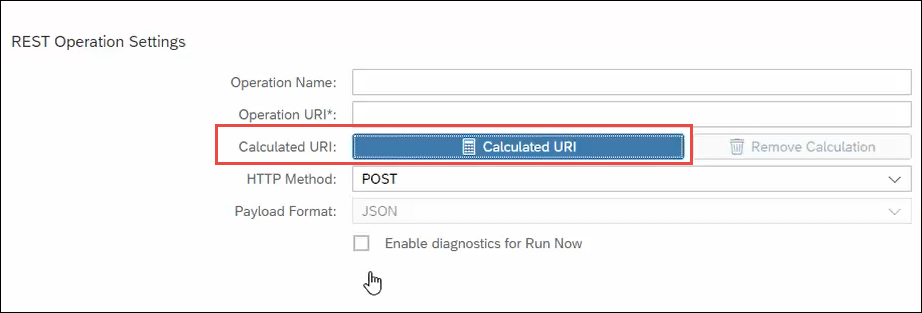
- For these to be mapped to their corresponding SuccessFactors fields, from the Destination Settings (which is in Step 4 of How to Trigger Strato Workflow via SuccessFactors), click the Calculated URI button.
A new screen will pop-up where you can start mapping your parameters. On the Operand field, next to the "Field Value=" field, type in your first workflow parameter with the equal sign (=) at the end. In this example, it's for the ApplicationID parameter.xxx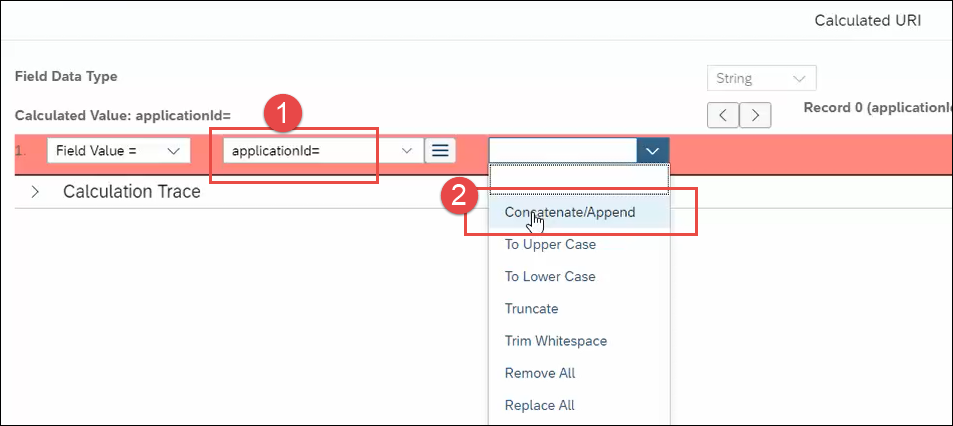
- Then, for the next field, select Concatenate/Append.
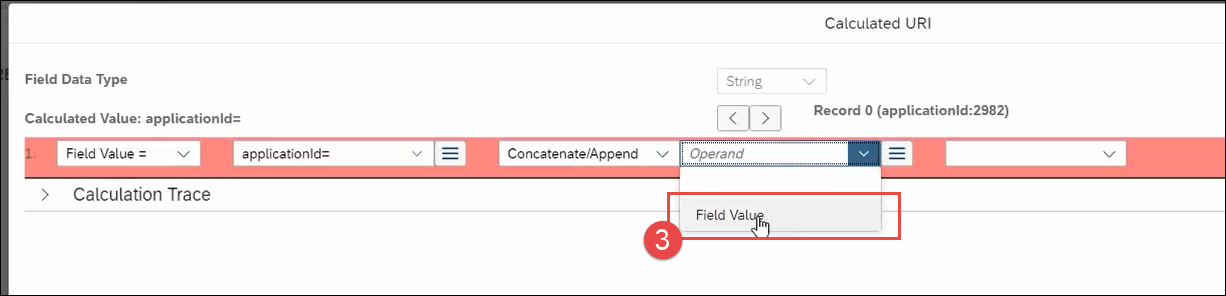
- For the field next to it, select Field Value.
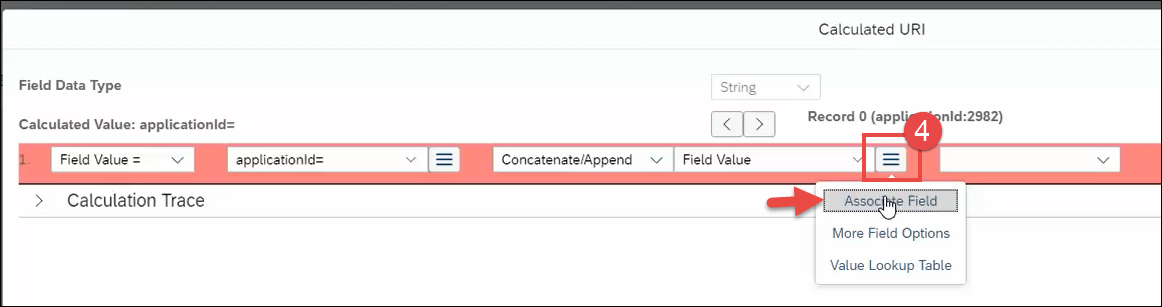
- Click on the selection button, as shown in the screen below, and select Associate Field.
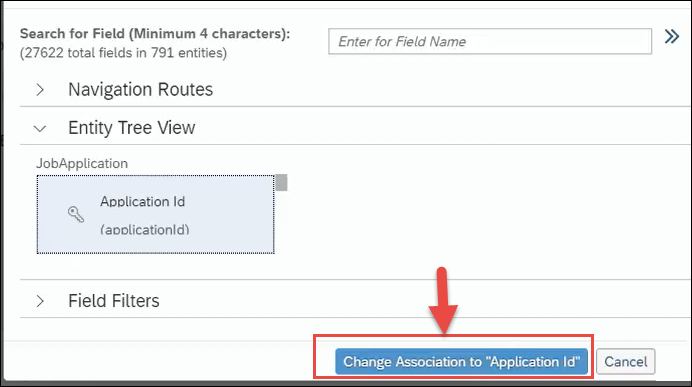
- A screen will appear to select which SuccessFactors field you are going to associate your Strato workflow parameter to.
In this example, the ApplicationID Strato workflow parameter is being mapped or associated with the Application ID data/field under the JobApplication field group of SuccessFactors. This means that this is the Application ID from SuccessFactors that is needed to be passed to the Strato Workflow.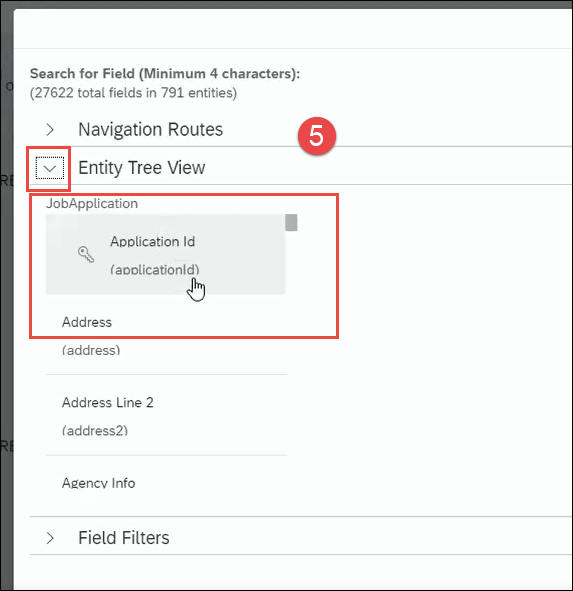
- When done with the selection, click on the Change Association to "field" button. In this example, it's the Change Association to "Application ID" button.
This closes the field selection screen.
Next is to map the other Strato parameter, which is in this example, the Language parameter. - Back in the main settings screen, in the next field, select Concatenate/Append.
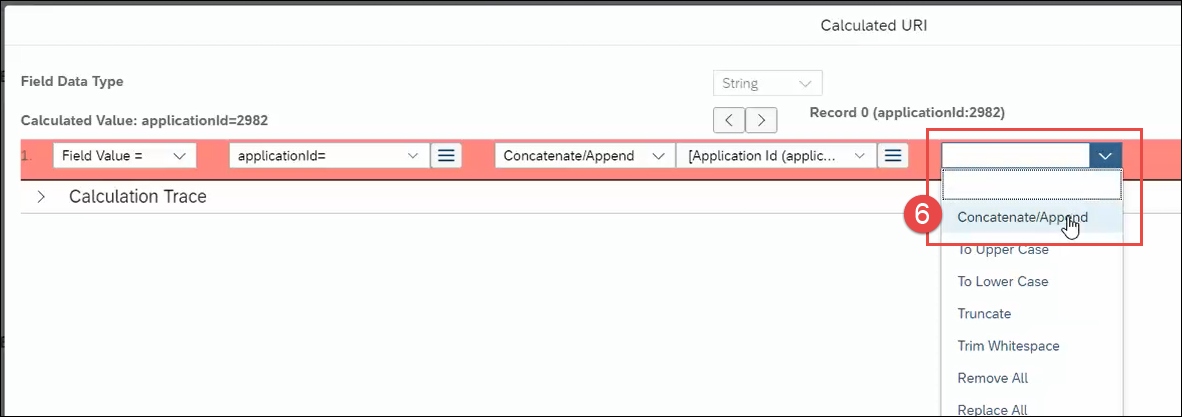
- On the next Operand field, type in the next Strato parameter with the ampersand in the beginning. For this example, it's for the Strato workflow parameter Language.
So in this operand field, type in &language=EN.
The "=EN" is already added assuming that you already know that English is the language needed to be passed in the workflow. Otherwise, enter the correct 2-letter symbol for the language you need in your workflow.
Now that the 2 parameters ApplicationId and Language have already been mapped, Click the OK button from the lower-right side of the screen.
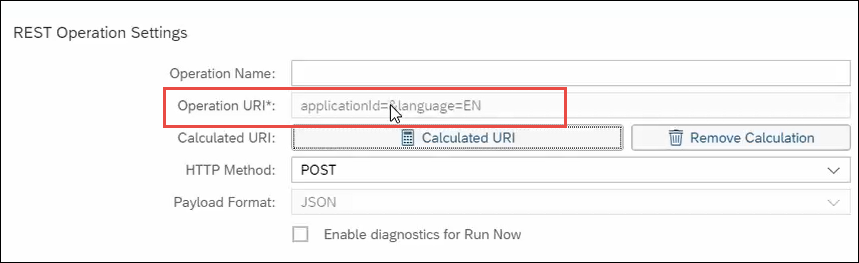
Notice that the Operation URI* field from the Destination Settings screen now reflects the parameters that are going to be called by the Strato Workflow, which is now mapped to the correct SuccessFactors fields/data.