Trigger Strato Workflow via SuccessFactors (Integration Centre)
When your workflow or process is already configured in Strato workflow, and the trigger will be coming from an event raised in SuccessFactors, setting up the automation to call the workflow is done in 2 main parts in SuccessFactors.
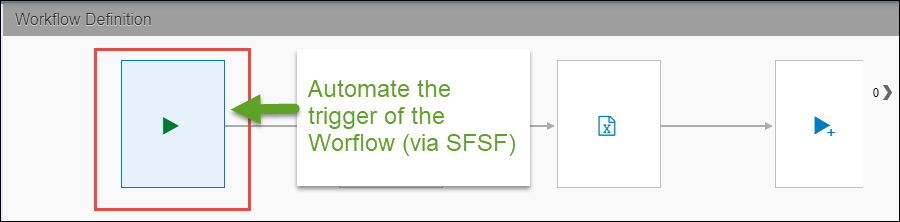
- Define the Integration Object within My Integrations (Integration Centre) in SuccessFactors
- Intelligence Services in SuccessFactors
1 - Defining the Integration Object within My Integrations - Workflow Trigger
- For this setup, go to: SuccessFactors > Admin Centre > Integration Centre > My Integrations
(access to this depends on your SFSF authorization) 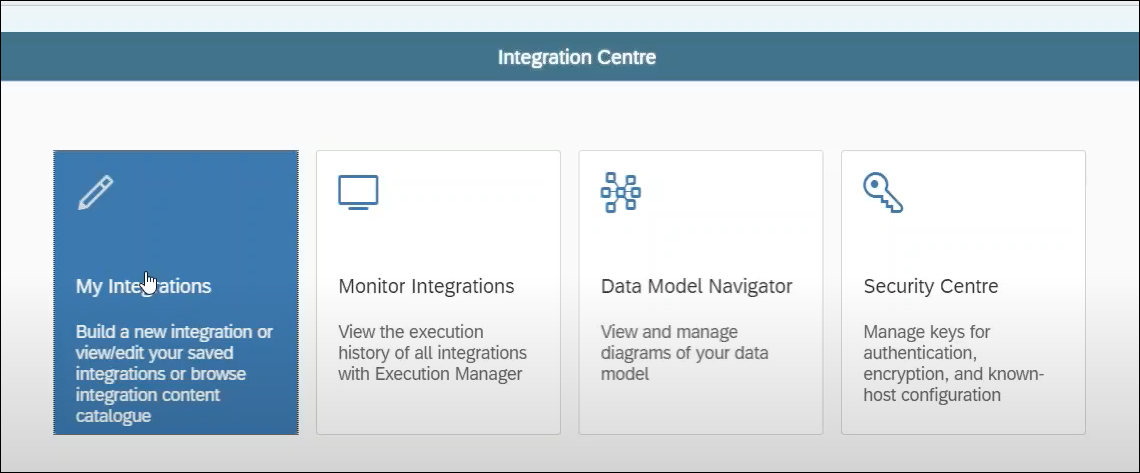
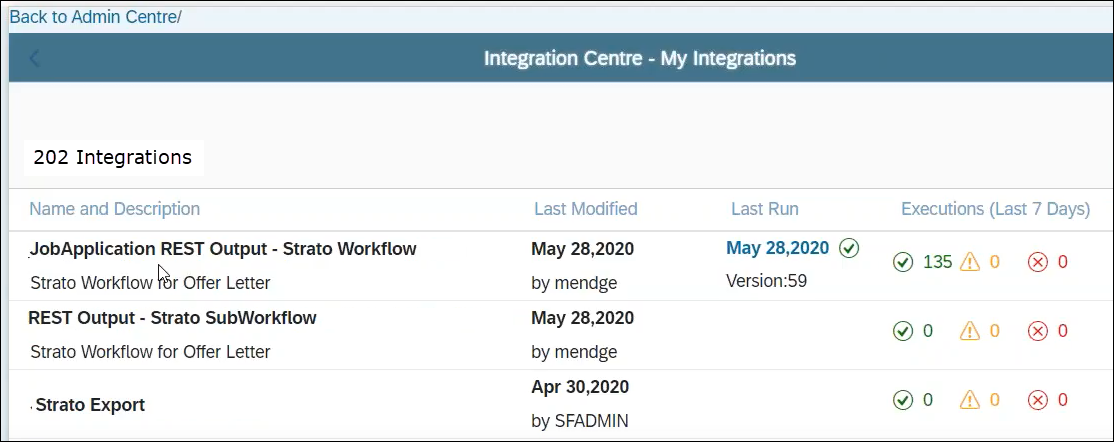
- From the list of integrations, select the integration object to be defined. This links to the Strato workflow to be triggered. To select other integration types, click +Create and select More Integration Types.
- Supply your conditions / requirements on whom your workflow is going to be executed for. These are configured from the Options settings to the Filter settings. (Example, should this Workflow be executed only for a certain Application Status Set Id? Configure this in the Filter settings.)
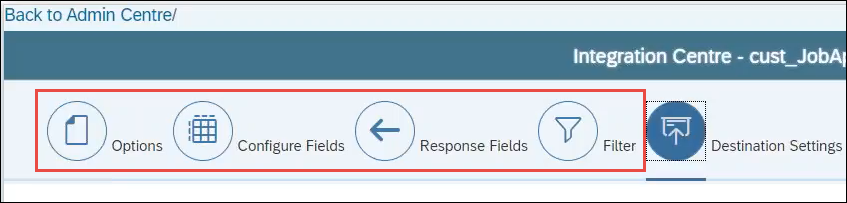
- After setting up your requirements, then for triggering the Strato Workflow, set-up the Destination Settings with the following REST OPERATION SETTINGS:
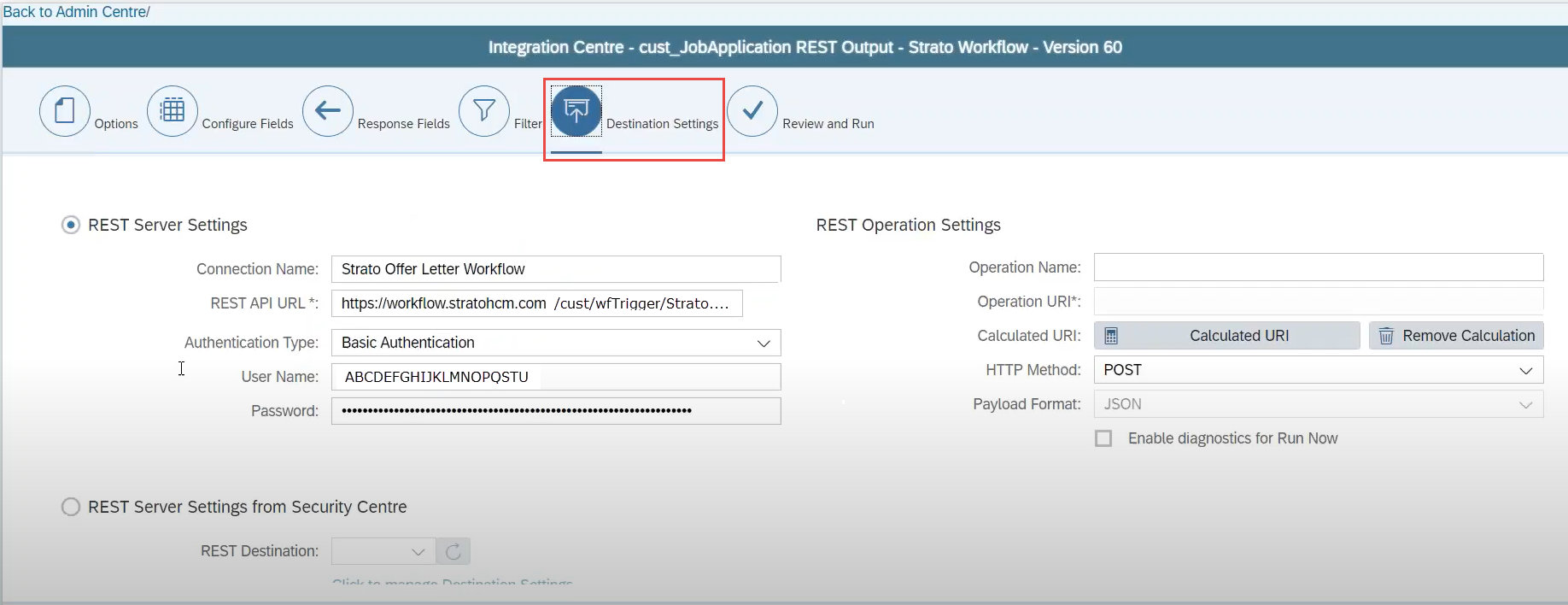
- Connection Name
- REST API URL (the Service URL is captured/provided within the Trigger step in the Strato Workflow as shown in the screen highlighted below. Copy this from Strato Trigger properties, paste it here, and add a question mark ? at the end.) Example:

- Authentication type
- User Name (the Username is captured/provided within the Trigger step in the Strato Workflow as shown in the screen highlighted below.)
- Password (the Password is captured/provided within the Trigger step in the Strato Workflow as shown in the screen highlighted below.)
The Service URL, Username and Password to be provided should come from the Properties of your Trigger step configured in your Strato workflow :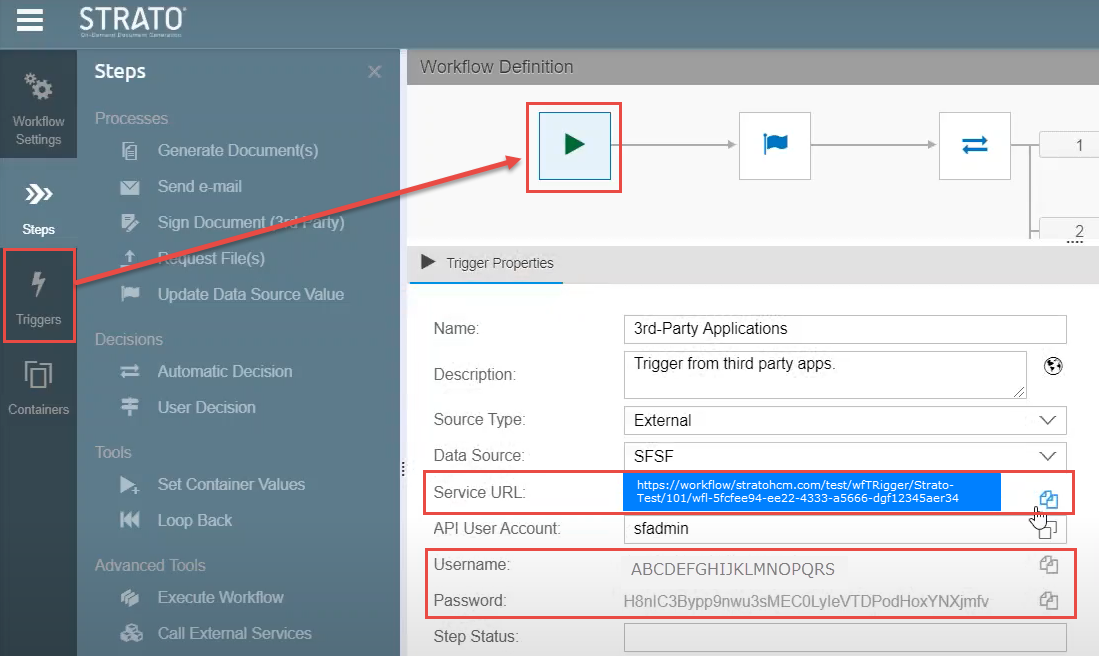
This set-up means that when the url in the REST API is called, and the username and password were met as well, it will then initiate the trigger in the Strato Workflow configured and linked to that service URL.
Before proceeding to Step 5, make sure you have already mapped the Strato workflow parameters to the SuccessFactors field/data that are needed to be passed to the workflow. If this has not been defined yet, please read: Mapping Workflow Parameters in SuccessFactors Integration Centre (URI Calculation)
- Now Save the Destination Settings of your integration object.
- To make sure that your setup is correct and calling the correct url, go to the Review and Run option, and click Run Now. This should manually trigger your workflow in Strato to give it a test run.
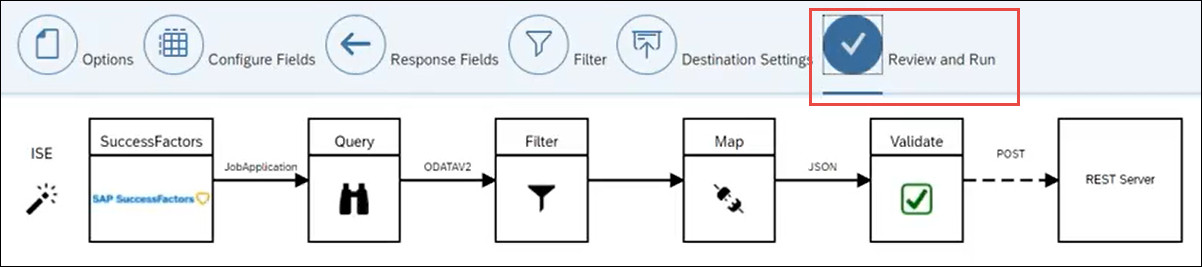
- After saving all the settings in the Destination Settings, proceed to the Intelligence Services process below to set up the automation of calling the workflow.
2 - Setup Intelligent Services - Workflow Trigger
To automate your integration object that was configured from the step above (defining integration object), follow these steps:
- In SuccessFactors, go to Admin Centre > Intelligent Services. This lists all the events that take place in a process in SFSF. (examples are events in a Recruitment Process)
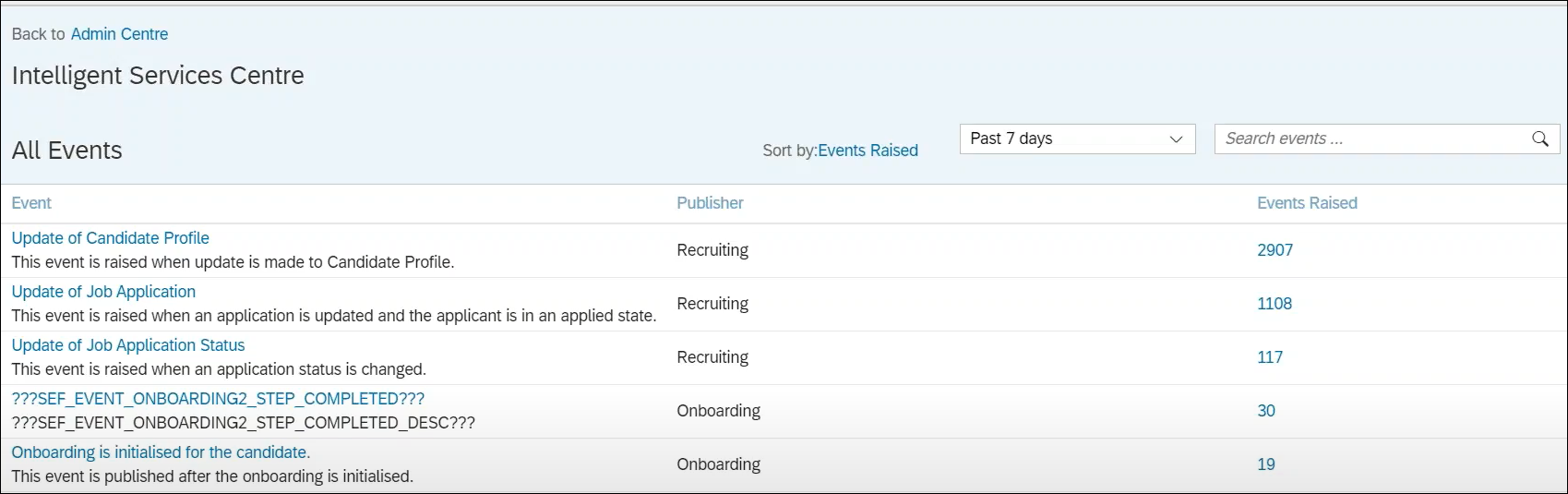
Setting up an event here tells what should happen next when that particular event is raised in SuccessFactors. (Example; What should happen next when an Update of Candidate Profile event takes place in Recruiting? That is setup here.) - From the list of the events, identify which particular event should be configured with the Integration Object that you have previously setup.
- Click on the specific event to be configured (For example, the workflow and the integration object that was set previously is specific to the Update of Job Application Status event)
- Then from the integration object list, select the Integration Object you have previously configured. (In this example, it is for the Job Application Strato Workflow integration object)
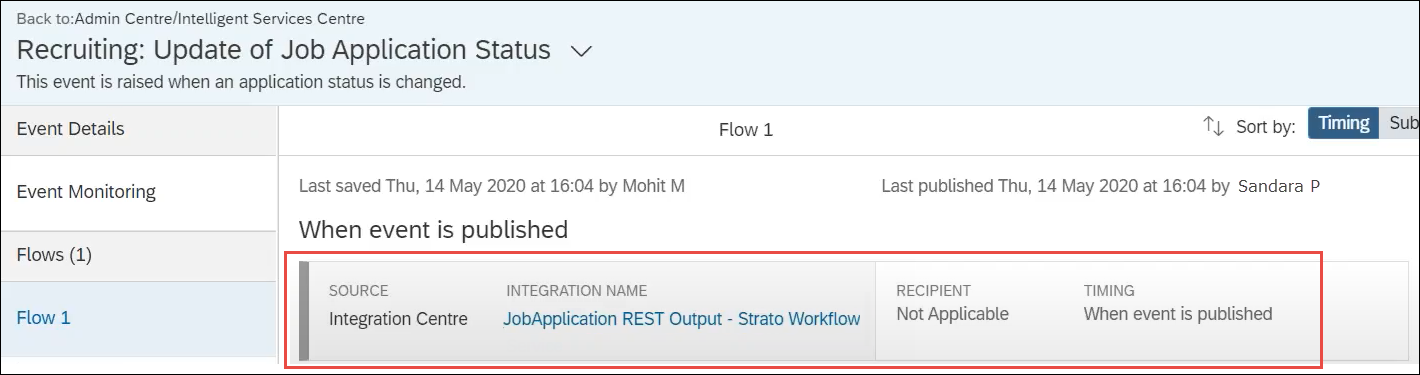
This selection means that, this Integration Object is expected to automatically run, when that particular event happens. (In this example, the Update of Job Application Status event.)
In completing all these steps, your Strato Workflow should now be correctly configured to be triggered depending on the specific event that happens in SuccessFactors. Again, if you want to make sure that your setup will work successfully, you can do a Test Run from the Review and Run option as discussed in step 6 from the first section above.
For standard SAP references, Intelligent Services articles are found here: