File Search - Overview
File Search provides Strato users an efficient way to search for files and documents. Similar to other search engines, you can perform a basic search and an advanced search if you want to refine your search process and get more detailed results. This feature is separate from the Search and Filter function for File and Storage Management.
This article provides an overview of File Search.
Functionality
The Basic Search lets you perform a keyword-based search using the input provided in the search field. It scans file and folder names and returns results that contain matching terms. This is useful for quick lookups when you're confident about the filename or a part of it.
For more specific queries, the Advanced Search feature enables users to build more detailed search conditions. This can be accessed by clicking the Show Advanced Search option beside the Basic Search bar. Using this tool, you can add multiple conditions based on file attributes or metadata fields, and specify how the conditions should be evaluated.
When setting up advanced conditions, you can choose how the system evaluates those conditions:
- All - returns only files that meet every specified condition (AND logic).
- Any – returns files that meet at least one of the specified conditions (OR logic)
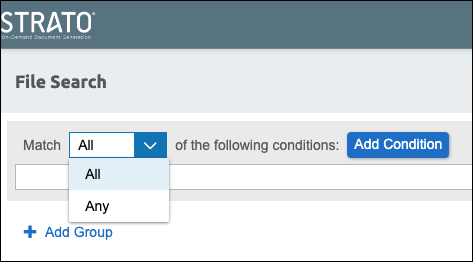
This provides greater flexibility for retrieving exactly what you need, especially when working with large datasets or diverse file categories.
The search criteria using conditions are grouped by block, each condition block containing the fields, operations, and search values you can add to your condition.

Search Fields - These fields contain related information about the files.
Name
Category
File Path: specifies the folder in the system
Recipient
File owner
Created by
Created on
Last Changed By
Last Changed On
Size
Hold Status
Validity Date
Properties
Document Status: active/archived/expired
Location: to identify specific country associated with the file
Document Content: for utilizing the Content-Based Search feature
Source: identifies user types (SuccessFactors and External Users)
Sets of operations - The operation varies depending on the data type of the selected Search Field.
Search Value - The input field for values depends on the data type of the Search Fields in the search criteria.
Table 1: Types of Operations
| Type | Operation |
|---|---|
| String | These are the options:
|
| Date | These are the options:
|
| Numeric | These are the options:
|
| Boolean | These are the options:
|
If you want to search using different conditions you can add another group (or block) of criteria using the Add Group button. Once a new group (block) is added, you must select the operand between the two groups AND or OR.
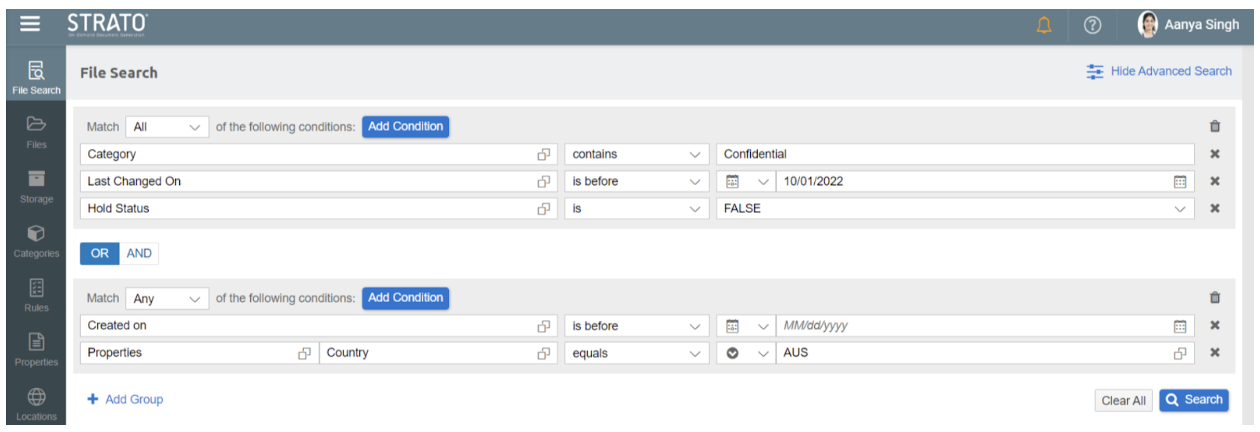 To set a new search criteria, just click Clear all and set your new conditions.
After setting your conditions and running search, all matching results are displayed on the results pane, indicating the total number of matching files and documents. To have a better view with only the list of results visible, you can hide the condition groups.
Integrated Features
From the search results, users can take further action on retrieved files.
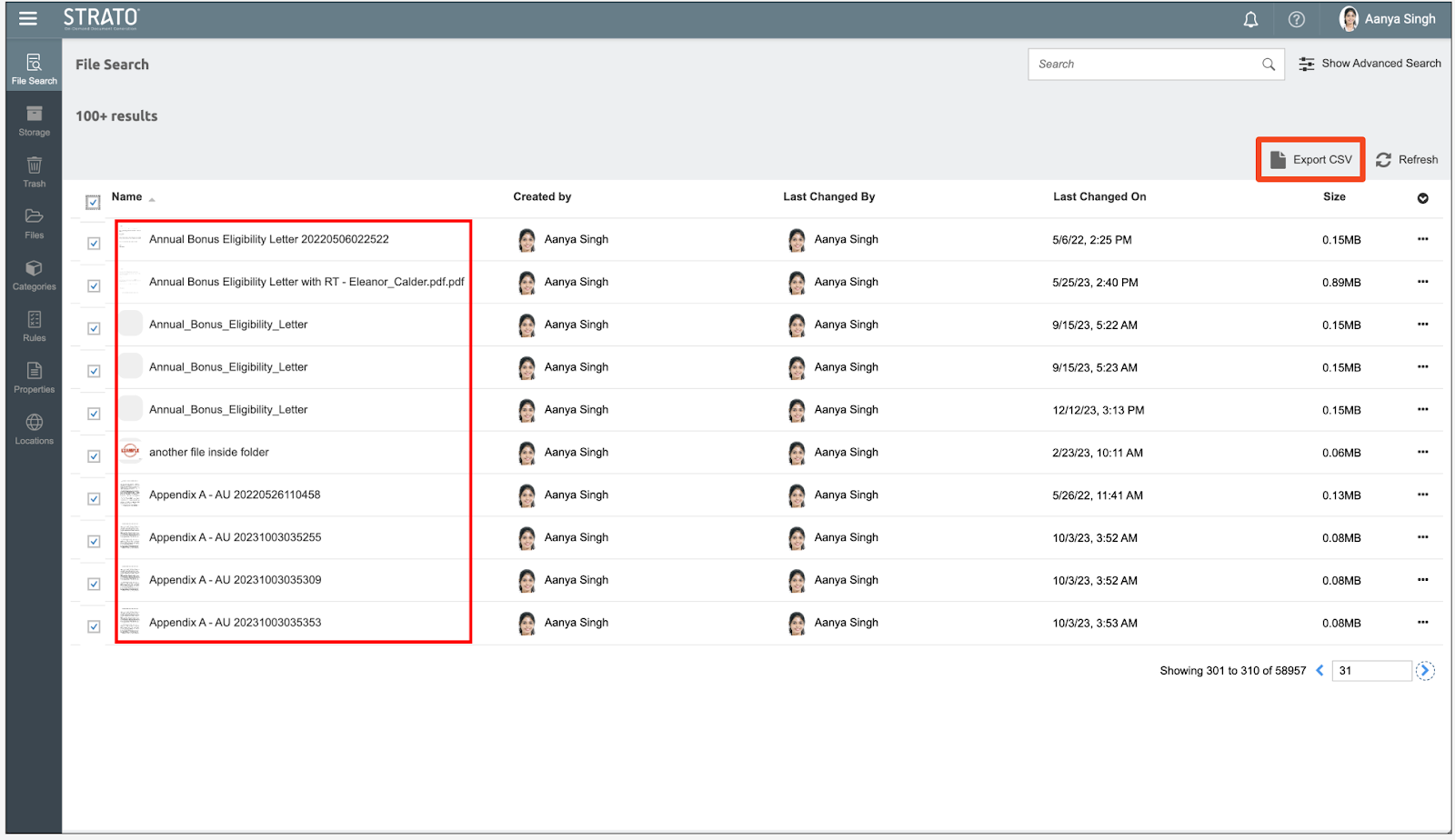
Individual files can be downloaded directly, or users can choose to export the entire result list to a CSV file. The exported CSV includes file names and corresponding download links, which can be useful for reporting or audit purposes.
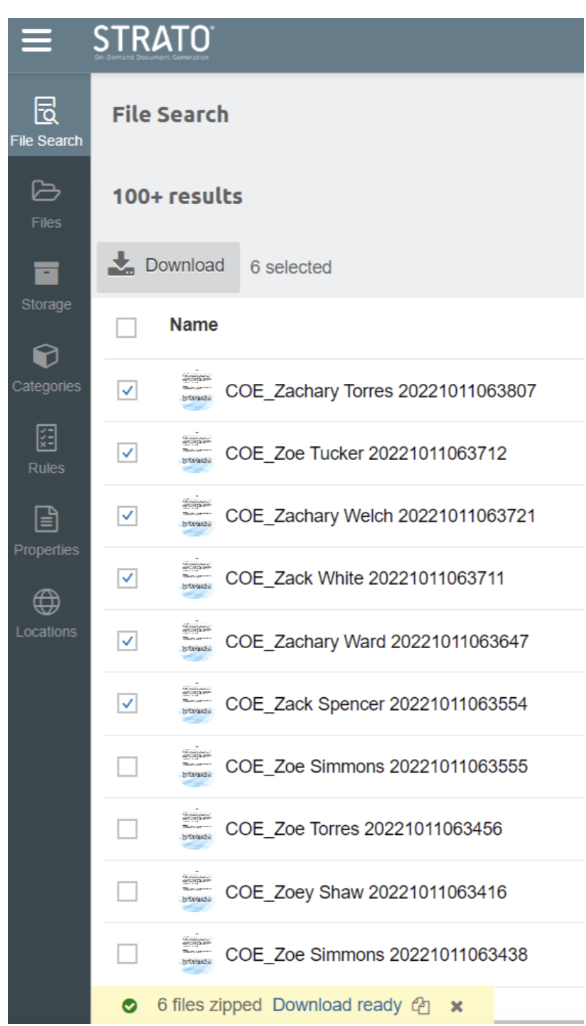
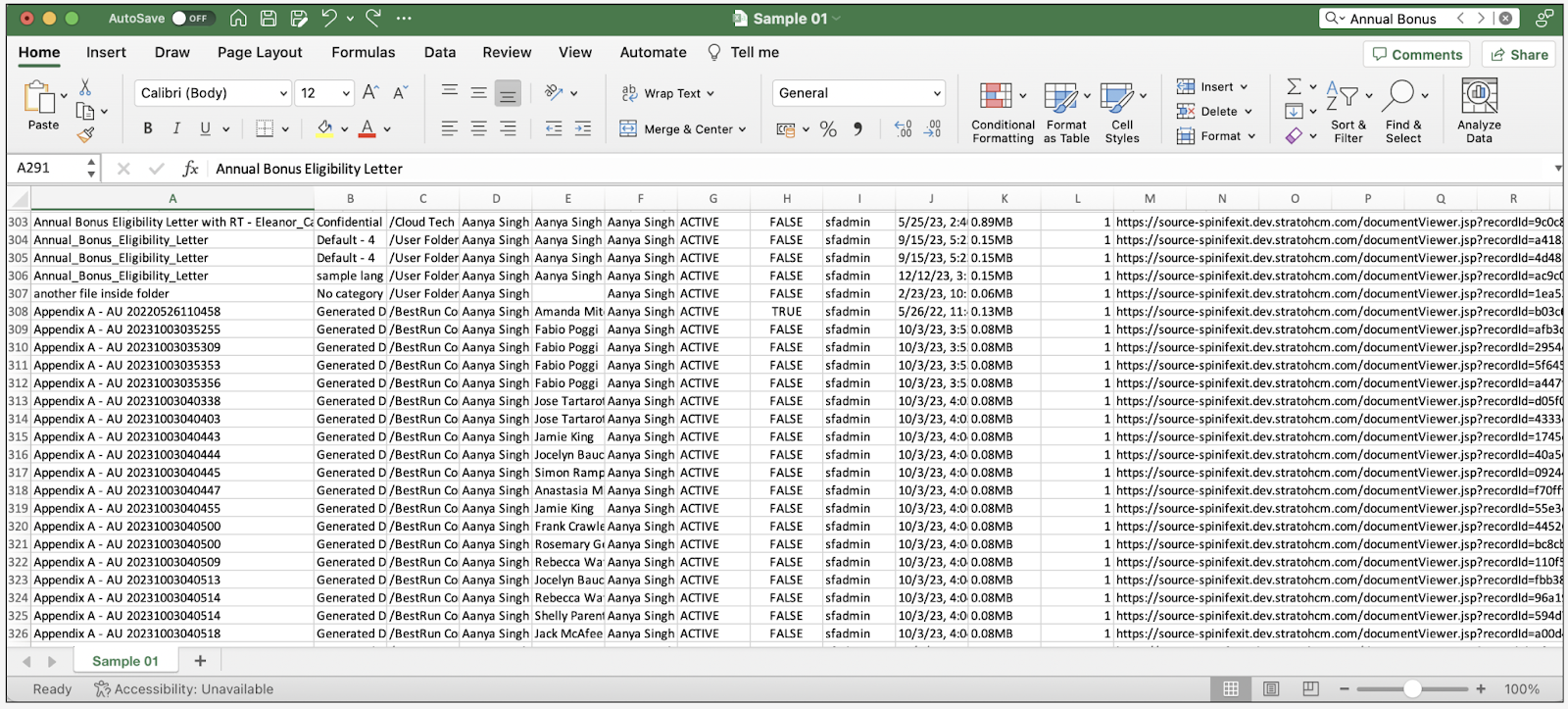 There is also an option to download multiple files at once. The system will package selected files into a ZIP archive, which the user can then download to their local drive.
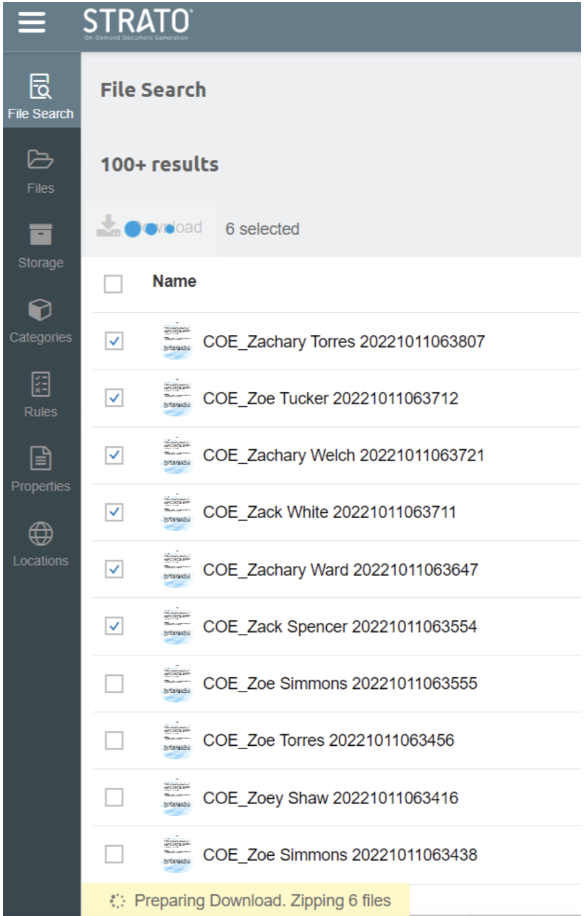
The download will only proceed once the ZIP file is fully prepared and the link is made available.
Related articles
- Advanced Search and Filter (File and Storage Management)
- Compliance - Accept Non-English Characters in File Search