Configure SuccessFactors OData Settings
Strato gets your data from SuccessFactors through the Open Data Protocol (OData). Admins can configure the details and credentials needed for Strato to connect with SuccessFactors in the Strato Admin Tool.
This article serves as a guide on how to configure your Admin Tool's SuccessFactors OData Settings.
Requirements
Access to both the Strato Admin Tool and SuccessFactors Admin Center is required to perform these steps.
Contact your SF administrator if you need help accessing your SF Admin Center, and your Regional Consultants if you need help accessing your Strato Admin Tool.
You must also have an existing Strato system ready. Learn more about New System Creation.
Instructions
In SuccessFactors
First, set up your SuccessFactors to connect to your Strato system:
- Login to your SuccessFactors instance.
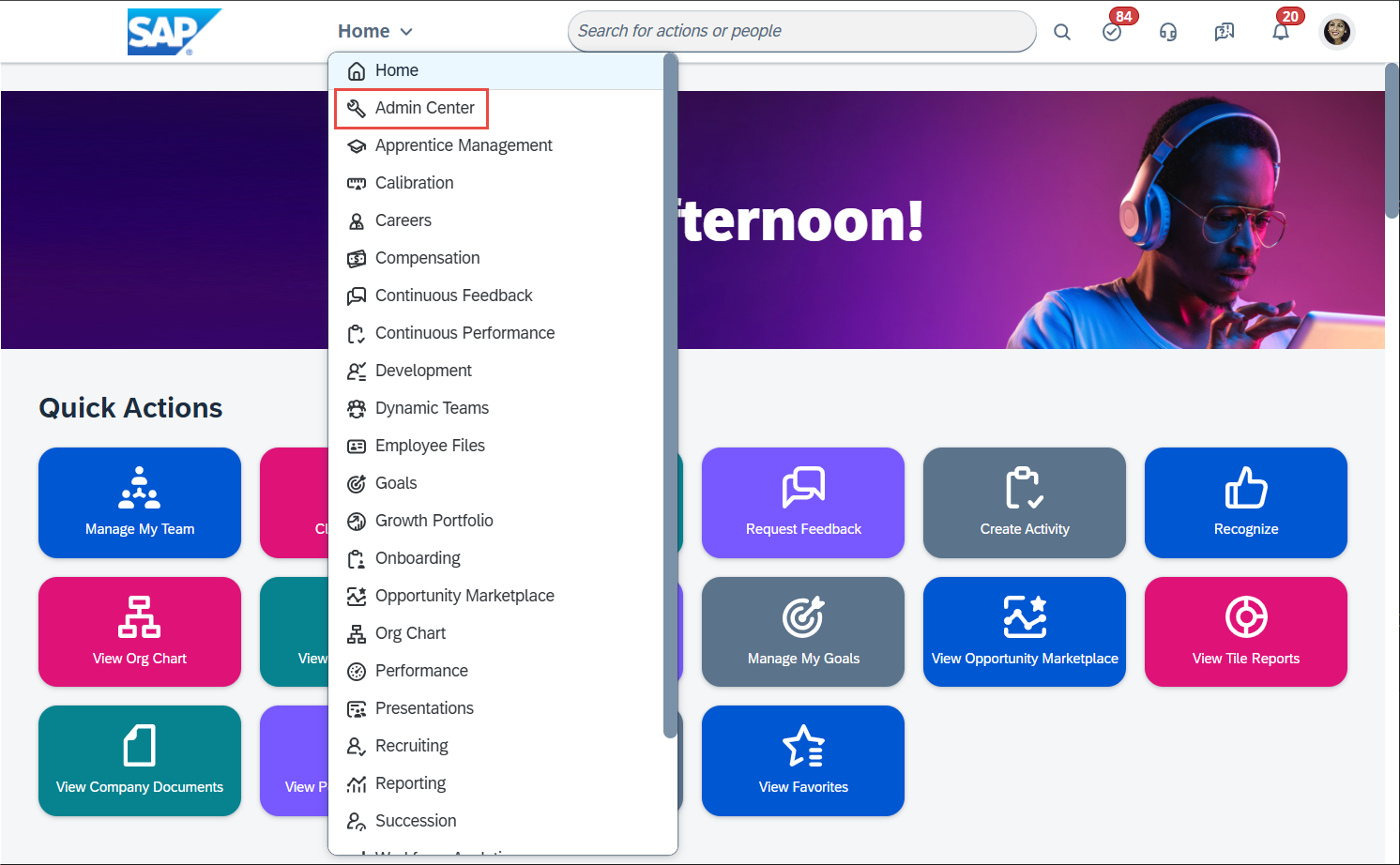
- In the top navigation bar, click Home, then Admin Center.
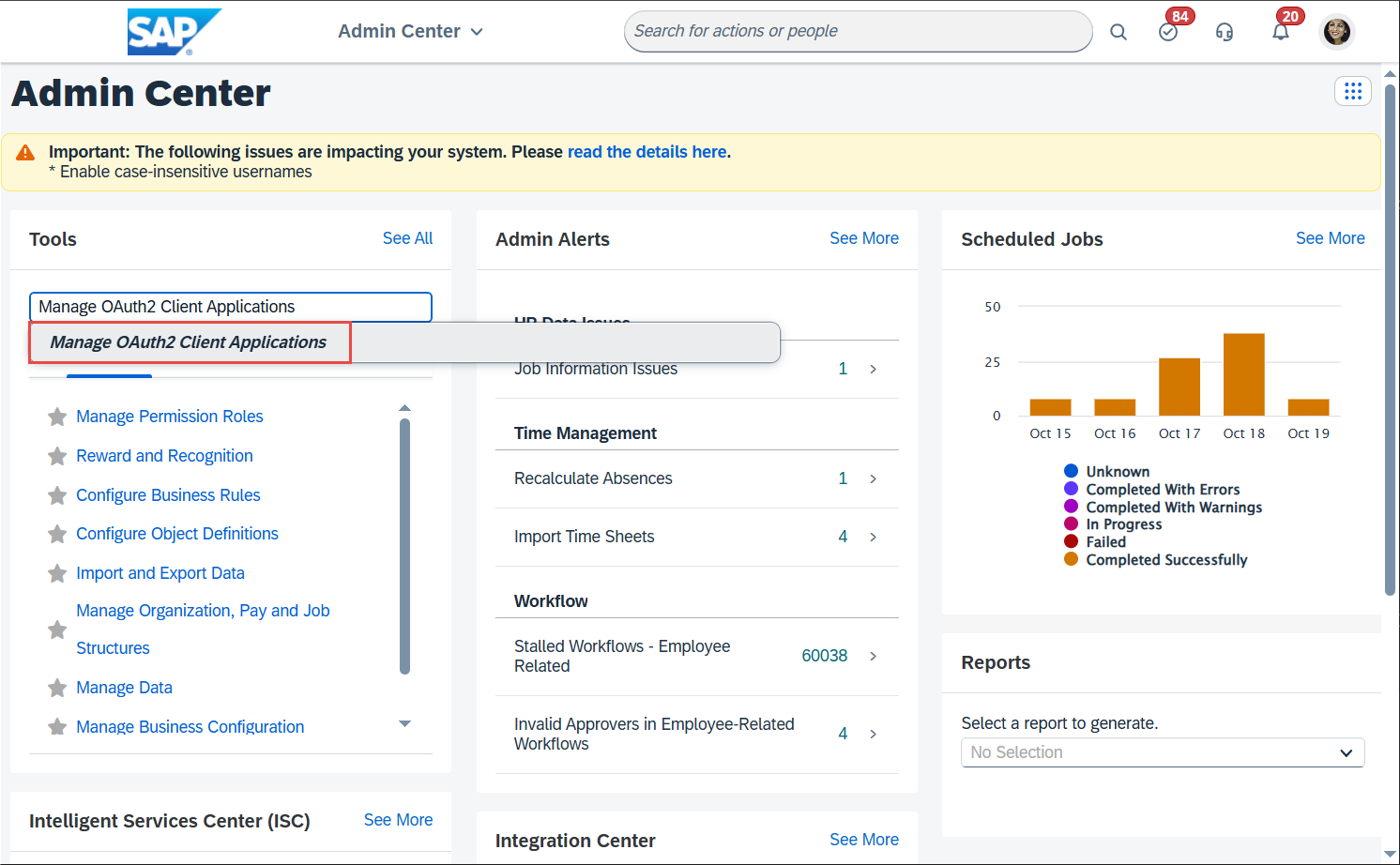
- In the search bar of the Tools section, type Manage OAuth2 Client Applications and select it.
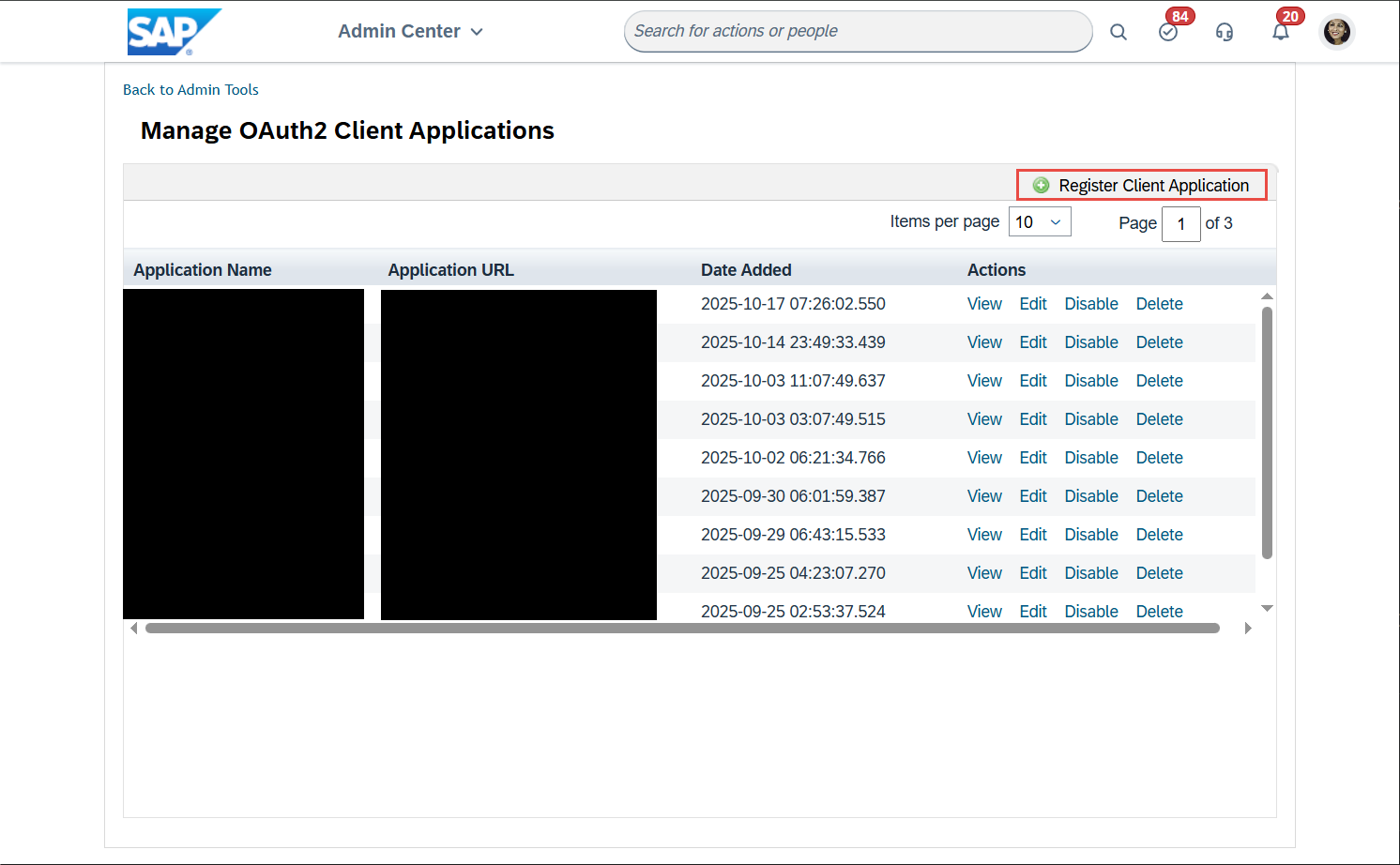
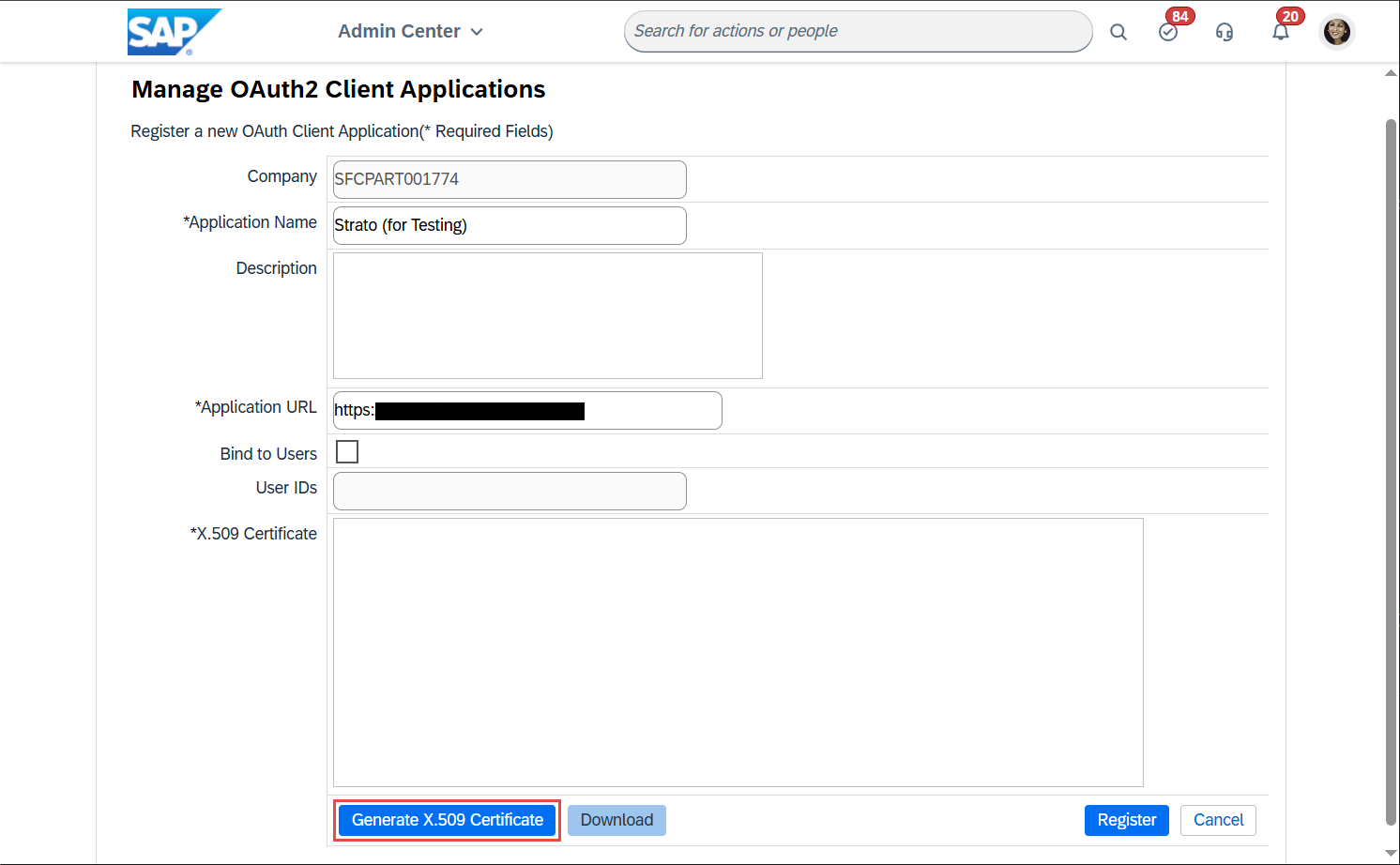
- Click Register Client Application. This action will take you to a page where you can input details from your Strato system.
Enter the following details:
Application Name: Strato (or any appropriate name for easy identification)
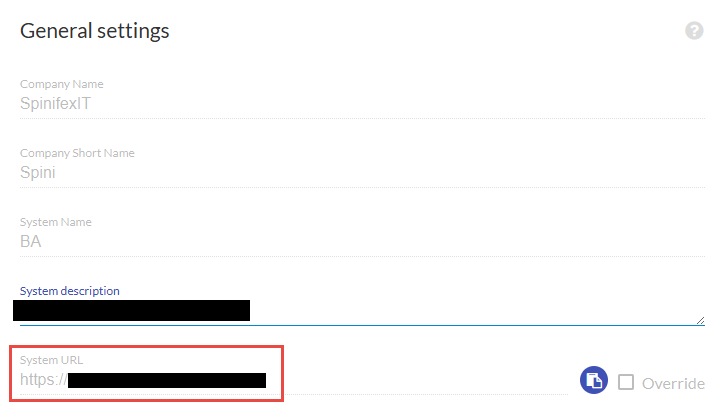
Application URL: Your Strato system's URL (for example,
demo.test.stratohcm.com)
Your system URL can be found under General Settings of the Strato Admin Tool.
- Click Generate X.509 Certificate. This action will take you to another page where you can input details for the certificate you will be using in later steps.
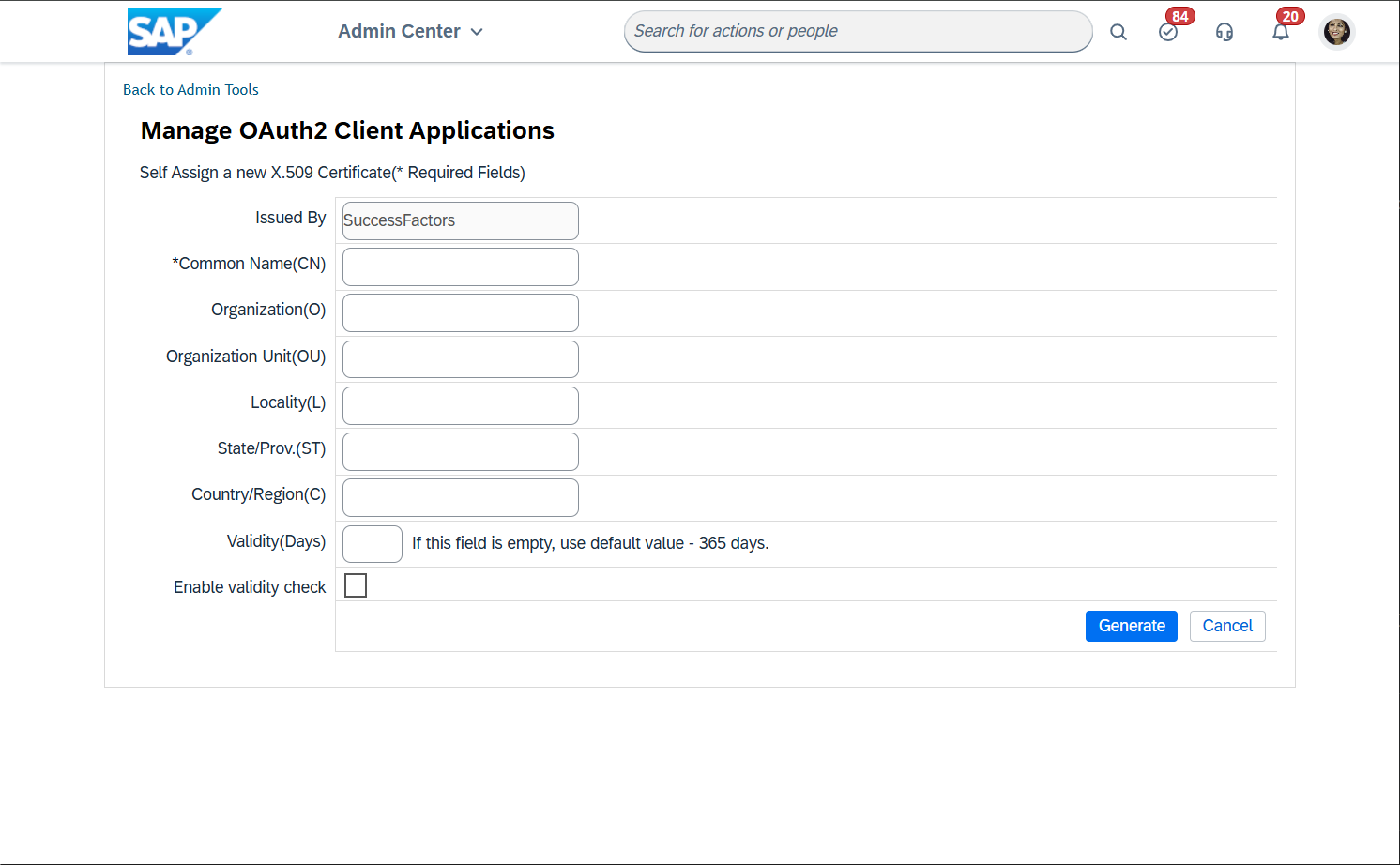
Enter the following details:
- Common Name: Strato
- Validity (Days): 36499
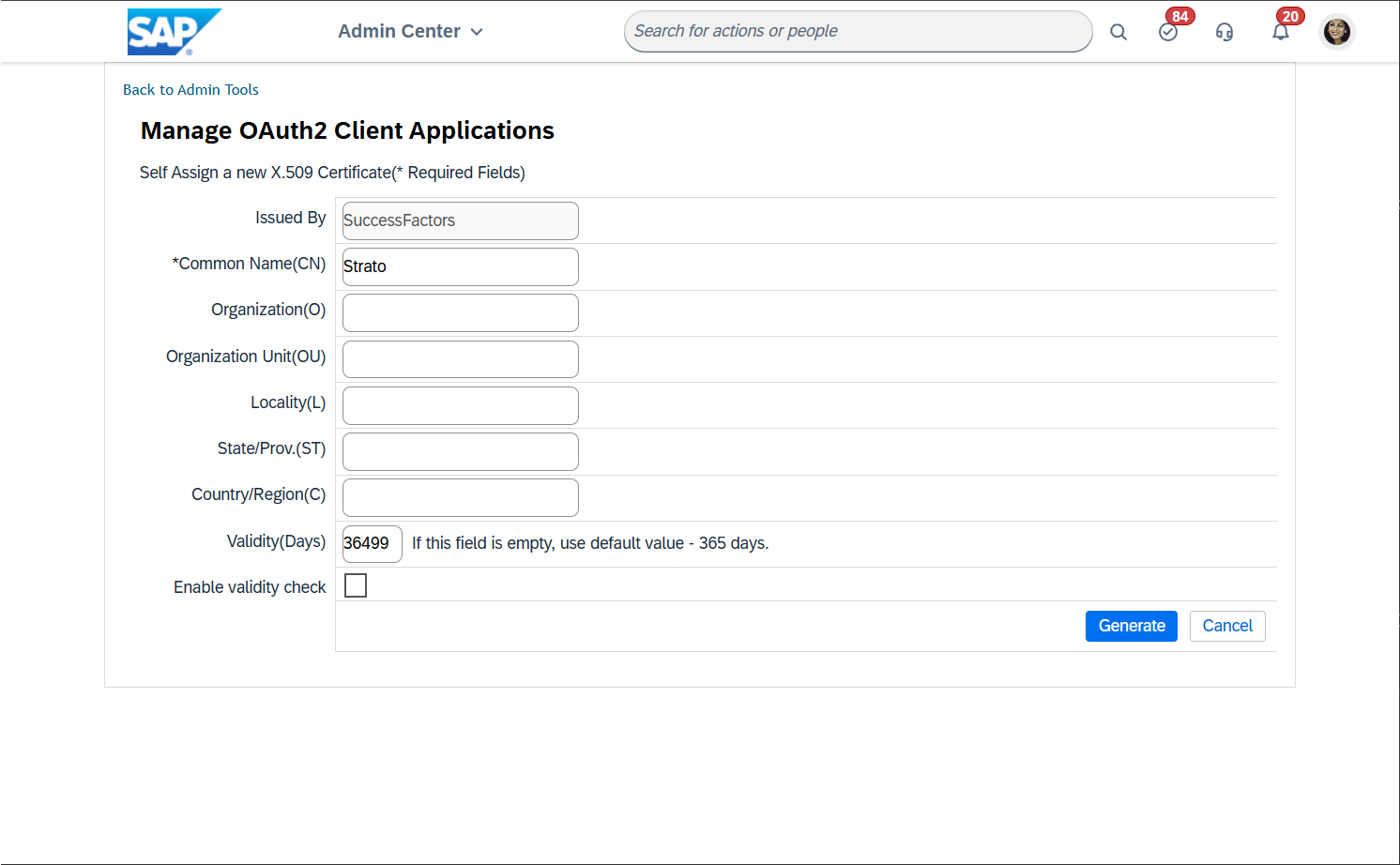
- Click Generate. This will create the certificate.
- Get the certificate by downloading the PEM file.
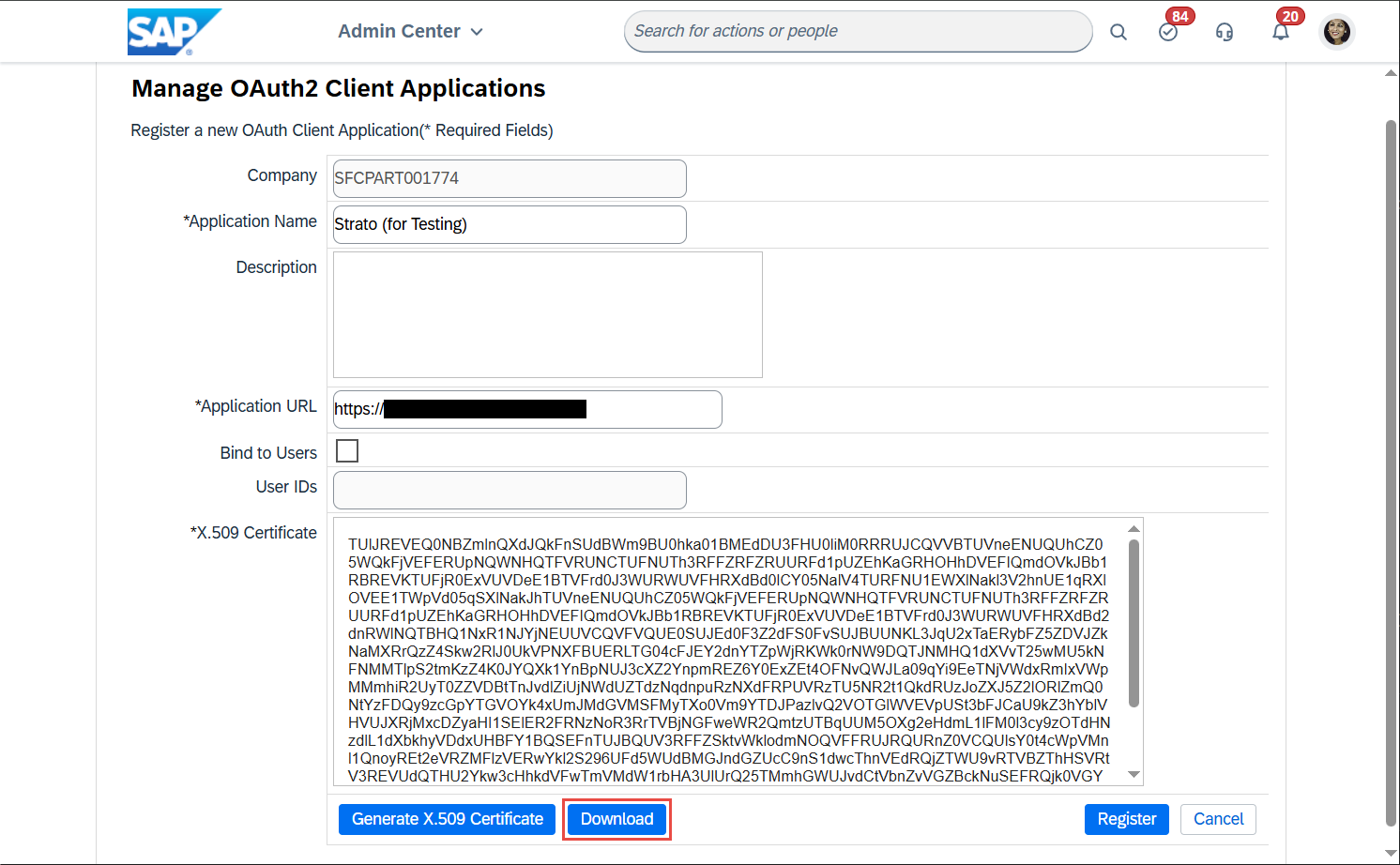
- Once you have your certificate, click Register. This will redirect you back to the Client Applications list.
- Click View on the client application you just created, and copy the API Key. The API Key will only be generated after registering, and you will be using this in later steps.
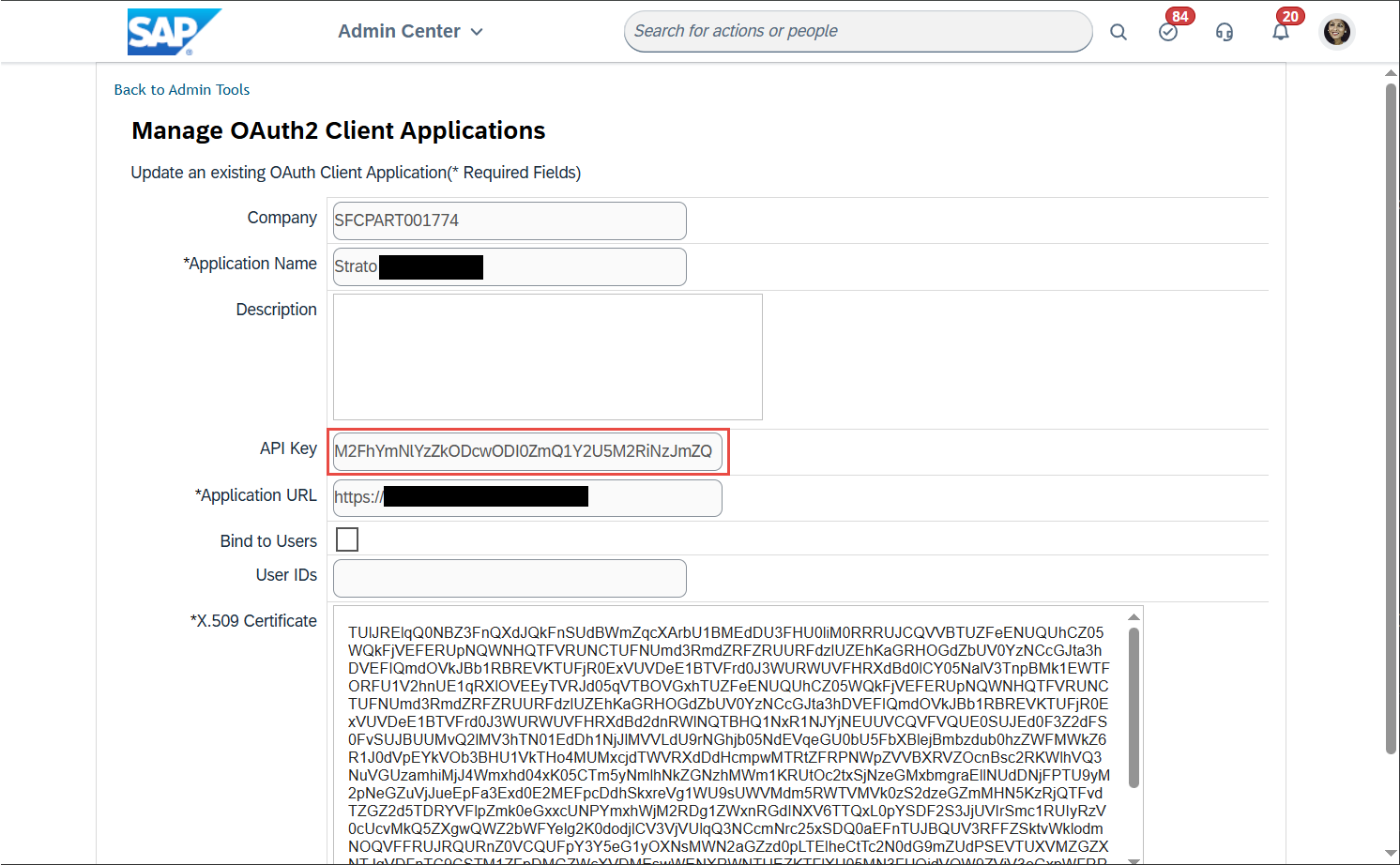
In Strato Admin Tool
After setting up SuccessFactors, you will need to connect your Strato system to your SuccessFactors instance.
- Login to your Strato Admin Tool.
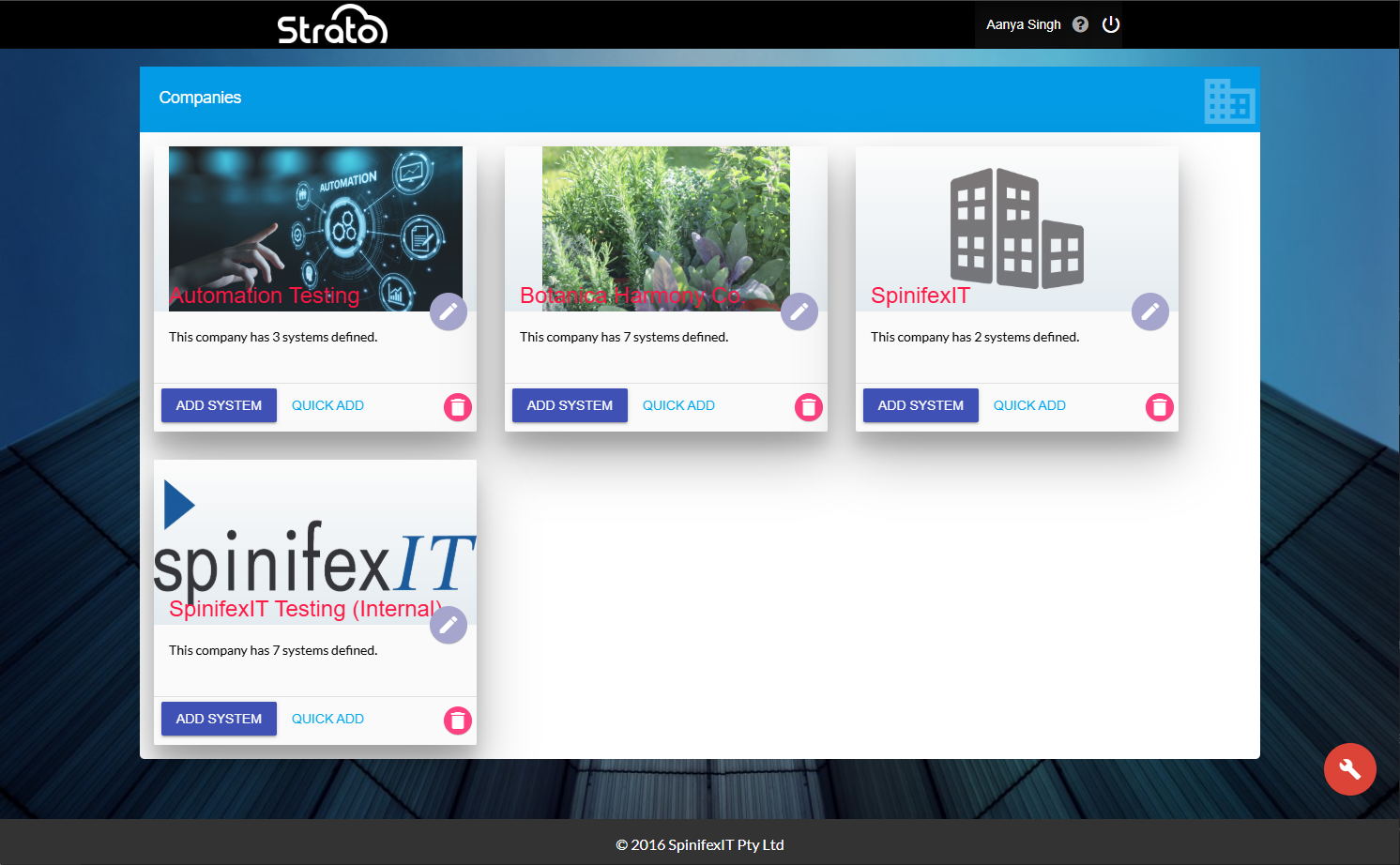
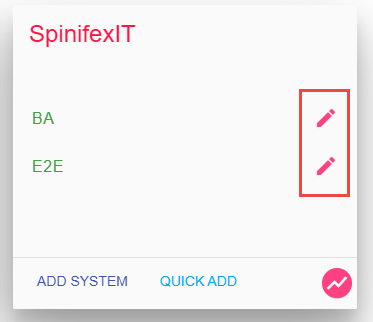
- Click the company where your system can be found. Click the edit button beside your system.
- Go to the SuccessFactors OData Settings section and enter the following details:
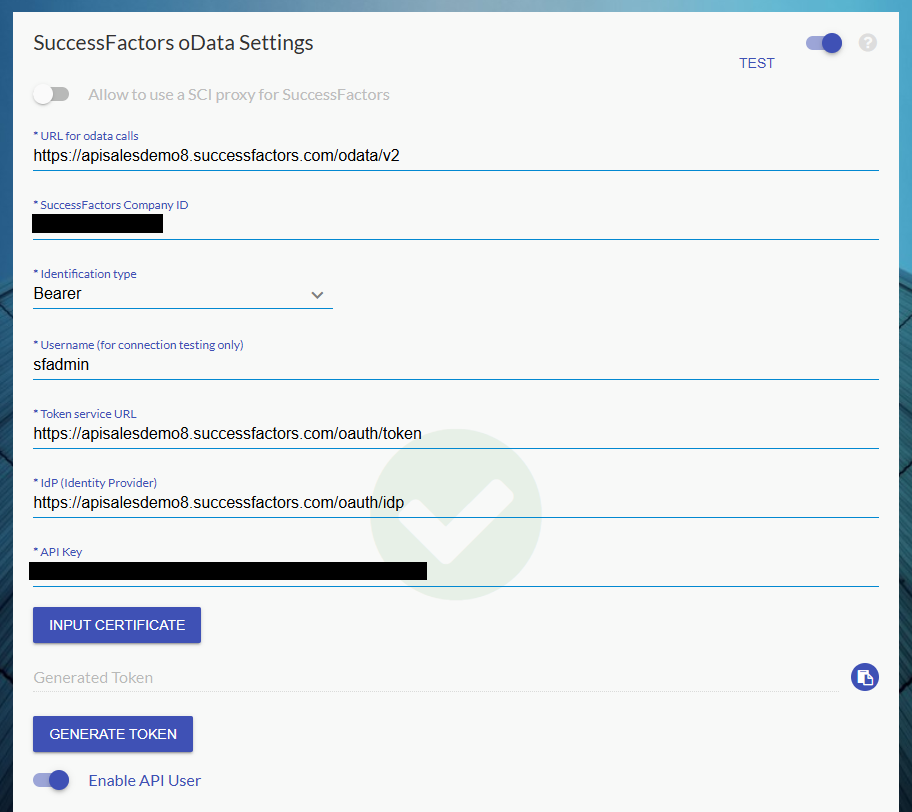
- URL for OData calls: Formatted as
<SF API endpoint URL>+/odata/v2 - SuccessFactors Company ID
- Identification Type: Basic or Bearer
- Depending on the selected Identification Type, different fields are available:
- Basic
- Username and Password of the user who can access your SuccessFactors OData
- Bearer (Recommended)
- Username
- Token Service URL: Formatted as
<SF API endpoint URL>+/oauth/token - Identity Provider (IdP) URL: Formatted as
<SF API endpoint URL>+/oauth/idp - API Key: Paste the API Key that was previously generated.
- Certificate: Click the Input Certificate button to show the field and upload the PEM file that you had previously downloaded.
- URL for OData calls: Formatted as
- Hover over the lower right action button, and click Save.

SuccessFactors Endpoint URLs
Your endpoint URL for accessing the OData APIs depends on the data center which hosts your SuccessFactors instance. You can find your endpoint URL from the official SAP SuccessFactors documentation.