Use Template Parameters in a Document [V1]
After learning how to create Template Parameters, you can now use these in your Employee catalog document.
Single Select Dropdown
Use your Template Parameter fields in the Document Template Editor
- Open or create a document where you would use your Template Parameters.
- Type in your text that you would want to be displayed or hidden depending on the condition set using Template Parameter fields.
- The highlighted text will be the first one to be used with the template parameter.
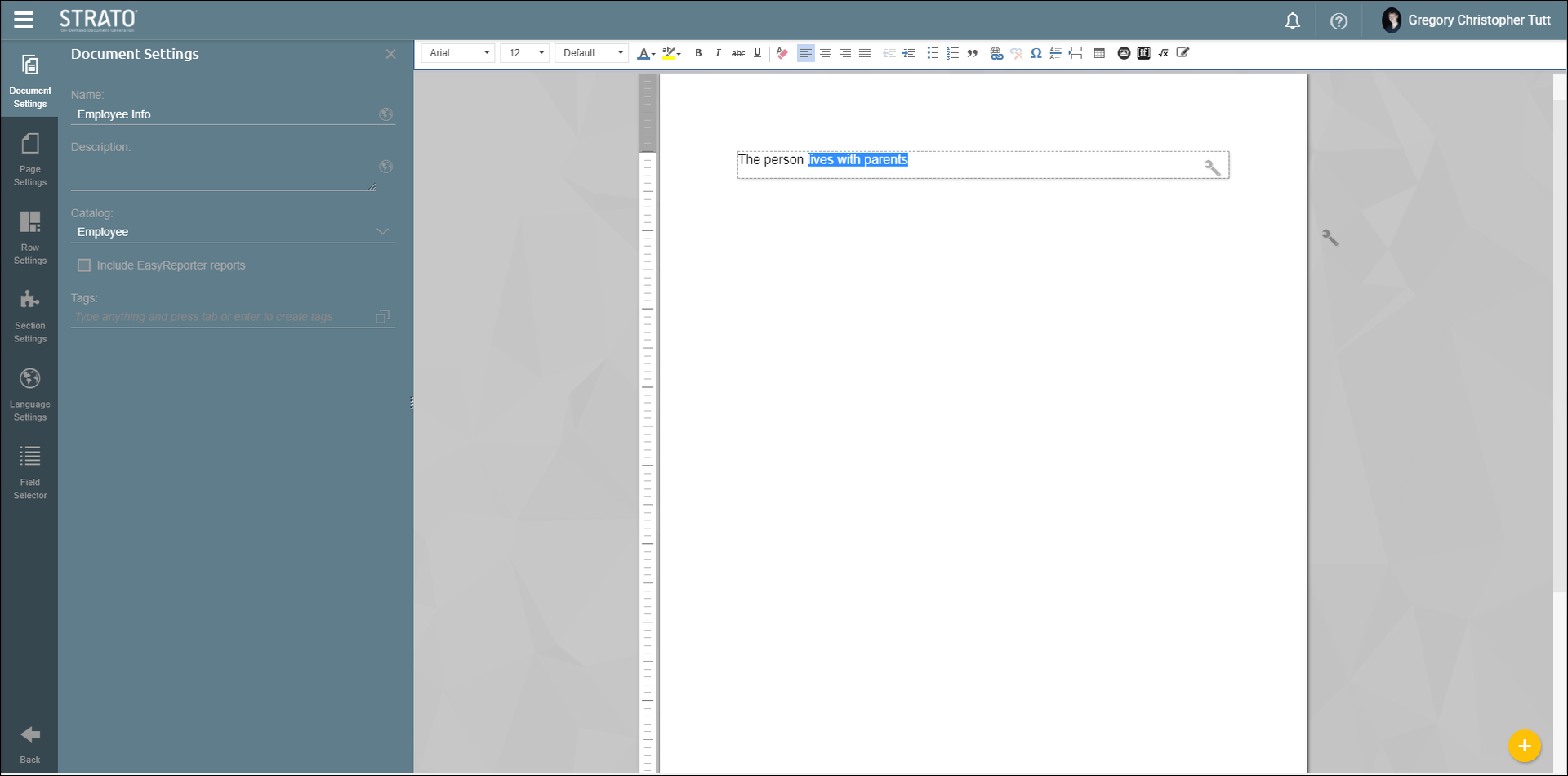
- As shown above, highlight your chosen text and then click Conditional Text.
- Click Create a new Condition.
- It will ask you to select a field, go to the Customer tab and then select the field group you just created and then click a field.
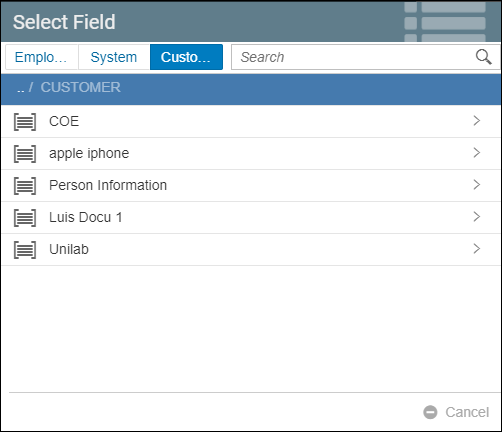
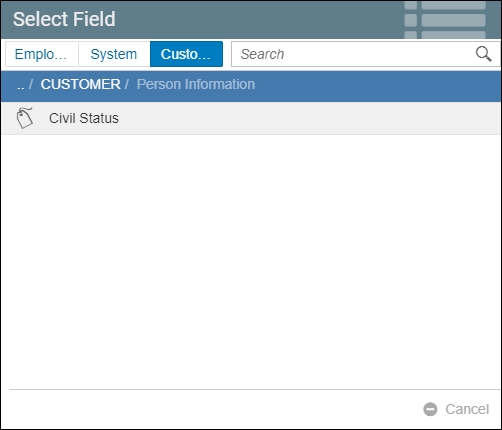
- Choose equals and then choose Single. Click Apply.
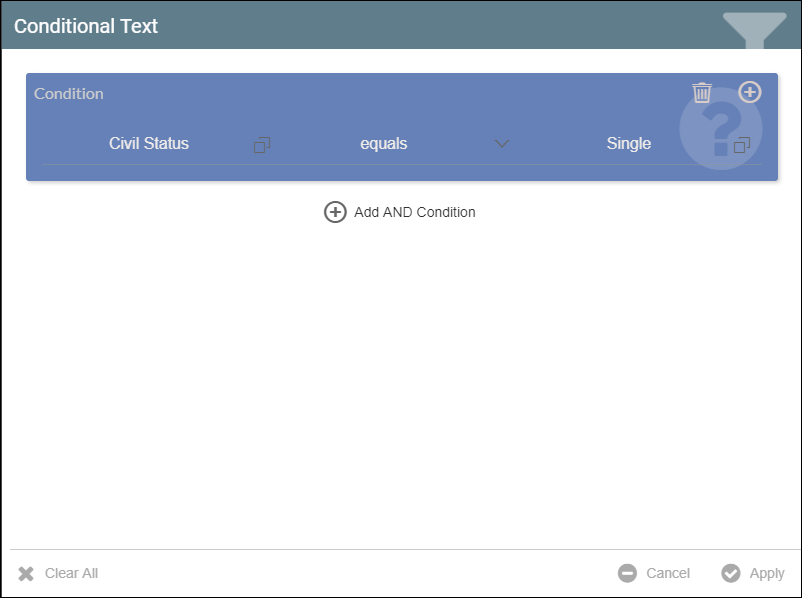
- Type in another line of text, and repeat steps 4 to 8 but this time select Married instead of Single.
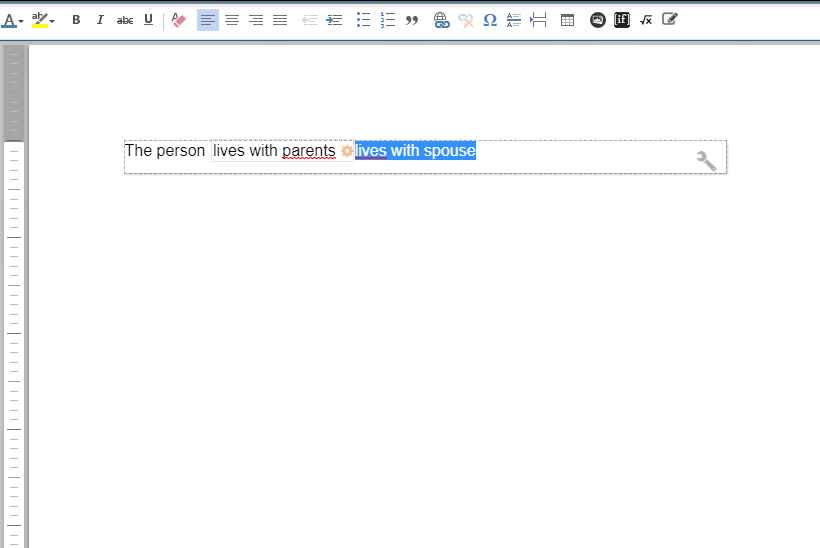
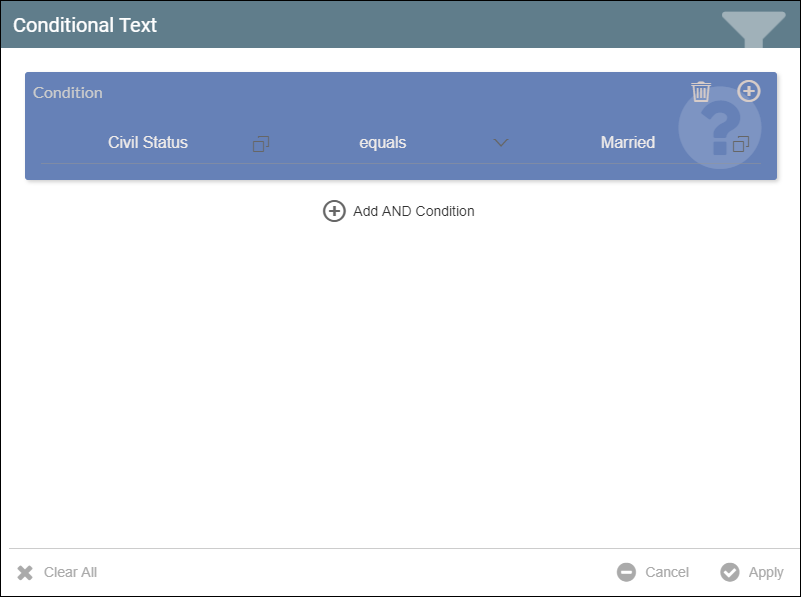
- Again, type in another text and repeat steps 4 to 8 and then choose Widowed.
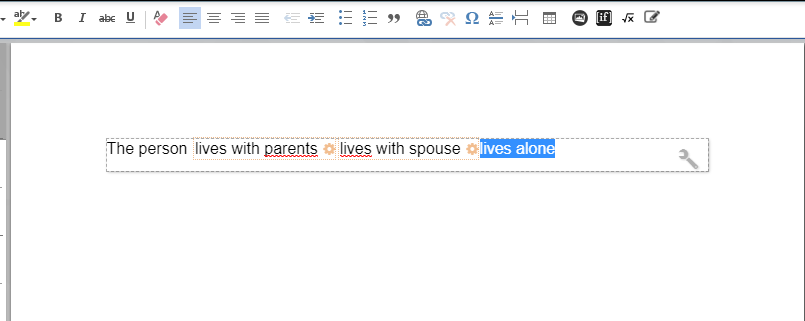
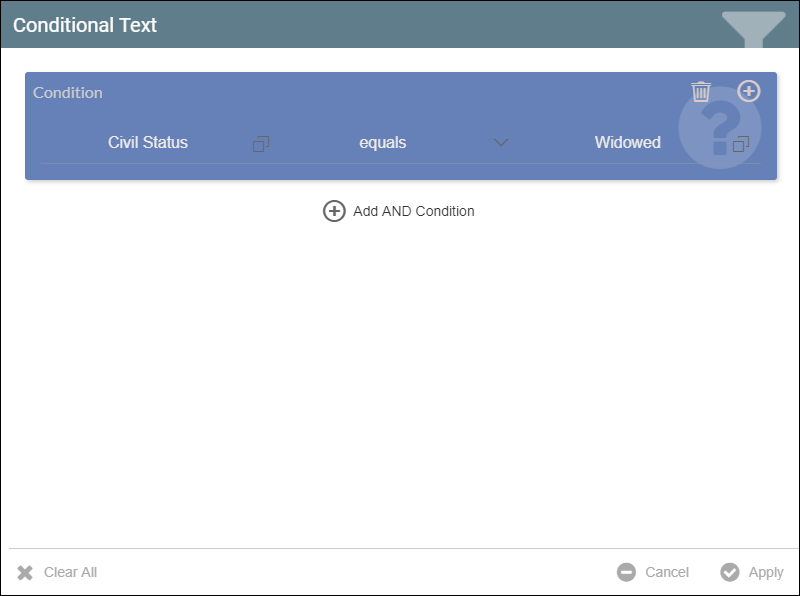
- Click Actions and then Save. You can now preview your document along with the Template Parameters applied to it.
Preview Document with Template Parameters
- Click Actions and then click Preview.
- You will see a Preview as box. Select a Key ID and a Language. You will notice that the last selection is the Template Parameter field that you created.
- Choose Single. The previewed document should look like this.
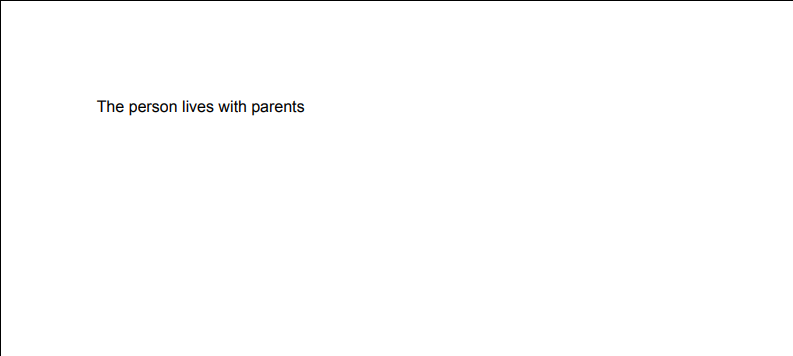
- Preview the document again but now choose Married. The document should look like this.
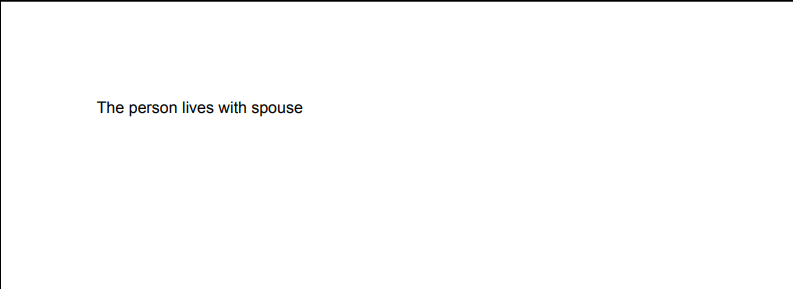
- Lastly, choose Widowed. The document should look like this.

The data for the template parameter field that will be generated on the document will depend on the selection made during 'Preview as...'.
Multi Select Dropdown
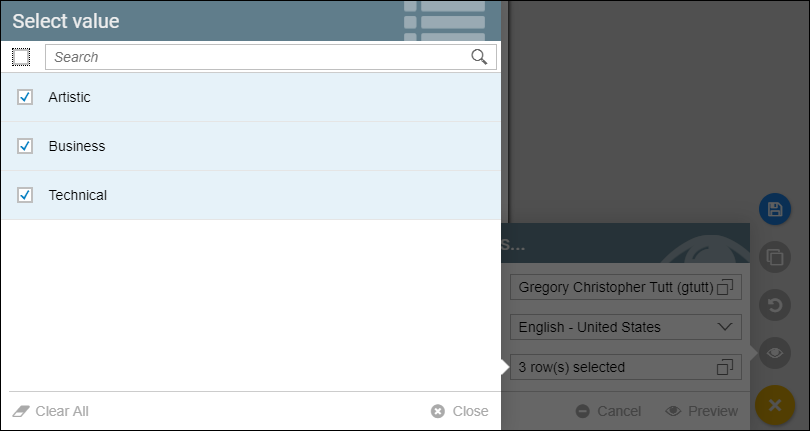
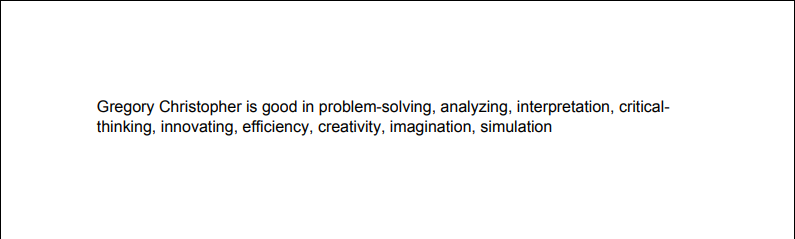
Create a document using the same steps above, the only difference with multi select dropdown is that upon previewing the document, you can select multiple options in your template parameter.
Document Template Editor
Here is a sample document:

Preview
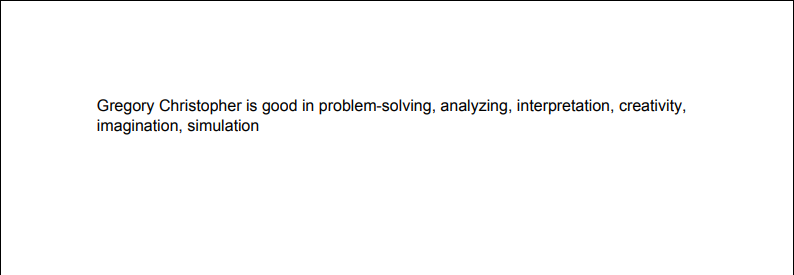
Here are possible document previews:
Selections:
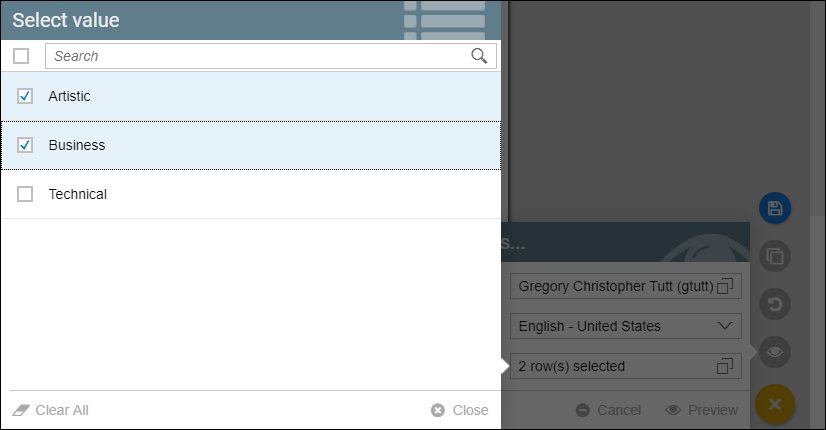
Document:
Selections:
Document:
Date
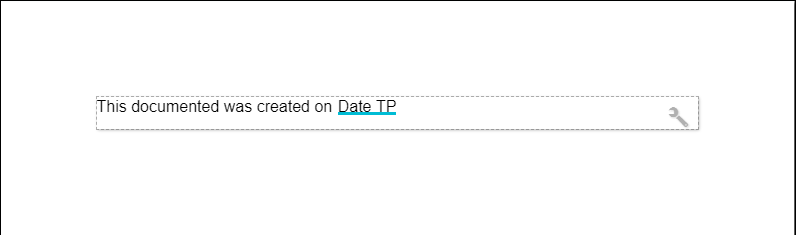
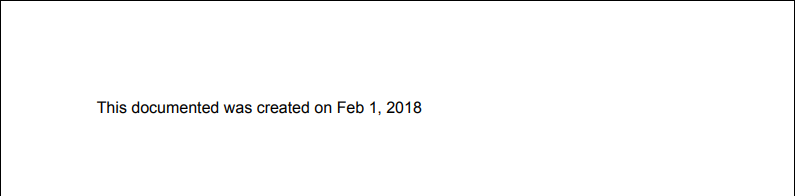
The date template is used to change the date shown in the document.
Document
Selections
You can choose any date as needed. The date with the purple box marks the date today.
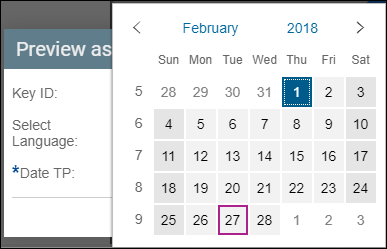
The document will look like this.
Text
Enter text that will show up in your document.
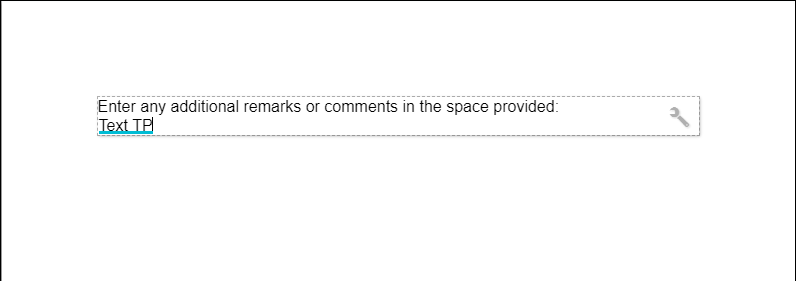
Before previewing your document, enter text that will appear in your document. You can use the Formatting Toolbar to modify the appearance of your text and use other tools.
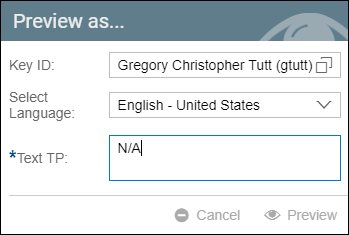
Your document should look like this
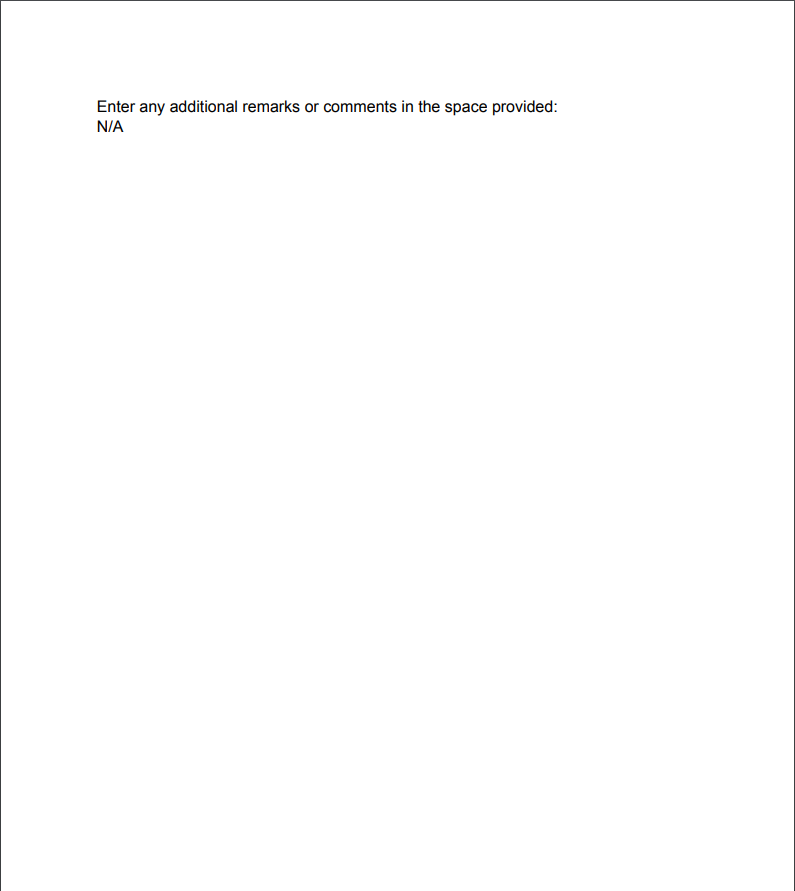
Plain Text
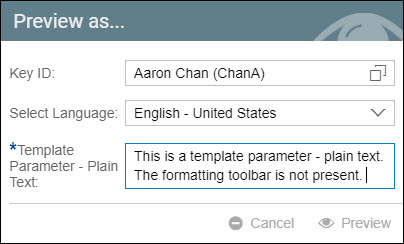
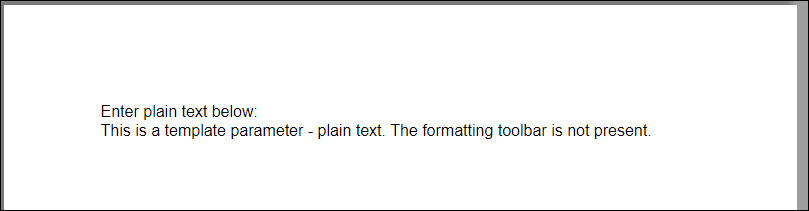
The Plain Text template parameter also allows you to enter text in your document. However, the formatting toolbar is not available when entering your text.
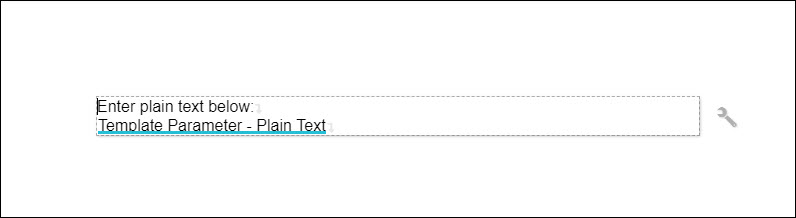
Enter your plain text prior to preview.
When previewed, the document looks like this.
Number
Enter a number that will show up in your document.
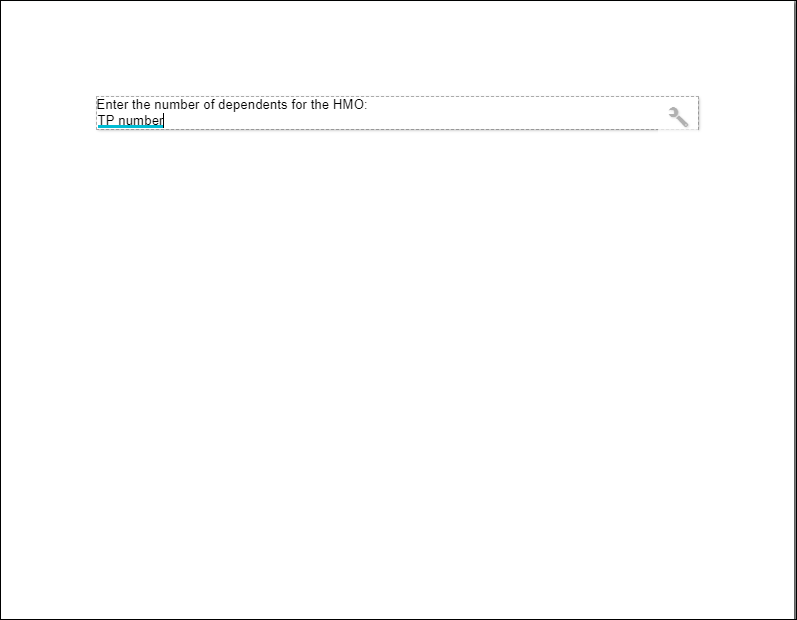
Before the preview of the document, enter a number.
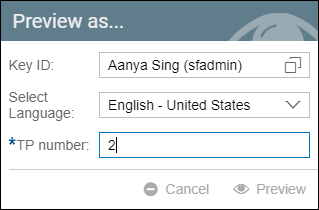
The document should look like this.