Set a Limit for the Number of Rows and Number of Characters in a Table Section [V1]
You can set a limit for the number of rows to be displayed in your table section via the Table Settings. This is useful when you are expecting multiple rows but only want to see a certain number of rows. Additionally, you can set a limit for the number of characters displayed in your table columns. This is useful when the columns would contain long lines of texts or numbers.
This article will show you how to do these 2 settings.
Set a Limit for the Number of Rows
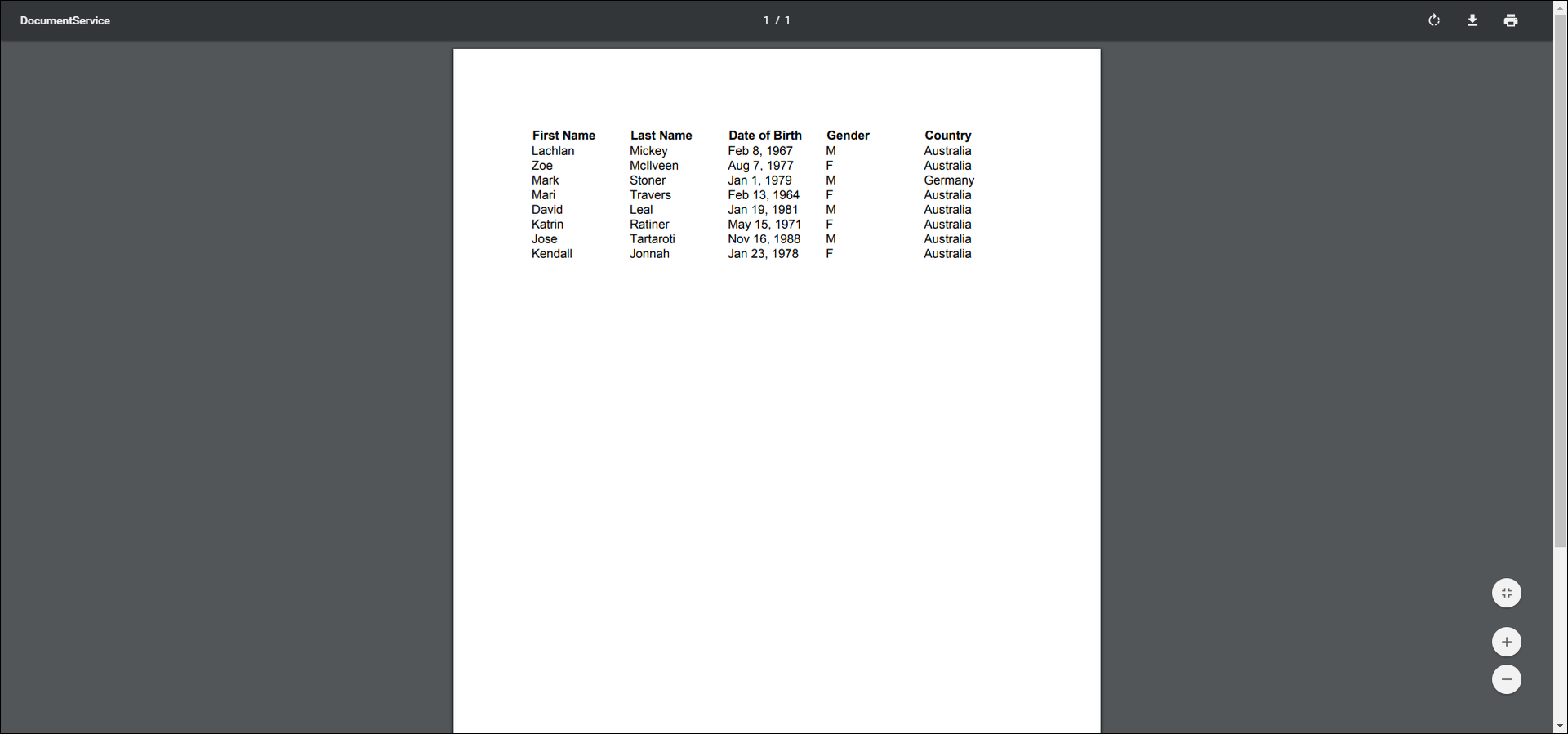
Here is a document. As you can see there are 8 employees.
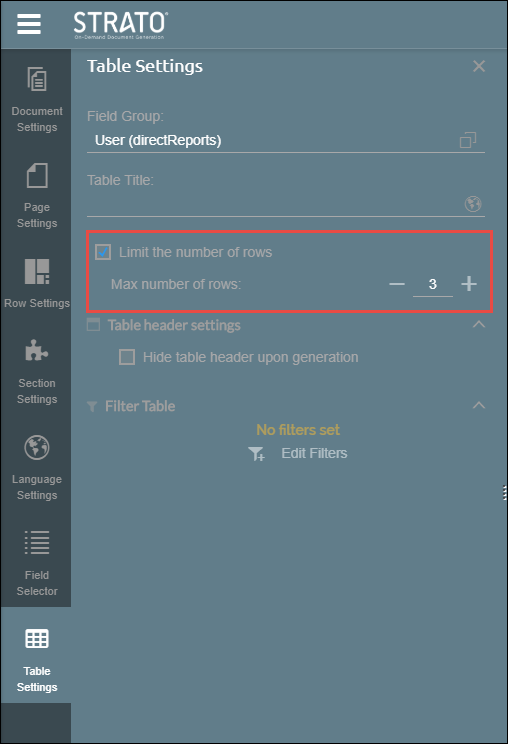
If you only want to see 3 rows in the table, go to Table Settings, tick the Limit the number of rows box, and then set the Max number of rows to 3.
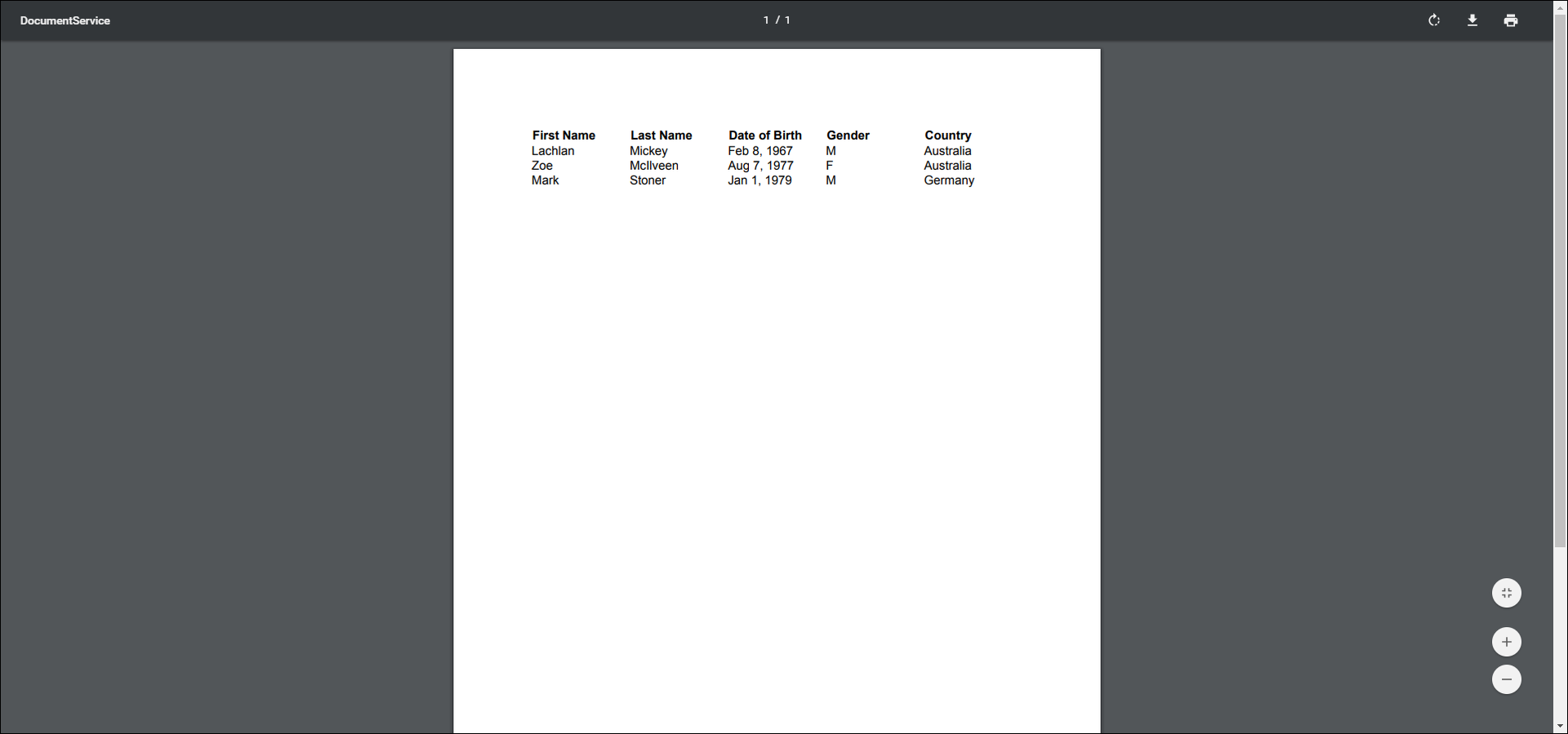
Here is the generated document after limiting the rows to 3.
Set the Limit for the Number of Characters in a Column
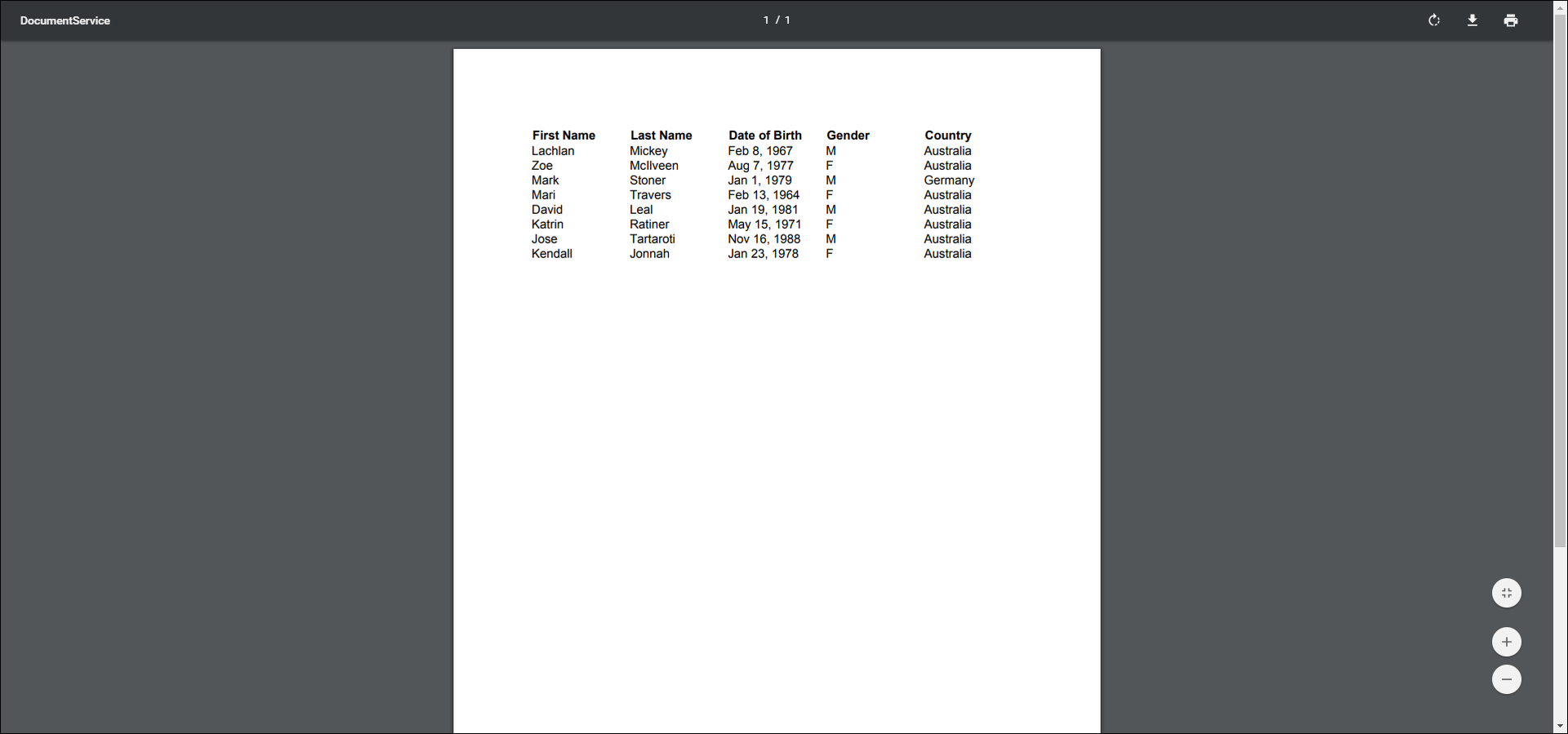
Here is a document with no character limits on any column.
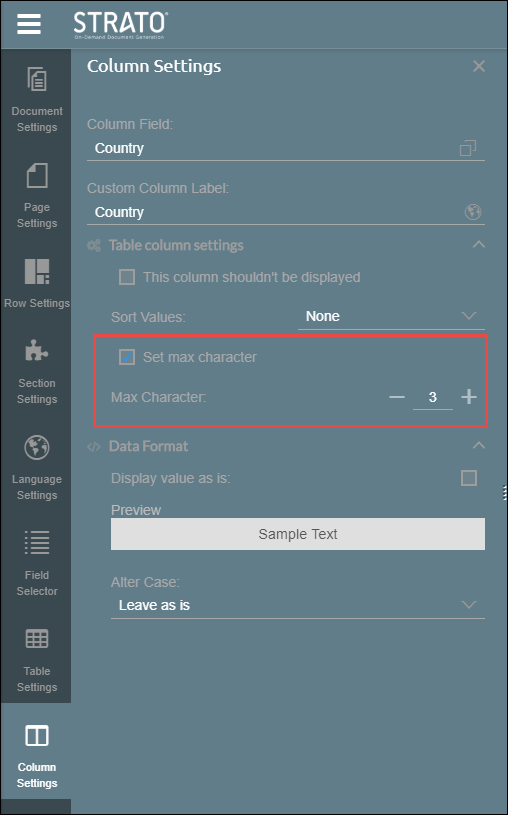
If you want the Country column to only display 3 characters, go to Column Settings, tick the set max character box, and then set a max character of 3.
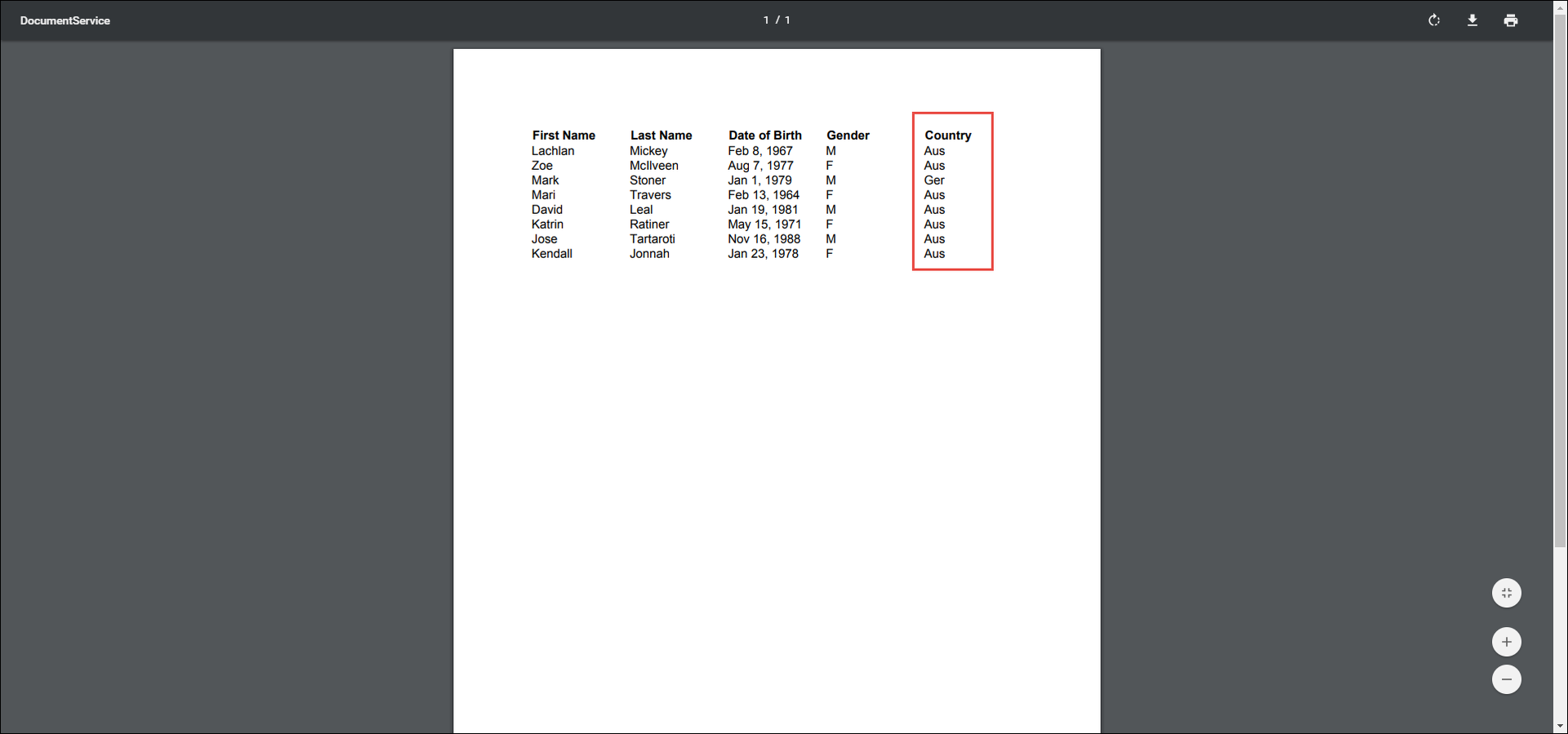
Here is the generated document: