Table Settings - Table Section [V1]
When you have a table inserted within your document, the Table Settings becomes available as one of the options from the left panel in your document creation.
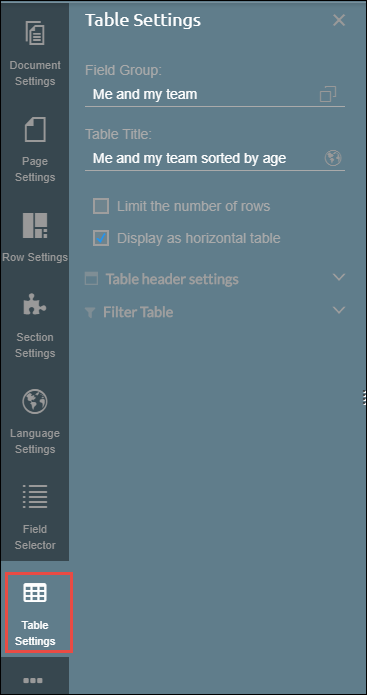
This consists of the following settings:
Field Group | This will display the current field group where fields within the columns are selected from. |
Path link | Displays where the field is found. Only displayed when the table is using fields from Easy Reporter. |
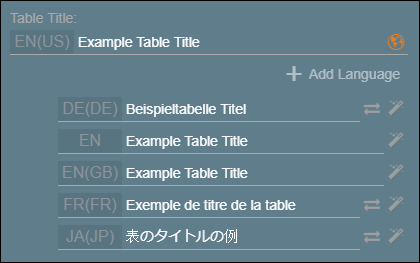
Table Title | This will display a title on top of the table.
|
Limit the number of rows | You can limit the number of rows that will be displayed after generating the document. Tick the Limit the number of rows box and then input the Max number of rows that should be displayed in that table section. For more information, read Setting a Limit for the number of rows and number of characters in a Table Section article. |
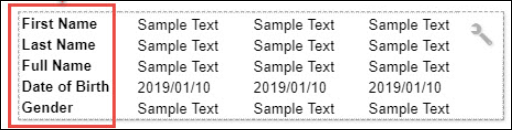
Display as horizontal table | Enabling this feature will switch the columns of the table to be horizontal, rather than the usual vertical display. Below is an example of a table displayed horizontally:
|
Table Header Settings | Hide Table Header Upon Generation - option to hide or display the header upon generation. |
Filter Table | You can set a filter to show data with certain criteria (e.g. gender specific filter that shows either male or female within the table) |
Other settings applicable when editing a Table Section, are also set within the following: