Row Settings [V1]
This article covers these topics:
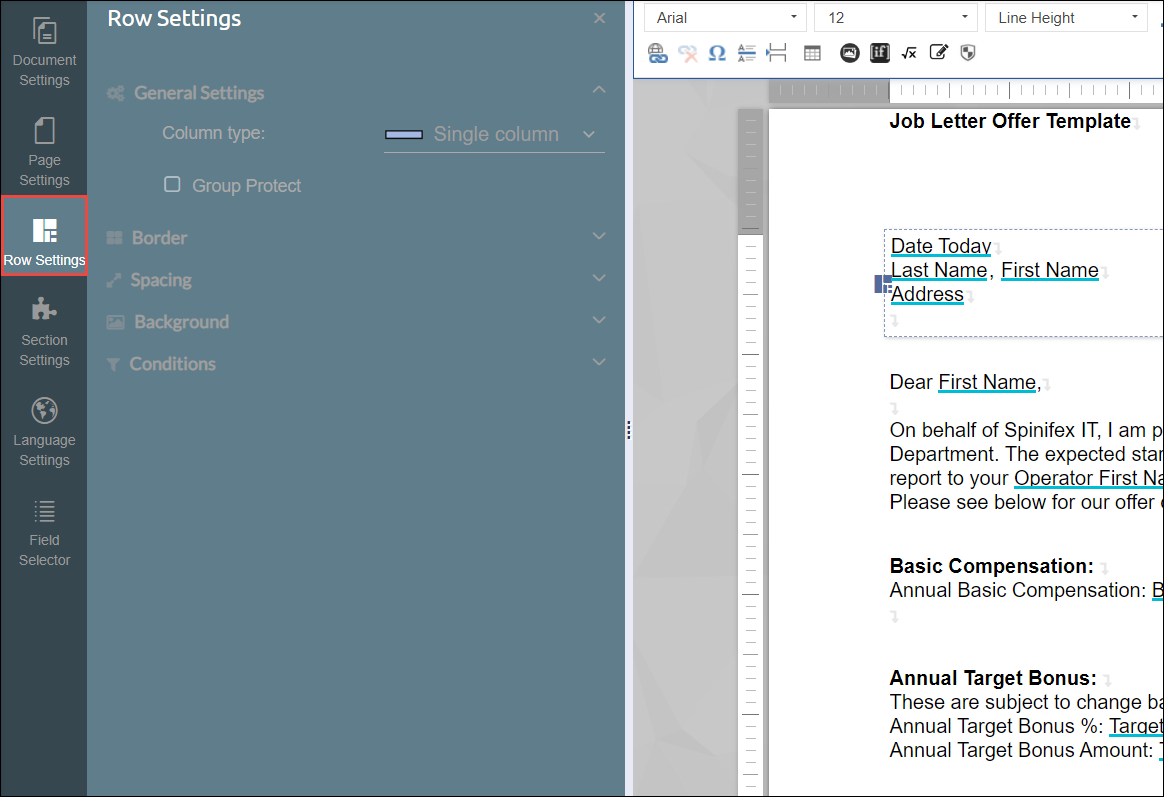
Rows are horizontal placeholders for the text within a document template. Rows can be divided into columns which can contain multiple sections. Any column or section within the same row will be affected when a document editor changes the Row Settings.
General Settings
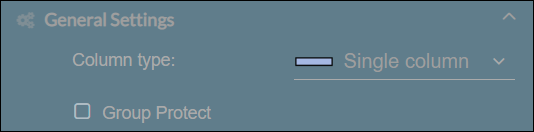
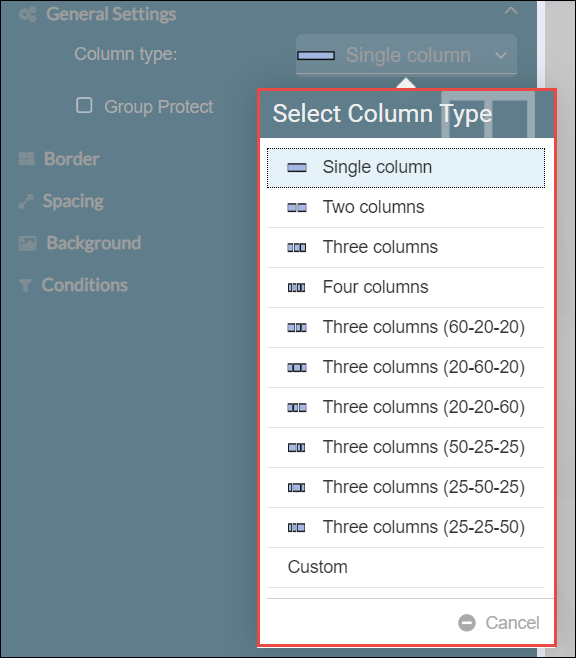
Depending on your requirement, it is possible to divide rows into numerous columns when creating a document in Strato. Users can choose from the following Column types:
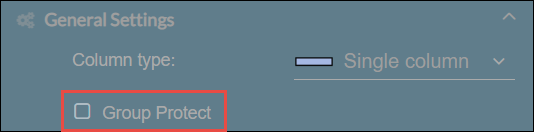
Aside from selecting Column type, the Group Protect function can also enable in row settings in which it targets to secure the content structure of the rows wherein it protects the rows content to get split by a page break.
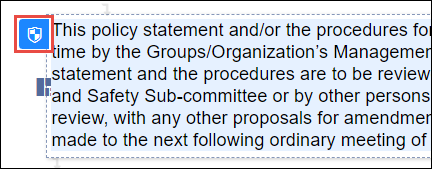
A Protection icon will appear on the upper left side of each section within the row once the Group Protect function is enabled.
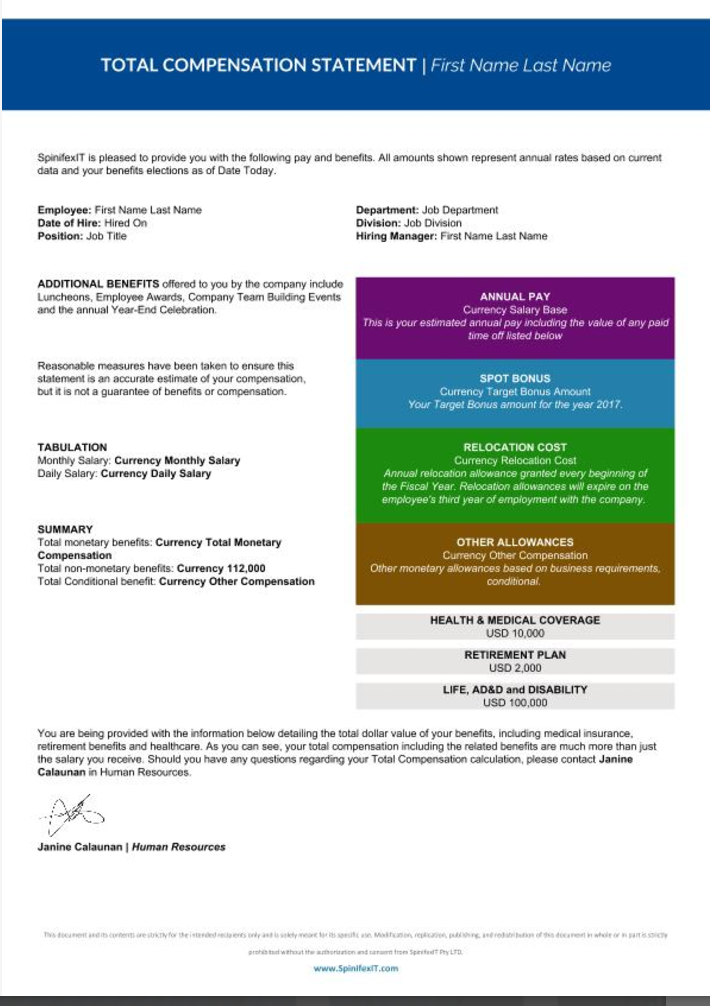
This is ideal for creating headers which require a placeholder for the logo, and the company's address, or designing multi-columnar documents like the example below:
Border
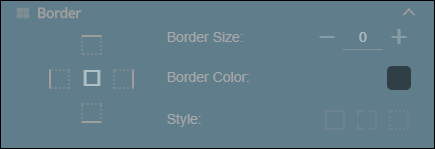
Borders are visible lines which surround the text area of the document template. This is ideal for designing certificates which require a solid, dotted, or dashed border by its text margin.
Users can set the thickness of the border by adjusting its border size and can also change the border's color by choosing a pre-defined color or inputting own HTML color code. There are three border styles to choose from:
- Solid
- Dotted
- Dashed
Spacing
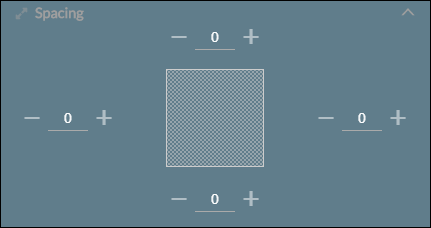
Users can adjust the space around the top, bottom, and sides of rows using these settings. This value also represents the space between the row and the page margin. A higher numerical value will move the row farther away from the page margin. If users wish to eliminate space between rows and the page's margin, simply enter 0 as the value.
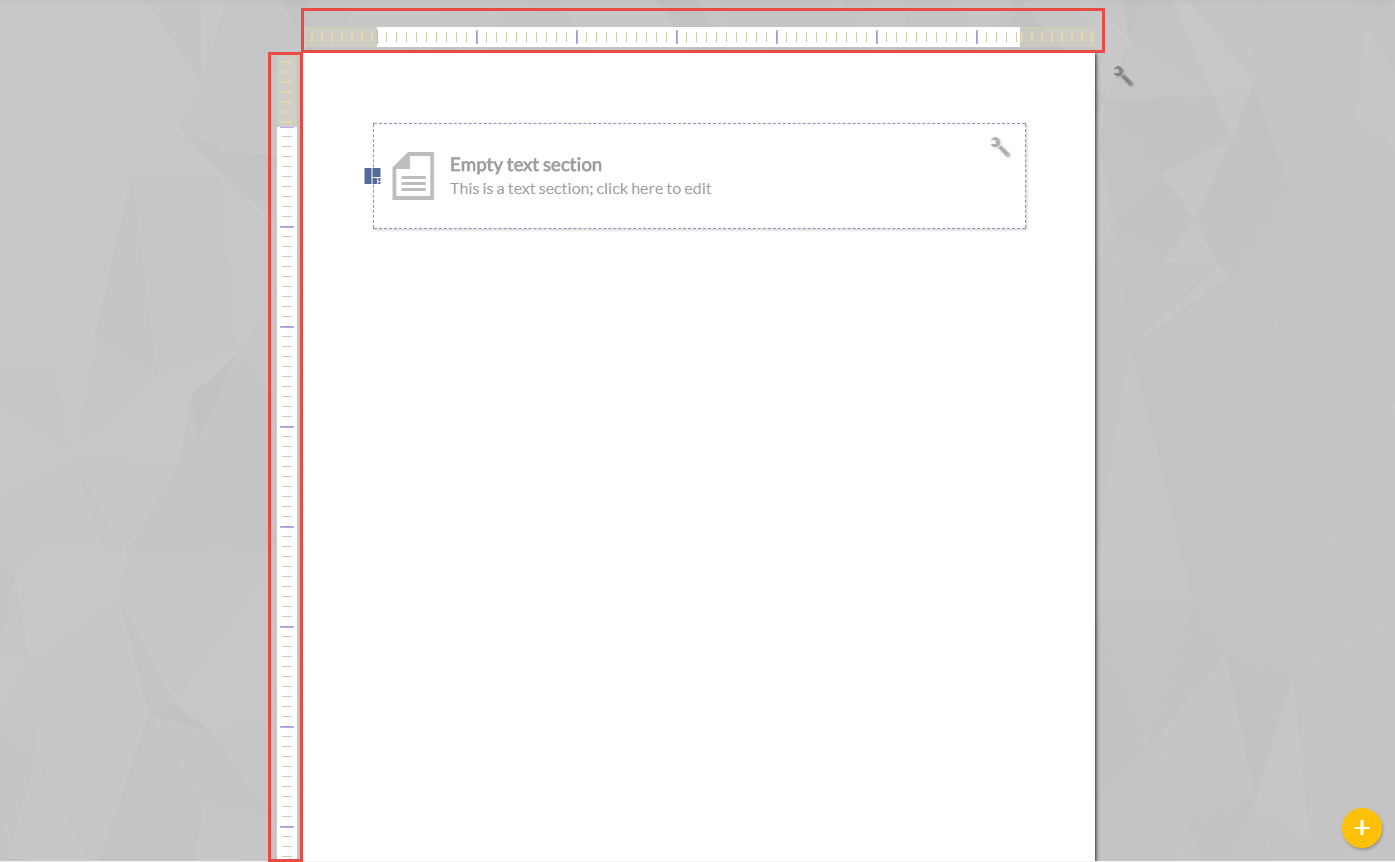
For the pages' edges, users can adjust the pages' margin by dragging it to the corresponding area.
Users can indicate a negative spacing to change the spacing of one section. For complete details, read How to Align a Section Outside the Page Margin
Background
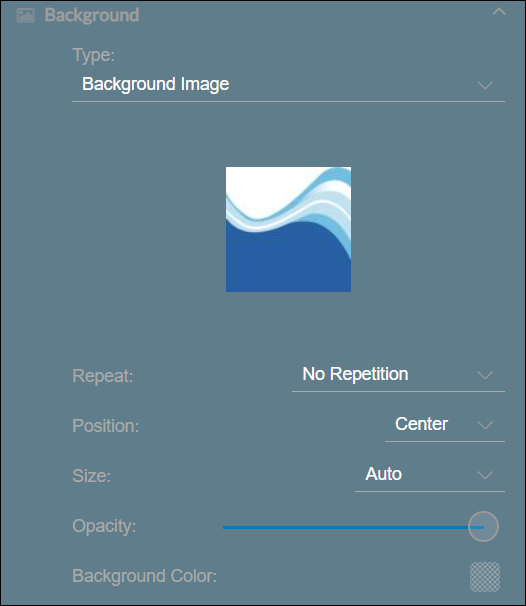
Users have an option to customize the background of row settings by adding a Background Image or color.
For Background Image, users can select from the pre-uploaded image in Strato. It also offers few tools for image customization such as the position, repetition, size, opacity and background color.
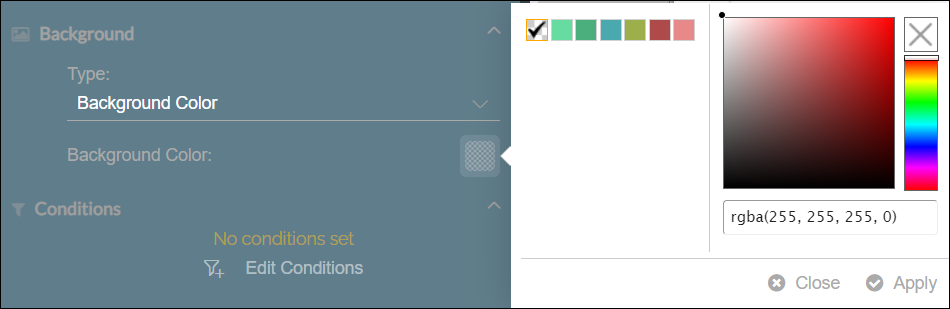
On the other hand, applying background color can be applied in different ways. Either by defining the color in RGBA format or dragging the picker to the preferred color.
Conditions
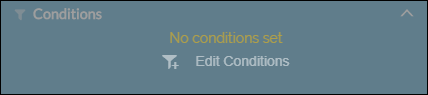
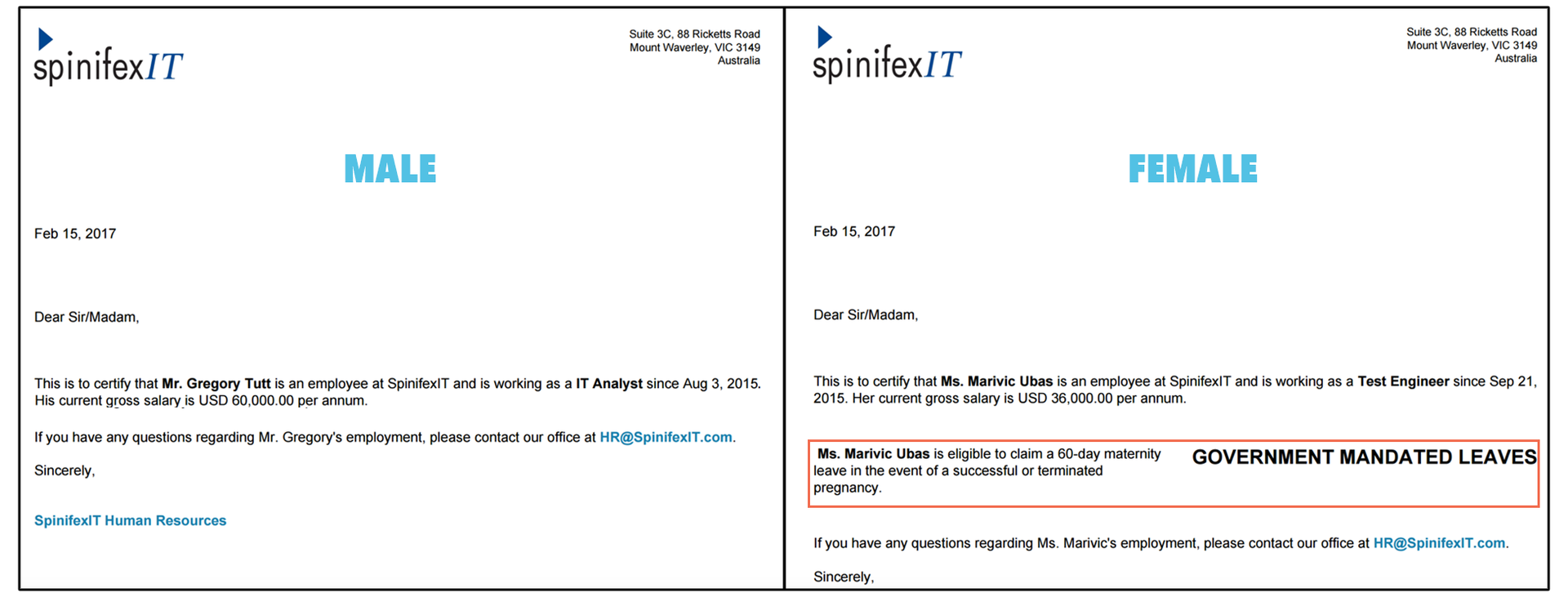
Setting conditions across an entire row will allow users to hide / reveal information within the document based on its recipient's information such as role, level, department, gender, etc.
To add a condition to a row, simply select the row and then click Edit Conditions.
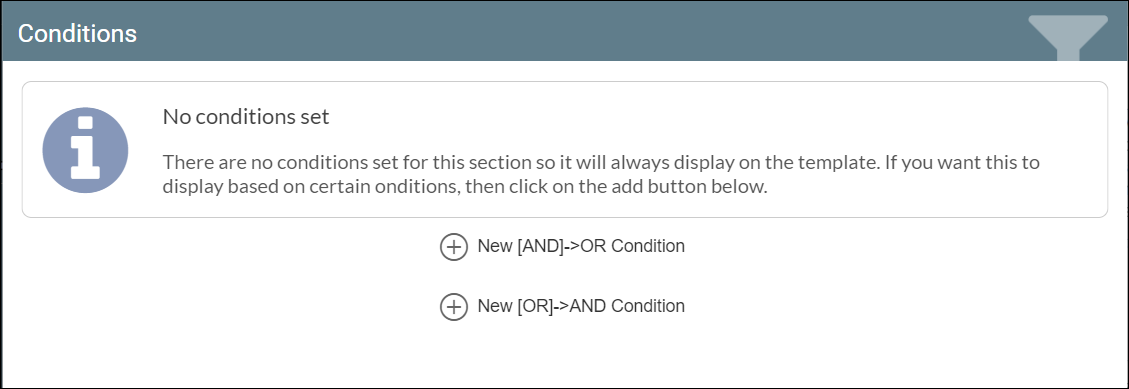
Enter your condition to filter out the information you require.
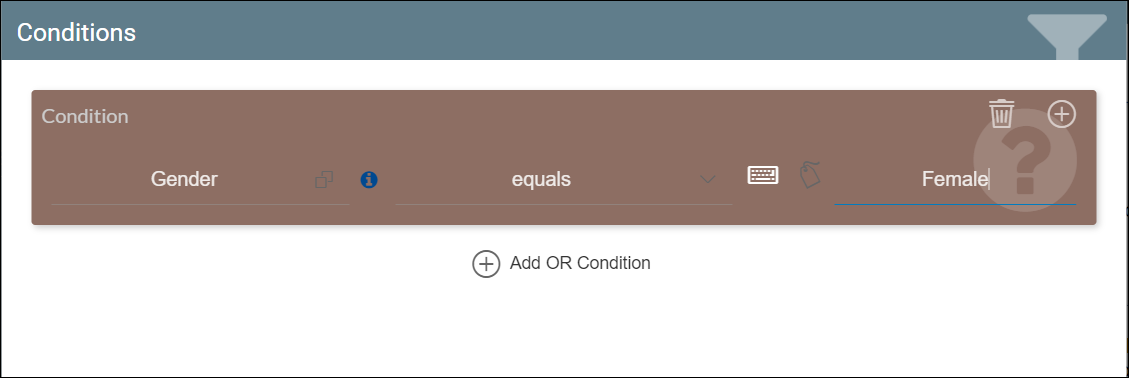
Filter icons will appear on the upper right side of each section within the row. These sections will appear or disappear based on the set conditions.
For this example, this row will only show if the employee is Female. This will not be visible if the employee is male.