Apply Conditions in Document Templates [V1]
Conditions can be added to text, pages, rows, or sections in a document template. Conditional formatting can also be applied to table cells. Conditions are used to show or hide any of the previously mentioned objects, or apply conditional formatting, when the conditions are satisfied.
Functionality
Conditions can be applied to text, pages, rows, or sections by selecting the appropriate object in the document template, then navigating to the appropriate settings.
Text
- Highlight the text to apply conditions to.
- In the toolbar, click the Conditional Text button.

Page
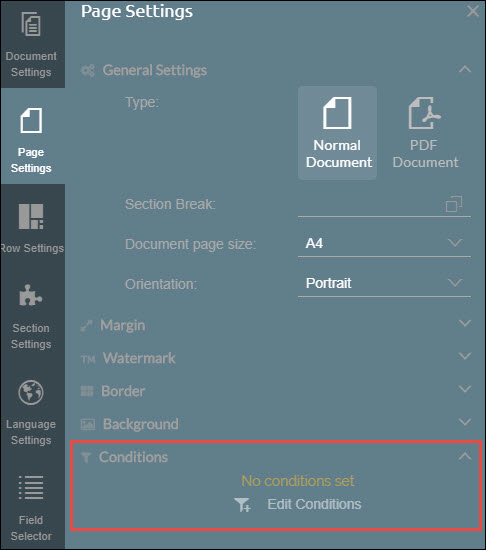
- Select the page to apply conditions to.
- In the sidebar, click Page Settings.
- Click Conditions, then click Edit Conditions.
Row
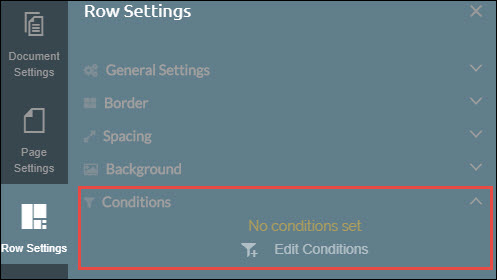
- Select the row to apply conditions to.
- In the sidebar, click Row Settings.
- Click Conditions, then click Edit Conditions.
Section
- Select the section to apply conditions to.
- In the sidebar, click Section Settings.
- Click Conditions, then click Edit Conditions.
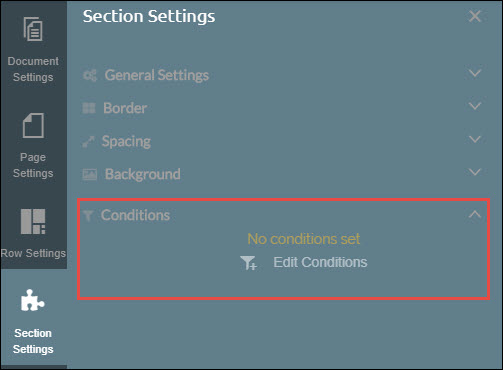
Table cell
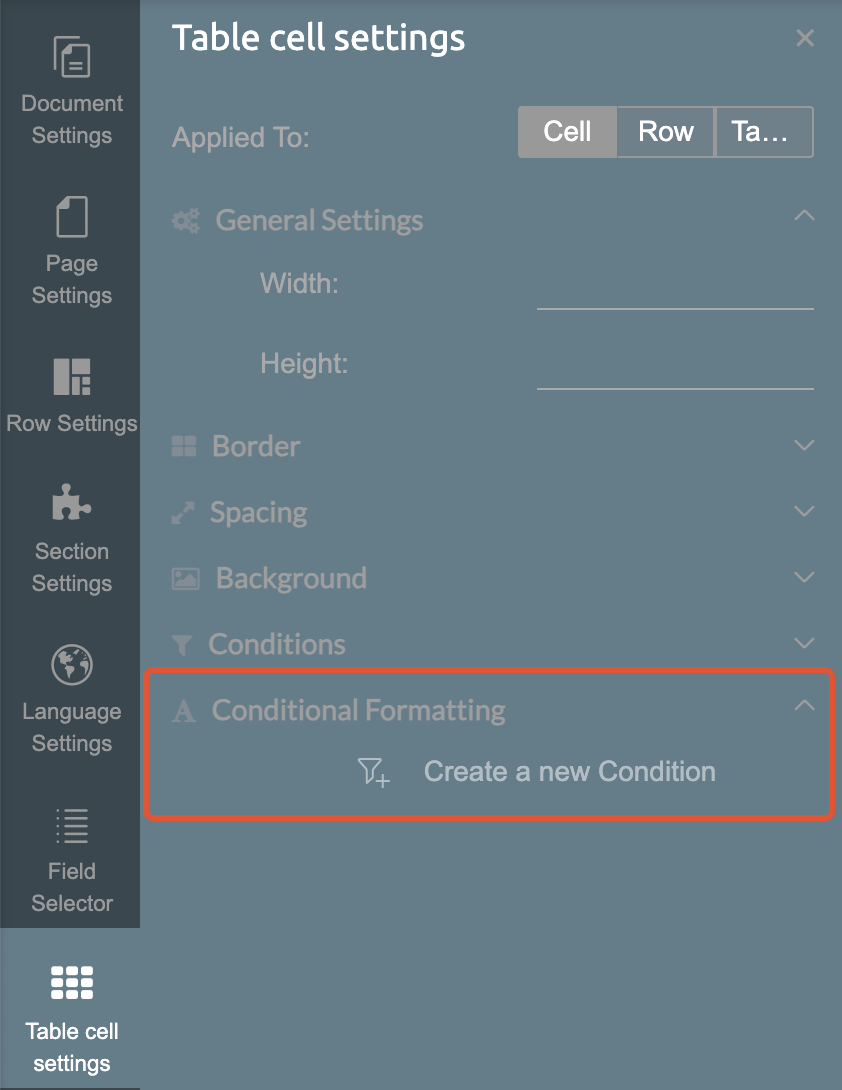
- Select the table cell to apply conditional formatting to.
- In the sidebar, click Table cell settings.
- Click Conditional Formatting, then click Create a new condition.
Apply Conditions
Follow the instructions below to apply a condition to a selected object:
- Select whether the condition set will be [AND]->OR, or [OR]->AND.
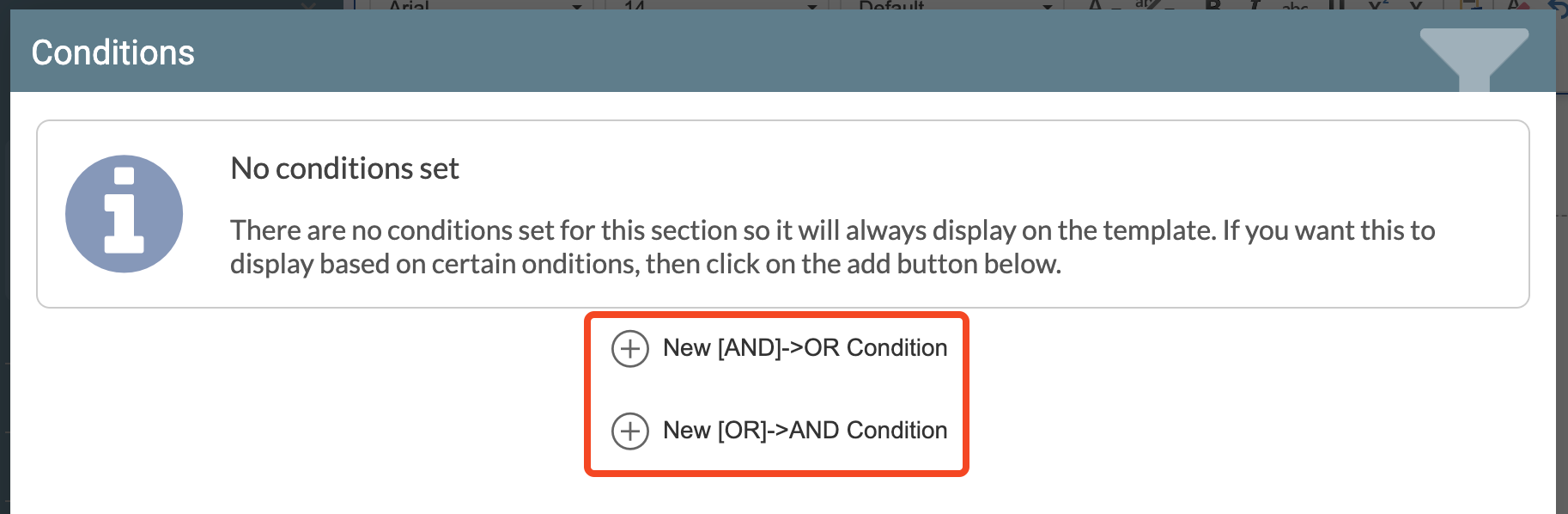
[AND]->OR: Each group must meet all conditions inside it (AND), but only one group needs to be true (OR).
[OR]->AND: Each group allows any one of its conditions to be true (OR), but at least one condition in every group needs to be true (AND).
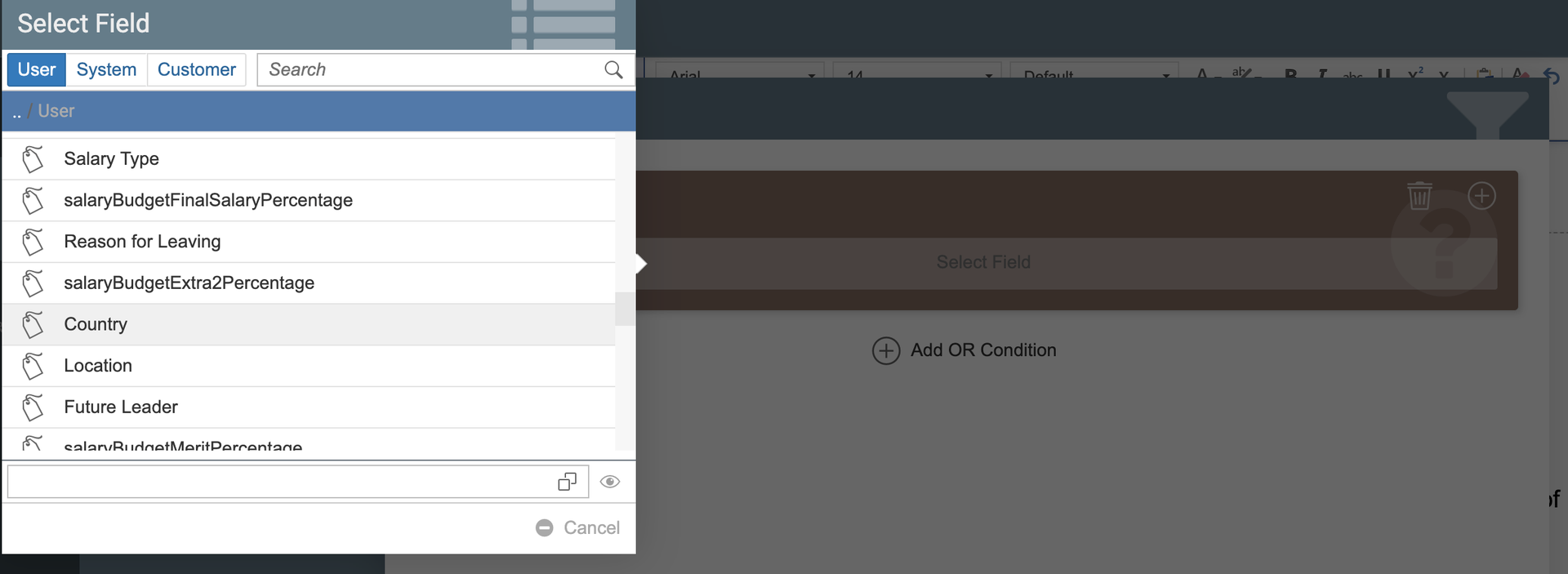
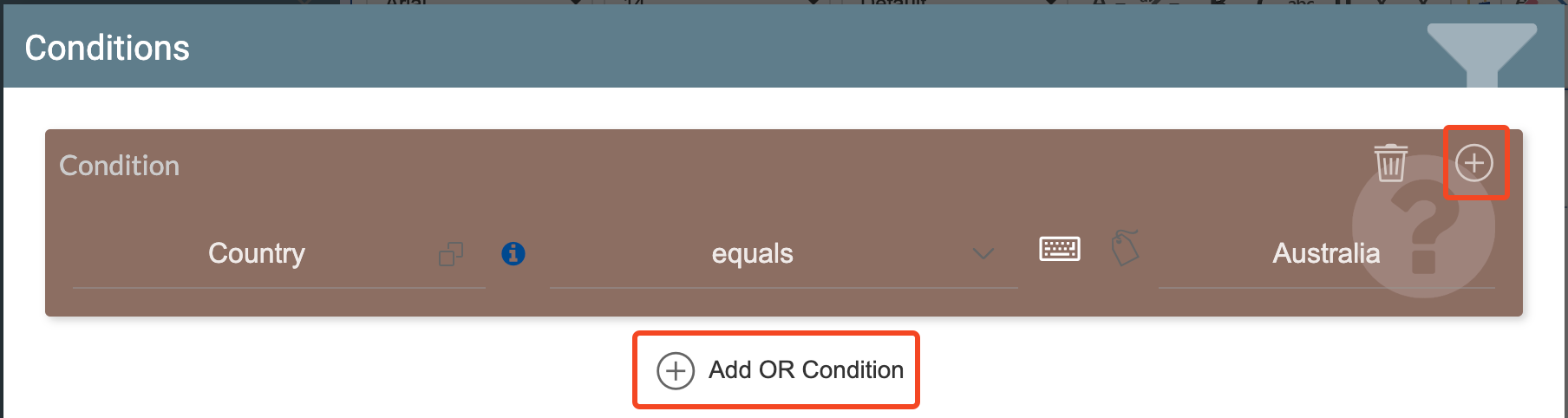
- Select a datasource field, which will serve as the point of comparison.
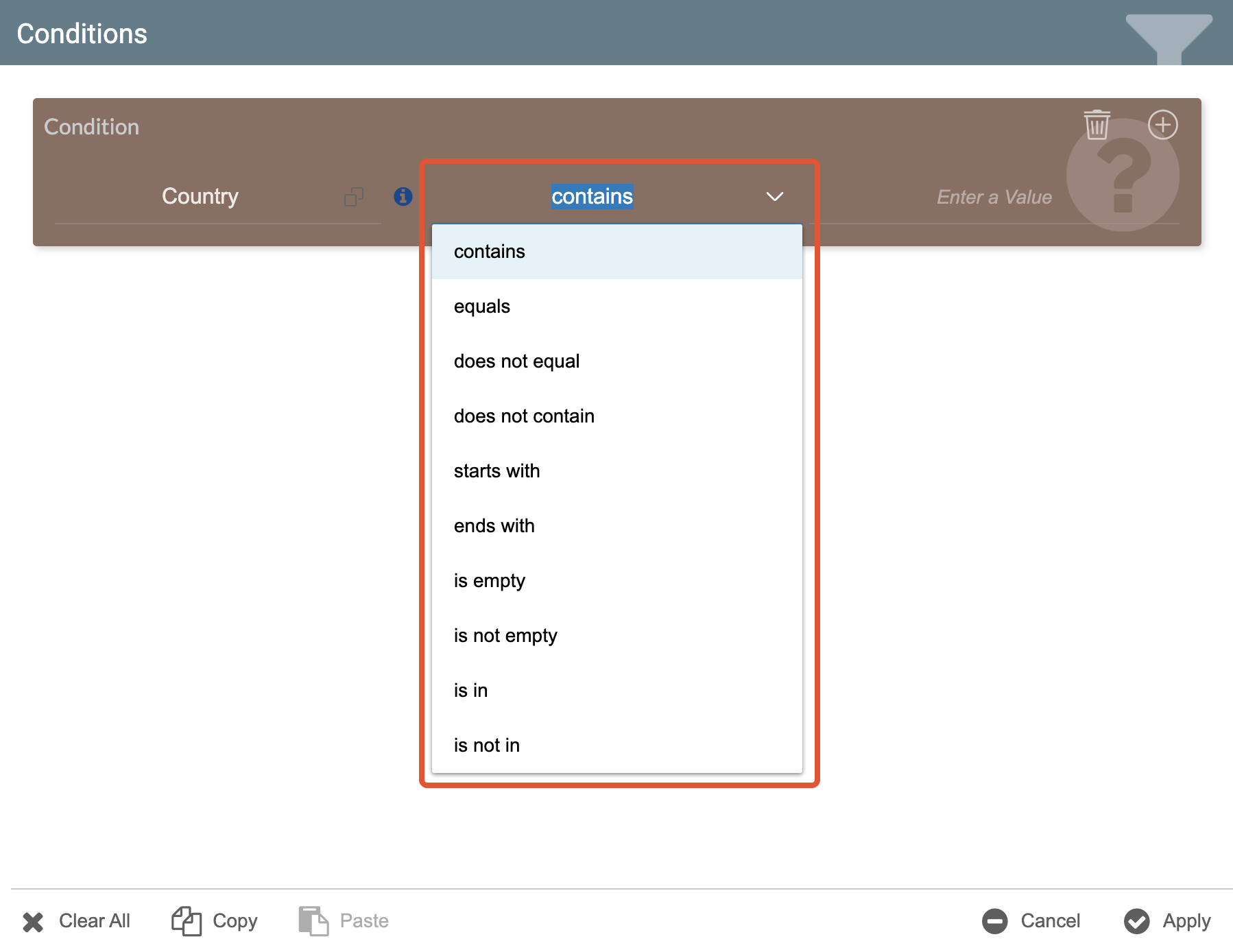
- Select the operator to be used in the comparison. The options will vary based on the type of field selected.
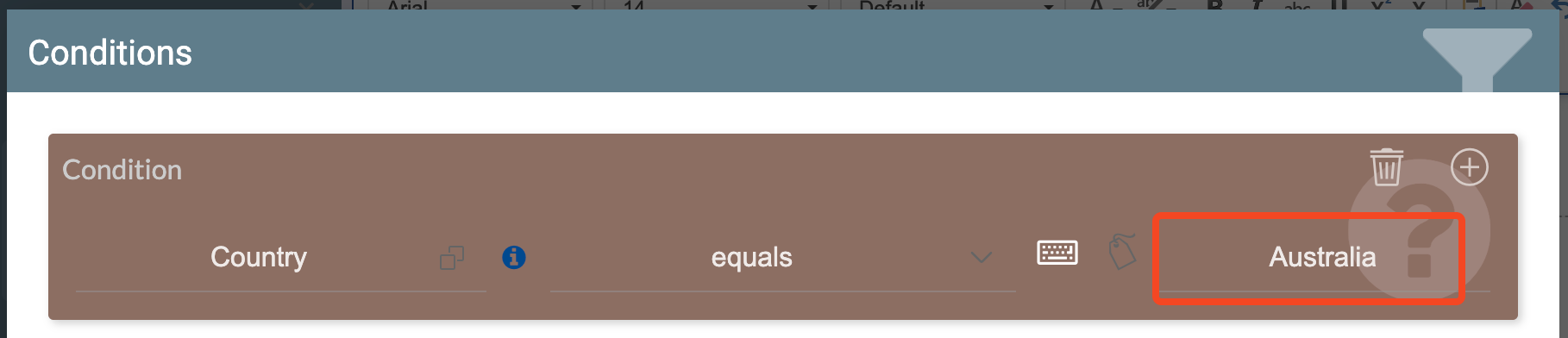
- Enter the value to compare to the selected field.
- Repeat steps 2-4 for each condition you will apply. You can add more conditions by using the + button in the upper-right corner of an existing condition, which will add the condition in the same group, or you can create a new condition group by clicking Add OR Condition or Add AND Condition.
- Click Apply.
The Conditions section will show how many conditions are currently set for the selected object.

Text Field Operators
These are the operators available when using a text field.
Operator | Explanation |
|---|---|
contains | The field contains the entered value. |
equals | The field matches the entered value. |
does not equal | The field does not match the entered value. |
does not contain | The field does not contain the entered value. |
starts with | The field starts with the entered value. |
ends with | The field ends with the entered value. |
is empty | The field is empty. |
is not empty | The field is not empty. |
is in | The field is in the entered value. |
is not in | The field is not in the entered value. |
Number Field Operators
These are the operators available when using a number field.
Operator | Explanation |
|---|---|
= | The field is equal to the entered value. |
> | The field is greater than the entered value. |
< | The field is less than the entered value. |
>= | The field is greater than or equal to the entered value. |
<= | The field is less than or equal to the entered value. |
<> | The field is not equal to the entered value. |
is empty | The field is empty. |
is not empty | The field is not empty. |
Date Field Operators
These are the operators available when using a date field.
Operator | Explanation |
|---|---|
is | The field matches the selected date value. |
is between | The field occurs between the selected start and end dates. |
is before | The field occurs before the selected date. |
is after | The field occurs after the selected date. |
is empty | The field is empty. |
is not empty | The field is not empty. |
Fields can also be compared to other fields by clicking the Select Field icon. This is useful when comparing fields that may have similar values, such as places and dates.

Learn how to use conditions to compare two fields.
Related articles
- Use Conditions to Compare Two Fields
- Copy and Paste in Condition Editor
- Apply Conditional Text in Document Templates
- Apply Row Conditions
- Apply Conditional Formatting to Table Cells