Apply Conditional Formatting to Table Cells [V1]
Conditional formatting can be applied to table cells. When the conditions are satisfied, the formatting applies to the selected cells.
This article contains the following sections:
Requirements
It is recommended that you learn how to apply conditions in document templates before you proceed.
Instructions
Follow the steps below to apply apply conditional formatting to your cells:
- Create or edit your document template. In this example, the conditional formatting will be applied to a simple 3 x 3 table.
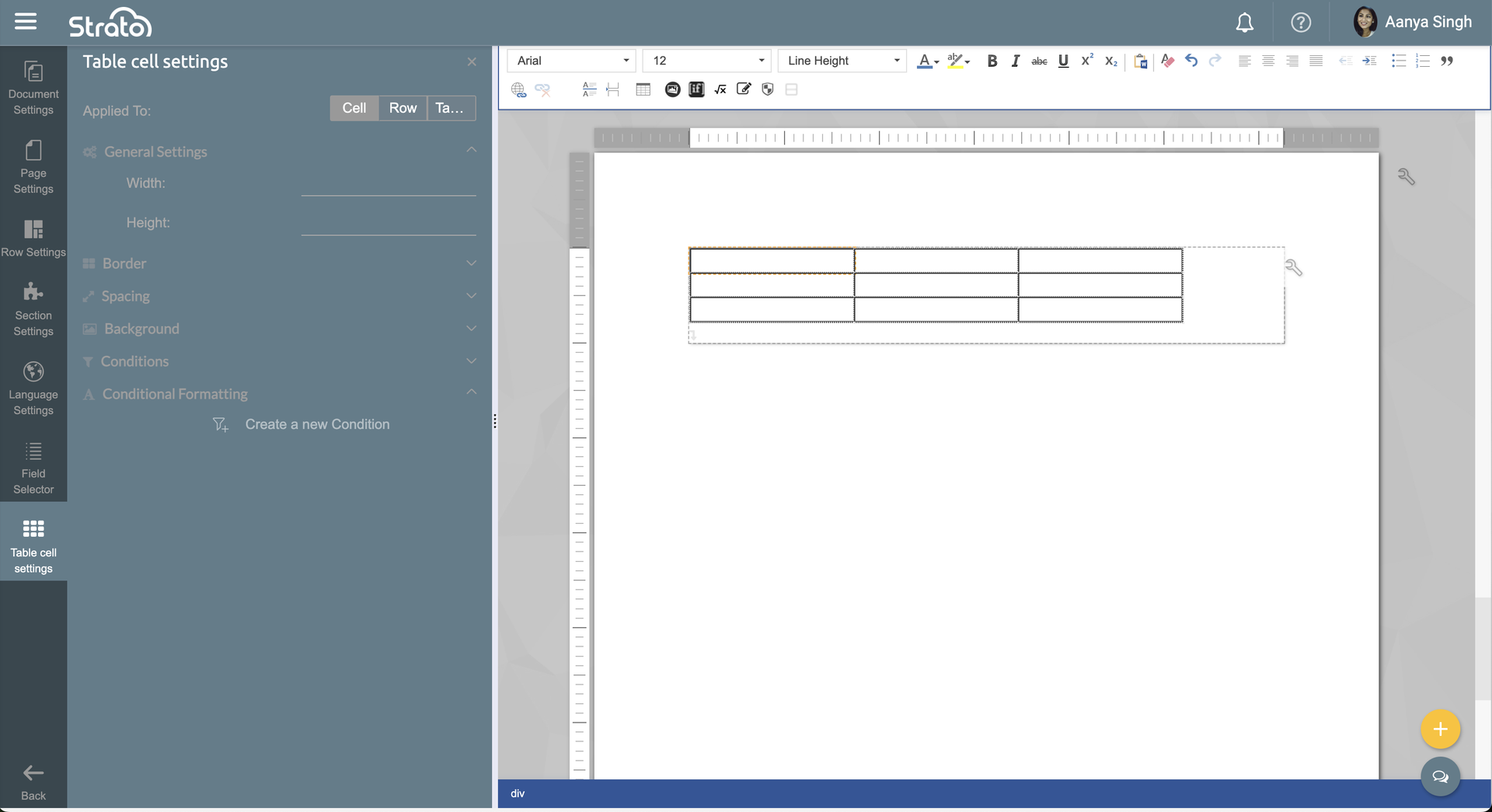
- Click on any cell in the table, then apply a condition. For this example, the condition will be set so that if the "First Name" field contains "A", the conditional formatting will apply:
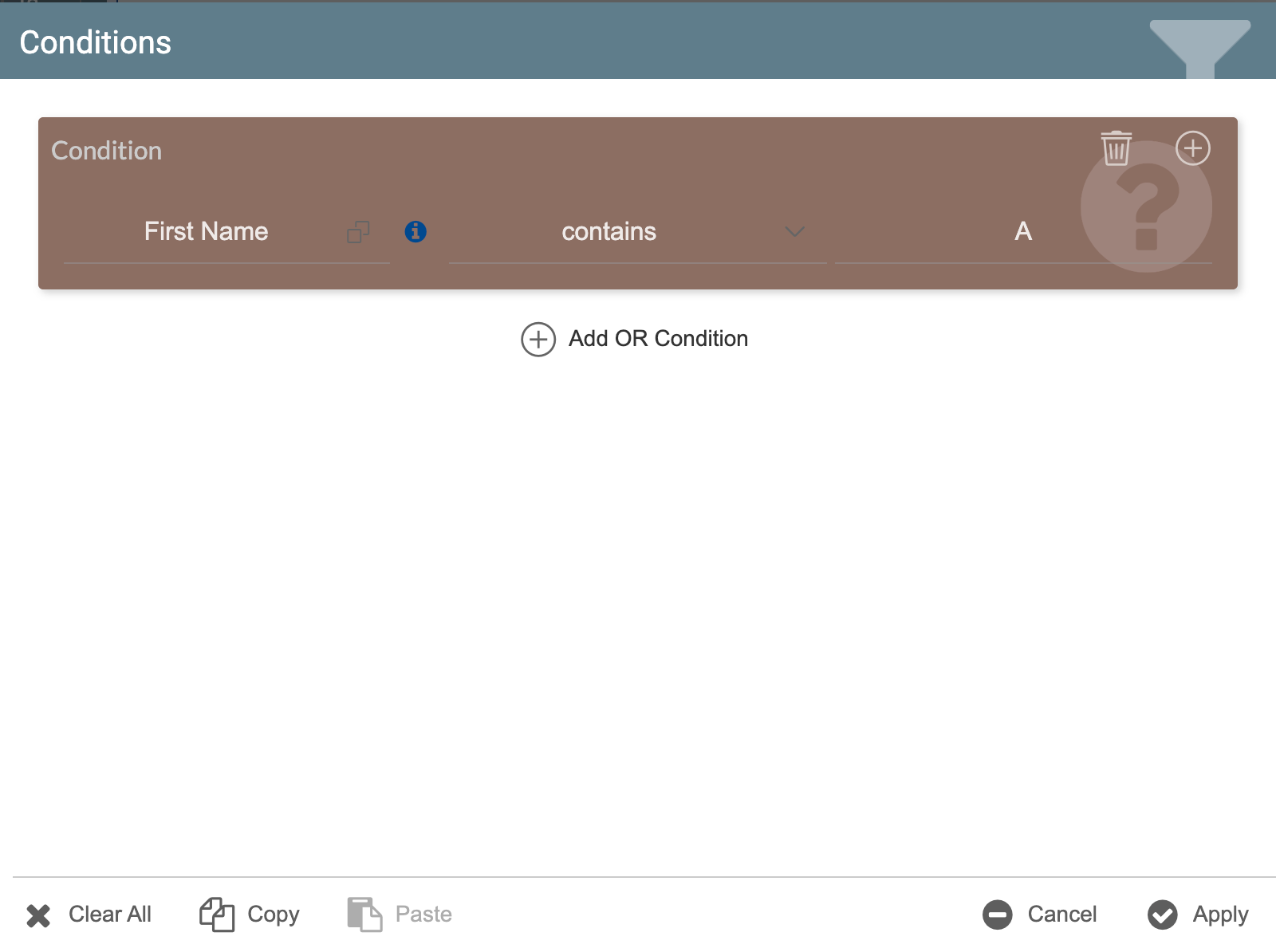
- Click Apply.
- Expand the Style section to set the formatting that will be used.
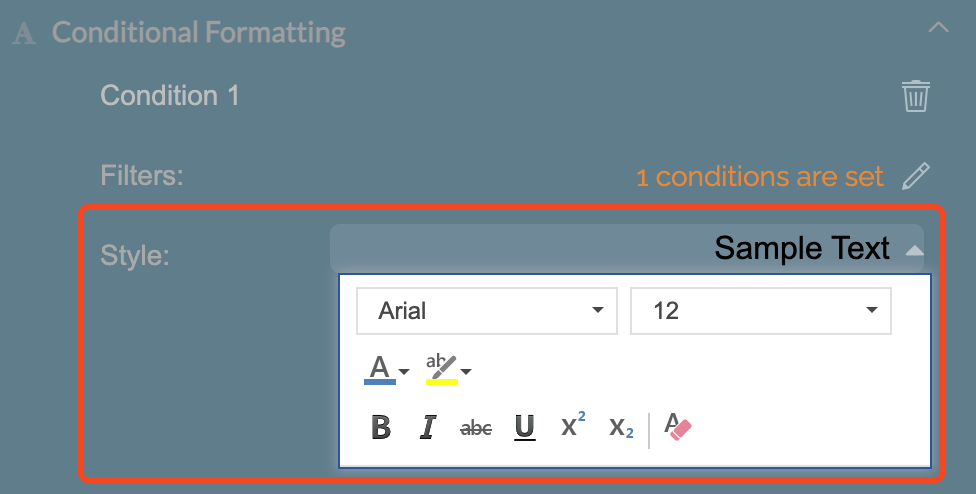
The available styles for use are:- Font style
- Font size
- Font color
- Background color
- Decrease / Increase letter spacing
- Superscript or subscript
- Bold, italics, strikethrough, underlined
- Save and Publish the document.
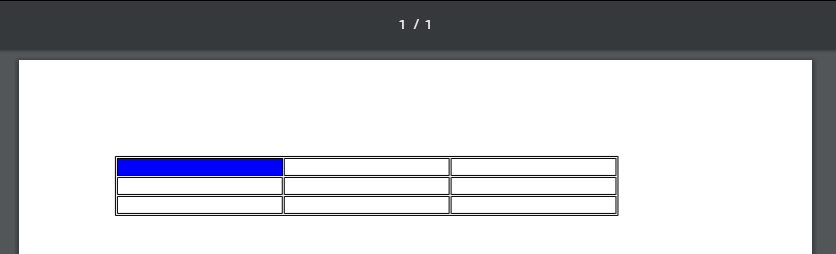
- Preview the document. The formatting should be applied when the "First Name" field contains "A".
Related articles
- Apply Conditions in Document Templates
- Copy and Paste in Condition Editor
- Use Conditions to Compare Two Fields
- Apply Row Conditions