Use Conditions to Compare Two Fields [V1]
You can compare a field to another field when setting conditions. This is useful when comparing fields that may have similar values such as places and dates.
Requirements
It is recommended that you learn how to apply conditions in document templates before you proceed.
Instructions
Follow the step below to use conditions to compare two fields:
- Create or edit your document template.
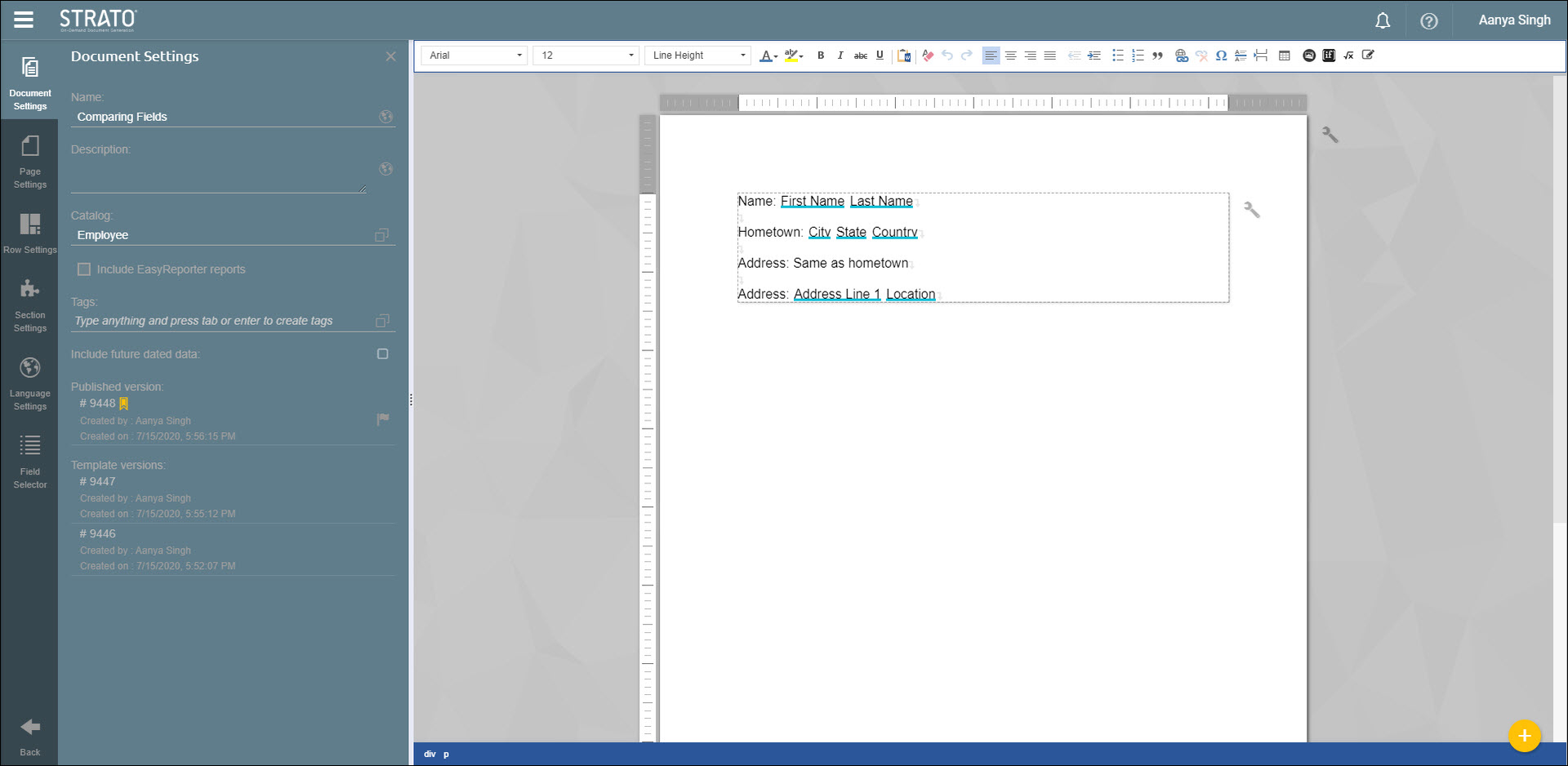
- In this example, the last two lines displayed here will be set as conditional text.
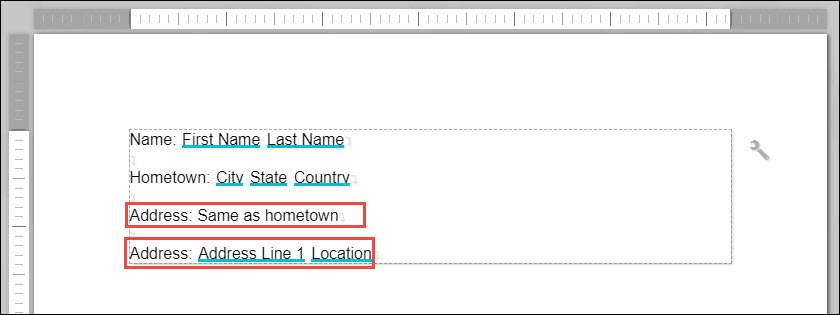
- Highlight the first line.

- In the toolbar, click the Conditional Text button.

- For the first line, the condition will be set so that the if the "Location" field matches the value of the "Country" field, the line will show:
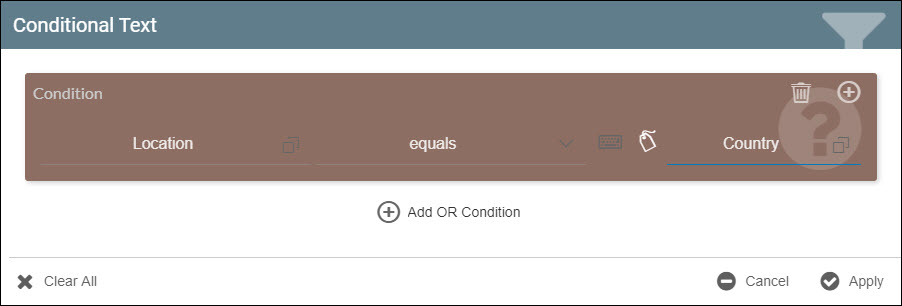
- Click Apply.
- Highlight the other line.
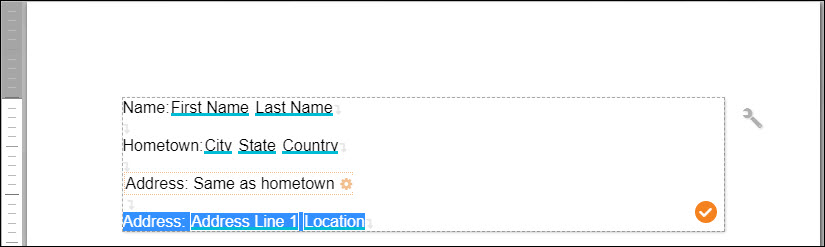
- In the toolbar, click the Conditional Text button.
- For the second line, the condition will be set so that the if the "Location" field does not match the value of the "Country" field, the line will show:
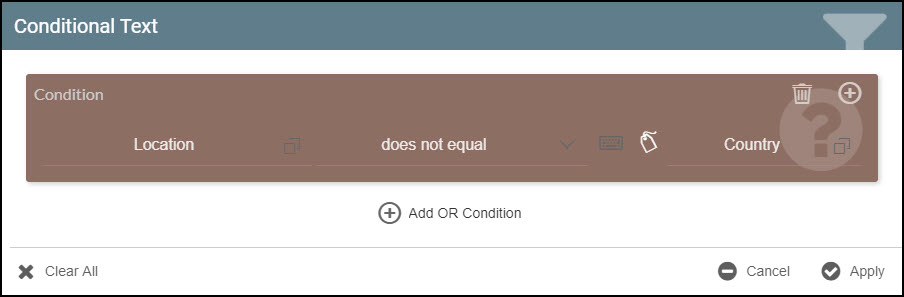
- Click Apply.
- Save and Publish the document.
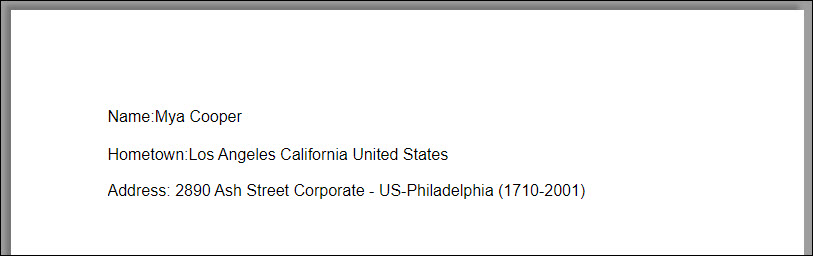
- Preview the document. The first line will be displayed if the country of the employee is the same as the location.
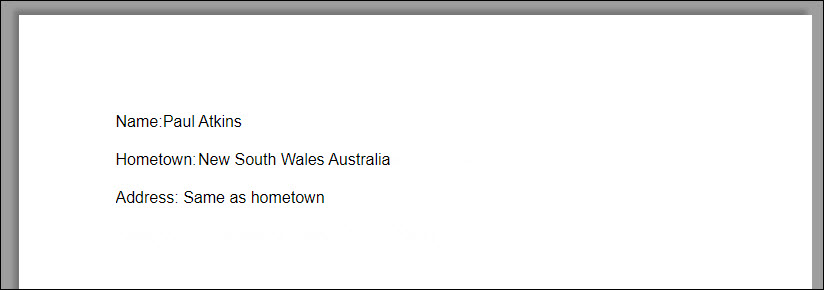
- The second line will be displayed if the country is not the same as the location.