Copy and Paste in the Conditions Editor [V1]
In the Conditions Editor, users can copy a complete condition set and paste from one condition editor to another. This feature allows copying conditions between templates. For example, users can copy conditions from a Document Template to a Workflow Template, or from one Document Template to another.
Requirements
It is recommended that you learn how to apply conditions in document templates before you proceed.
Features
The copy-paste feature applies to all Strato solutions that allow condition editing.
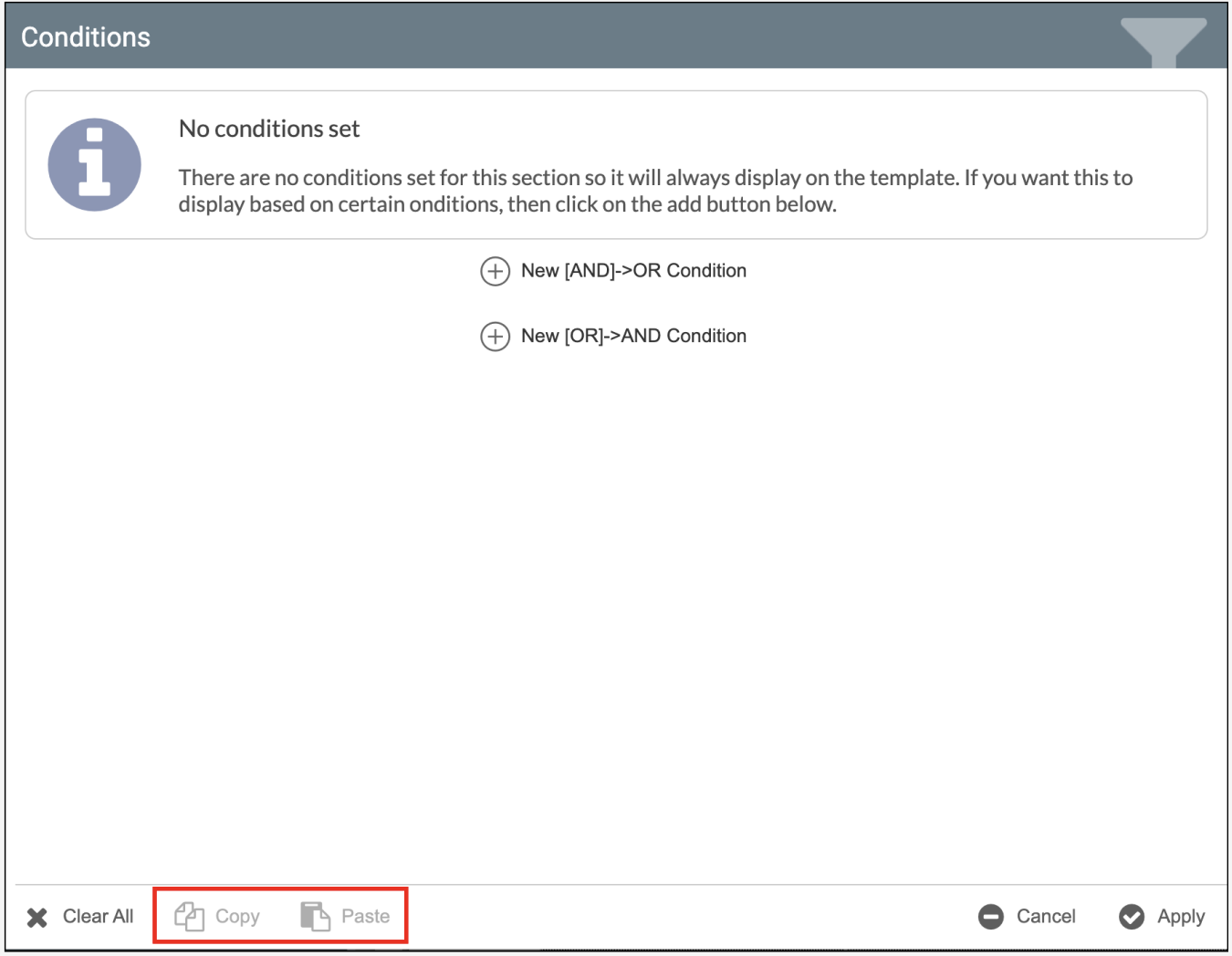
Instructions
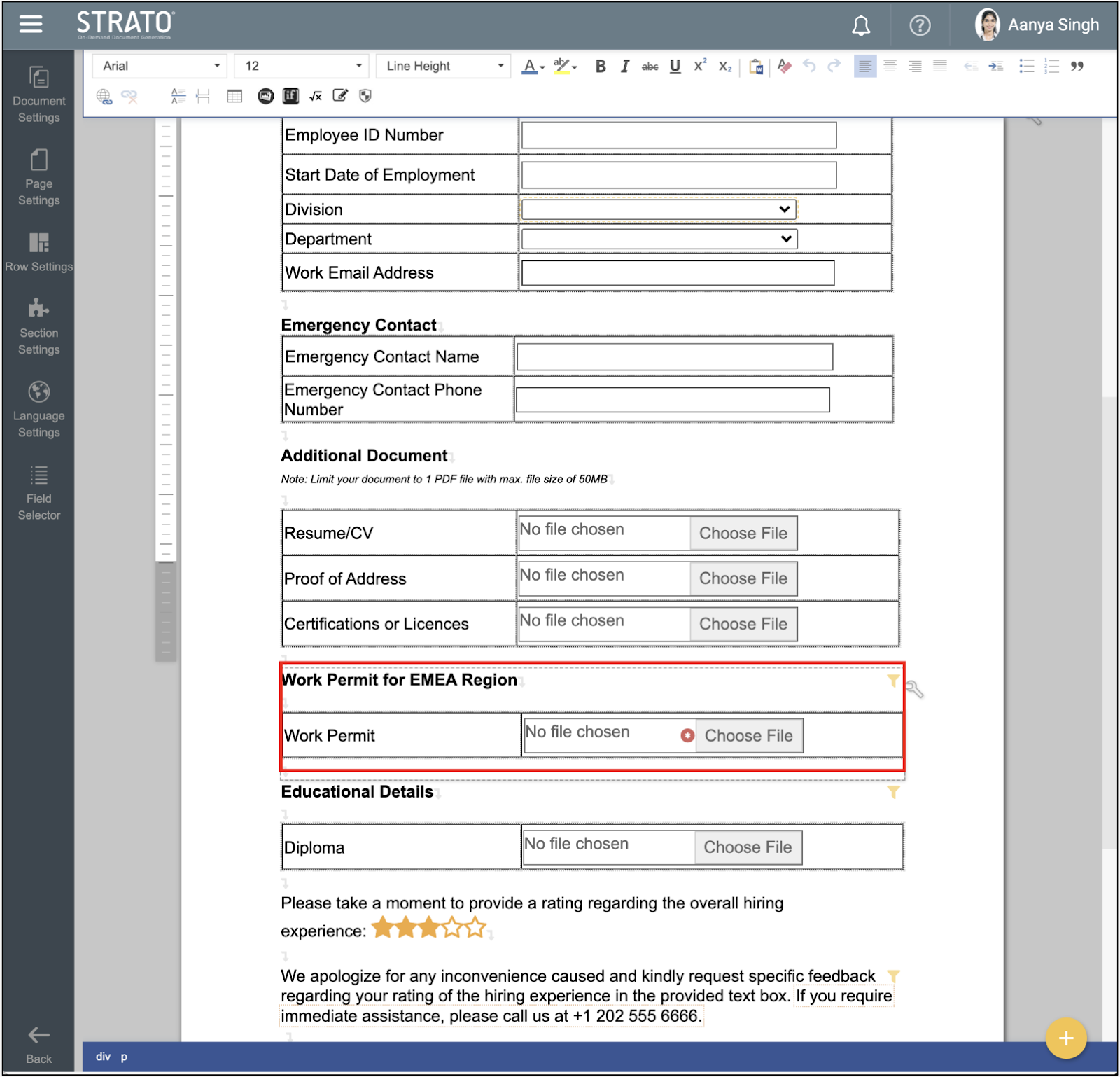
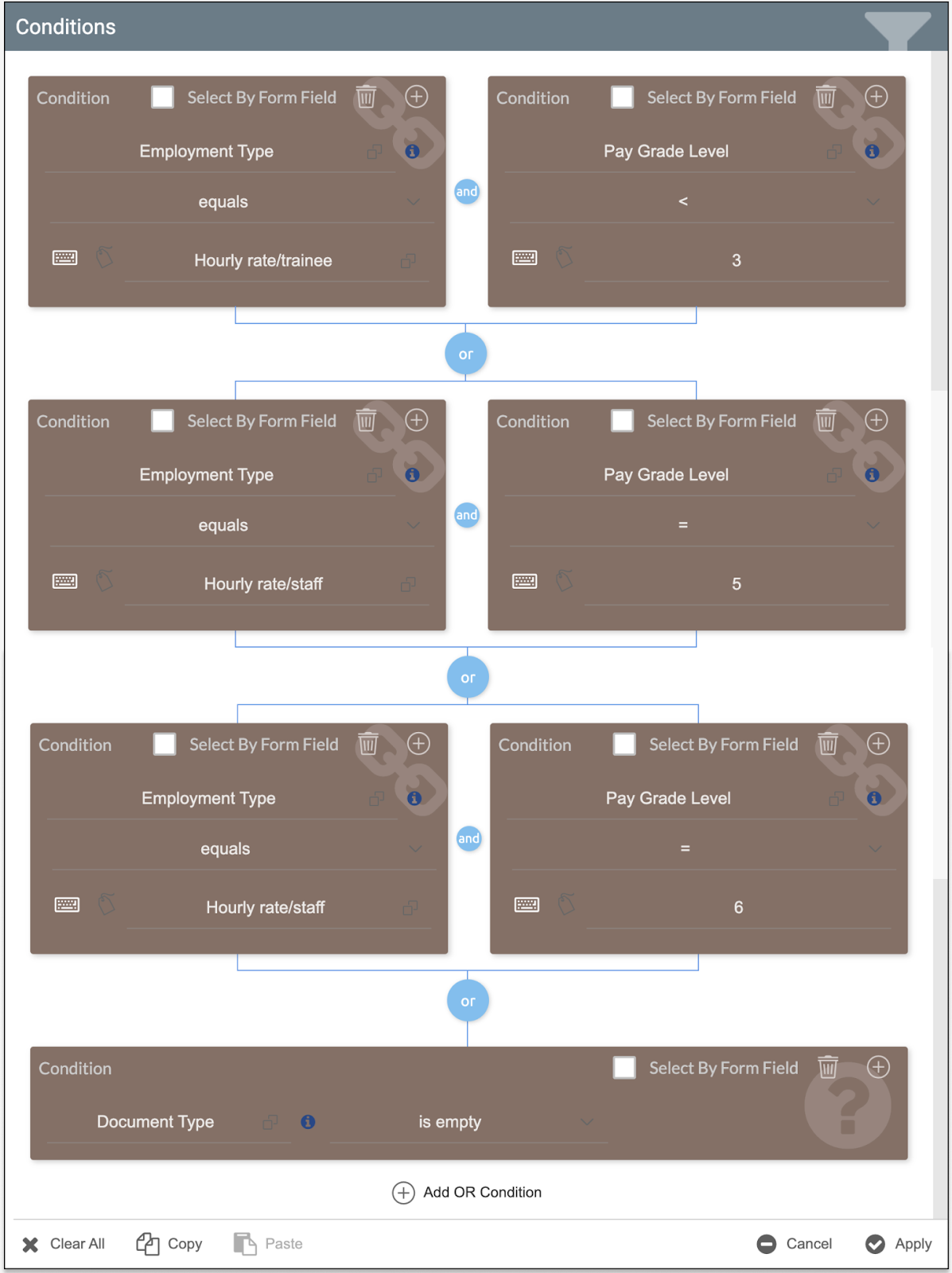
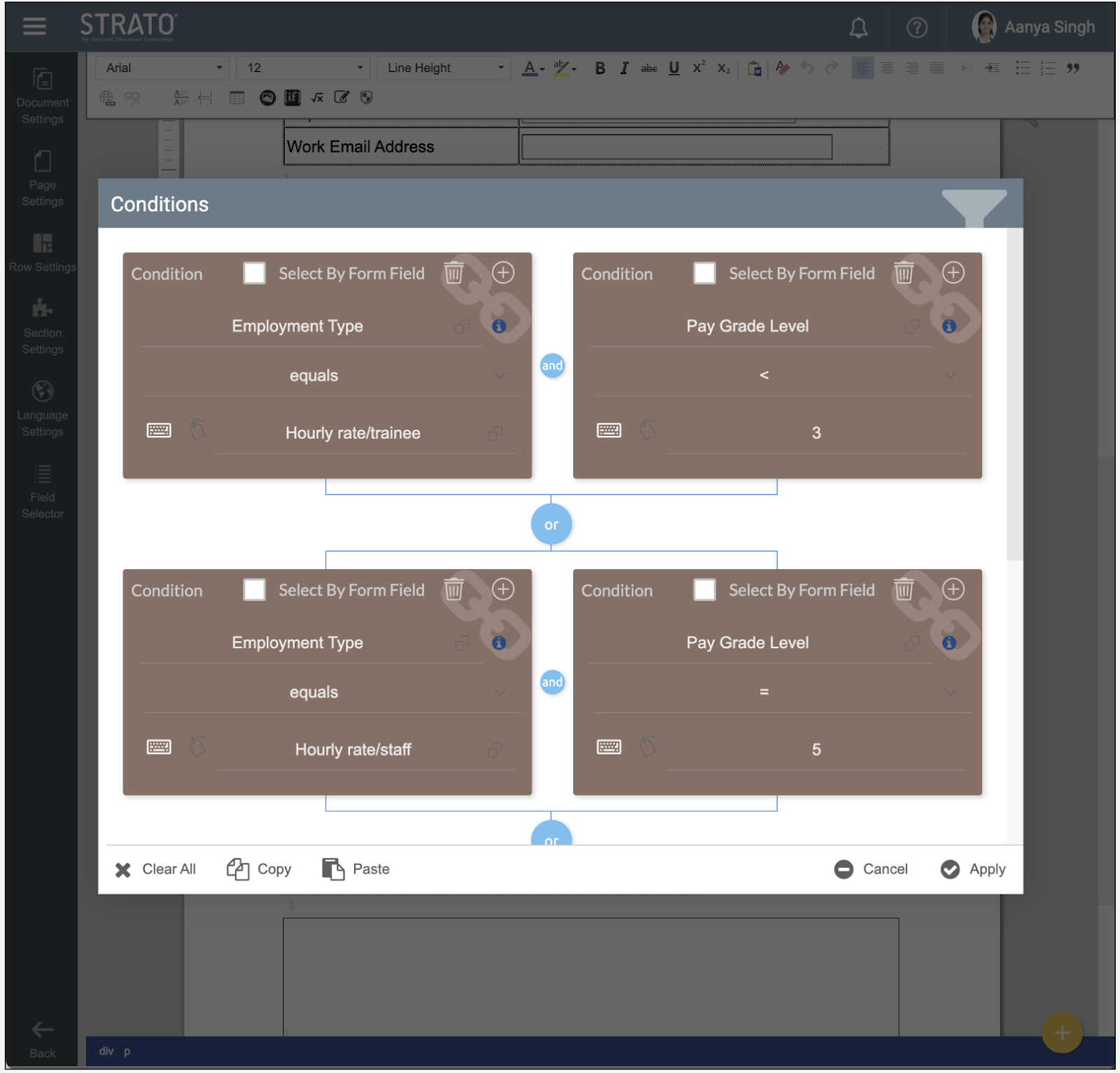
The section is configured to display under the following conditions:
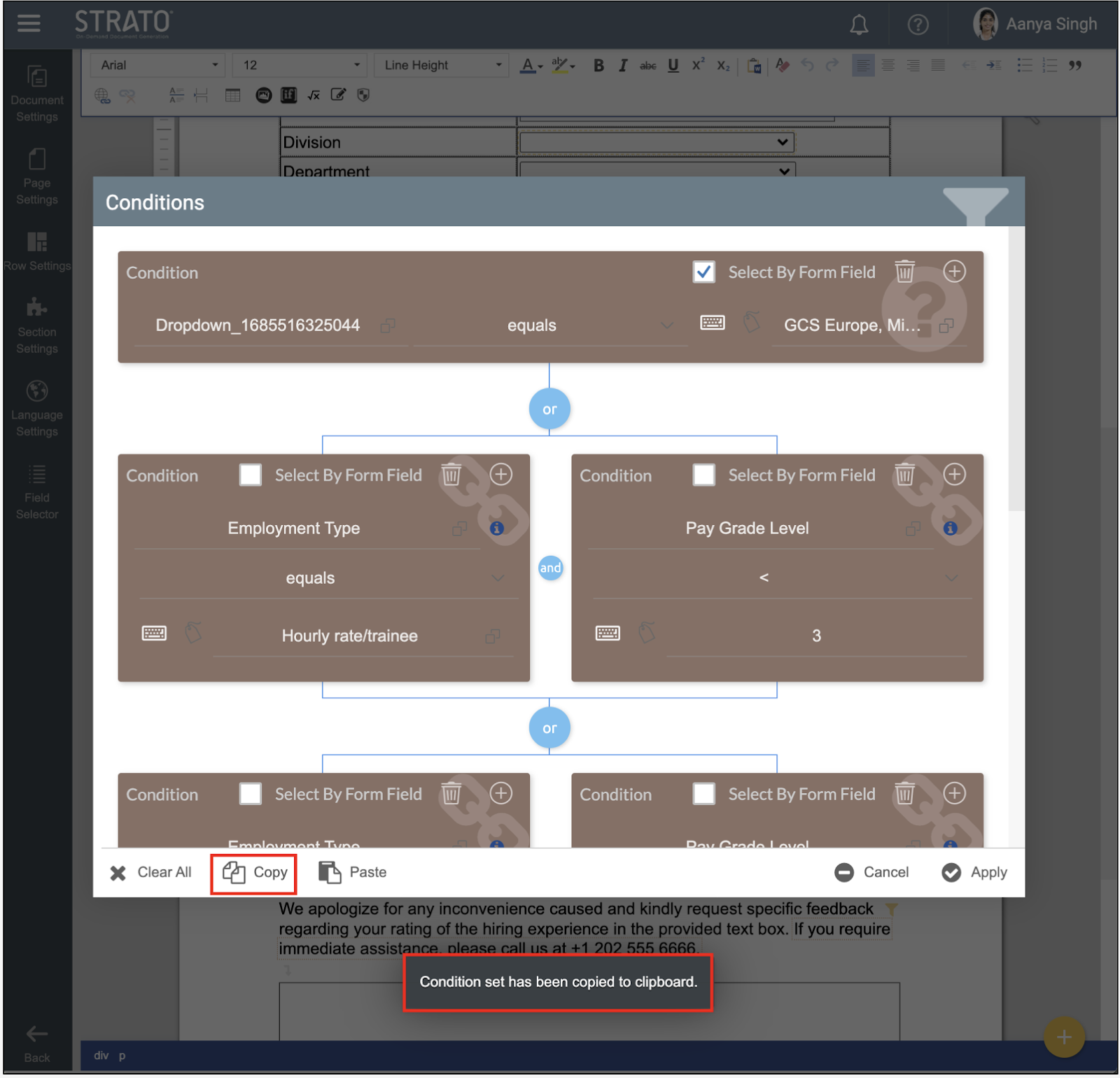
To copy this set of conditions, click the Copy button in the Conditions Editor. After successful copying, a message stating "Condition set has been copied to clipboard" will appear at the bottom of the window.
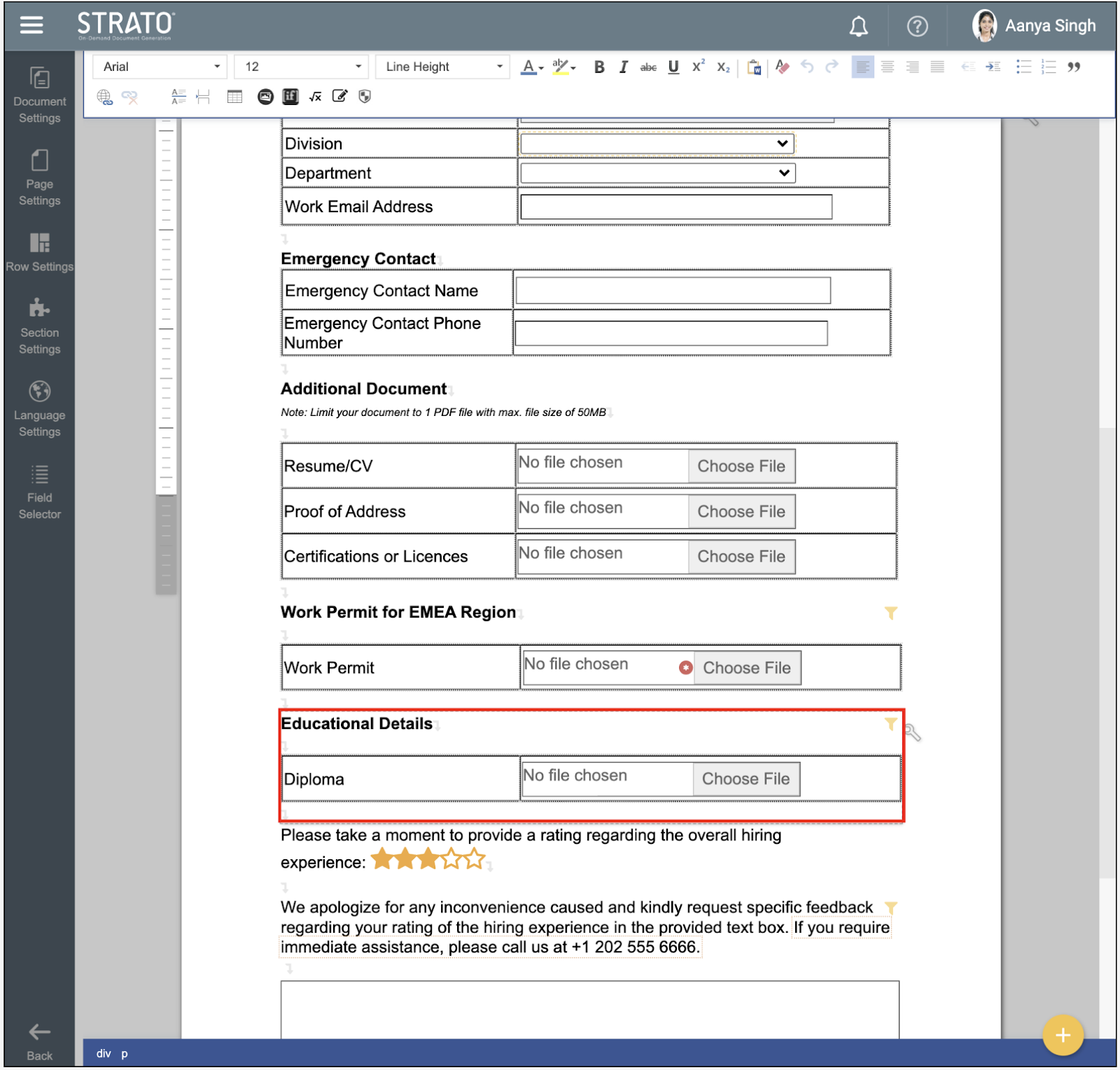
This can be pasted into another conditions window. In the example, the condition is pasted to the "Educational Details" section.
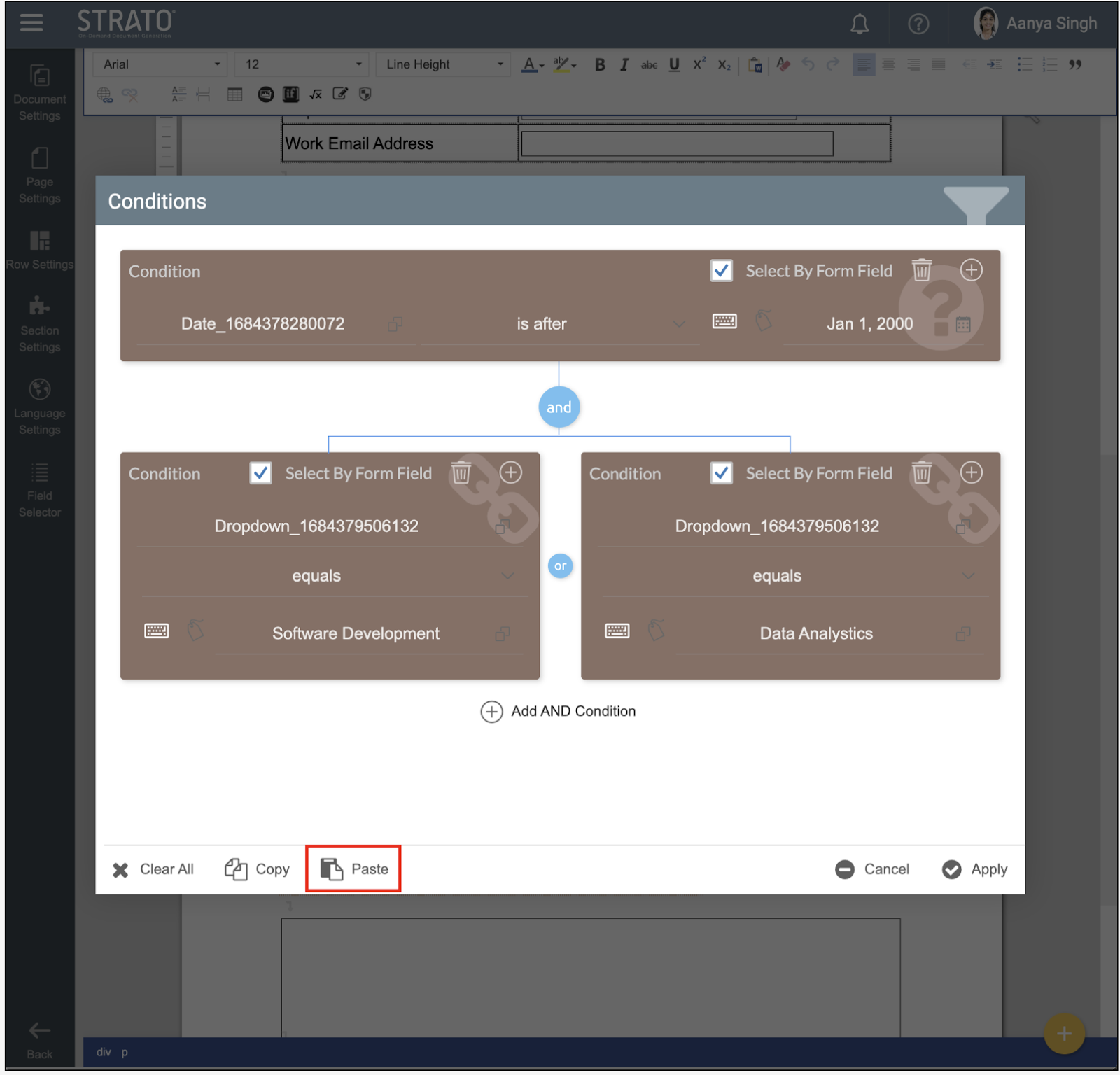
Pasting the conditions into a condition window with an existing set will overwrite the current conditions, triggering a prompt to confirm whether the user wants to proceed.
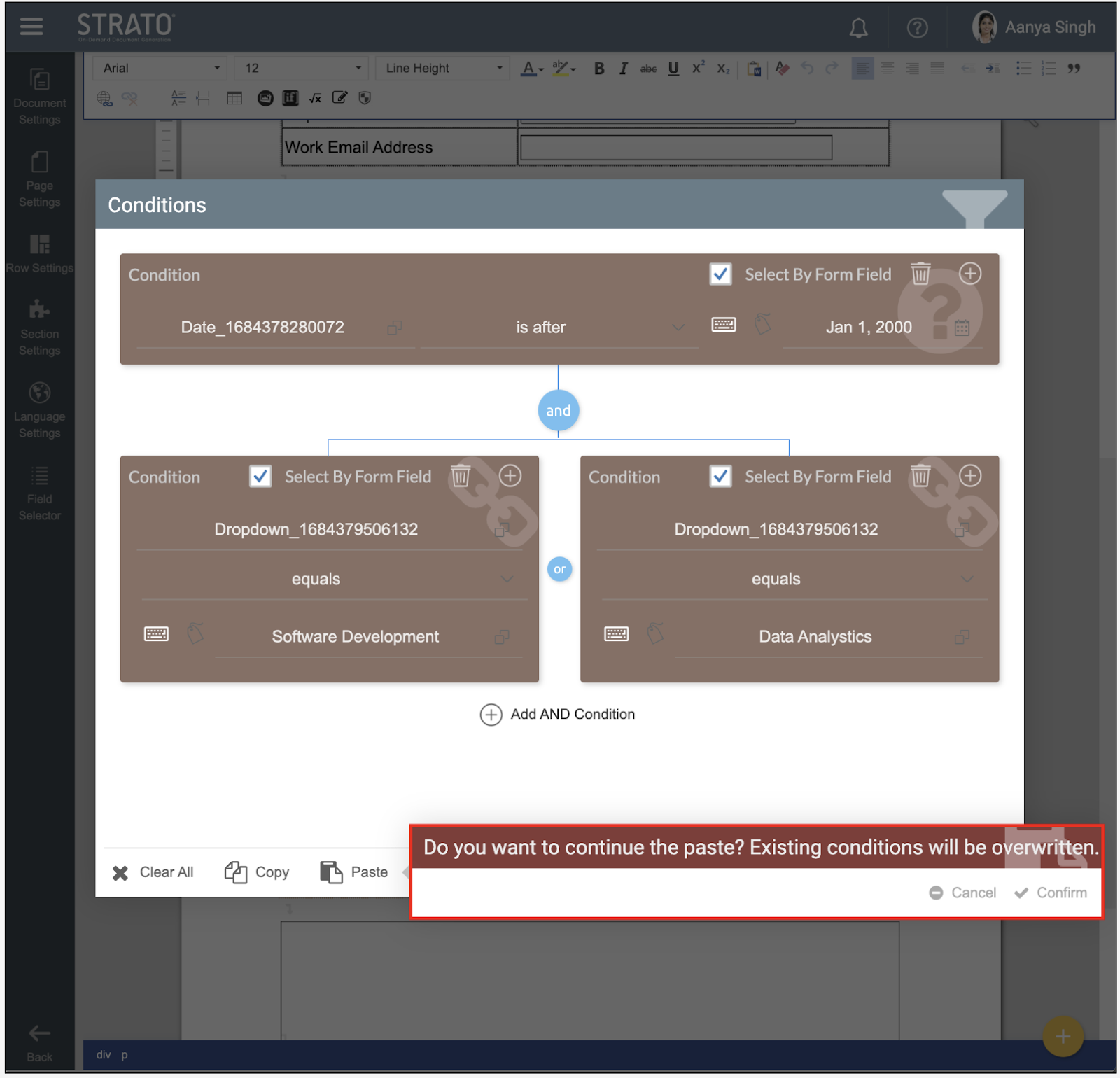
Click the Confirm button to apply. The new set of conditions from the "Work Permit for EMEA Region" section is now reflected.
Related article
- Apply Conditions in Document Templates
- Use Conditions to Compare Two Fields
- Apply Conditional Text in Document Templates
- Apply Row Conditions
- Apply Conditional Formatting to Table Cells