Apply Conditional Text in Document Templates [V1]
Conditions can be added to text, pages, rows, or sections in a document template. This article explains how to set conditional text in document templates.
Requirements
It is recommended that you learn how to apply conditions in document templates before you proceed.
Instructions
Follow the steps below to set conditional text in a document template:
- Create or edit your document template.
In this example, the mobile phone allowance will be set as conditional text to show based on the title of an employee.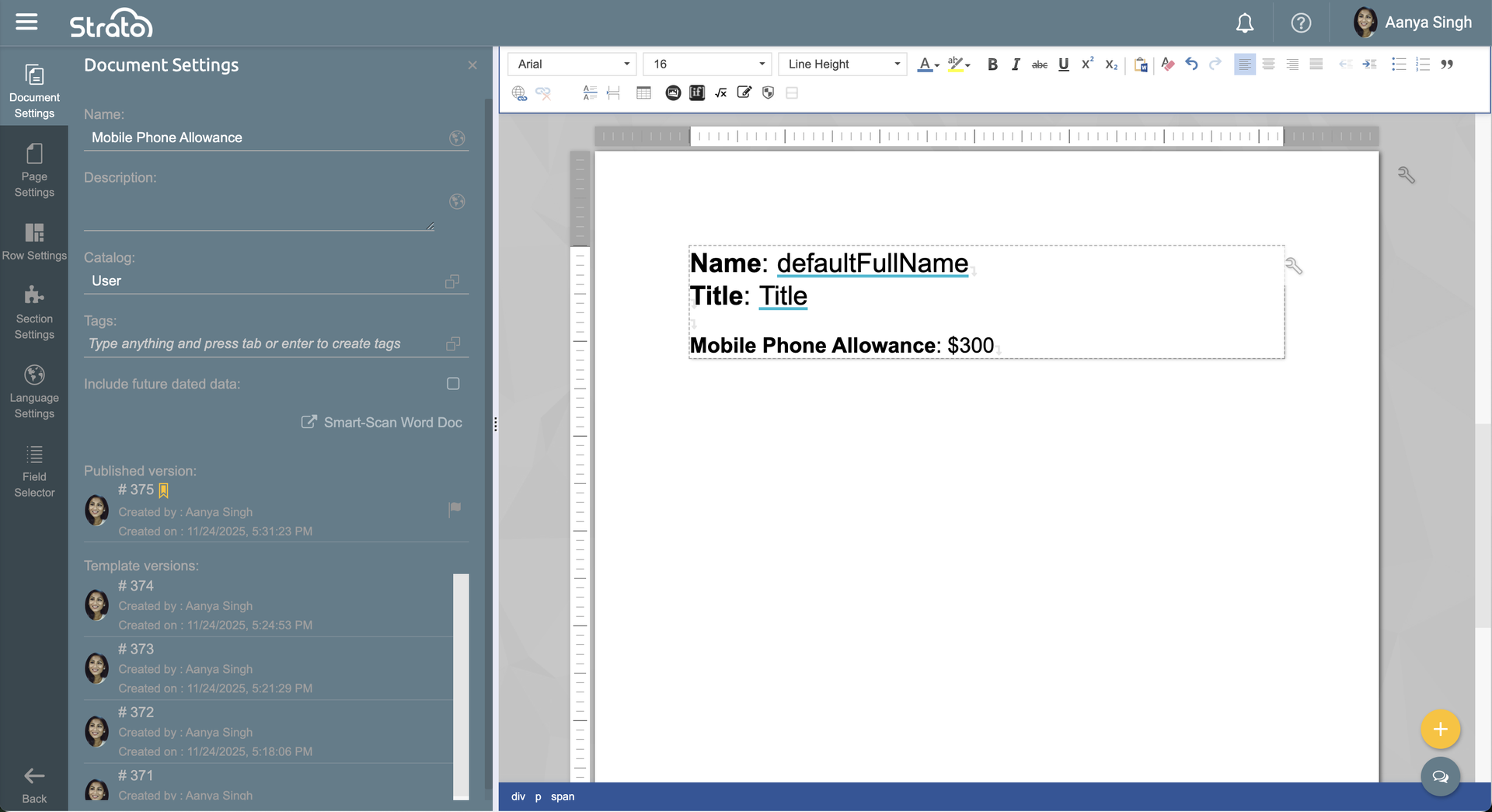
- Highlight the line for the mobile phone allowance.
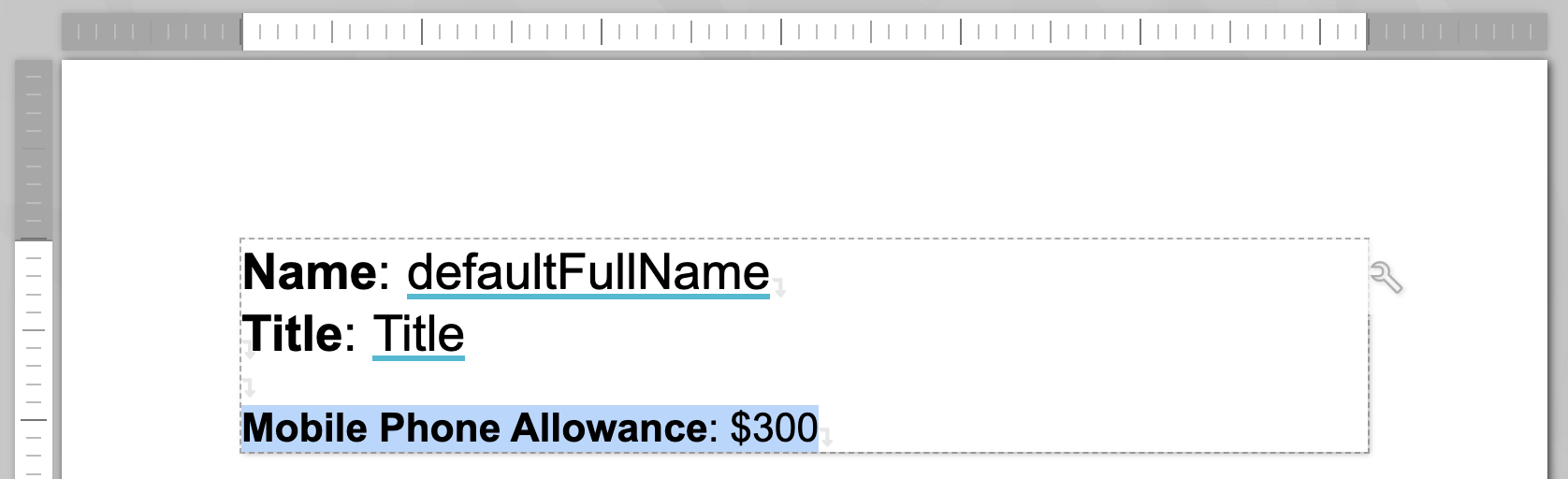
- In the formatting toolbar, click the Conditional Text button.

- Select a condition style. In this example, the
[OR]->ANDoption will be used.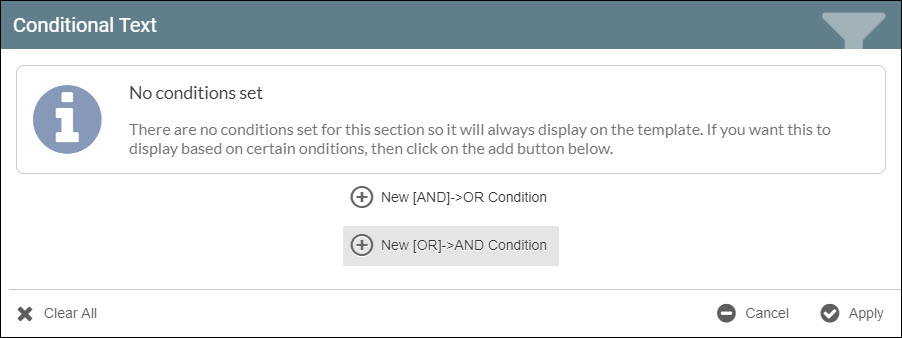
- For this example, the condition will be set so that if the "Title" field contains "President" or "CEO", and does not contain "Analyst", the line will show:
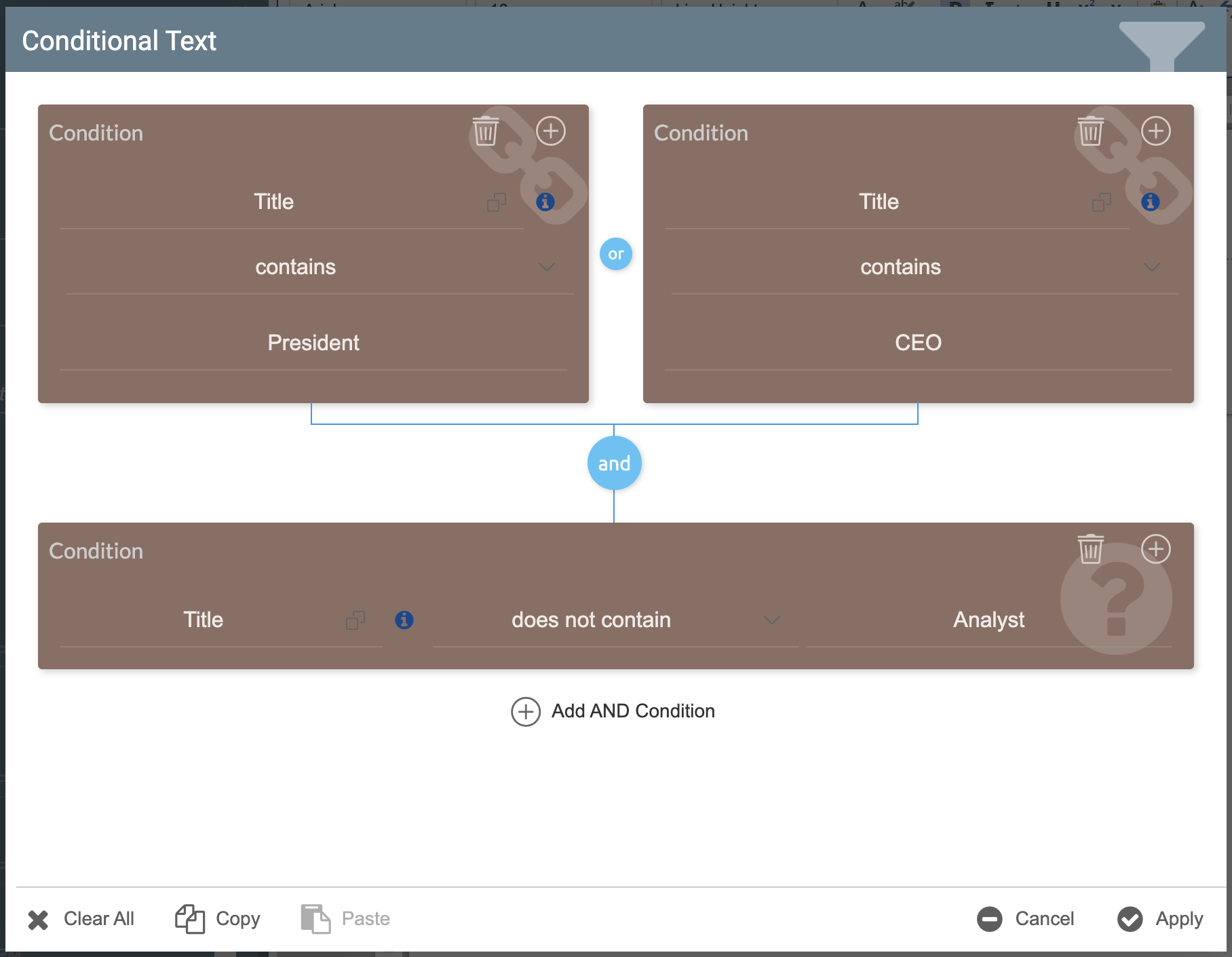
- Click Apply.
- Save and Publish the document.
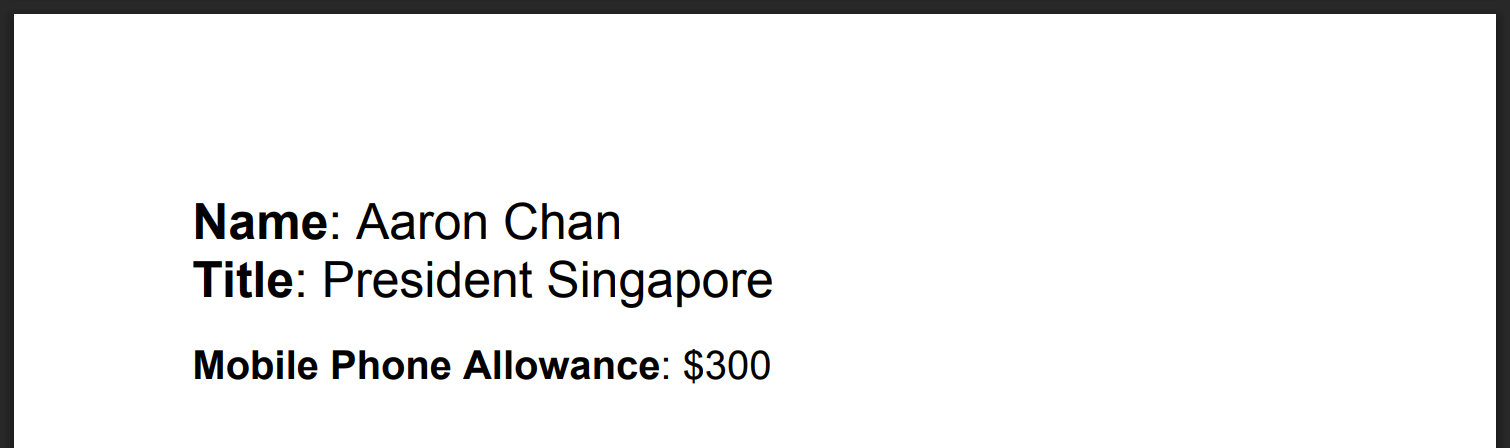
- Preview the document. The mobile phone allowance will be displayed if the title of the employee contains "President" or "CEO", and does not contain "Analyst".
Related articles
- Apply Conditions in Document Templates
- Copy and Paste in Condition Editor
- Use Conditions to Compare Two Fields
- Apply Row Conditions
- Apply Conditional Formatting to Table Cells