Align a Section Outside the Page Margin [V1]
In the Spacing section from the Row Settings article, you can adjust a page's margin by dragging these as needed. Doing this will result in all sections applying the modified margin. If you wish to only apply a specific margin to a specific section, follow the steps below.
In the below example shown, the margin of the template’s header will be changed.
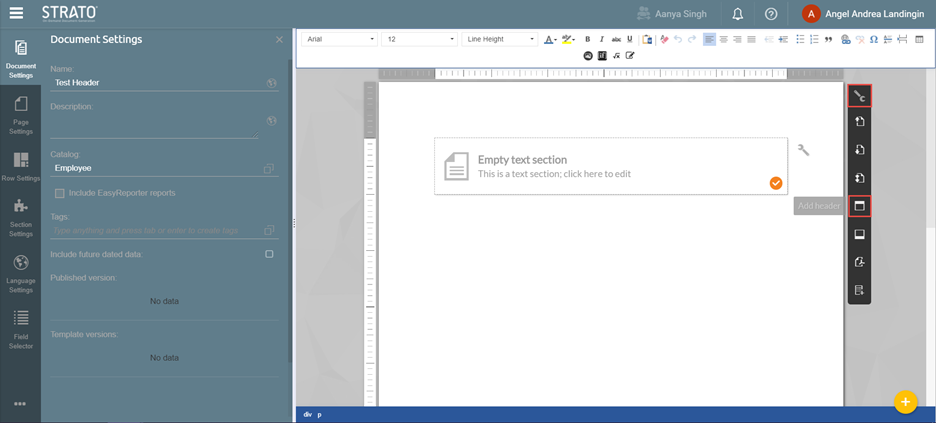
- Add a header on your template by selecting Page Actions from the top-right corner of your Document. Click Add header.
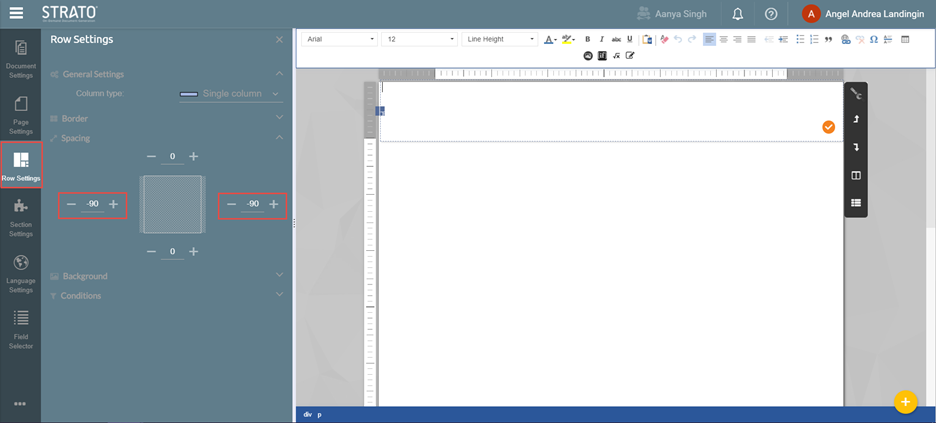
- Once the header has been added, go to the Row Settings of your header section, and modify the Spacing by inputting a negative value. For this example, we inputted the value of -90 on both sides. You can notice that the header’s margin is now outside of the page’s margin.
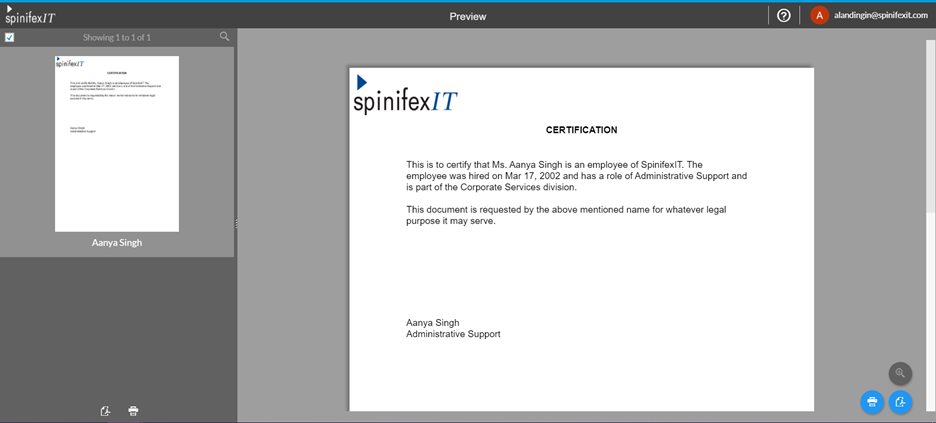
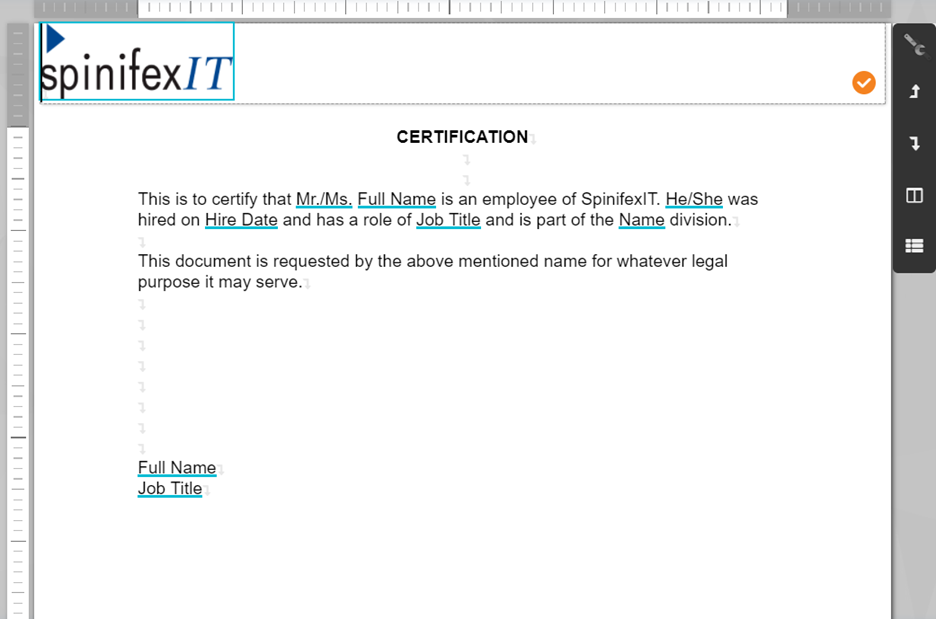
To help you visualize this, we have added some content on the template. You will notice that only the header is outside of the page’s margin, while the other sections are still aligned with the page’s margin.
Template editor:
Preview: