Column Settings - Table Section [V1]
When there is a Table Section inserted within the document, this becomes available as one of the settings from the left panel in the template editor.
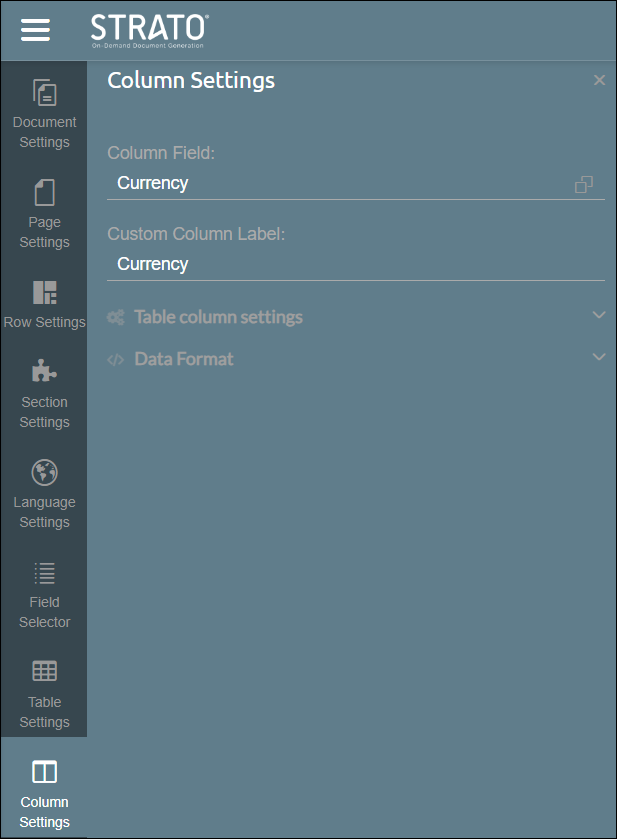
Column Field
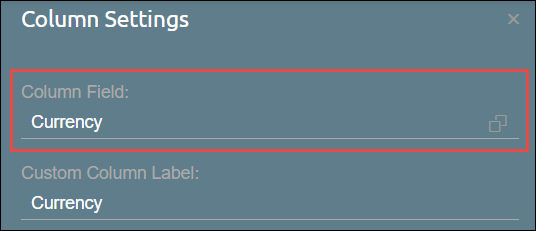
Shows the name of the currently selected column field. Users have the option to view or change the assigned field by clicking the button on the rightmost part of the field.
Custom Column Label
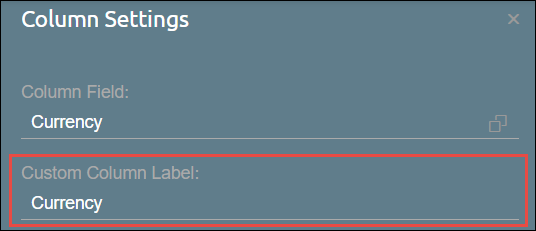
Changing the label of the column can be done from this field.
Table Column Settings
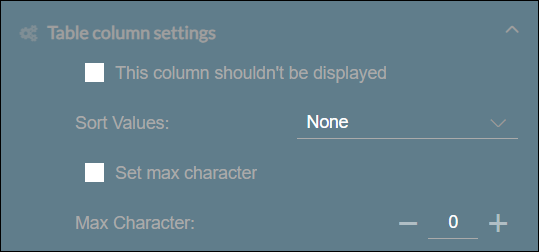
- This column shouldn’t be displayed - an option to hide or display the selected column after generation.
- Sort Values - organize the order of the values in the selected column by choosing one of the following: None, Ascending, and Descending.
- Set max character - specify the maximum number of characters for each value in the selected column.
Data Format
The following tools under Data Format will depend on the data type format of the field values.
String/Text Data Type
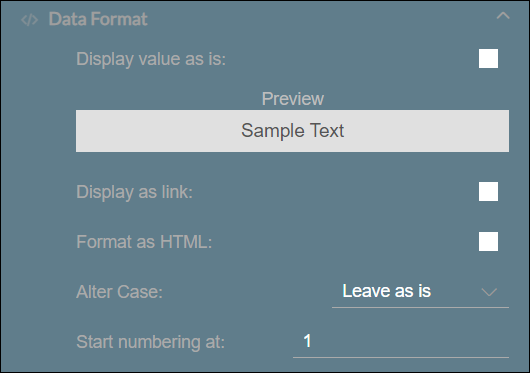
Data Format | Description |
|---|---|
Display value as is | An option to display the Text/String value as is. |
Preview | Displays the preview of the text values |
Display as link | The selected field values will be displayed as a link. Ticking this checkbox enables another field below:
|
Format as HTML | An option to format the column values into HTML format |
Alter Case | An option to set the column values’ case to either Uppercase, Lowercase, Proper format or Leave as is. |
Start Numbering at | Option to modify where the numbering sequence starts. |
Numeric Data Type
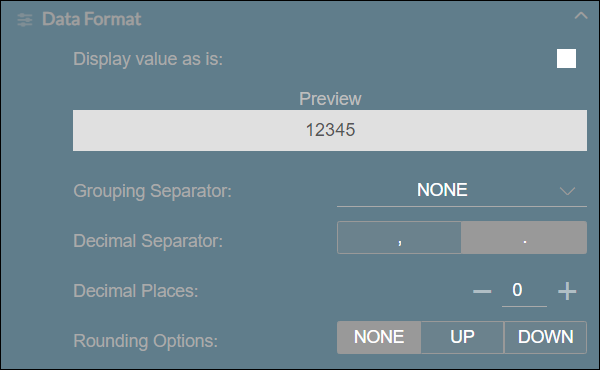
Data Format | Description |
|---|---|
Display value as is | An option that allows the presentation of the format for chosen numeric field values. This can be determined based on the configuration under the data format panel, in accordance with the formatting options configured in the Strato Admin Tool (refer to the ‘Formatting Options’ discussion in this article: Regional Format) or based on the language parameter configuration (e.g., US: 12,345.67 or DE: 12.345,67). |
Preview | The preview of selected numeric values are being displayed here. |
Grouping Separator | Configuring the separator for the number values in the field is possible. Here are the following separator:
|
Decimal Separator | Contains the decimal separator punctuations.
|
Decimal Places | Specifies the accepted decimal places by using the "Add" (+) and "Reduce" (-) buttons. |
Rounding Options | An option to rounding up, down, or not rounding the number values of the selected fields. |
Date Data Type
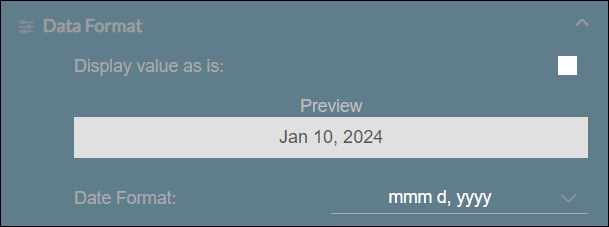
Data Format | Description |
|---|---|
Display value as is | An option that allows the presentation of the format for chosen date column field values. This can be determined based on the configuration under data format panel, in accordance with the formatting options configured in the Strato Admin Tool (refer to the ‘Formatting Options’ discussion in this article: Regional Format), or based on the language parameter configuration (e.g., US: m/d/yyyy or DE: dd.mm.yyyy). |
Preview | Displays sample value of the date form field, enabling users to easily observe the applied changes to the value format. |
Date Format | An option to change the date format through the following options available:
|
Image Column Values
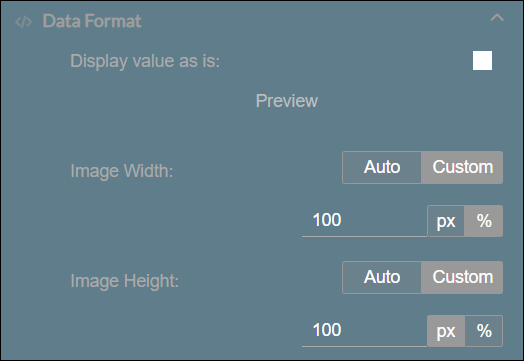
Data Format | Description |
|---|---|
Display value as is | An option that allows the presentation of the image format exactly as it is selected. |
Preview | The preview of the image column values are being displayed here. |
Image Width | An option to adjust the image width by ‘pixel size’ or ‘percentage’. Selecting ‘auto’ will scale the image accordingly. |
Image Height | An option to adjust the image height by ‘pixel size’ or ‘percentage’. Selecting ‘auto’ will scale the image accordingly. |