Table Cell Settings [V1]
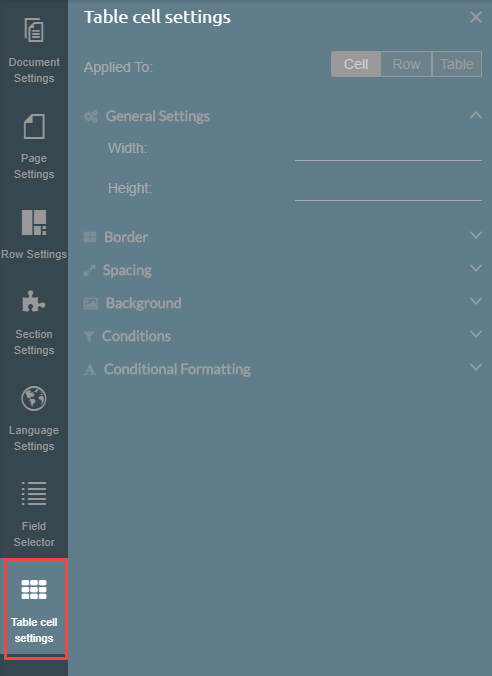
The Table Cell Settings tab will appear on the left side of the document template editor after you have inserted a table into your text section.
To insert a table into your text section, click the Table icon from the toolbar on top.

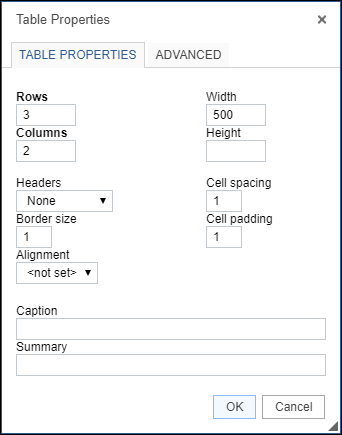
Set your Table Properties and then click OK.
Your inserted table should look like this:
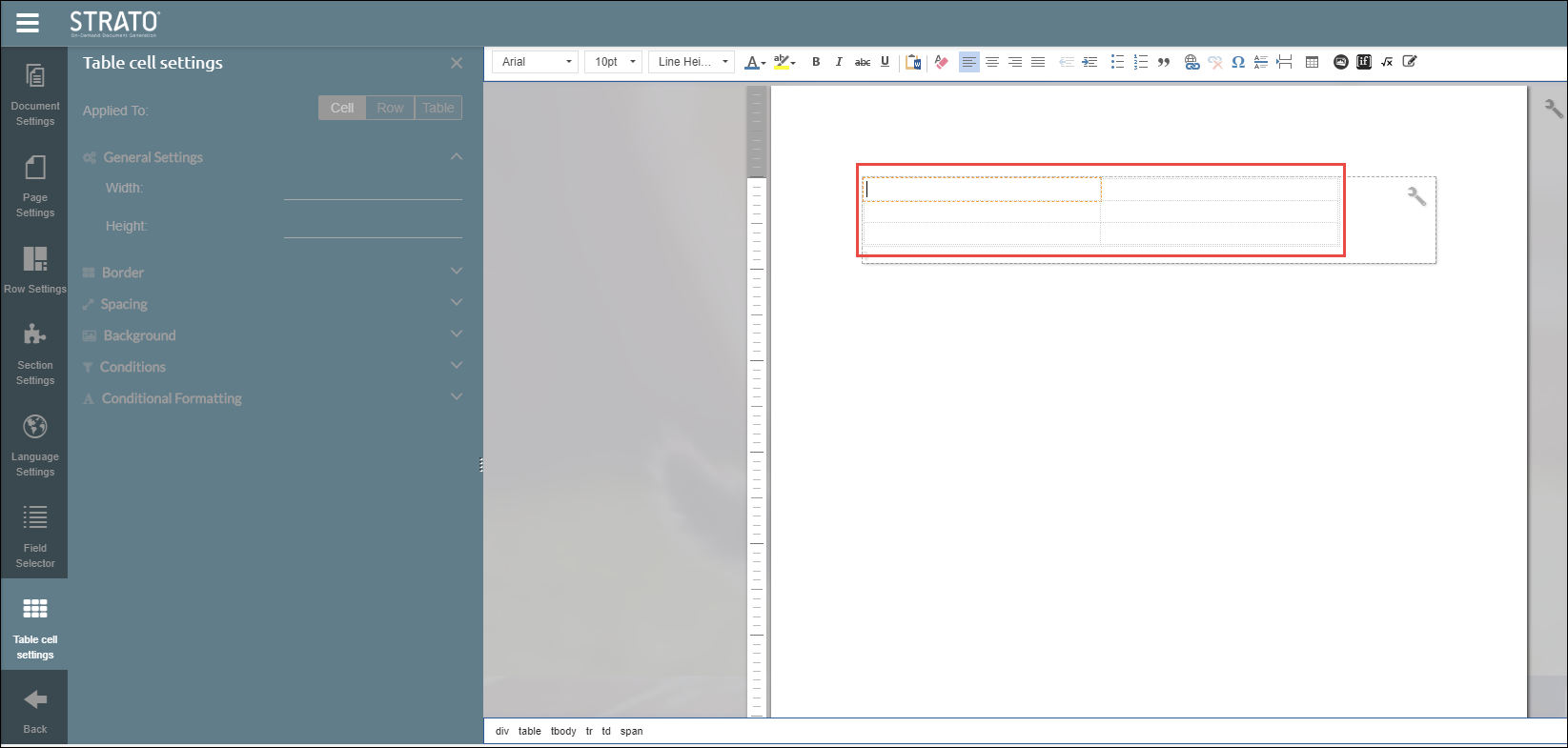
The Table Cell Settings has 3 sub-tabs:
Cell
| General Settings | Width - enter a value to change the width of the currently selected cell. Height - enter a value to change the height of the currently selected cell. |
Border | Select a side on where to apply a border. Afterwards, set a border size, color, and style. |
Spacing | Set a spacing (usually called as cell padding). Select which side/s the spacing will be applied. |
Background | You can set a background color. Choose a color from the palette. |
Conditions | Set a condition for the cell. If the condition is not satisfied, the cell will be empty. |
Conditional Formatting | You can apply conditional formatting to cells in a table. For more information, read Conditional Formatting in Cells. |
Row
These are the settings that you can apply to a row:
- General Settings
- Background
- Conditions
- Conditional Formatting
The descriptions of these settings are the same with the Cell settings except they are applied on the currently selected row.
Table
These are the settings that you can apply to the entire table:
- General Settings
- Table inner borders - enter a value to adjust the inner borders of the entire table
- Cell padding - enter a value to adjust the cell padding of the entire table.
- Cell spacing - enter a value to adjust the spacing between the cells.
- Simplified border - when this is selected other options to change border styles are disabled.
- Keep rows intact on page breaks - use to keep the rows intact when a table falls on a page break. For example, if there's a table in a document that gets positioned at the bottom of the page and falls on a page break, the contents of the table will be split accordingly to the next page, keeping the rows aligned
- Border
- Spacing
- Table spacing - space between the Table and the Section and/or Row
- Background
- Conditions
- Conditional Formatting
The descriptions of the rest of the settings are the same with the Cell Settings except they are applied on the entire table.