Section Settings [V1]
Sections contain the contents placed in your document template. This can be a combination of images, text, and tables with or without conditional formatting.
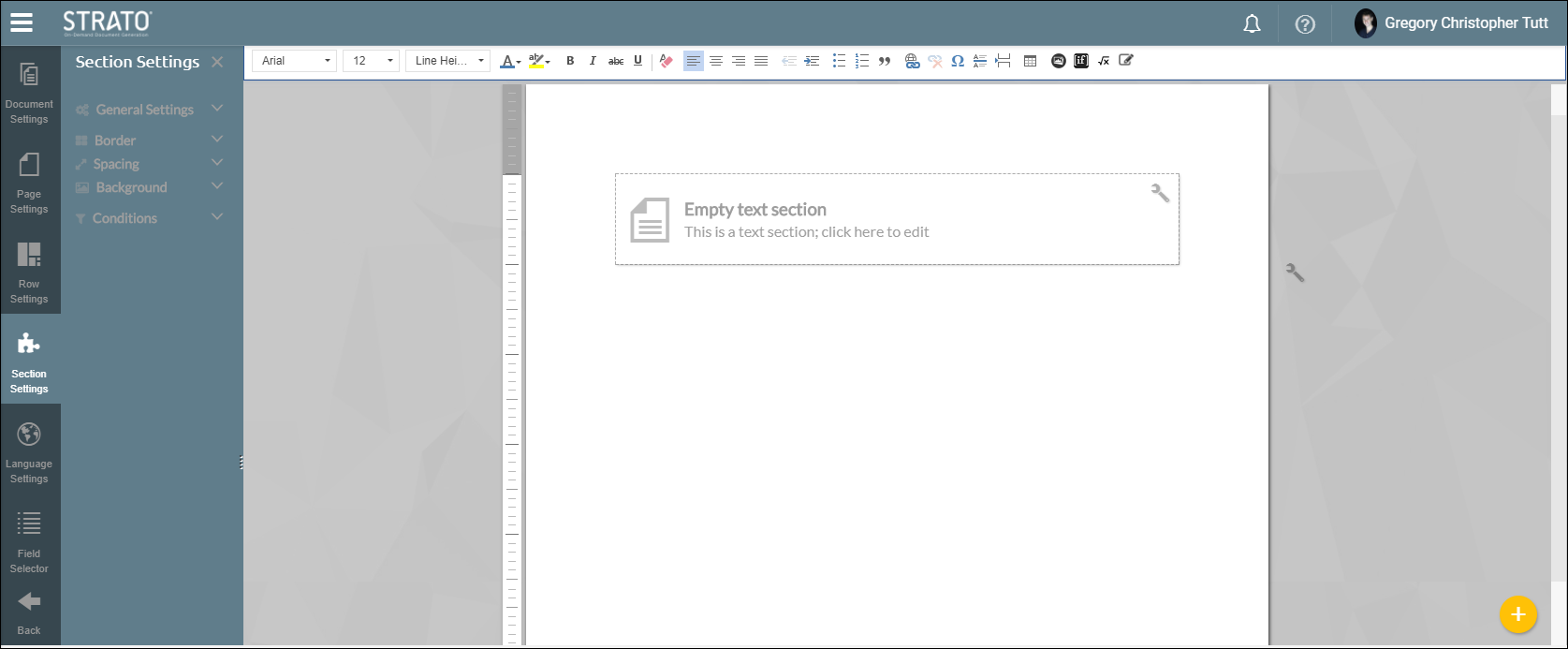
There can be multiple sections in one row so each of them can have different settings and conditions. However, every section within the same row will be affected by changes applied in the Row Settings.
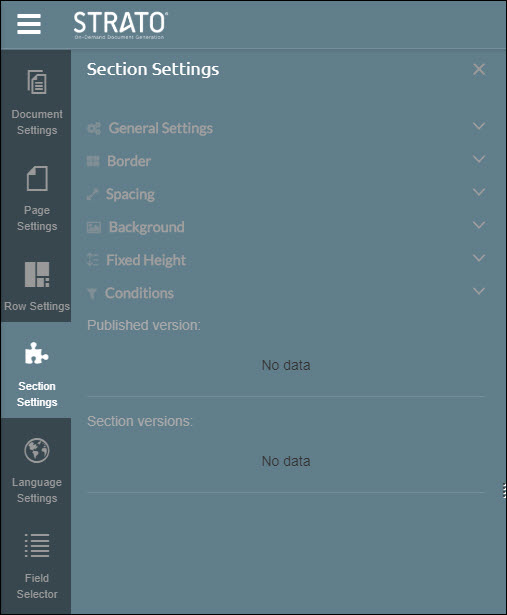
A standard section can contain both text and images. You can change your section type by selecting between the standard Text Section or the Table Section.
Under General Settings, you can rename your section and add a description. You may change its visibility if you want it to be:
- A Global Section which is used across all documents regardless of catalog
- A Catalog-specific section which can only be used in its catalog
- A Document Template-specific section which will only appear when viewing the document you've created (suggested for sections which contain confidential information)
Clicking Editable enables the document publisher to add their own notes / change the section's content based on their requirement. By default, sections are non-editable as soon as they are published and accessed through a widget. Enabling Editable will grant permissions for final changes.

For more information, read How to Enable and Use Editable Sections in Your Document?
You can adjust the width of the section by entering value in the blank.
Lastly, the Merge option allows you to combine multiple sections together. This is similar to merge cells in MS Excel or Google Sheets. Read How to Merge Cells in your Table to find out more.
As with Page and Row settings, document editors can customise the section's border, spacing, background, and conditions.
The Fixed Height allows you to set a height for the section in px or pt units. This ensures that regardless of the length of the data of the fields, everything is contained within a section of a certain height. If there is no fixed height value set, the height will automatically adjust based on the content of the section.
Published version and section version will only appear while editing a section in the section editor in the New Strato Library
For more information, read: Section, Page, and Document Actions