Section, Page, and Document Actions [V1]
In the Document Template Editor, there are single action buttons that you can use for your document.
Text Section Actions
These are the actions that you can perform in your text section.
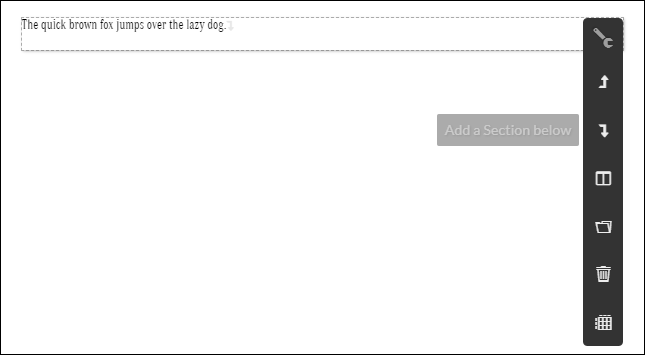
Icon | Icon Name | Icon Description |
|---|---|---|
 | Insert a Section above | Inserts a section above the current section. If the current section is the first section in the document, it will become the second section after a section has been inserted above. |
 | Insert a Section below | Inserts a section below the current section. |
 | Add Column | Inserts a column to the left or to the right of the current section, at the end of the row, or at the start of the row. 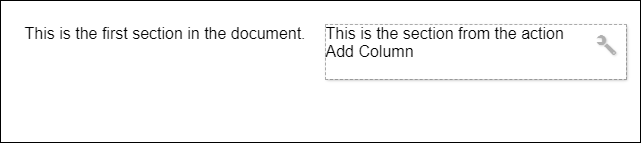 |
 | Reuse Section | You can reuse existing sections (these existing sections can be pre-delivered, global, catalog specific, or template specific sections) into a text section. A Choose Section window will appear. Read more about loading sections here: Section Library |
 | Delete | Deletes the text section. A pop-up message will appear to confirm your deletion. |
 | Change into a table section | This will transform the text section into a table section. Chooosing this option, a warning message will appear to confirm the change. Read Table Section Overview for more information, and actions available for a table section. |
Page Actions
These are the actions that you can perform on your document page.
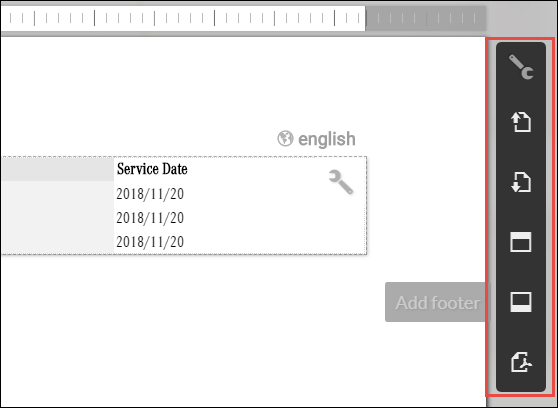
Icon | Icon Name | Icon Description |
|---|---|---|
 | Insert a Page above | Inserts a blank page above the current page. If the current page is the first page in a document, it will become the second page after a page has been inserted above. |
 | Insert a Page below | Inserts a blank page below the current page. |
 | Add a new page | Insert a page at the end of the document. |
 | Add or Remove Header | Adds or removes a header in the current page. The same header will be applied on the page if the contents of the current page continues on the next page. |
 | Add or remove footer | Adds or removes a footer in the current page. The same footer will be applied on the page if the contents of the current page continues on the next page. |
 | Change into a PDF document | This option transforms the page into a PDF document. A warning message will pop-up when this is selected for confirming the change. Read Creating a PDF File for more information. |
 | Create Reusable Template | Starting version 1.11, this action is available which allows you to select rows that you want to reuse in a different document. Saving reusable sections will create a new template in the library as a reusable template (or sub-template). If the selected rows have conditions applied, these conditions will also be included in the new sub-template. For more information, read Creating and Using Reusable Sections (Sub-templates) |
Document Actions
These are the actions that you can perform for your document.
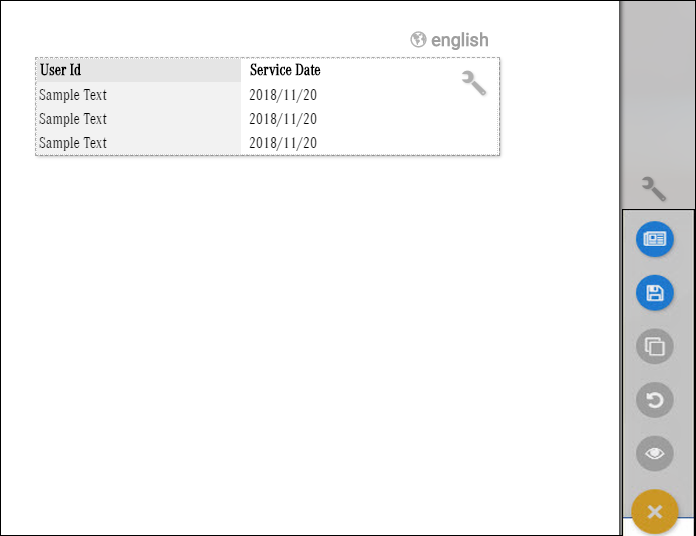
Icon | Icon Name | Icon Description |
|---|---|---|
 | Publish | This will publish the document including all the changes made. All widgets that use this document will apply the changes made once a document has been published. Related article: Document Versions - Document Settings |
 | Save | Saves the changes made in the document. |
 | Save as | Saves the document as a different document. You will be asked to enter a name. |
 | Revert all changes | This will restore the document when it was last saved. |
 | Preview | Previews the document. A Preview as box will appear.
|