Section Library [V1]
When creating/editing your document template, you can add existing sections from your library just by clicking Load Section from the section settings.
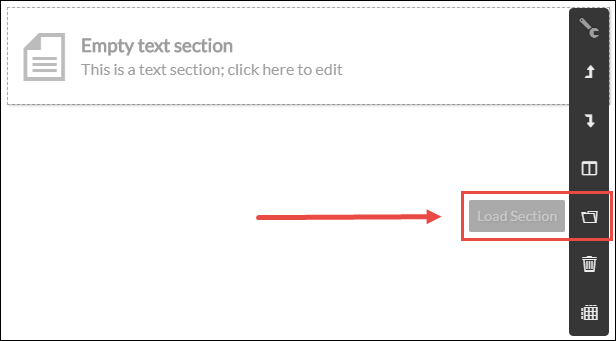
This displays the Section Library window where you can choose from the selection of pre-delivered, global, catalog specific, or template specific sections, to load into the current text section you are working on in your document.
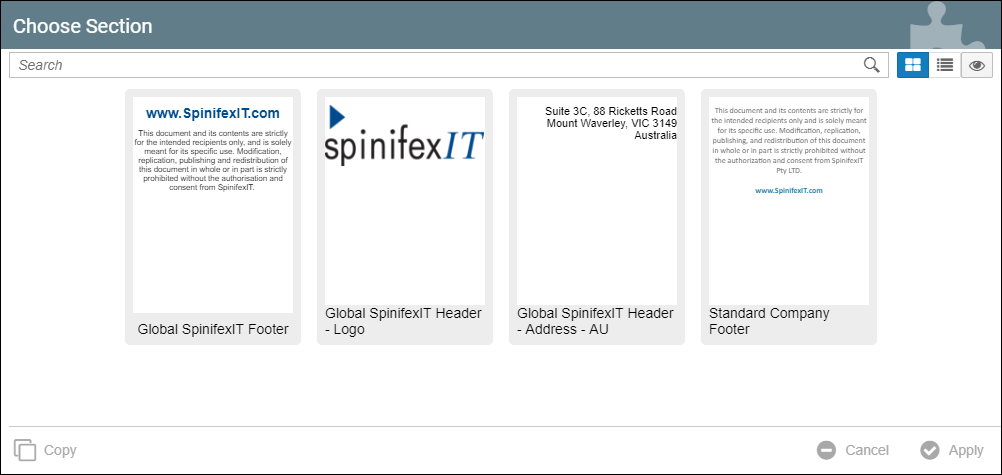
Described below are the actions you can do within the Section Library window:
Search | Search for the name of the section. |
Tile view  | This is the default view of the sections. Displays the sections in tiles. |
List view  | Displays the sections in a list. |
Show sections already in the document  | Clicking this will display the sections that are already in the document. Make sure to save your document everytime you load a section so that the sections will be reflected here. |
Copy | This will duplicate the section and load it. If a pre-delivered section is copied, you can modify that predelivered section once it is loaded. |
Cancel | This cancels the load section action. |
Apply | Applies and loads the selected section into the document. |