Create a Document Template [V1]
This article contains the following sections:
Overview
Document Templates are custom formats which you can create and use to generate documents based on your data sources.
All your custom templates, and the rest of the Pre-delivered Templates, are stored within the Library.
You may create a New Template from the Library via the Create New Template button, or by clicking the Create New Template widget from your dashboard. This widget in your dashboard looks like this:
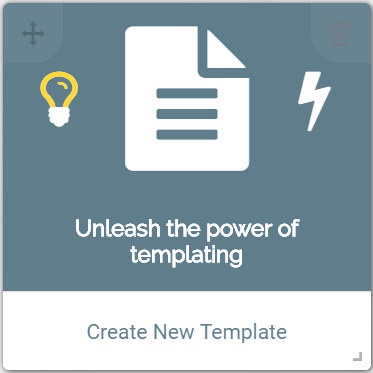
This will load the Document Template Editor, a tool which allows document editors to create and format their documents as needed.
When creating a new Document Template, you will be asked to identify a Catalog. Catalogs are field groups which contain the specific fields needed for your document type. The fields which are made available to your document template depend on the catalog you select.
For example, the Employee Catalog is selected to create certificates of employment, tenure, and declaration of employee's roles and duties. The Employee Catalog fetches its fields from SuccessFactors' Employee Central. You can also have an option to add Easy Reporter report/s in your template.
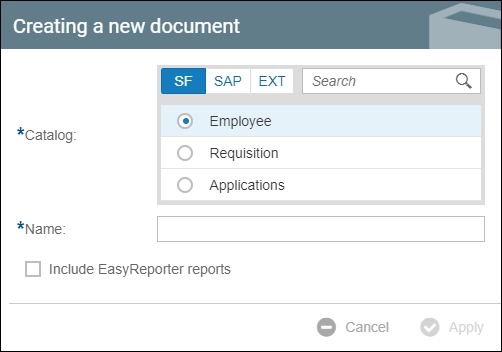
Document Template Editor
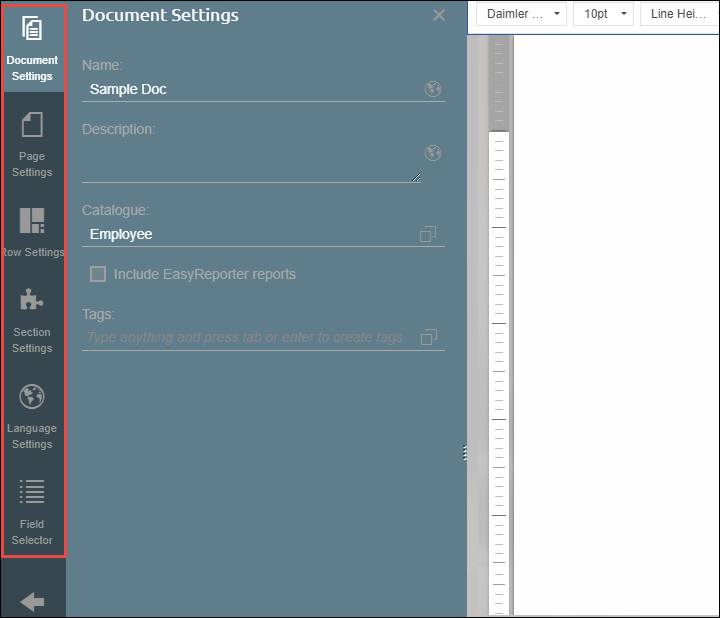
Within the template editor, there are multiple tabs on the left side of the screen for setting up your document, which are as follows: (click links below to know the actions and functions available for each setting)
Depending on the contents of your document, you can have different sections in your pages. Sections are inserted via the Tools  button in your document:
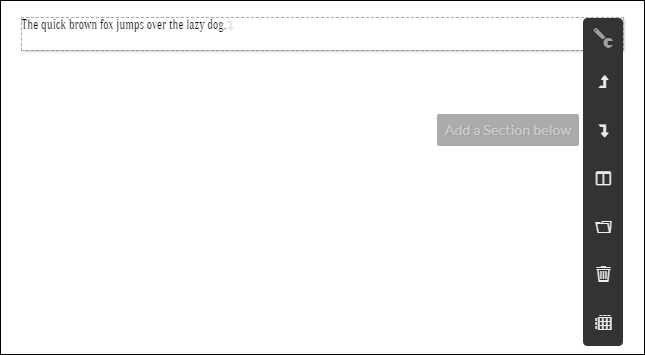
For inserting sections, and other section actions, read:
The document template editor of Strato is in a continuous page format. This means that all the contents of the page will keep on going. With this continuous page format, you can check the number of pages that you already have by saving and previewing the document. Once previewed, the header, the footer, and the background should be the same for all the pages since they are continuous after all.
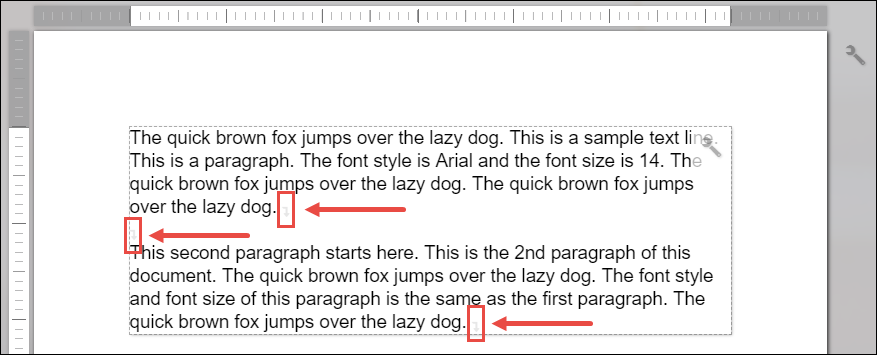
A downward arrow at the end of each paragraph indicates that it is the end of the paragraph. It also indicates a carriage return. This helps you track and locate the beginnings and ends of your paragraphs. Here is an example:
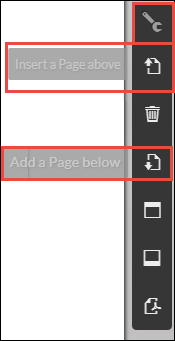
When creating a cover page for a document, or if you want the other pages of your document with different headers, footers, and backgrounds, you can add a different page by clicking Actions > Insert a Page above or Add a Page below. This is found on the upper right corner of your document page.
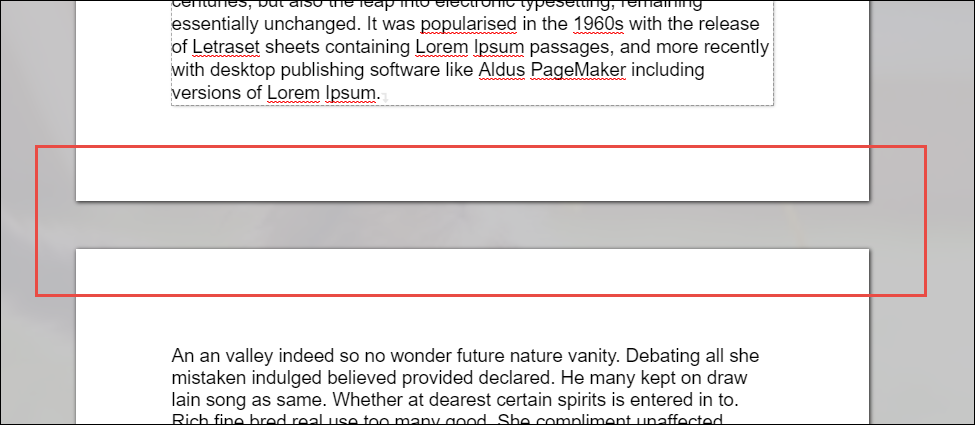
This page is separated from other pages. The header, footer, and background from other pages will not be applied in this newly added page. This new page will still be in continuous page format. A separate page is indicated if there is a space between two pages.
Text Editing Toolbar
The document template editor has different tools to edit your document. These tools are similar to the tools in Microsoft Word and Google Docs. For more information about the individual tools, read Formatting Your Text Section.

The default font is Arial, but a default font can be set in your Strato system.
To know how to create a simple document, read: