Create Documents Using Fields from Easy Reporter Only [V1]
With the integration of Strato with Easy Reporter, you can create documents using fields from Easy Reporter.
First, follow these simple steps on creating a document with ER fields:
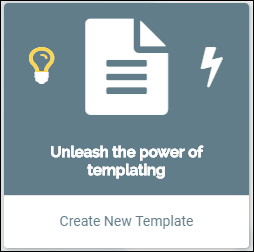
- From your Strato Dashboard, click Create New Template to create a new document.
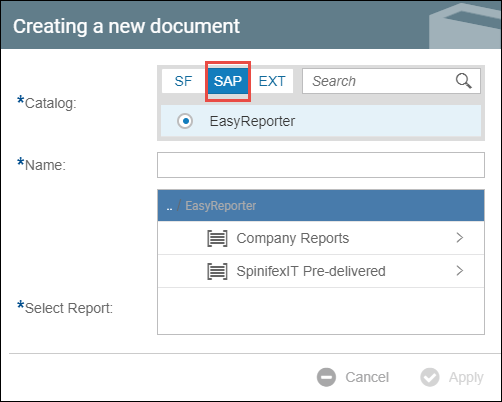
- A Creating a new document window will appear. For your catalog, click the SAP tab. You will see that Easy Reporter will be automatically selected.
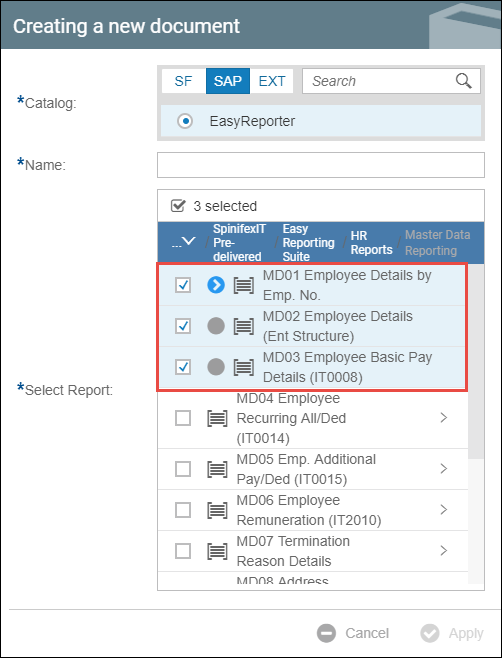
- Select a report or several reports that will be the source of the fields for your document.
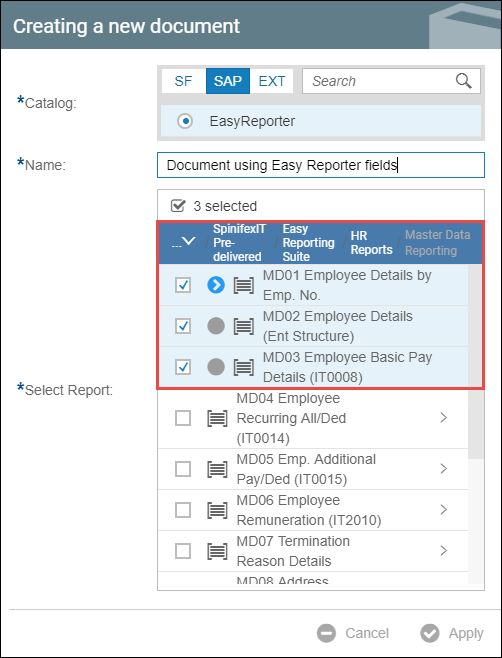
- Enter a name for your document and then click Apply.
Text Section - Insert Easy Reporter Fields
- From the left panel in your document, click Field Selector to see the report from Easy Reporter that you selected in Step 5 above.
- Select a report to see the list of Easy Reporter fields that you can use.
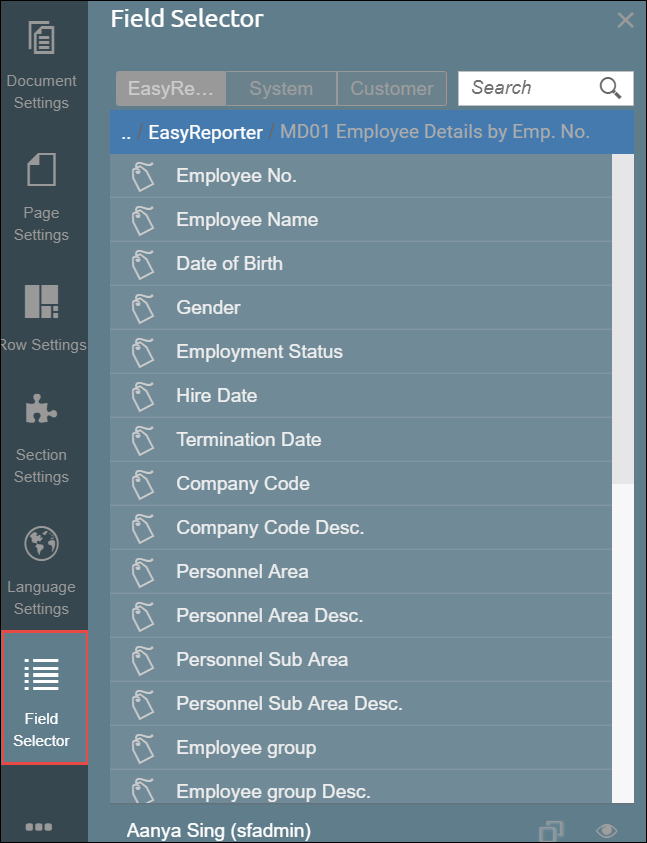
- Depending on the fields you require, just simply click on the field you want to include in your document, and this will be inserted on where your cursor is on the document page.
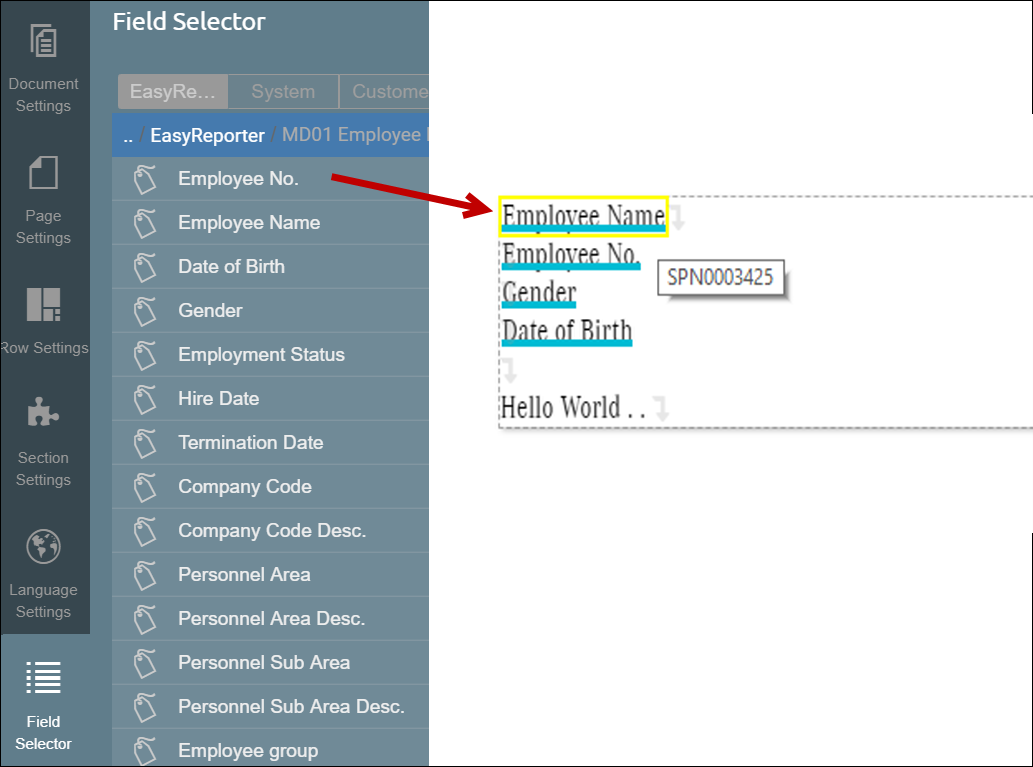
- By hovering your mouse-pointer on an ER field on the document, you will also see from which ER report the field came from. In the example above, the field Employee Name. came from the pre-delivered ER report with the Report ID - SPN0003425.
Table Section - Easy Reporter Fields
Likewise, fields from Easy Reporter can also be used in Table Sections.
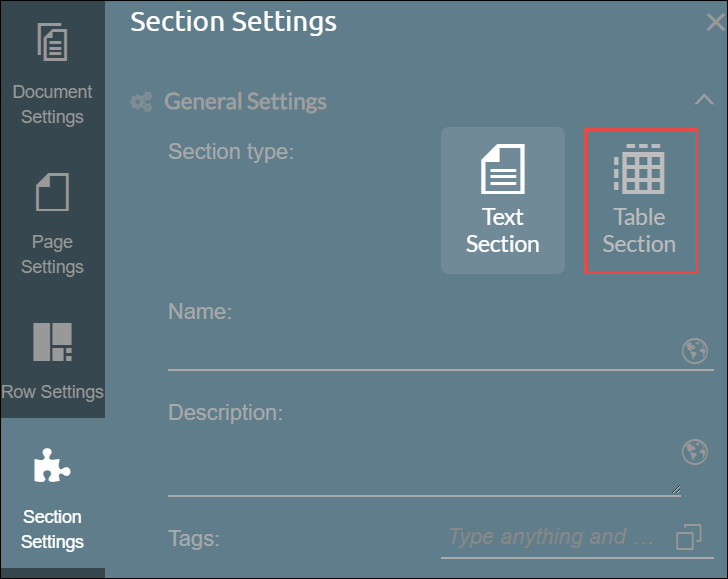
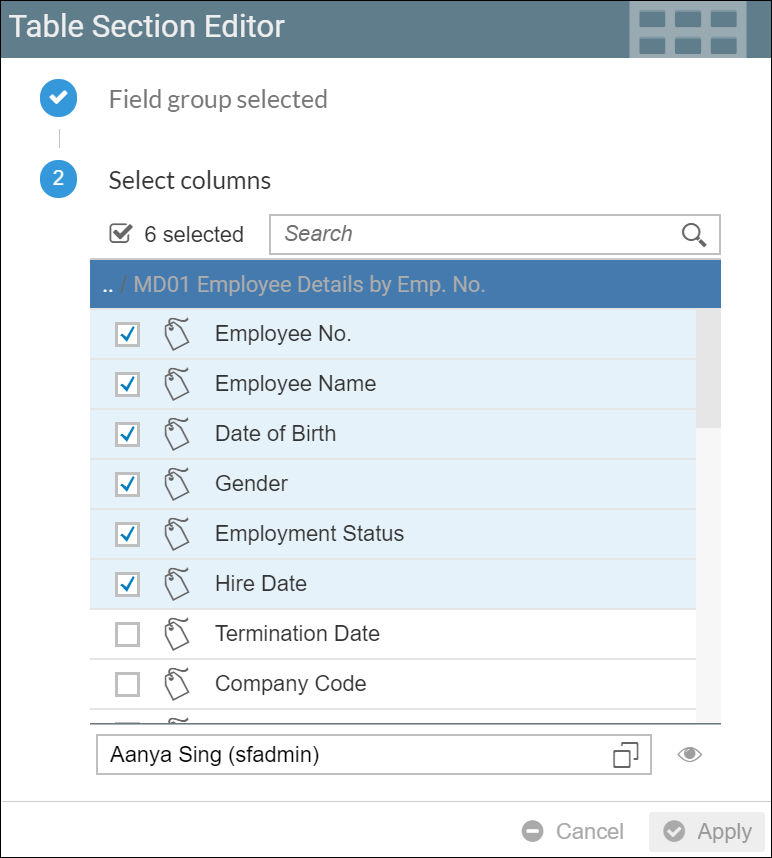
- From the Section Settings on the left panel, click on Table Section. The Table Section Editor appears.
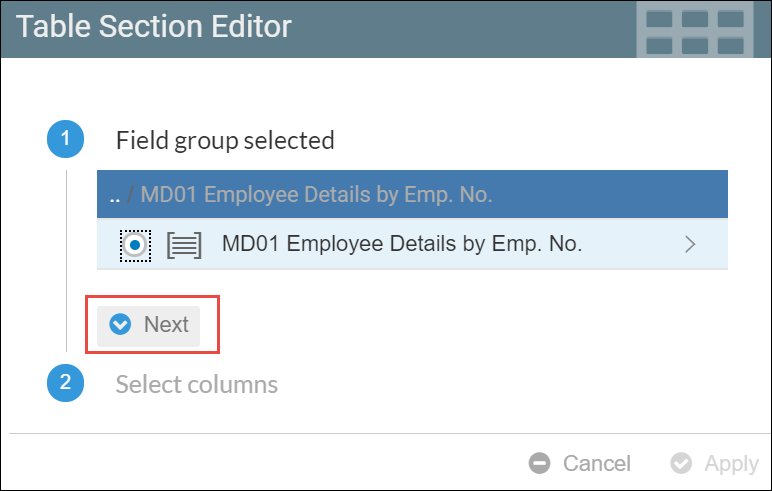
- Select a field group, then click Next.
- From the list, select the Easy Reporter fields you need as columns of your table, then click Apply.
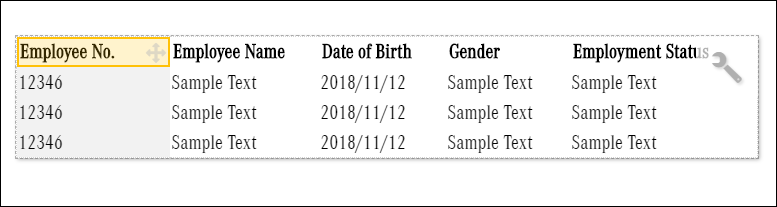
- Your table, as shown in the example below, will be displayed with the Easy Reporter fields chosen as your columns.
To generate documents using fields from Easy Reporter, read Document Generation - Generating Easy Reporter Catalog Documents.