Page Settings [V1]
This article covers these topics about the Page Settings when creating a document in Strato:
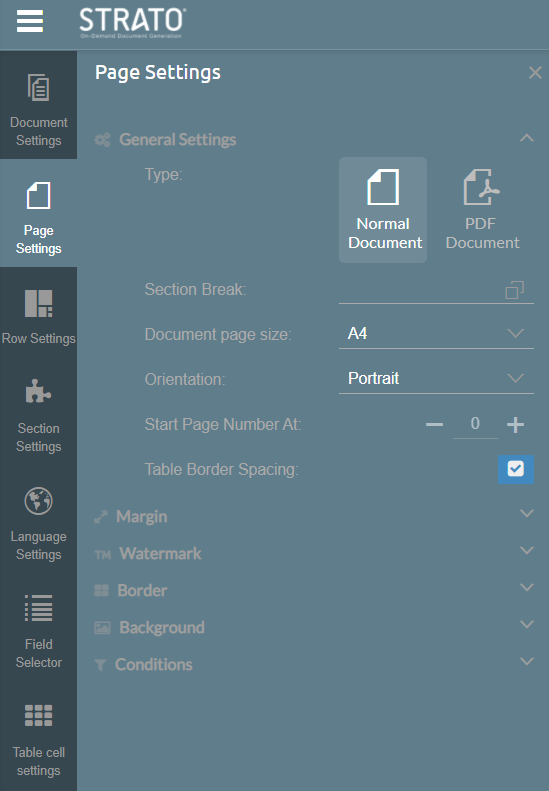
Clicking Page Settings will give document editors an option to apply customizations for your entire page.
General Settings
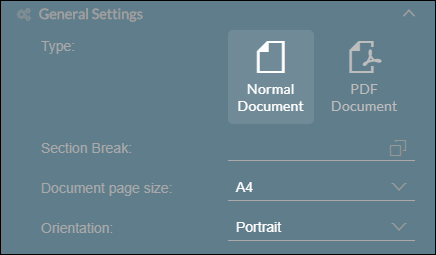
In this section, you can select the page type from a Normal Document which can be modified and customized, or from a pre-made PDF Document where you can simply put fields to complete.
Selecting PDF Document will allow the document editor to upload a PDF file which will replace the normal document page.
While creating a Normal Document, you can select your desired Document Page Size (A3, A4, Letter, Legal) and page orientation (landscape, portrait).
For section break read Using Section Break in Your Document.
Start page number at - this can only be used if there is a Page Number field on your current page. Enter a number here to indicate the page of the Page Number field.
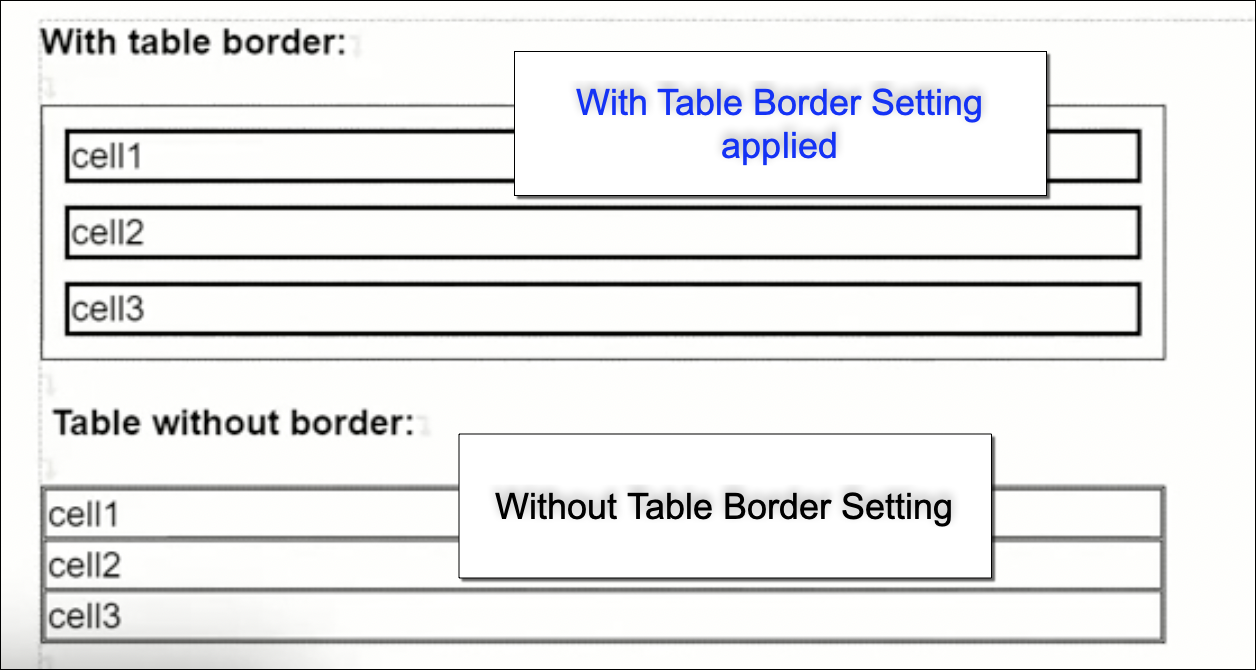
The Table Border Spacing setting when enabled applies spacing between each cell of a table as shown in the sample screen below:
Margin
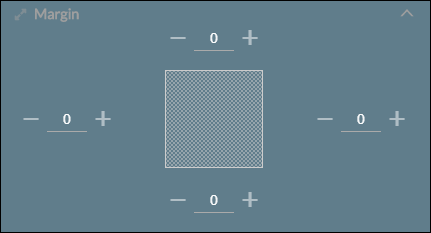
You can set the top, bottom, left, right margin of the page. Use the add or subtract buttons or enter a value for your margins. The measurement used here is in inches.
Watermark
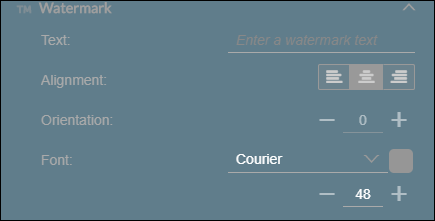
Watermarks are texts which are placed as an overlay across a document. This is ideal when a document is supposed to be marked for review, for internal purposes only, or confidential. Instead of writing a script alongside the other texts within a Document Template, using a Watermark makes it easier for the reader or reviewer to spot the document's status.
You can create your own watermark by typing the watermark text on the provided line and modifying the text's format by changing its font, size, alignment and tilt. The watermark can be tilted for every 15 degrees (15, 30, 45, 60, etc.) until the maximum tilt at 90 degrees.
Border
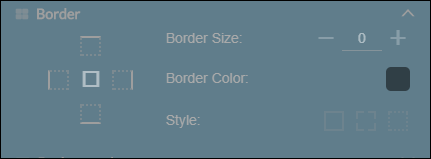
Borders are visible lines which surround the text area of the document template. This is ideal for designing certificates which require a solid, dotted, or dashed border by its text margin.
You can set the thickness of the border by adjusting its border size. You can also change the border's color by choosing a pre-defined color or inputting their own HTML color code. There are three border styles to choose from:
- Solid
- Dotted
- Dashed
Background Colour / Image
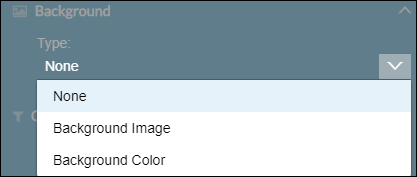
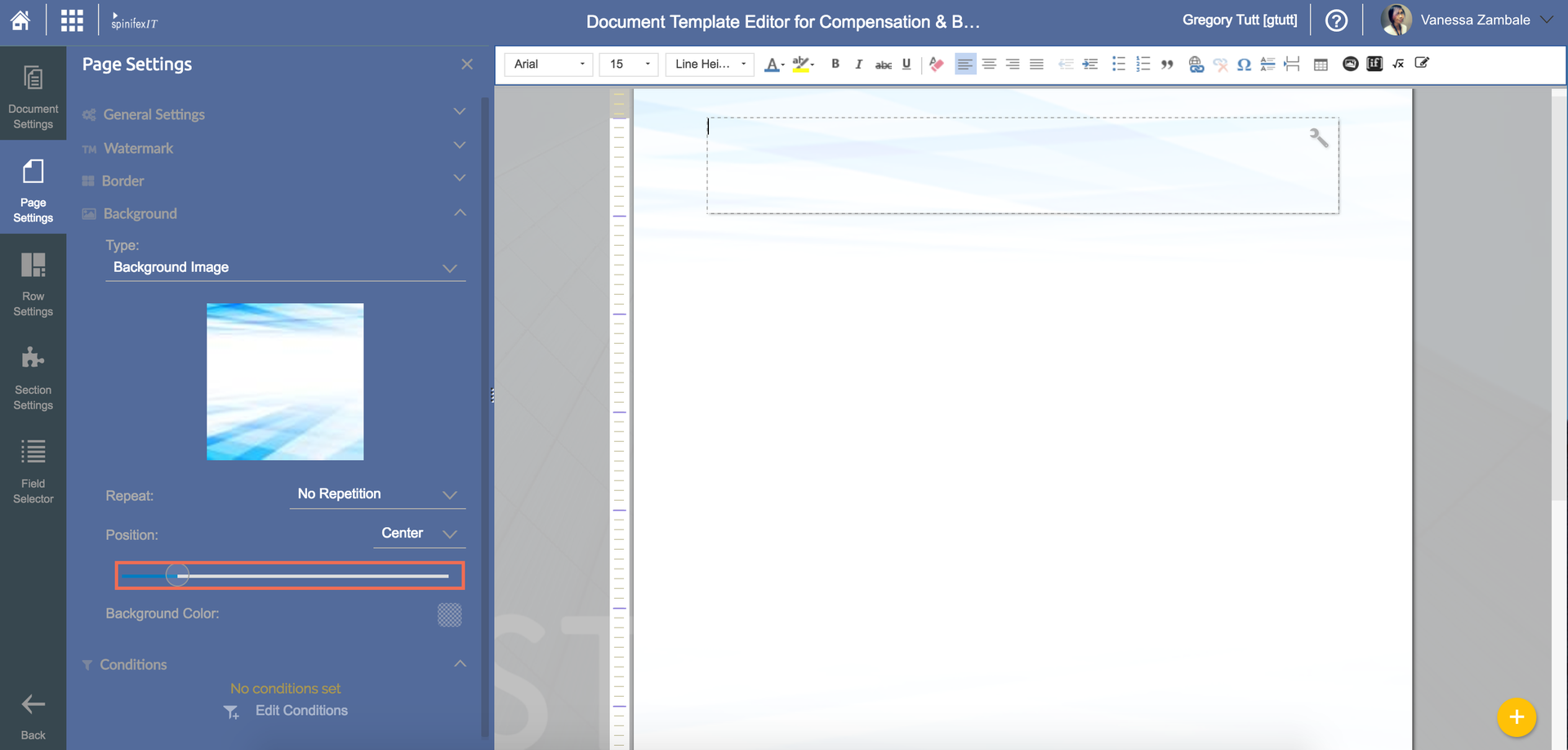
You can design and apply color to your document template by adding a Background Image or choosing a solid color.
You can use a pre-uploaded image in Strato or use an external image from a url.
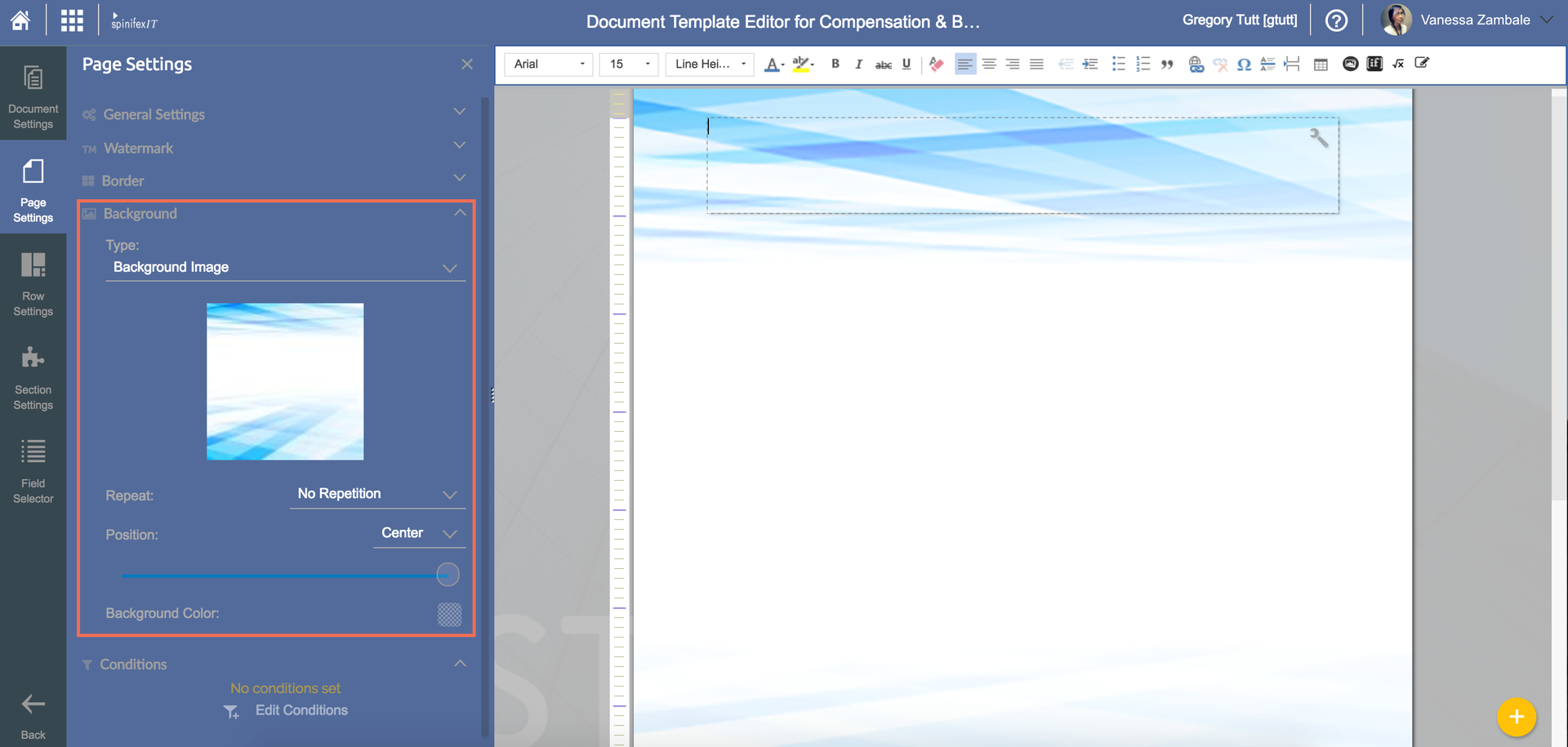
They can adjust the image's Opacity and orientation as well.
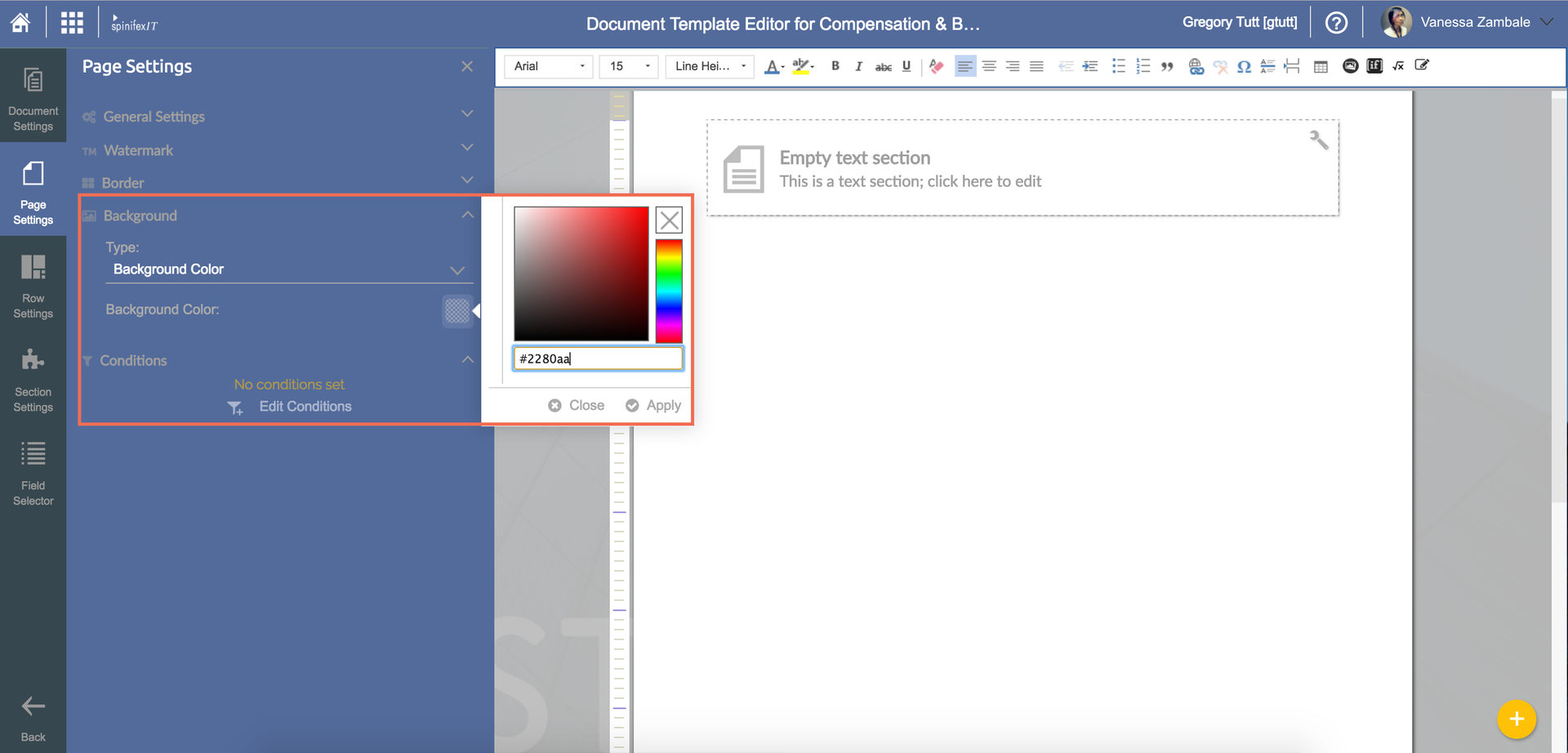
You can also choose a color swatch or create your own by entering the color's hex value.
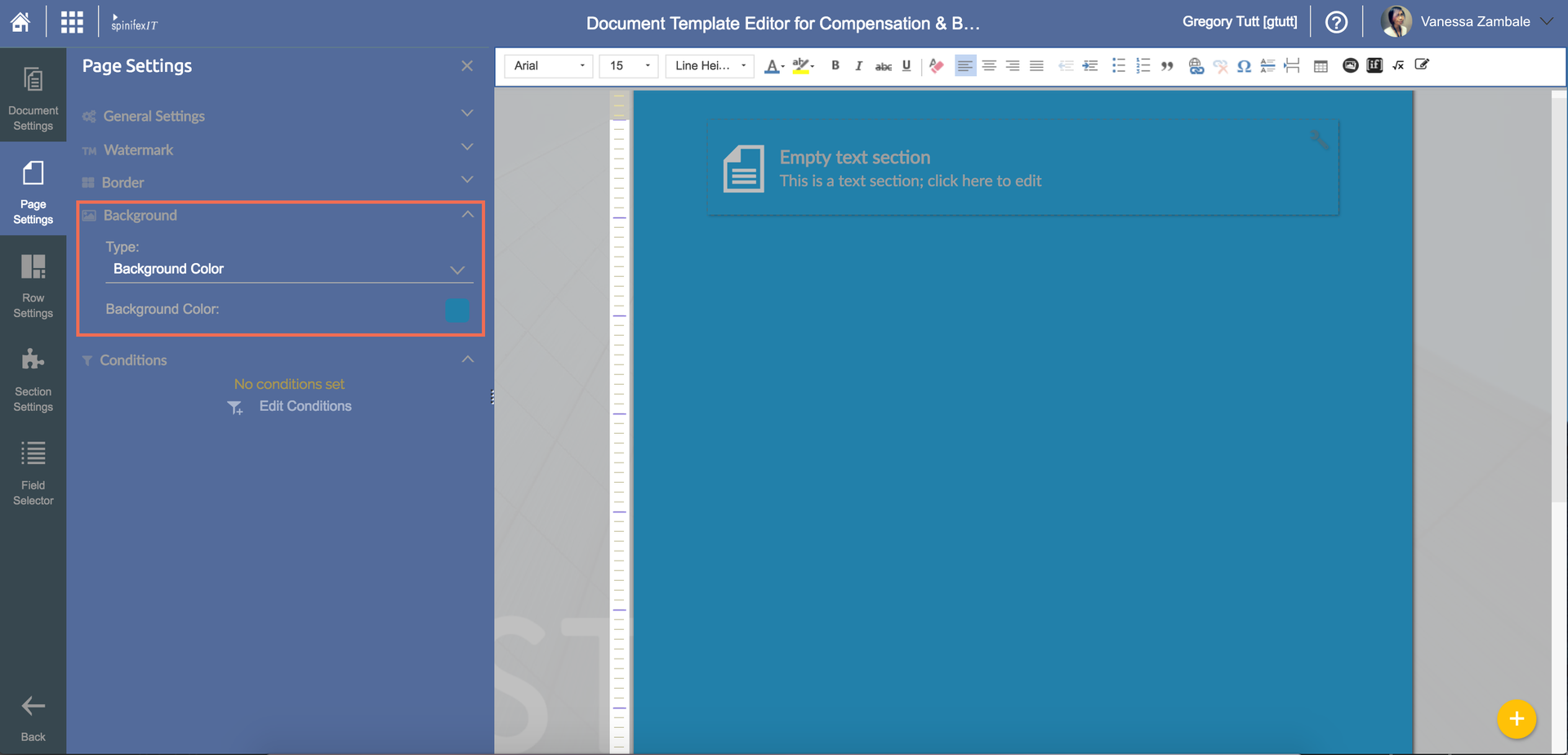
The whole page will be displayed on the your selected color once Apply is clicked.
Conditions
Document editors can select which section to show and hide based on the document recipient's information and status. Conditions can be used as smart filters.
Example: When generating an employee contract in bulk, some recipients may have some pages which contain information that do not apply to their roles or departments. Instead of creating an all new document template for the other group, simply add a condition to the section which should / should not appear for a specific person / role / level or department.