Use Section Break in a Document [V1]
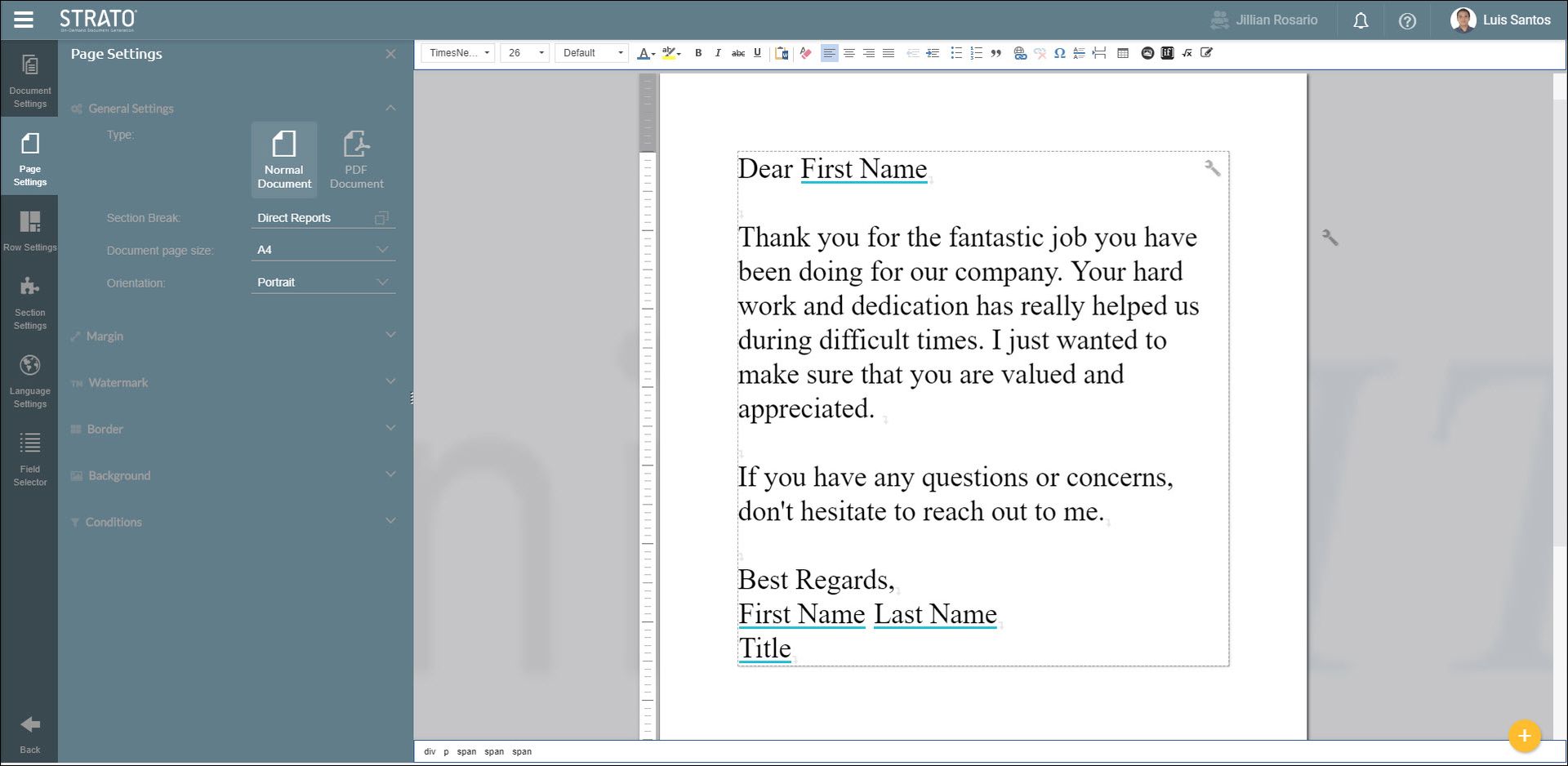
In the Page Settings tab, there is a field for a Section Break that allows you to select a field group for that page.
The Section Break actually requires you to select a field group for that page and then use the fields from that field group in your document. These field should have multiple possible values. In the example below the Direct Reports field group and fields will be used to demonstrate the use of the Section Break.
- Create a document template and go to the Page Settings tab.
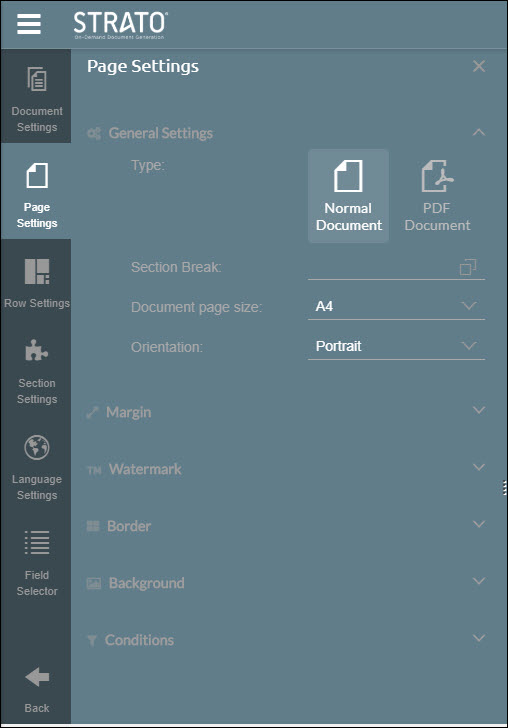
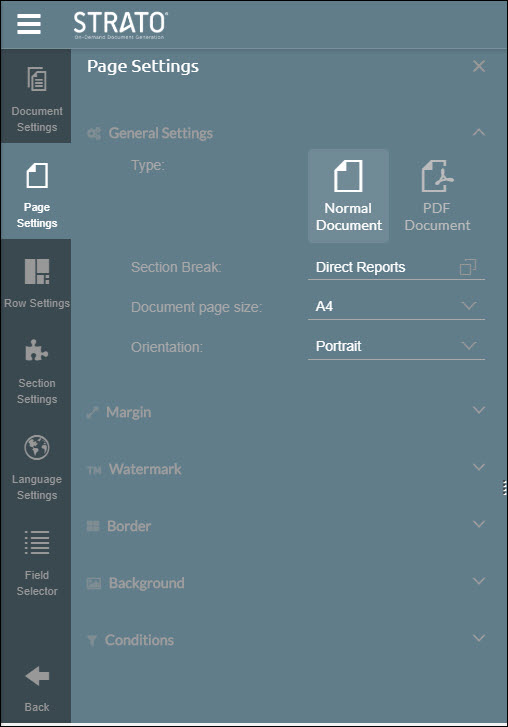
- In the Section Break field, select the Direct Reports field group.
- Type your document. Here, the First Name field is from the Direct Reports field group while the First Name, Last Name, and Title fields are from the User field group.
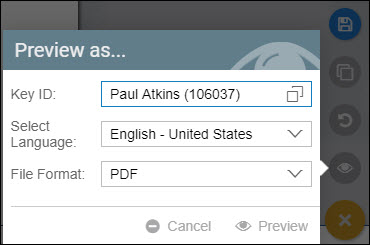
- Save the document and Preview as an employee who is a manager (in this example Paul Atkins was used).
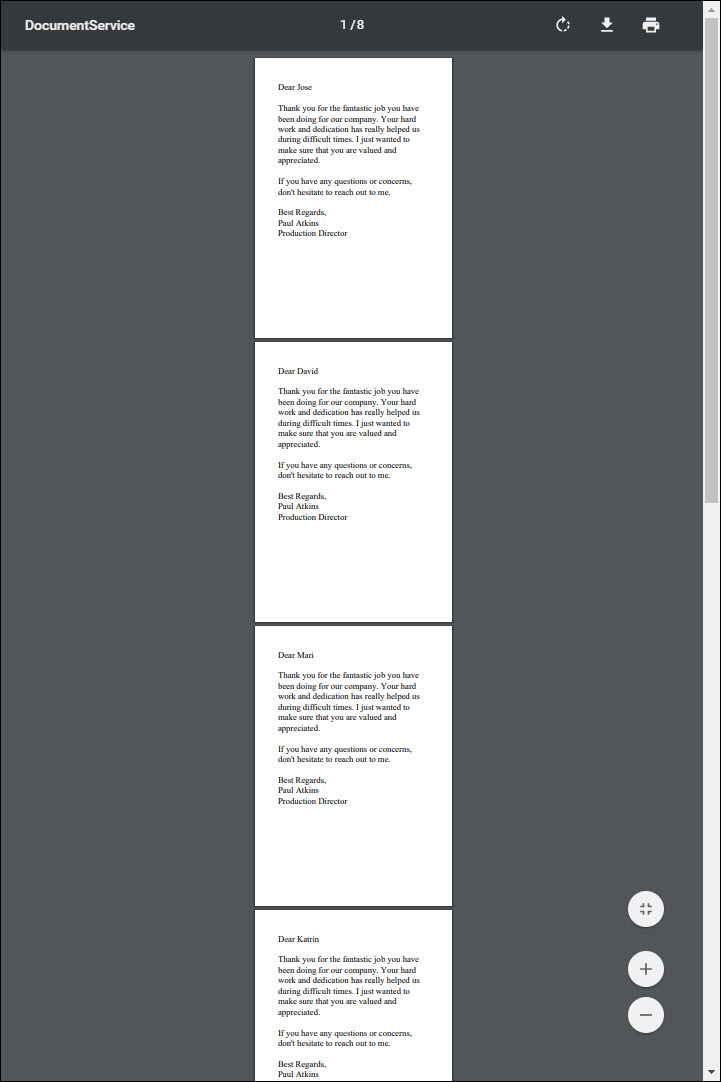
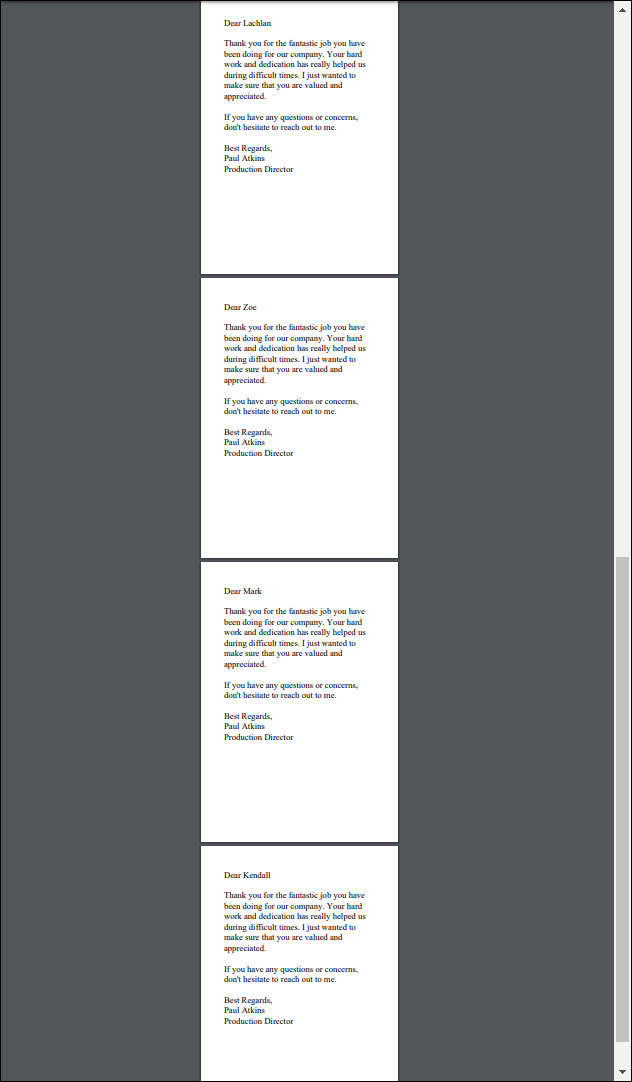
- Notice that because of the Direct Reports field group in the Section Break and the First Name field from the Direct Report field group in the document, a page was generated for each employee under Paul Atkins.