Upload and Use PDF Files as Document Templates [V1]
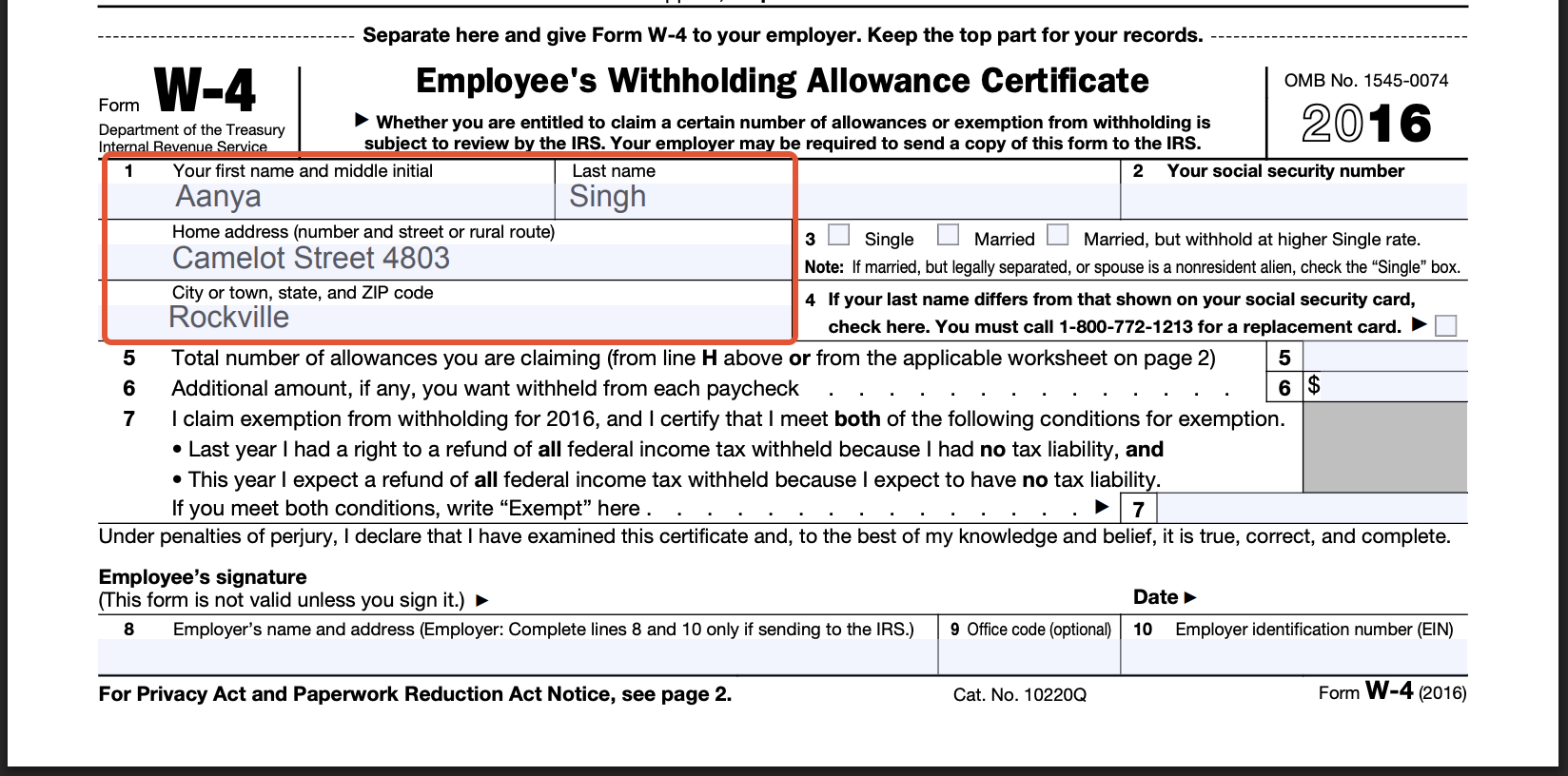
PDF files can be uploaded into Strato and used as document templates. Once uploaded, you can add fields and conditions to it. These PDF files can be saved and used like other normal documents.
Instructions
Follow the steps below to upload and use a PDF file in Strato:
- Open the Document Template Editor.
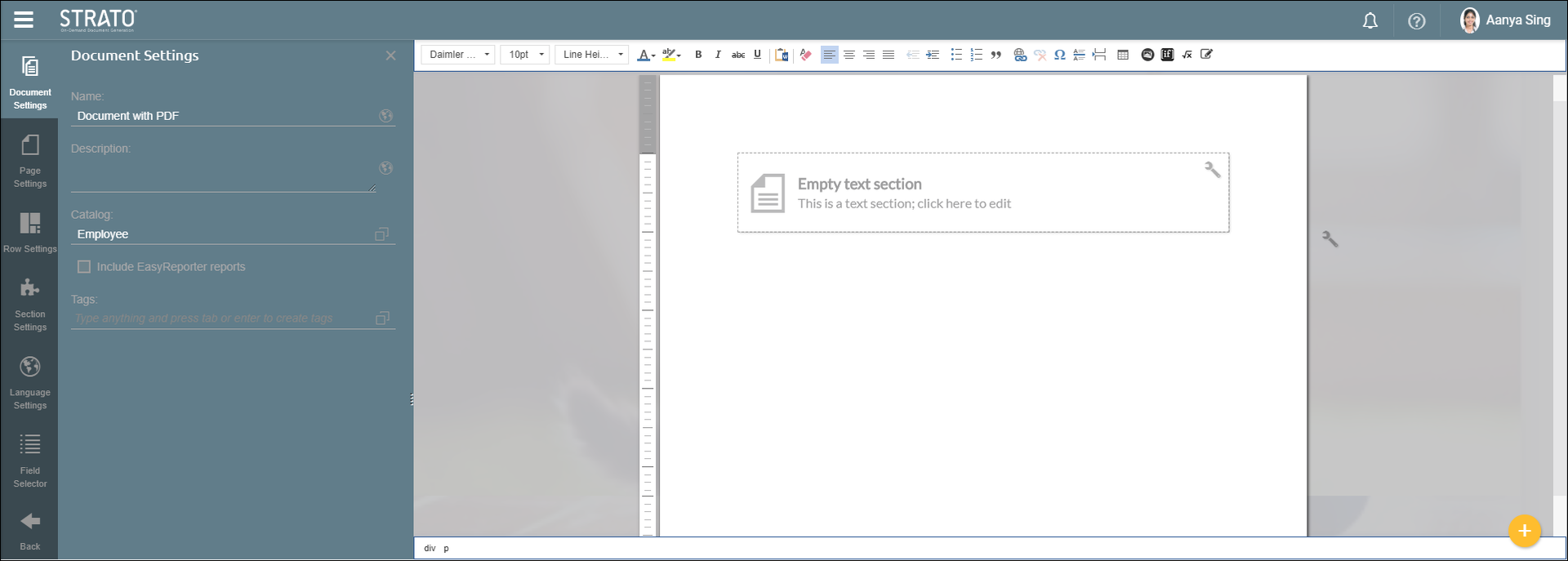
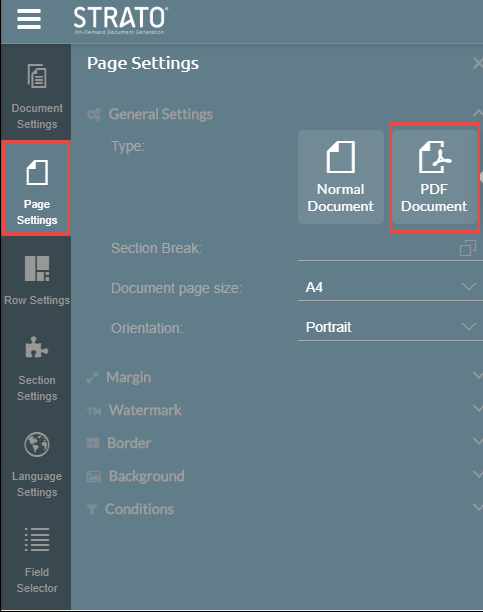
- Click Page Settings. Under General Settings, click PDF Document as the Type.
- A message will appear. Click Confirm.

The page will be transformed into a PDF page.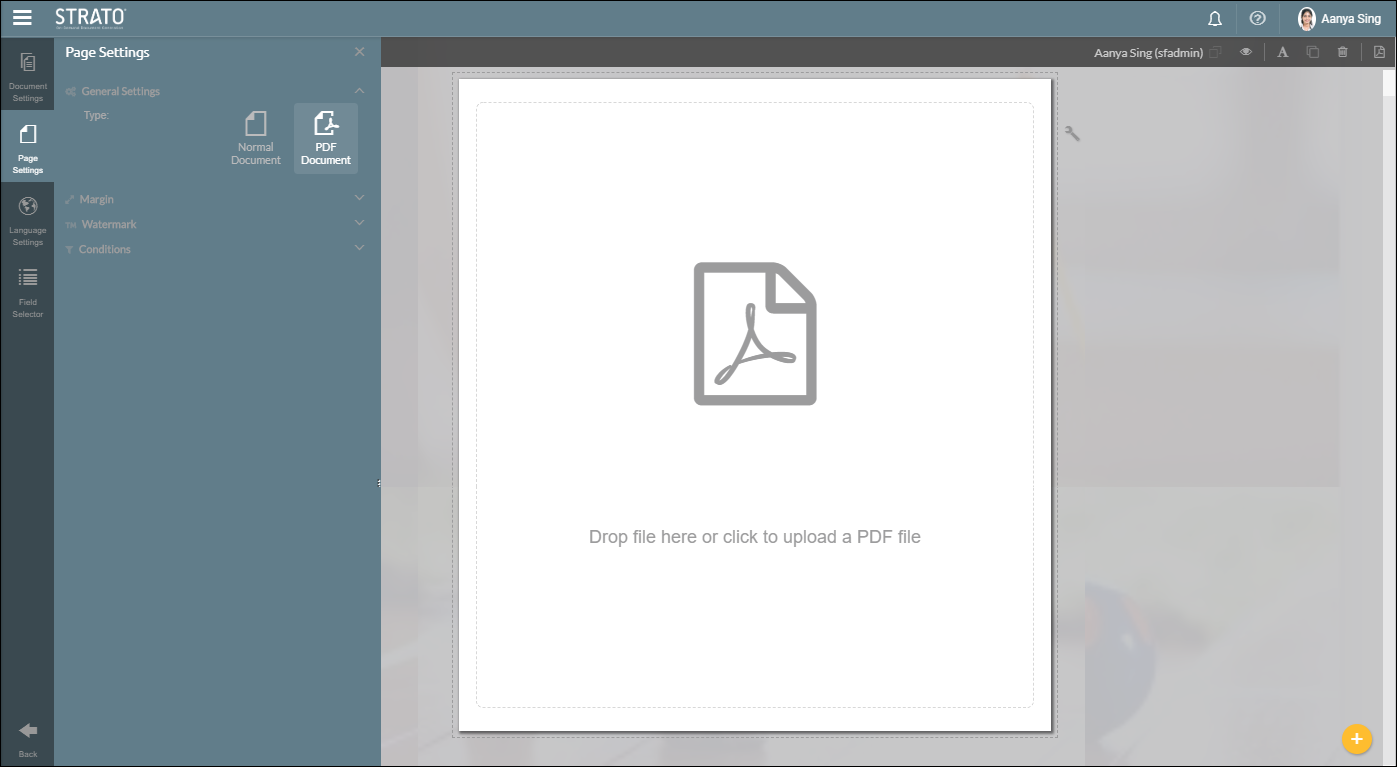
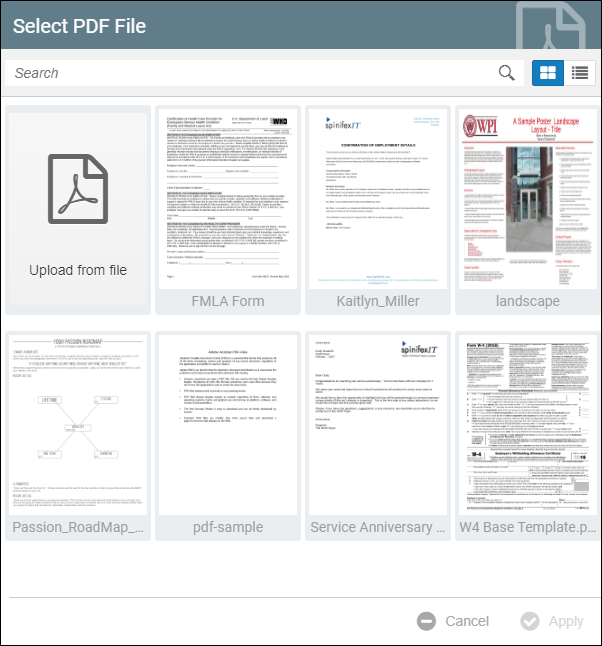
- Click the page to open the Select PDF File window. You can select from existing PDF files, or you can upload your own PDF file by clicking the Upload from file button. You can also upload a PDF file by dragging and dropping the file into the page.
- After uploading, your selected or uploaded PDF will now be displayed on the page.
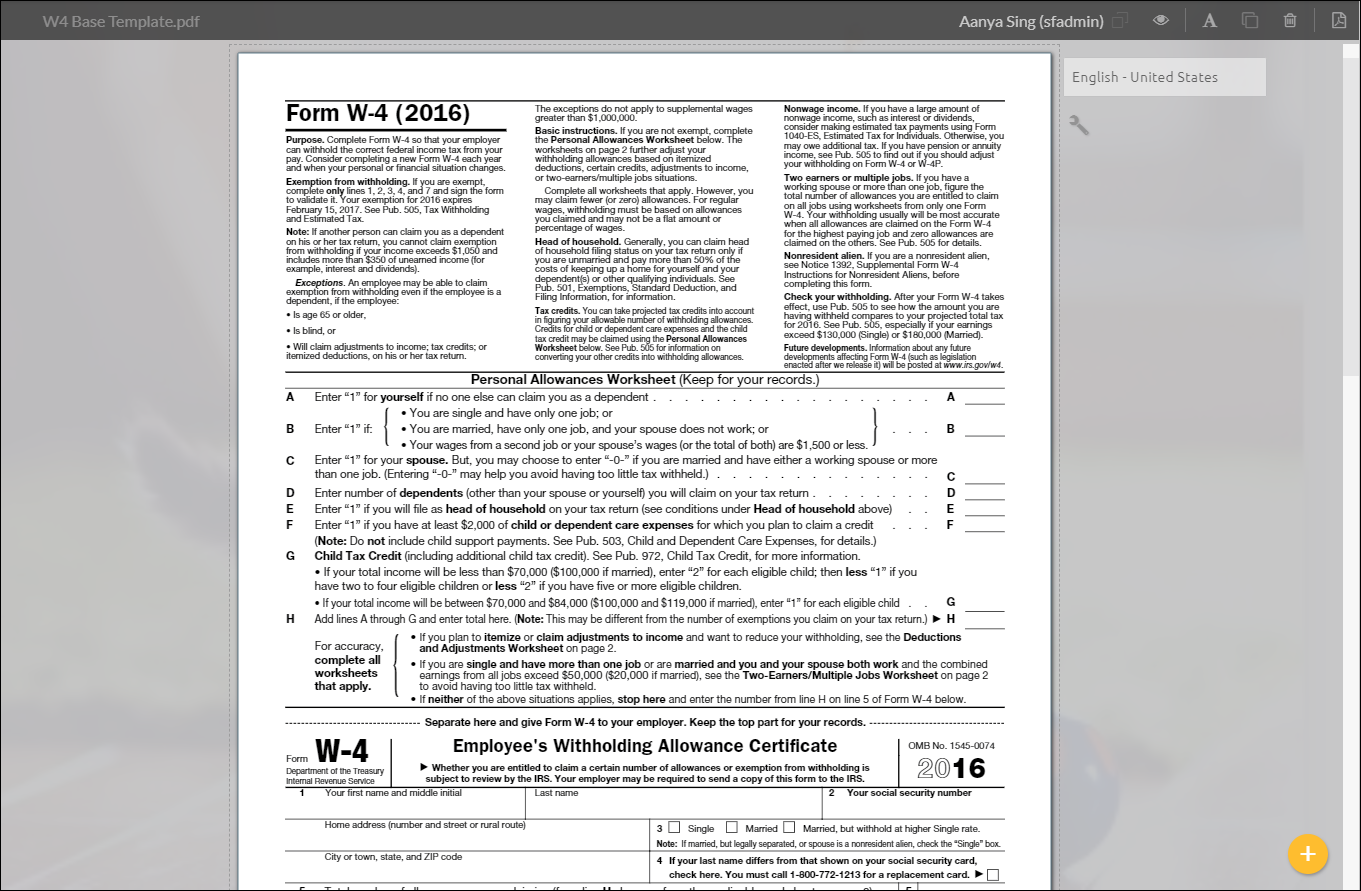
- At the top right of the screen, there are 5 tools that you can use.

 The Preview button shows the value of the fields placed in the document based on the selected user.
 The Default Font Settings allows you to change your text settings across the document, including font size, color, highlights, alignment, and others.
 The Duplicate button duplicates your selected field for easy placement across the document.
The Clear All button removes all existing fields from the document.
 The Replace PDF button allows you to re-upload a PDF document or reselect from existing ones.
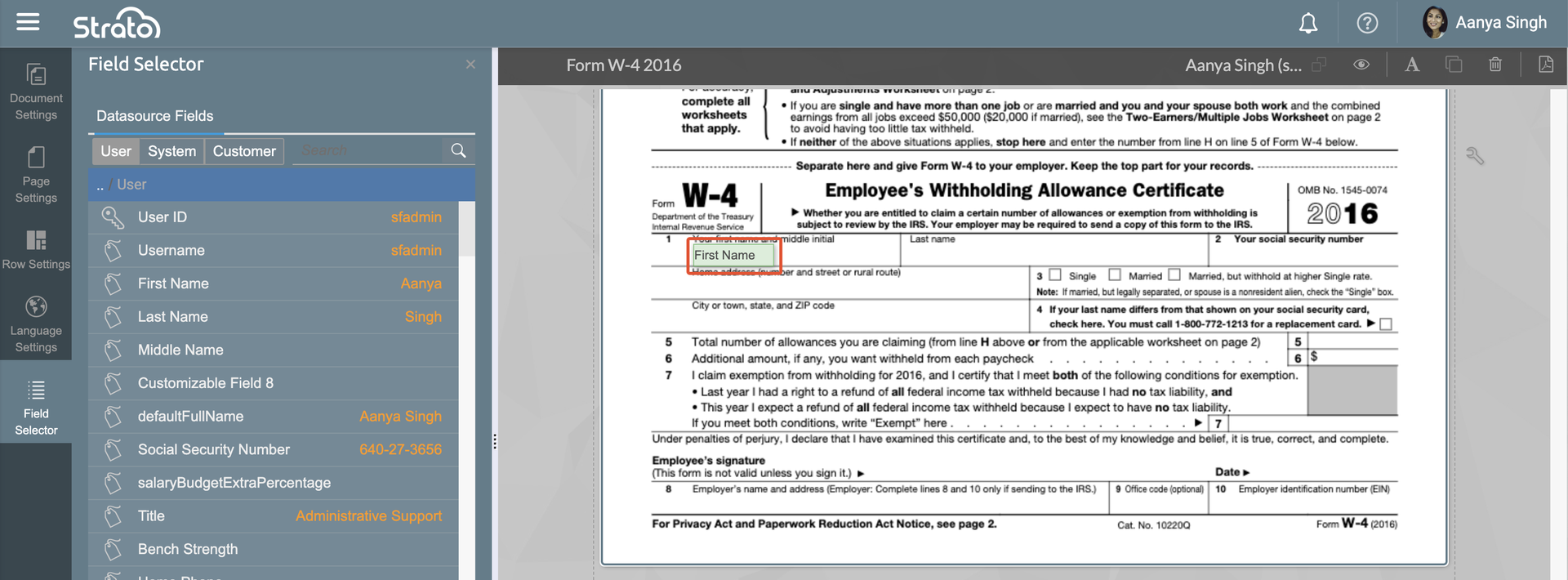
 - Click the Field Selector tab to start inserting fields into your PDF file. To insert a field, drag a field and drop it into your PDF file.
Clicking an inserted field allows you to edit its formatting, delete it, or add conditions.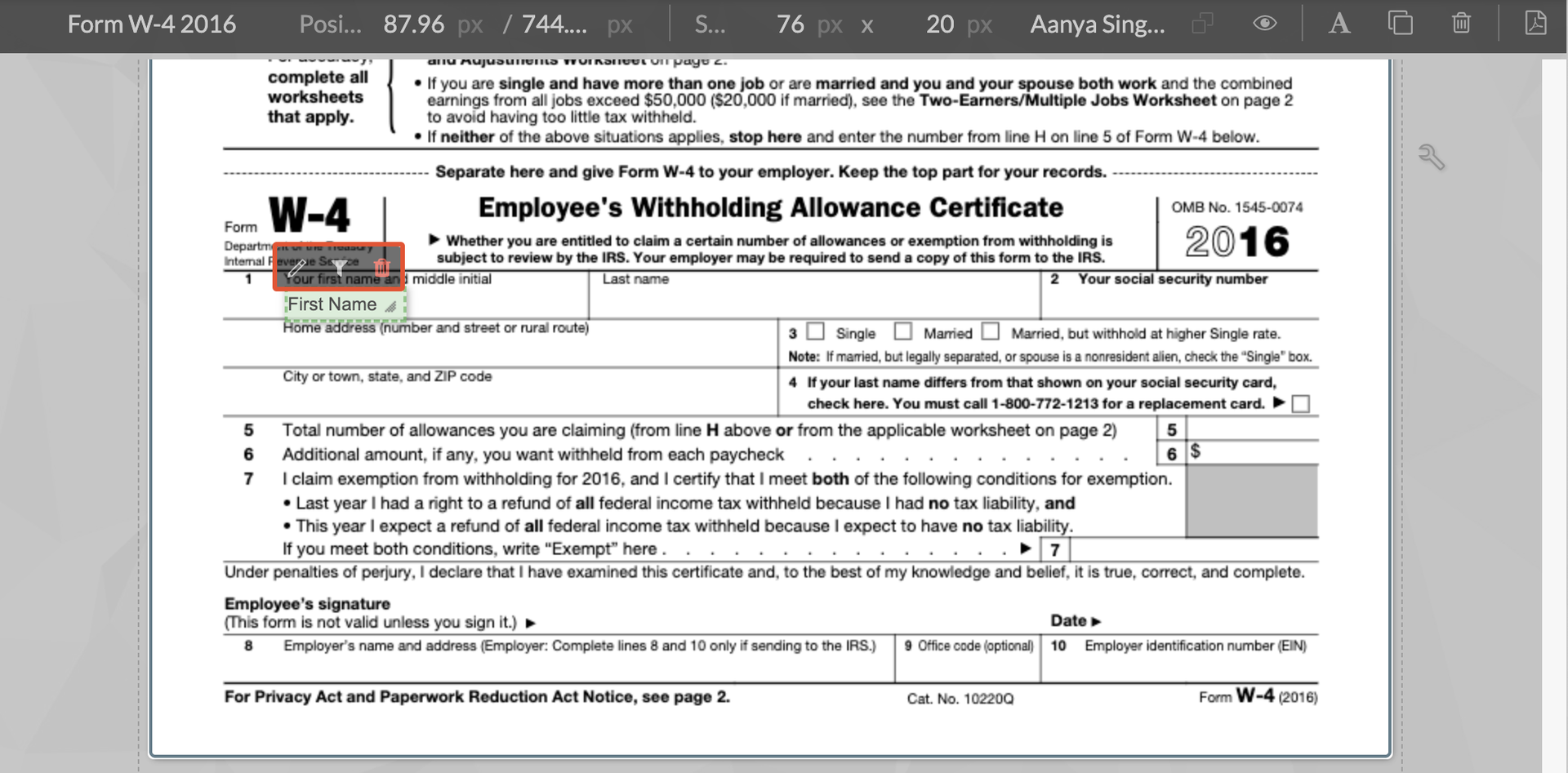
- Save and Publish the document.
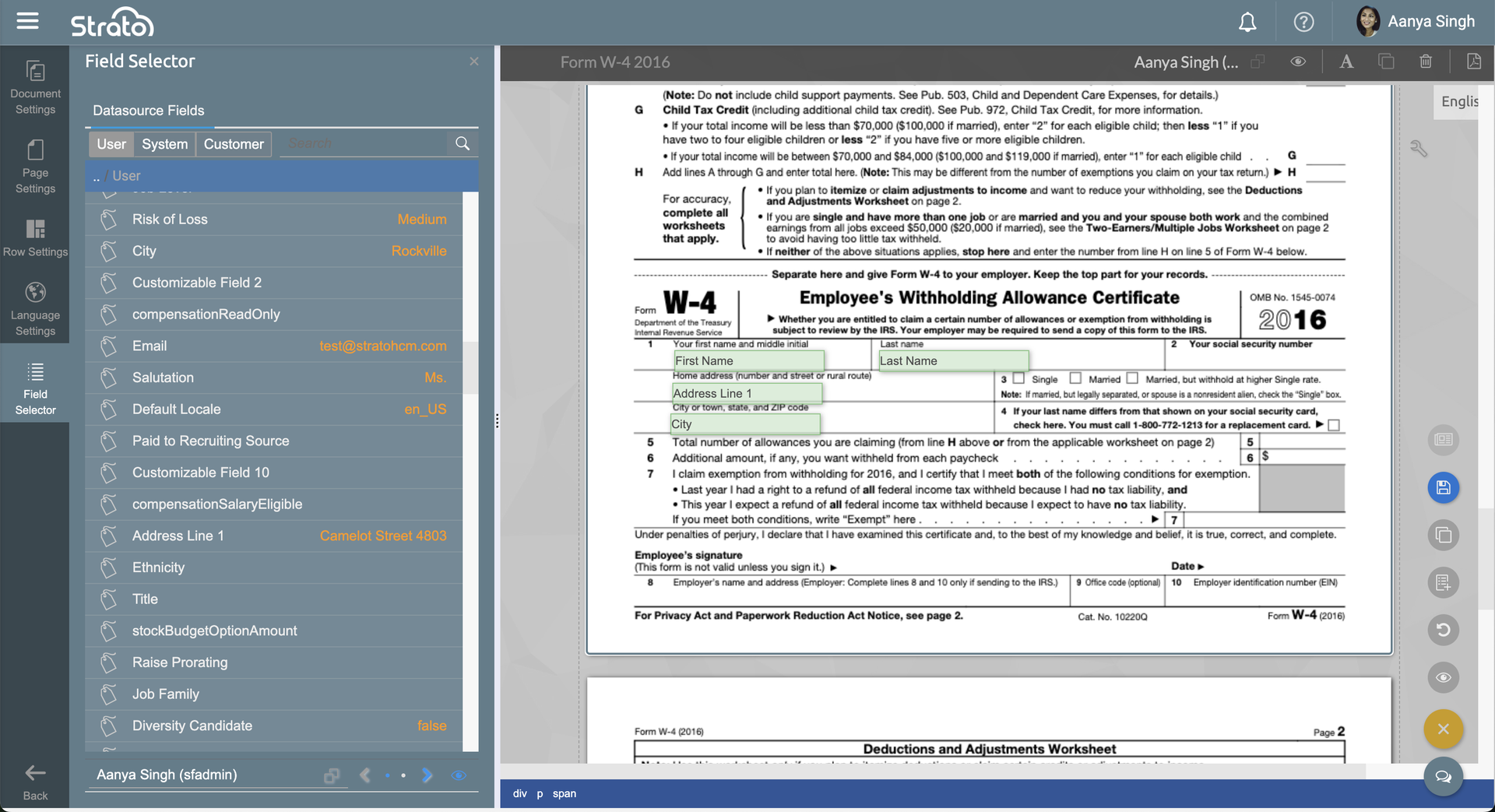
- Preview the document. The fields will display their corresponding values in the PDF file.