Create a Hybrid Document with SuccessFactors and SAP Data (via Easy Reporter) [V1]
The integration of the Easy Reporter solution in your Strato system enables you to create hybrid document templates by having data fields coming from both SuccessFactors and OnPremise SAP (via Easy Reporter reports).
In creating a hybrid document, this is enabled by toggling the Include Easy Reporter Reports option upon selection of the Catalog when creating a document template, as shown in the sample steps below.
Below are the steps to create a hybrid document. (This example is using the Employee Catalog)
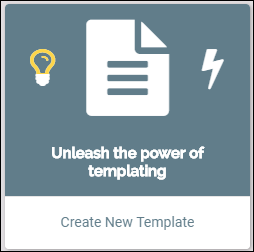
- From your Strato Dashboard, click the Create New Template.
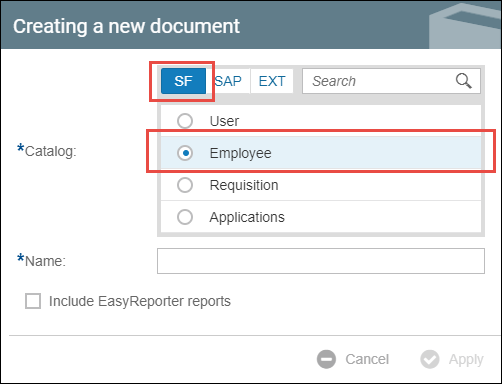
- The Creating a new document window will appear. Under the SF tab, select Employee.
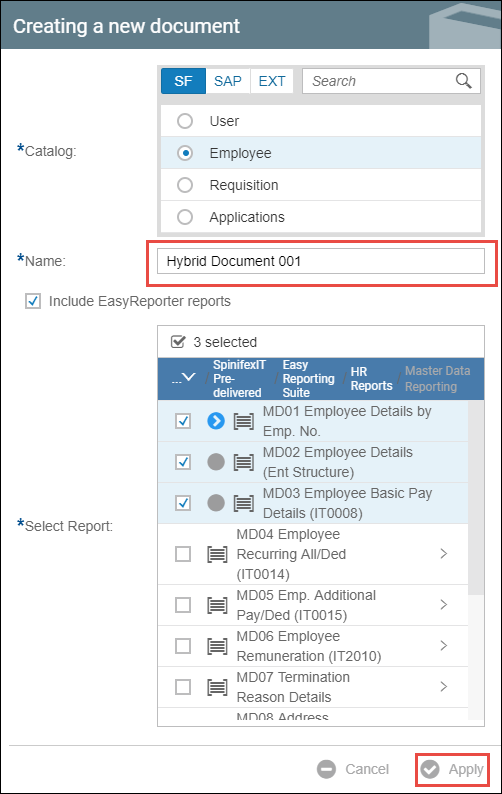
- Tick the Include EasyReporter reports box. Select a report or multiple reports that will be the source of fields in your document.

- Enter a name for your document and click apply.
- In the Field Selector tab, you will see an extra Easy Reporter folder.
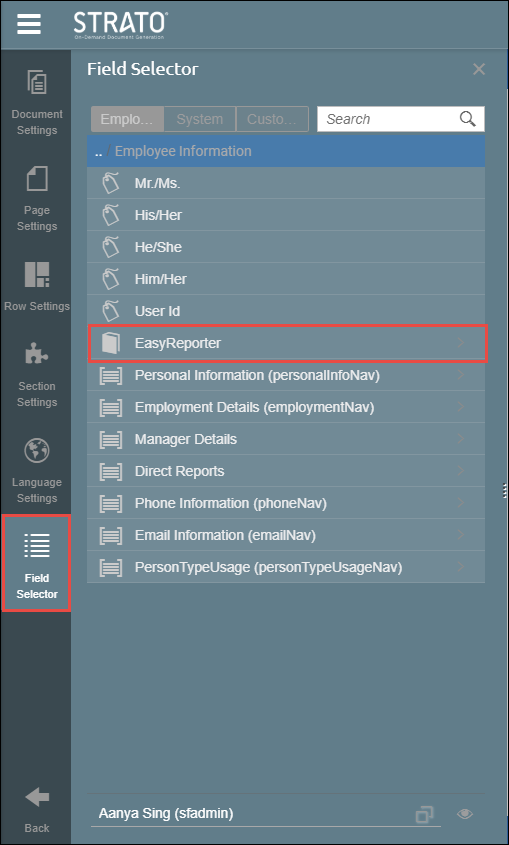
- When clicked, it contains the reports that you selected in Step 3.
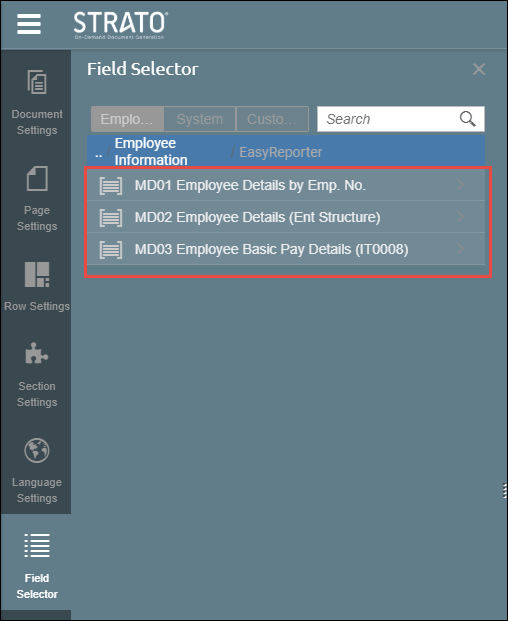
- Try clicking any report. It will display all the fields that you can use from that report.
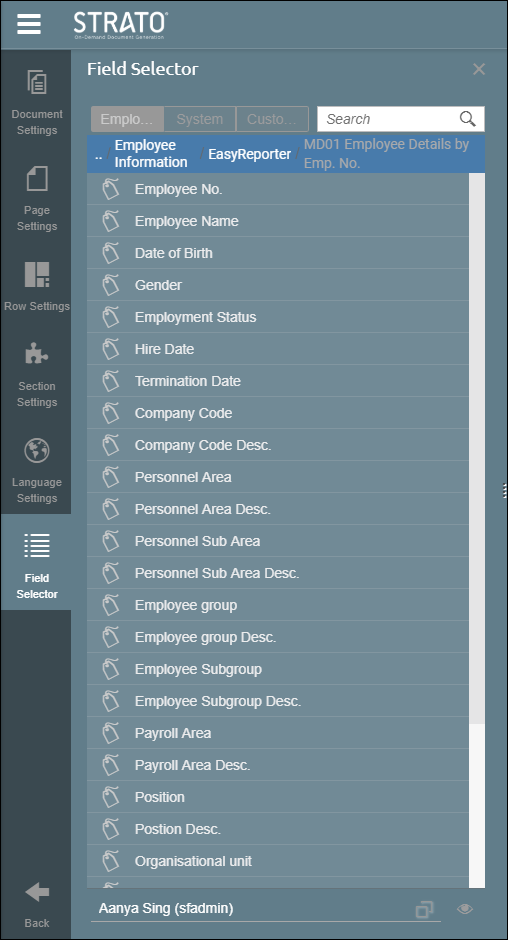
From there, search and add specific Easy Reporter fields into your document.
To know how to create a document template using Easy Report Fields Only, read: