Format Sections [V1]
In Creating a Document Template, the toolbars in the document editor are the following:

| Font Type | The default font is Arial. There are over 30 font types to choose from:
A default font can be set in your Strato system. |
Font Size | Choose which size (pt) would best suit your document through this drop down list. |
Line Height | Select your paragraph's space's height (1.0 - double space). The default is at 1.25 spacing. |
Font & Background Colour  | Select your font color from the palette or enter the hex value for your color selection. |
Text Formatting Options  | Change your text style to Bold, italicised, strikethrough or underlined. |
Remove Format  | Clear all changes made to your text and revert to the default format: Arial, 15, black. |
Text Alignment Options  | Choose if you want your text / paragraph aligned left, right, centred or justified. If you will set your text to justified, some words might get moved to the next line in the actual .PDF document. If setting the alignment for an inserted image, it would be better to use the ruler on top and on the left side of the Document Template Editor. |
Indents  | You cannot use the Tab key in Strato. Instead, use the indent options to add an equally measured space between your text. |
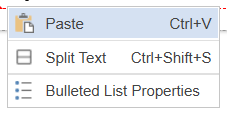
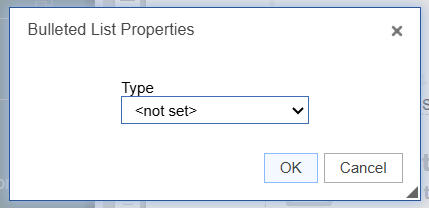
Insert/ Remove Bulleted List  | Adds / Removes the bullets before your text, ideal for lists. 💡 You can modify the type of bullets by right-clicking the mouse on the bulleted list and selecting Bulleted List Properties.
|
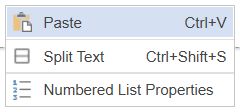
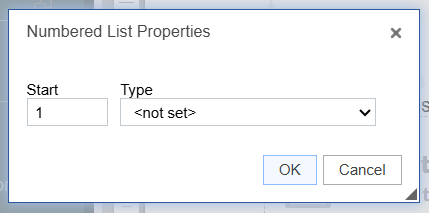
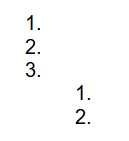
Insert / Remove Numbered List  | Adds / Removes the number before your text, ideal for step-by-step lists. 💡 You can modify the type of bullets by right-clicking the mouse on the bulleted list and selecting Numbered List Properties.
❌ Indented second level numbered lists do not have double decimals. Instead of having 1. 1.1 1.2 1.3 It still shows
|
Block Quote  | Indents and italicises a selected text or block of text for emphasis |
Link  | Gives you an option to insert a hyperlink to your highlighted text. |
Unlink  | Removes the hyperlink from your highlighted text. |
Insert Special Character  | Select a special character from a list and double-click it to insert it in your document. |
Insert Horizontal Line  | Inserts a horizontal line to separate texts. |
Insert Page Break (for printing)  | Tells your printer where your document starts and ends. |
Insert Table (different from Table Sections)  | Inserts a table into your Text Section. You can design the table's properties such as number of rows and columns during configuration. For more information, read Table Cell Settings. |
Insert Picture  | Enables you to select an image from the Picture Library which you can embed on your document. |
Conditional Text  | Allows you to enter a text within a section which will appear / not appear based on the conditions you set. |
Formula  | Adds a formula for your fields which you can add on your template. You may add, find the average, concatenate, and change values (eg. M = He, F = She, etc.). |
Add Comment  | Inserts a comment box which an employee can modify before generating or sending the Document Template. |
Protect Section  | Preserves document structure, preventing selected parts like paragraphs, rows, and sections from being split by page breaks during generation. |
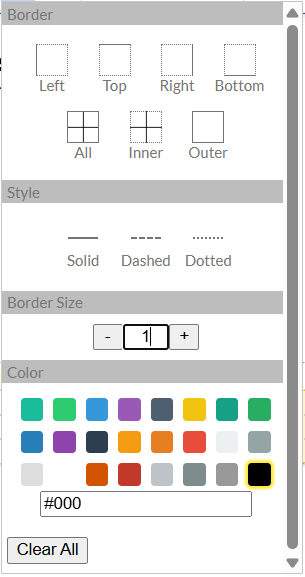
Border  | This button is only available in the toolbar if you are editing a Table Section. This allows you to edit the Border, Style, Border Size, and Color of your Table Section.
|
Spacing  | This button is only available in the toolbar if you are editing a Table Section. This allows you to edit the spacing of the data / contents in a particular cell, column, or row. |
Vertical Alignment  | This is only available when editing a table section. You can adjust the placement of the values of the column by selecting top, middle, or bottom. |