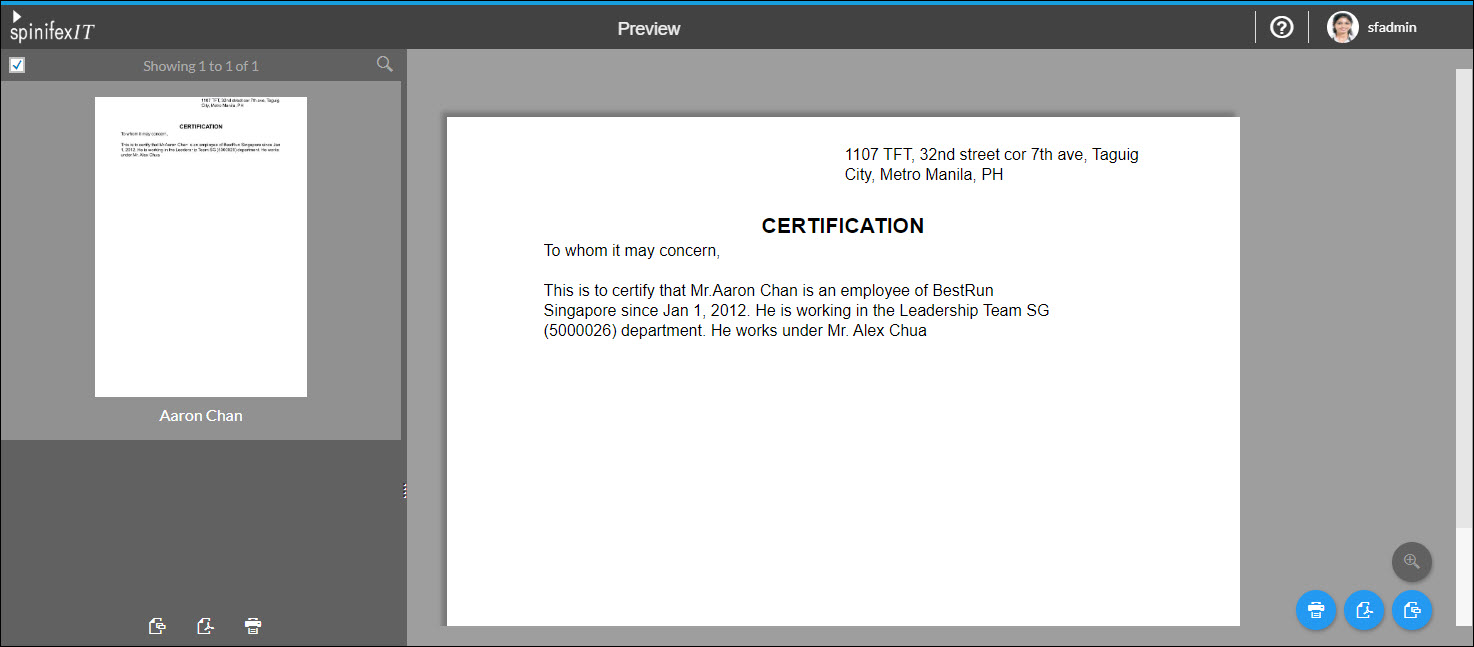
Preview Document as Another User
Before finalizing a document template, it is essential to preview it to ensure that dynamic fields and conditions populate correctly. You can preview the document as a specific user to simulate exactly how the final output will appear for that individual.
Instructions
To preview a document as another user, follow the steps below.
Open your document in the Template Editor.
Navigate to the Action menu on the lower right side of your screen.
Select Preview.

In the prompt that appears, type the User ID of the person you would like to preview the document as.
Note: User IDs are case-sensitive. Ensure you enter the exact ID.
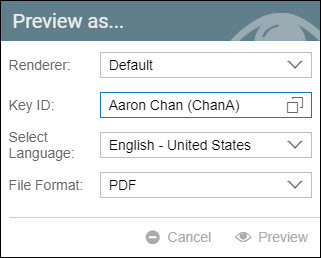
Select any additional options as needed.
Click Preview (or press Enter on your keyboard).
A new tab will open, loading the document with the data populated for the specific user you selected.