Document Versions - Document Settings
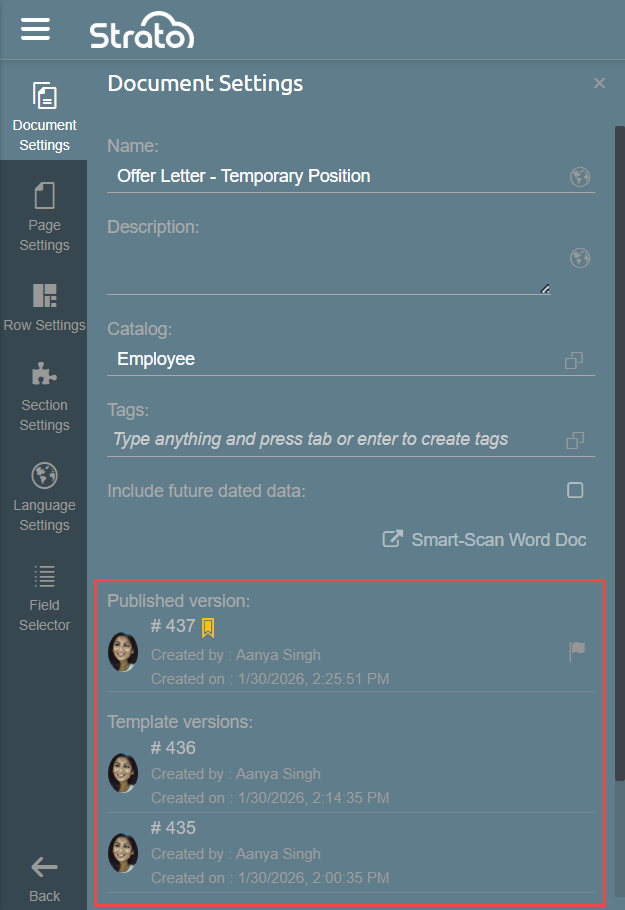
When working on a Document, Email, Form, or Workflow Template, a version of it is going to be saved every time you make and save changes in your template. This serves as logs and to track the revision history of the document, which are going to be displayed at the bottom section of your template's General Settings.
This will display who saved the changes and when it was revised. From here, you can decide which version of your document should be published, and make revisions on your current template without affecting the published version.
Features
Version Logs
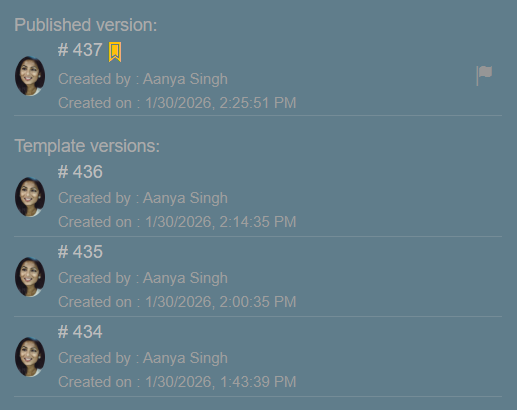
The version logs will display the version number, the photo and name of the creator, and when it was created.
Published and Current Version
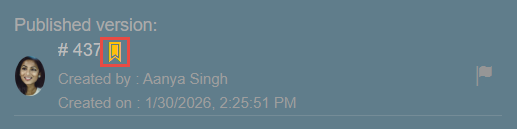
The Published version will have a yellow ribbon beside the version number to indicate that it is the Published version.
Load Version
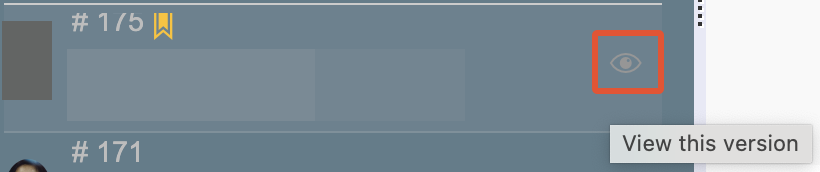
You can load a different version by clicking the eye icon that appears when you hover over a version.
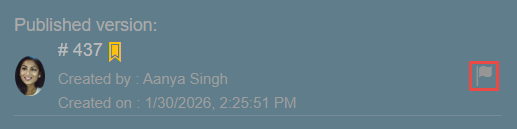
The flag icon indicates the version that is currently displayed in the template editor.