Table Section Overview [V1]
Table Sections are catalog and field-based sections which enable users to create their own content in a table format, using the pre-selected fields in Strato.
You can create a Table Section directly from the Document Template Editor, of from the Section Settings:
- Choosing Table Section directly from a Text Section in the Document Template
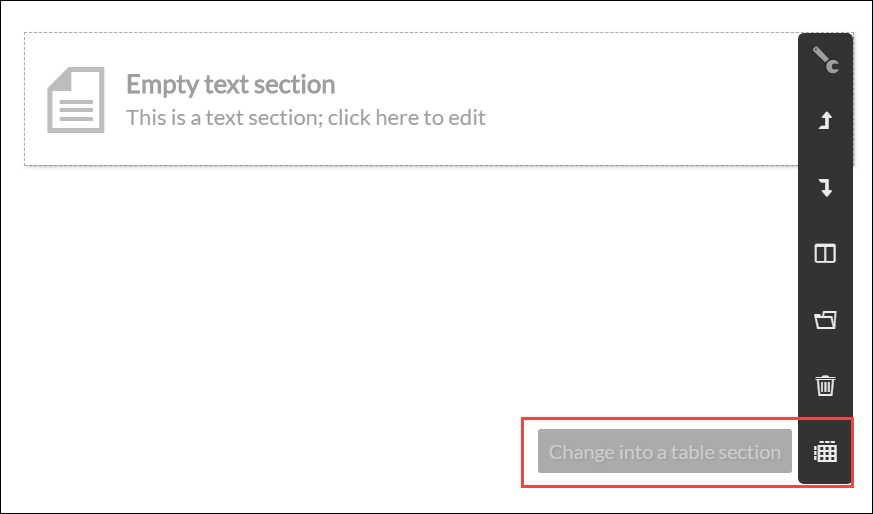
- Choosing Table Section from the Section Settings
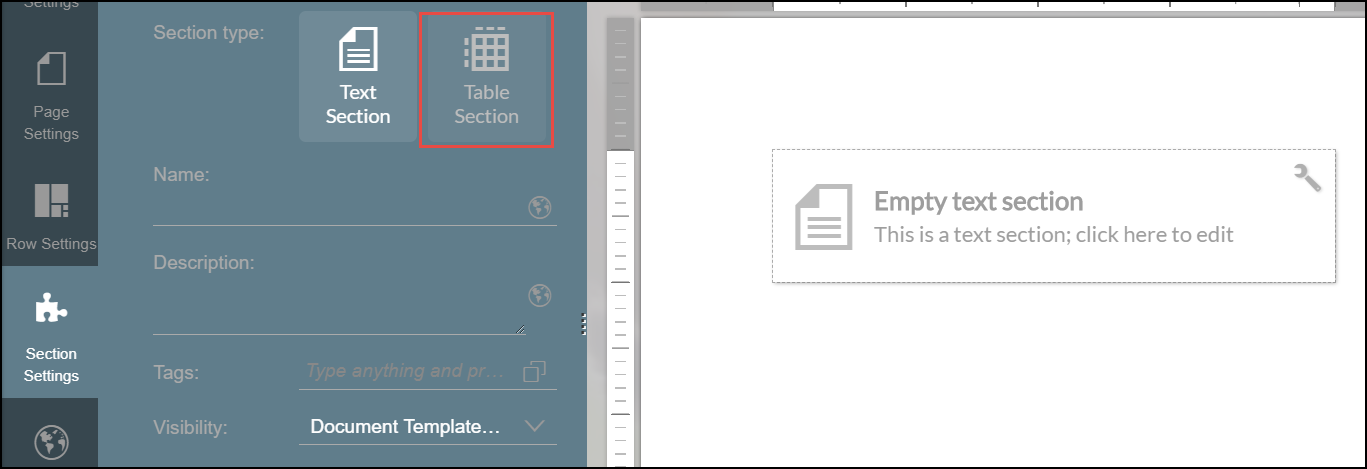
When creating a Table Section, you will be asked to choose a field group, and then by clicking Next, you can select which fields to use as the Columns.
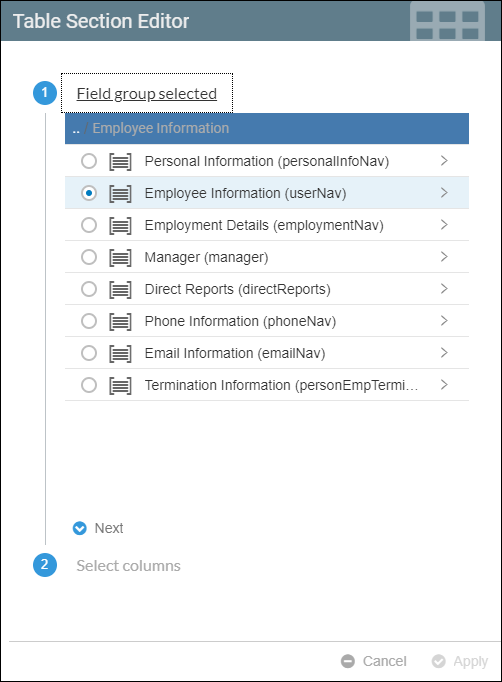
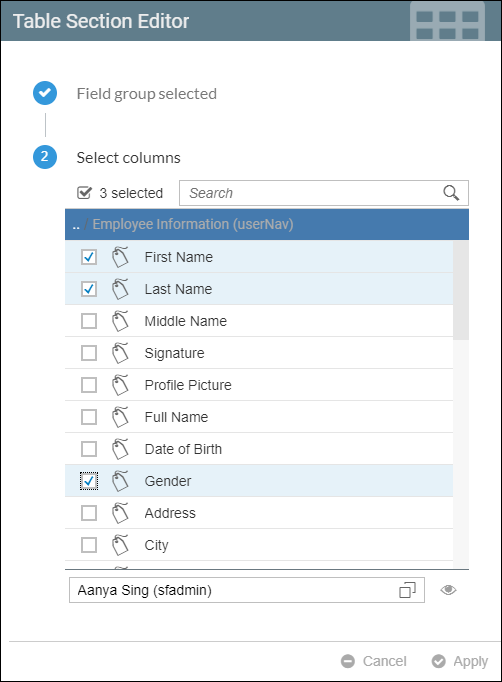
For more information and other settings, read: Table Settings - Table Section
Available Actions for a Table Section
These are the other section actions that you can perform in your table section. The first 5 actions are same as the section actions in a Text Section.
The rest are briefly explained here:
Icon Name | Icon Description |
|---|---|
Add Table Column | Add a table column. You will be asked to select a field. A Select Field window will appear. |
Remove Table Column | Delete the selected Table Column. |
Change table columns | Change the table columns for the table section. A Table Section Editor window will appear. Select a field group and then select columns for your table section. |
Change into a text section | This will transform the table section into a text section. A warning message will appear. |