Docusign
To integrate Strato with Docusign, the user must have the following requirements ready:
- DocuSign account
- DocuSign Integration Key
Complete the steps to integrate Strato with your Docusign account.
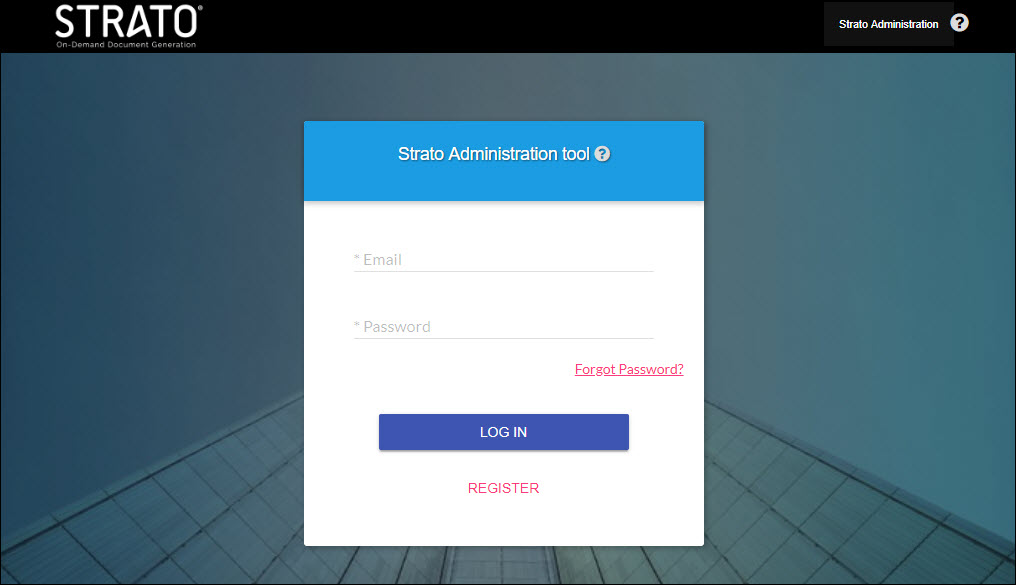
Login to your Strato Administration tool (the link that you will use will vary. Please contact our customer care team for more info).
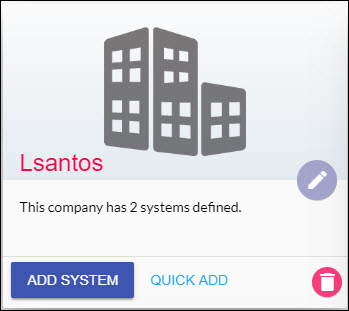
Select your company.
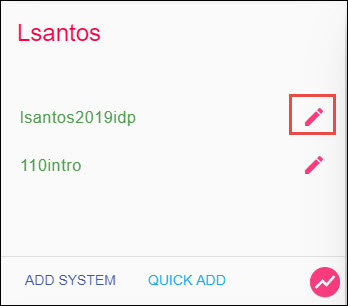
Click the edit button beside your system.
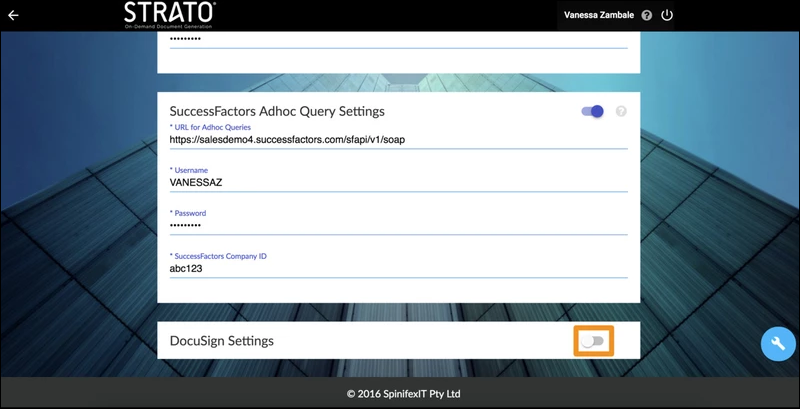
Scroll down to the bottom of the page, and you'll see an option to activate DocuSign. You will need to turn on the switch to proceed.
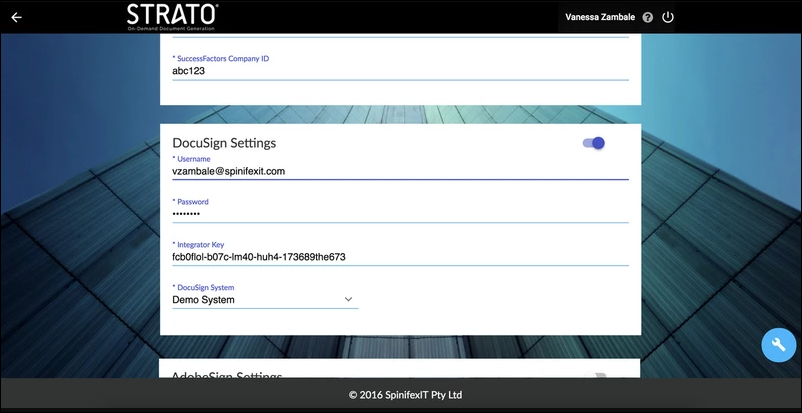
You will be asked for the following details: the e-mail address you used for your DocuSign account, your DocuSign password, and the integration key. You will get the integrator key upon signing up for DocuSign.
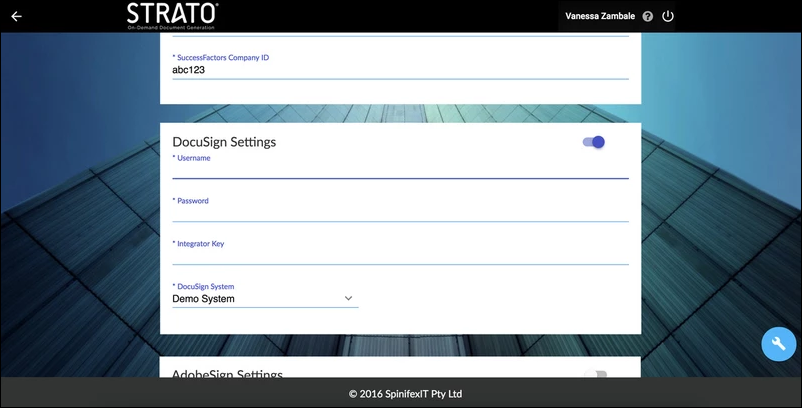
Enter your details accordingly. Make sure that your credentials are correct, otherwise, you will be encountering errors during the process.
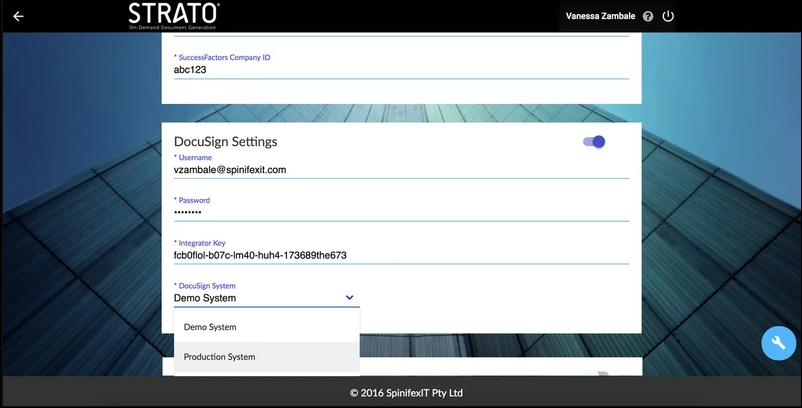
Select the system you wish to deploy this integration. It is highly recommended to deploy this on a test system first before putting it up on your production / live system.
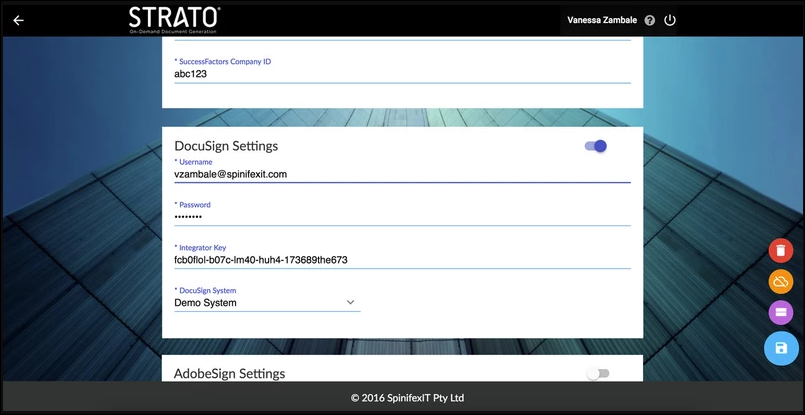
Once you've completed these steps, click Save.
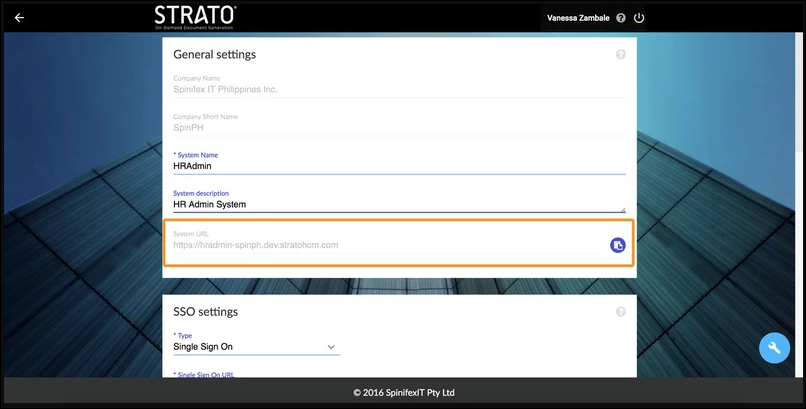
Copy your System link into your browser, and Start using Strato.
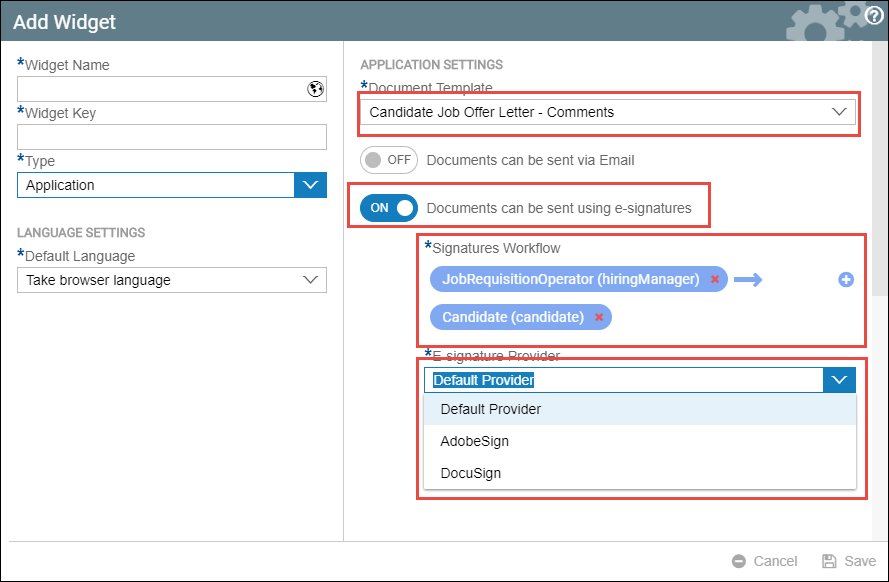
After performing the above configuration, in Strato, go to widget settings and then create or edit an application widget. Select a document template and enable the documents can be sent using e-signatures toggle. Specify a workflow and then in the E-signature dropdown box, you will see DocuSign as an option. For further details on this, read How to Set E-signature Workflow in Application Widget.
More on the Docusign side, if after the Documents can be sent using e-signatures settings in Strato, you encountered an issue where neither the letter nor the comments were reflected in the candidate's profile in SuccessFactors recruiting, please check your settings on the Docusign side. (refer to this article: Strato with DocuSign Integration - No Document nor Comment in Candidate's Profile)
Get Your Integration Key from DocuSign
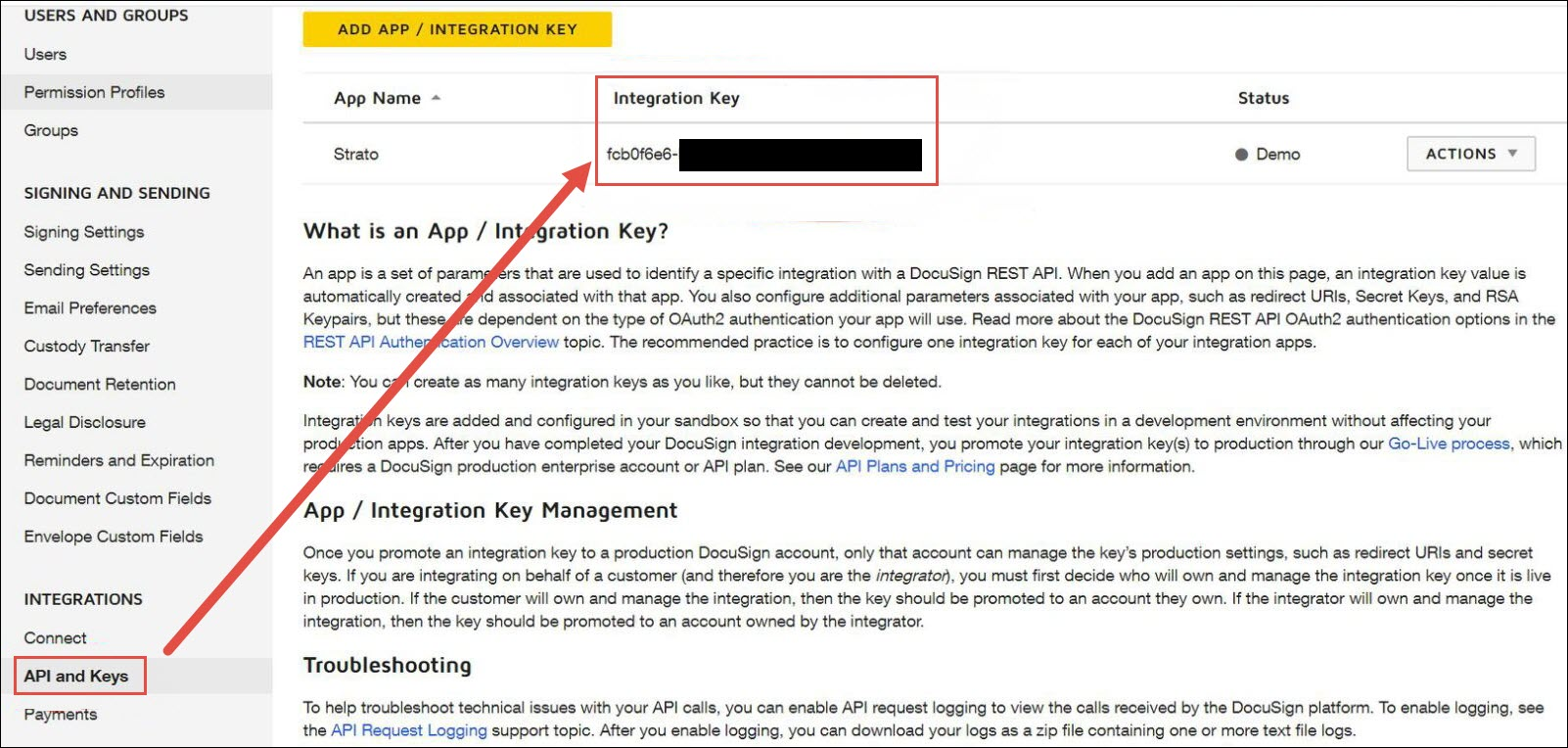
One of the requirements to set up Strato with DocuSign Integration is to have an integration key from your DocuSign instance.
To get the integrator key, follow these steps:
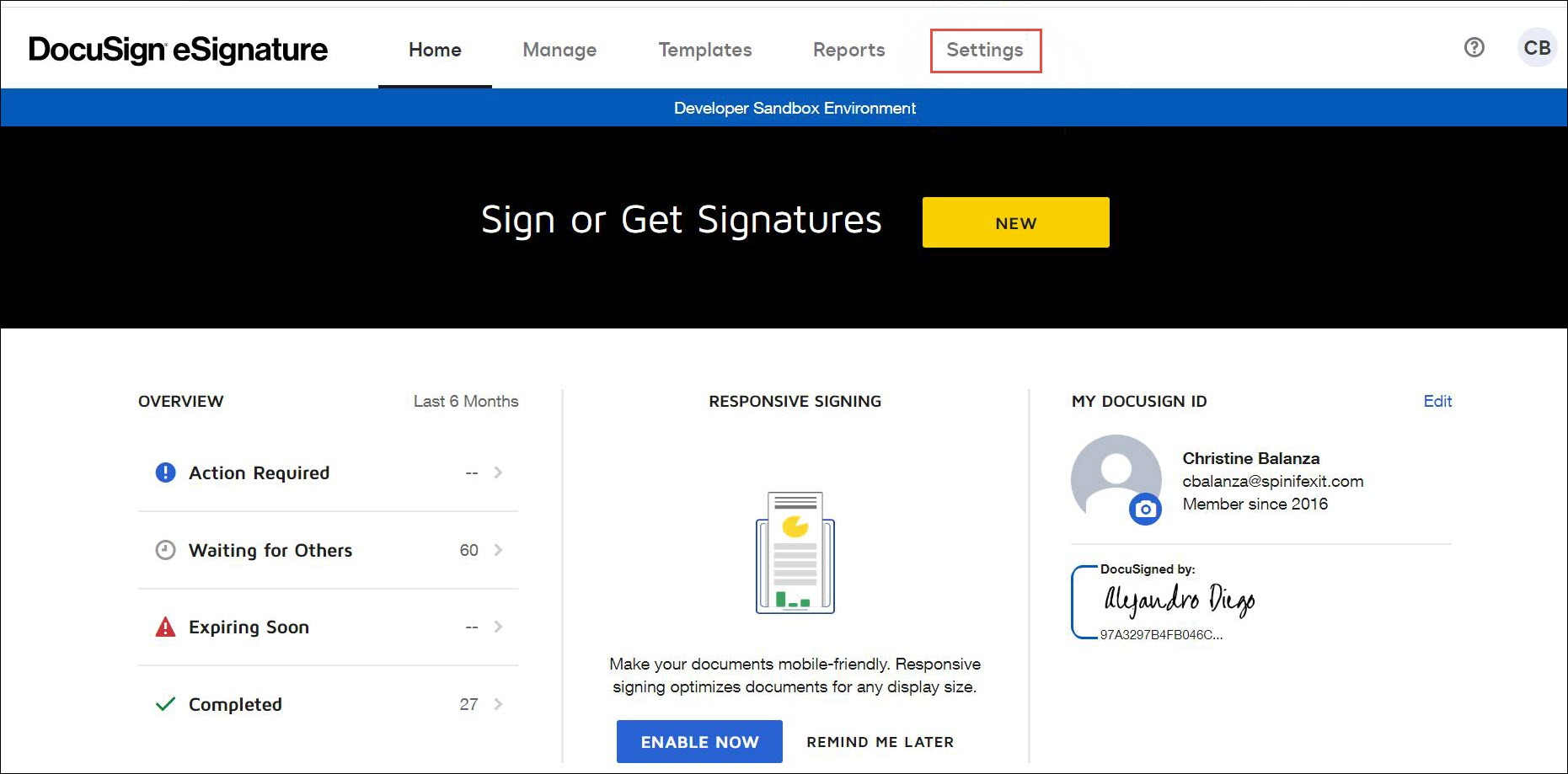
- Log in to the sandbox system of your DocuSign instance.
- Click Settings.
- On the left side of the screen, click API and Keys. The Integration Key will be displayed on the top part of the screen.
Sign Documents Using DocuSign
If your workflow is configured to use DocuSign, follow the steps below to review and digitally sign the document.
- Open the email sent to the first recipient (in this example, the Hiring Manager) after generating and sending the document.
- Click the link to sign the document. A new tab will open.

- Review the document and scroll to the signature line. Click the signature box to open the signature options.

- The Adopt Your Signature window will be displayed. Choose one of the following methods:

- Select Style: This option converts your full name into a pre-formatted signature. You can click Change Style to browse and select a different font style that suits your preference.

- Draw: Use your mouse or trackpad to draw your signature.

- Select Style: This option converts your full name into a pre-formatted signature. You can click Change Style to browse and select a different font style that suits your preference.
- Here is a sample signature using the draw function. When done adopting your signature, click Adopt and Sign.

- Verify that the signature has been applied to the document.

- On the top right corner, click Finish to complete the process.

- You will be prompted to Save a Copy of Your Document. Answer the provided fields and select SUBMIT, or select NO THANKS.

- A confirmation message will be displayed once the process is complete.
