Generate Documents with Pending Data in Strato Document Editor [V1]
SuccessFactors pending data can be displayed and applied when creating or generating templates in Strato. Additionally, you can preview a document containing SuccessFactors pending data directly from your Strato Document Template Editor. This feature enables users to immediately view the generated output of documents with SuccessFactors pending data, eliminating the need to run it from the Dashboard - Generator Card.
For instructions on inserting or creating document templates with pending data from SuccessFactors workflow, refer to: Creating Documents with Data from Pending SuccessFactors Workflow.
Generating Document with Only Pending Information
Previewing documents with SuccessFactors pending data from your existing document without modifying or selecting pending data fields from the Datasource Workflow field group can be done from the template editor.
In this example, we are using a Confirmation of Employment Details template that contains active or current fields from SuccessFactors.
- From the template editor, click the Preview icon from the floating action button located in the bottom-left corner of the screen.
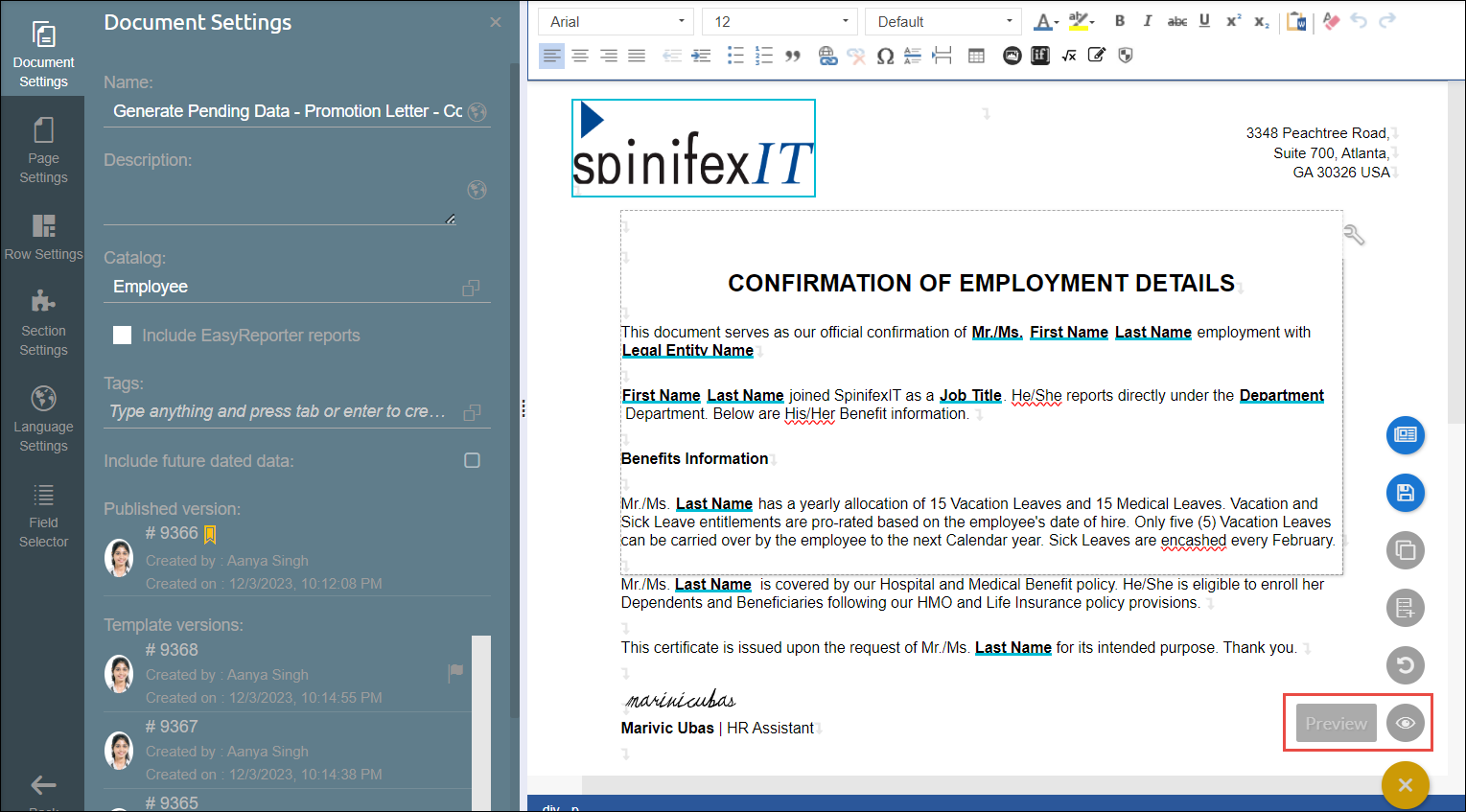
Configure the following fields from the Preview screen:
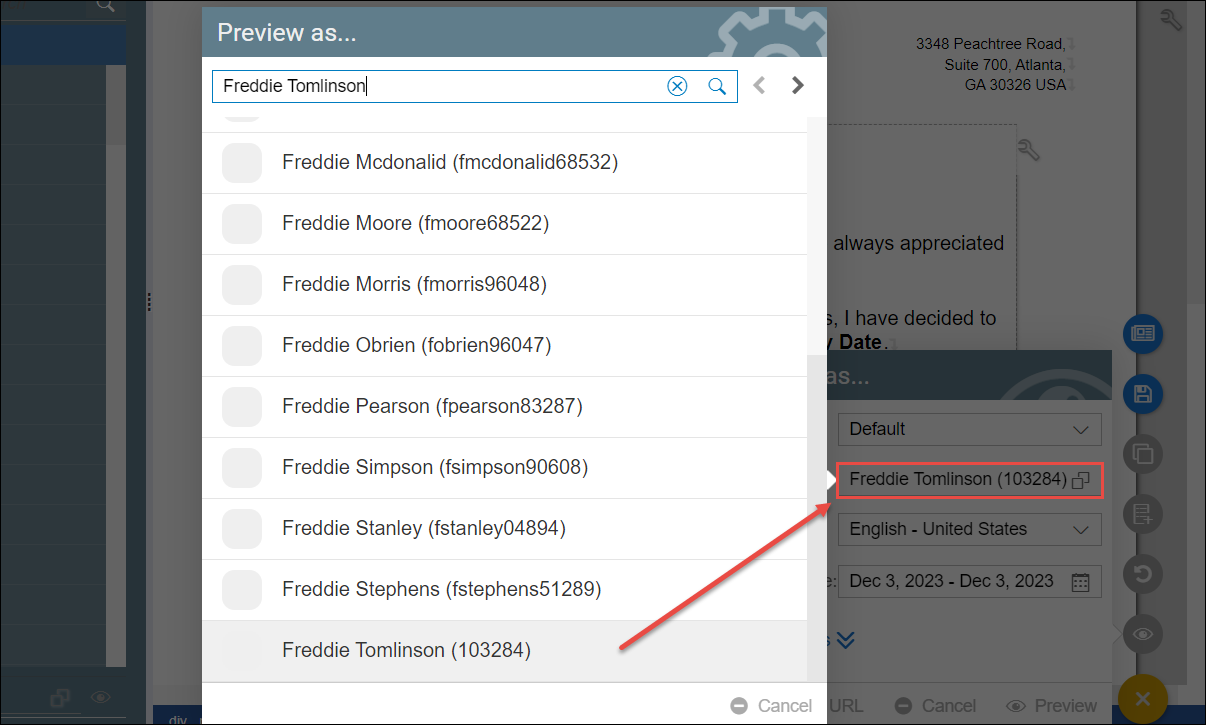
- Choose an employee with pending information from the datasource workflow. For this example, the selected Key ID is Freddie Tomlinson.
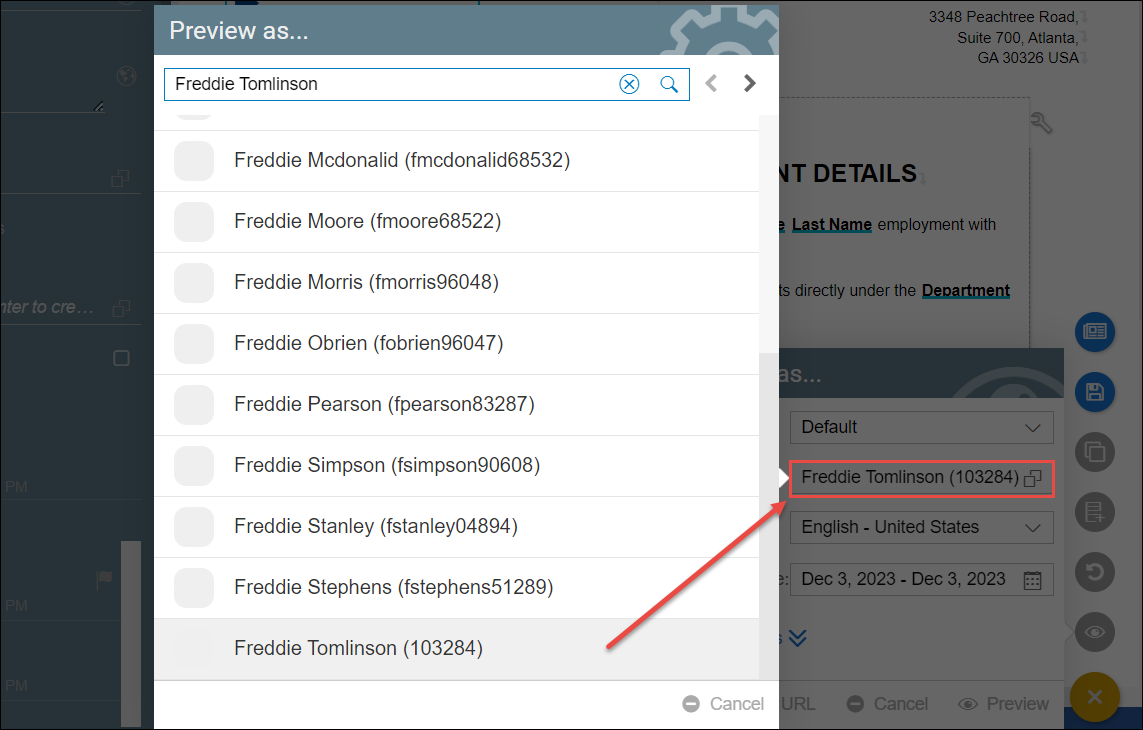
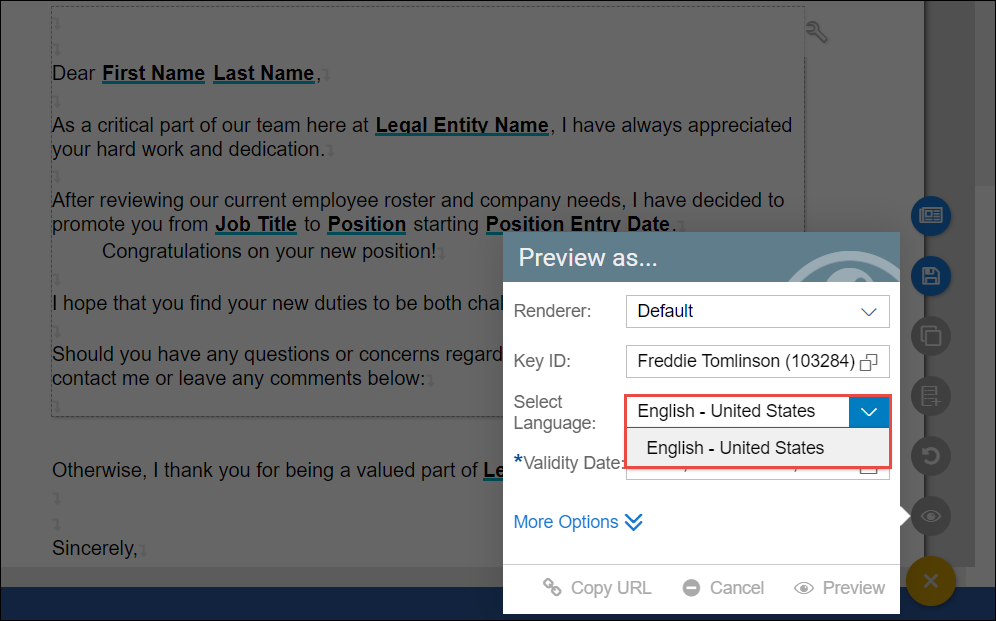
- Specify the language to be used on the generated document.
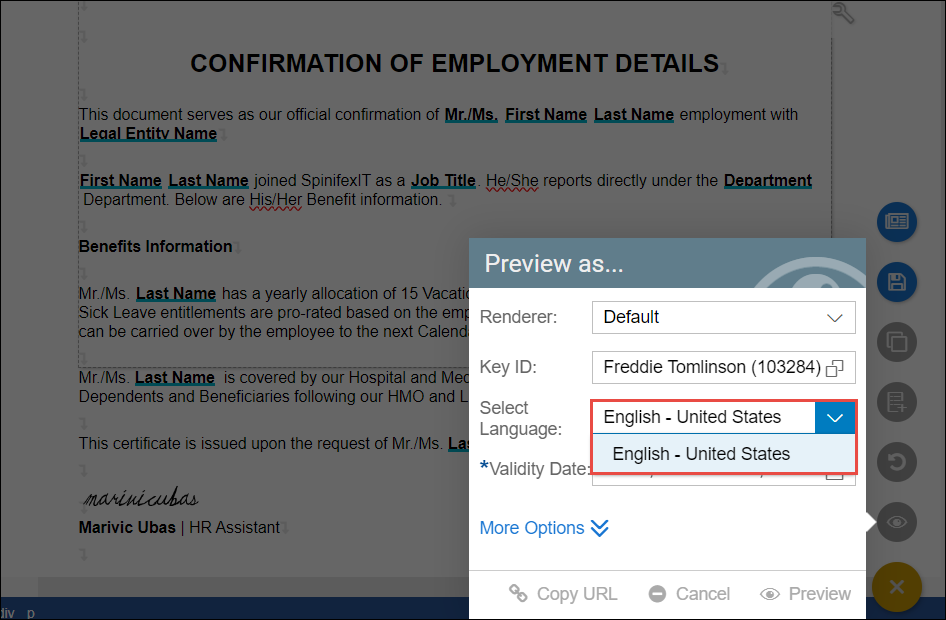
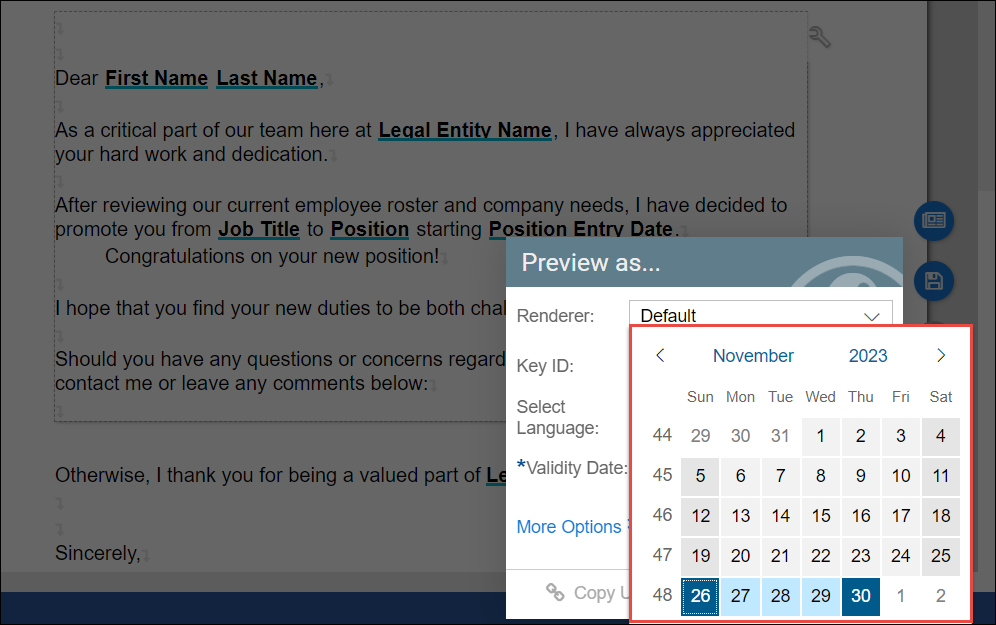
- Then, select the validity date for the document being previewed.
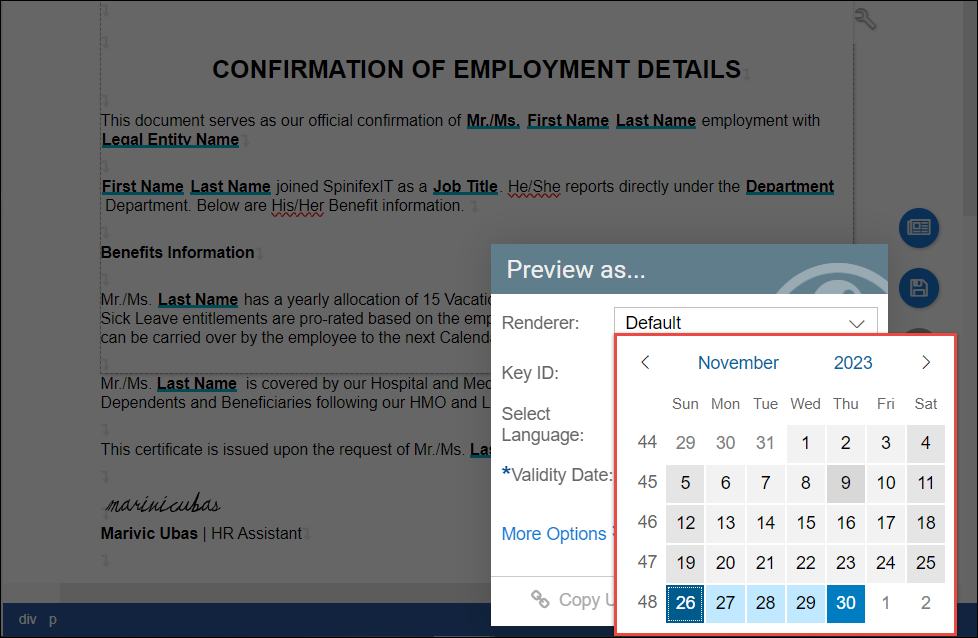
- Choose an employee with pending information from the datasource workflow. For this example, the selected Key ID is Freddie Tomlinson.
- Expand the More Options and activate the Get Pending Data toggle.
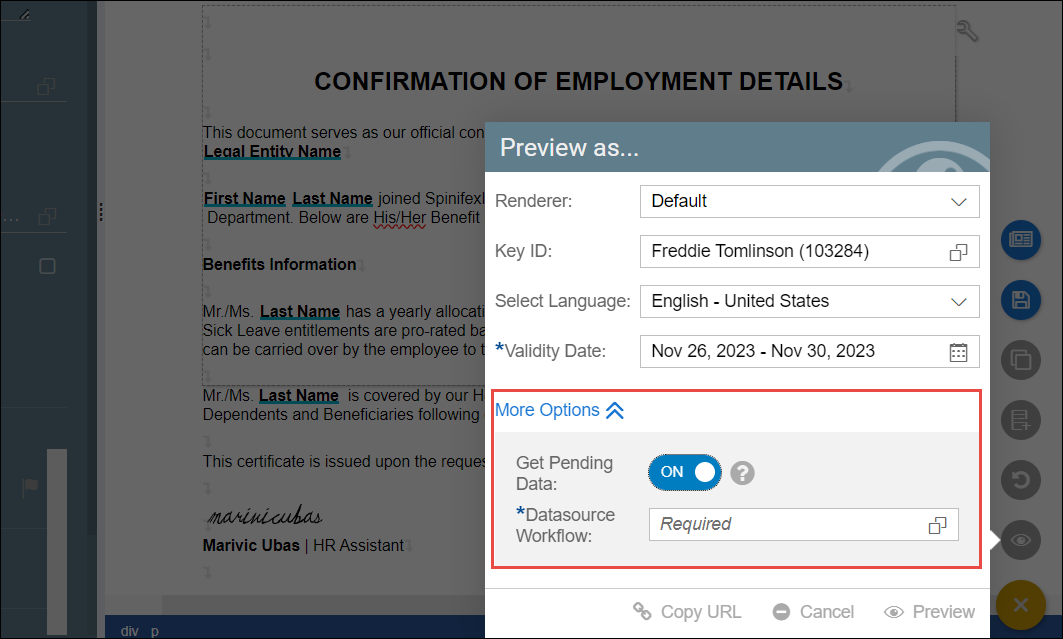
- Next, choose the relevant workflow from the Datasource Workflow field associated with the selected employee. In this example, we are selecting the Promotion - No Pay Change workflow.
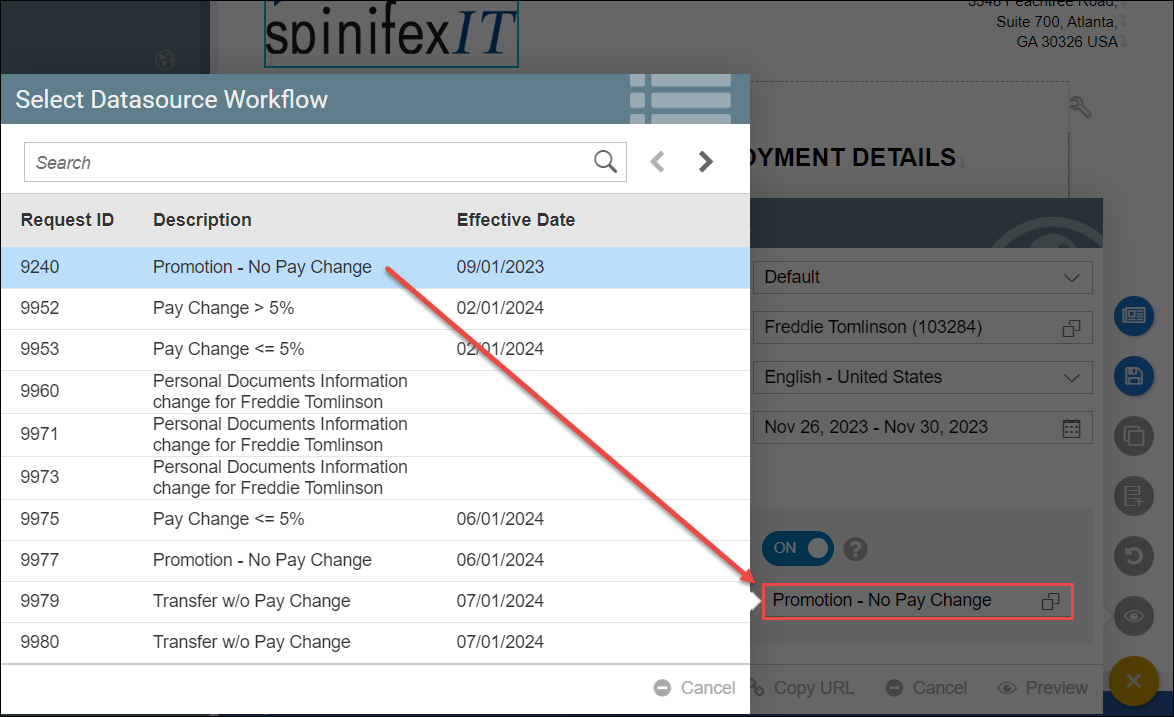
- Once done, click Preview.
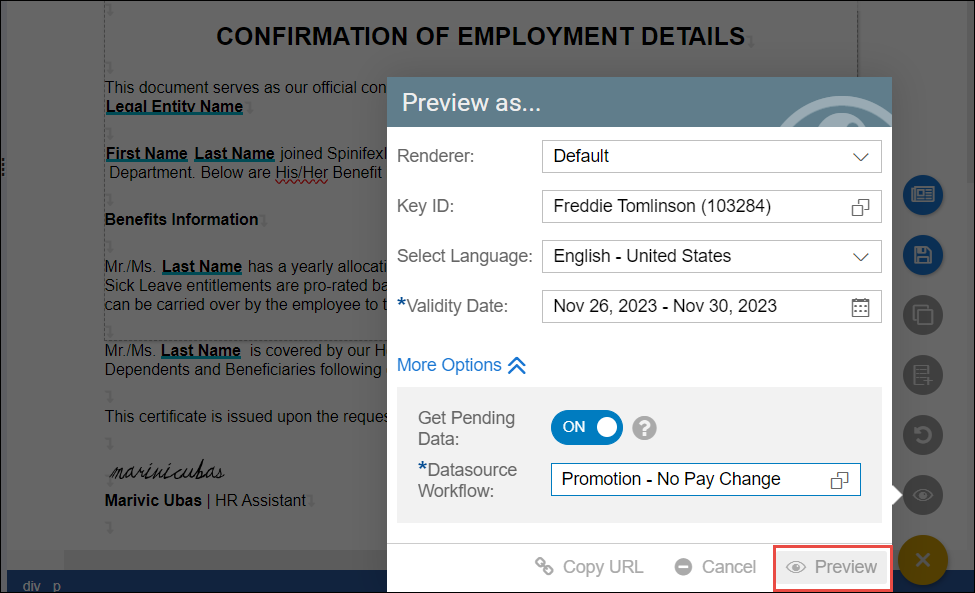
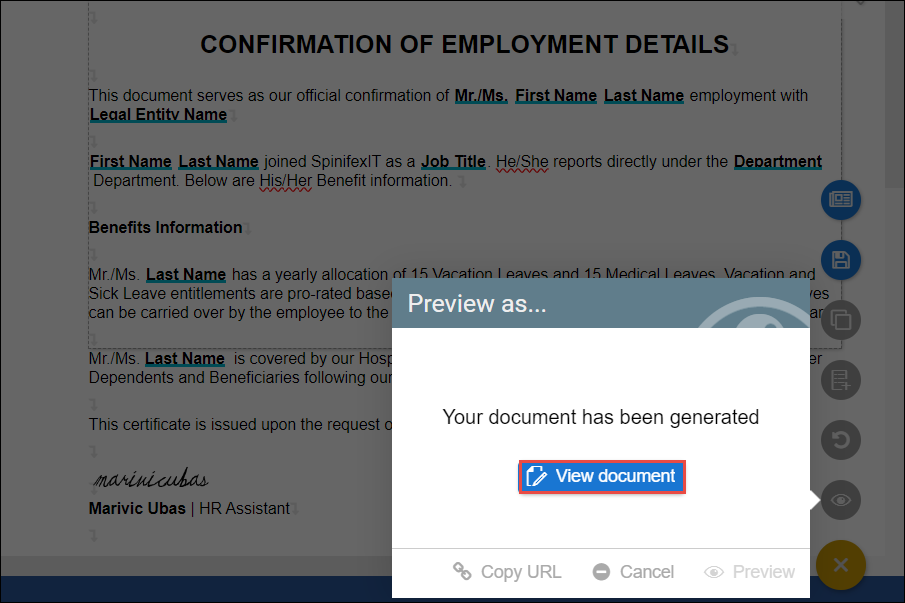
This will show the document with pending information from the employee's datasource workflow.
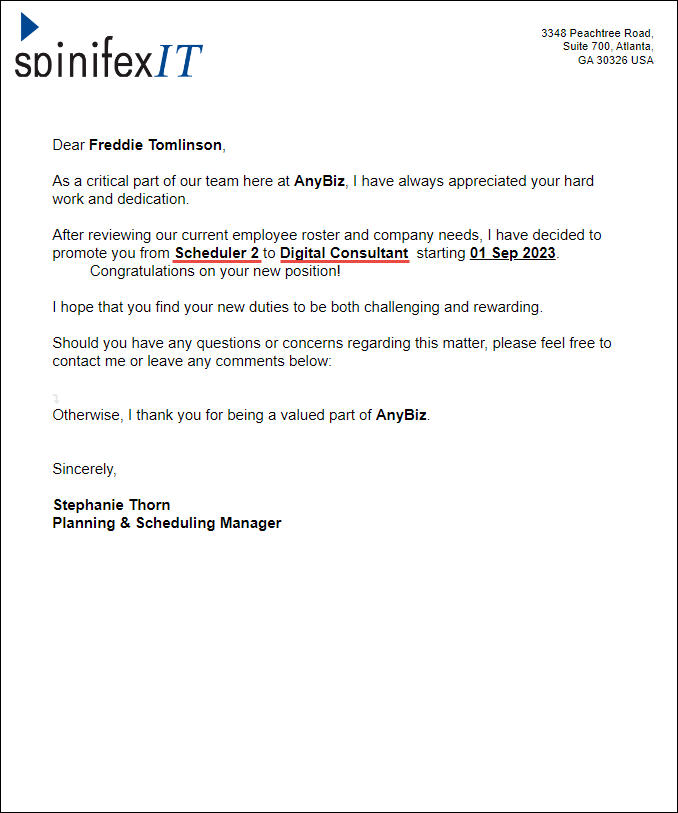
Generated Document with Pending Data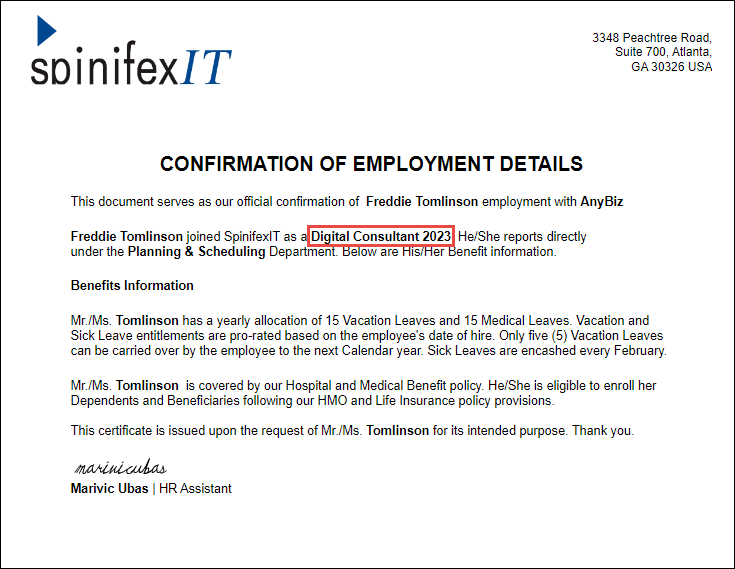
Generated Document with Current Data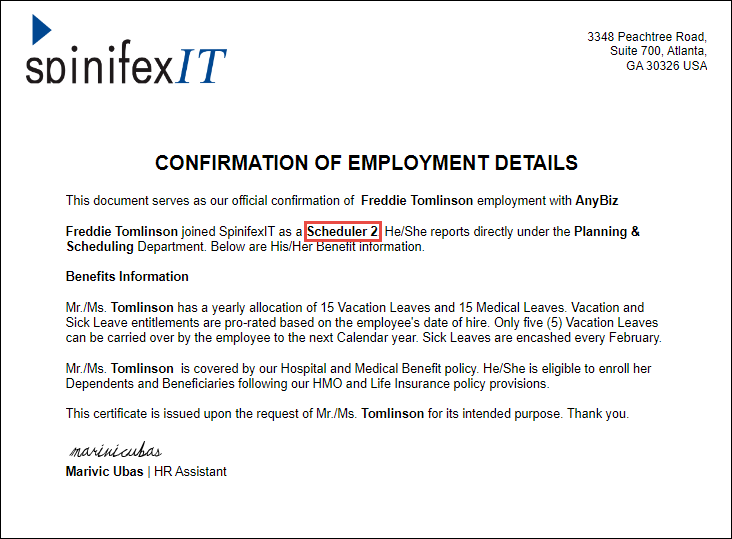
Generating Document with both Current and Pending Information
Users have the option to create documents that display both the current and pending information of the employee. To illustrate this, let's use a Promotion Letter as an example. For instructions on creating documents with both current and pending information, read: Creating Documents with Data from Pending SuccessFactors Workflow.
To generate the created document with both current and pending information from the template editor, follow these steps:
- Create or modify a document template that displays both current and upcoming changes for the employee. In this case, it's a Promotion Letter that contains both current and pending Job Positions.The pending Position field is sourced from the Datasource Workflow field group.
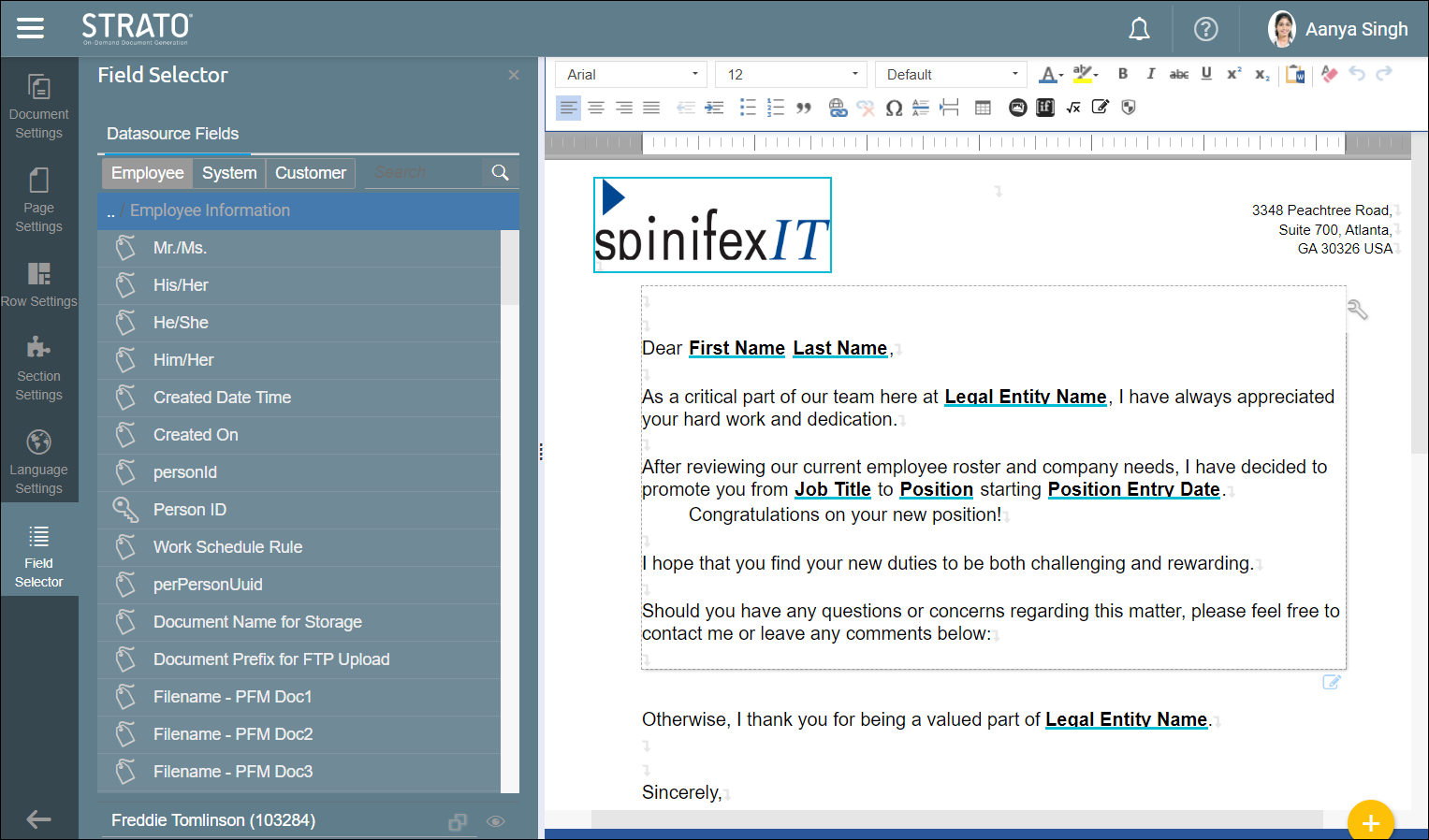
- Click the Preview icon from the floating action button located in the bottom-left corner of the screen.
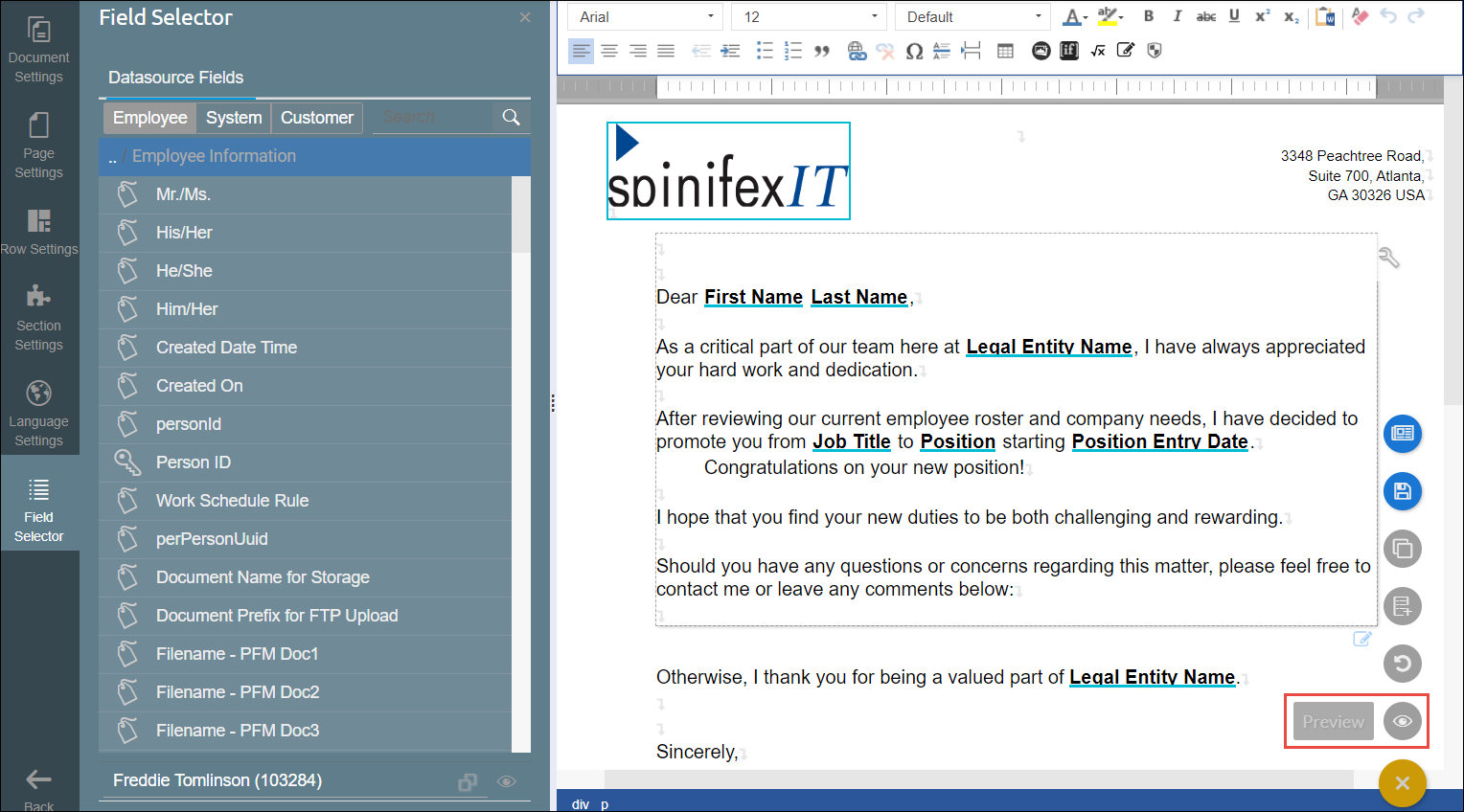
Configure the following fields from the Preview screen:
- Choose an employee with pending information from the datasource workflow. For this example, select Freddie Tomlinson.
- Specify the language to be used in the generated document.
- Select the validity date for the document being previewed.
- Choose an employee with pending information from the datasource workflow. For this example, select Freddie Tomlinson.
- After that, expand the More Options and ensure that the Get Pending Data toggle remains disabled.
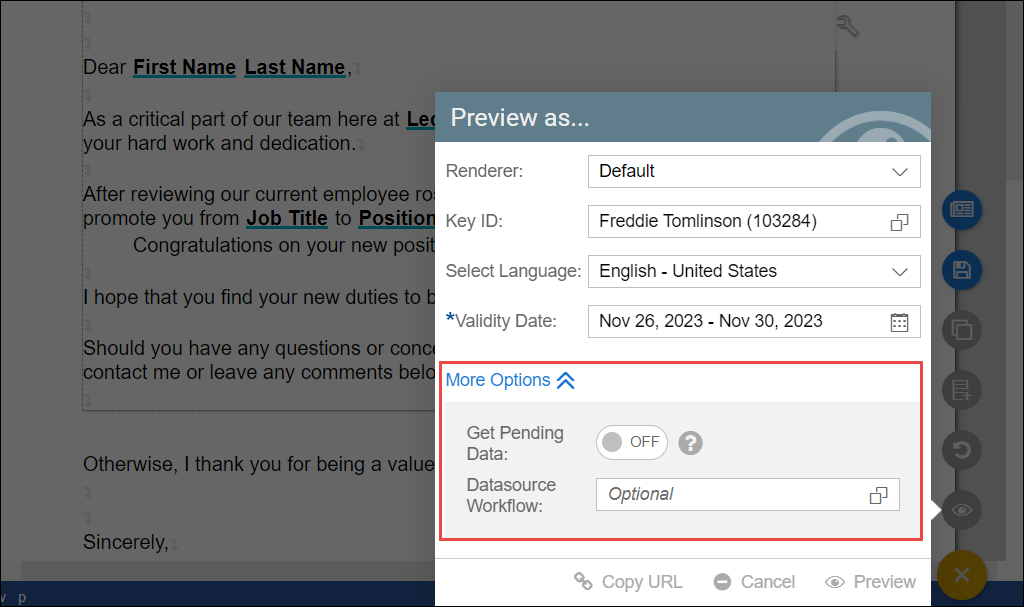
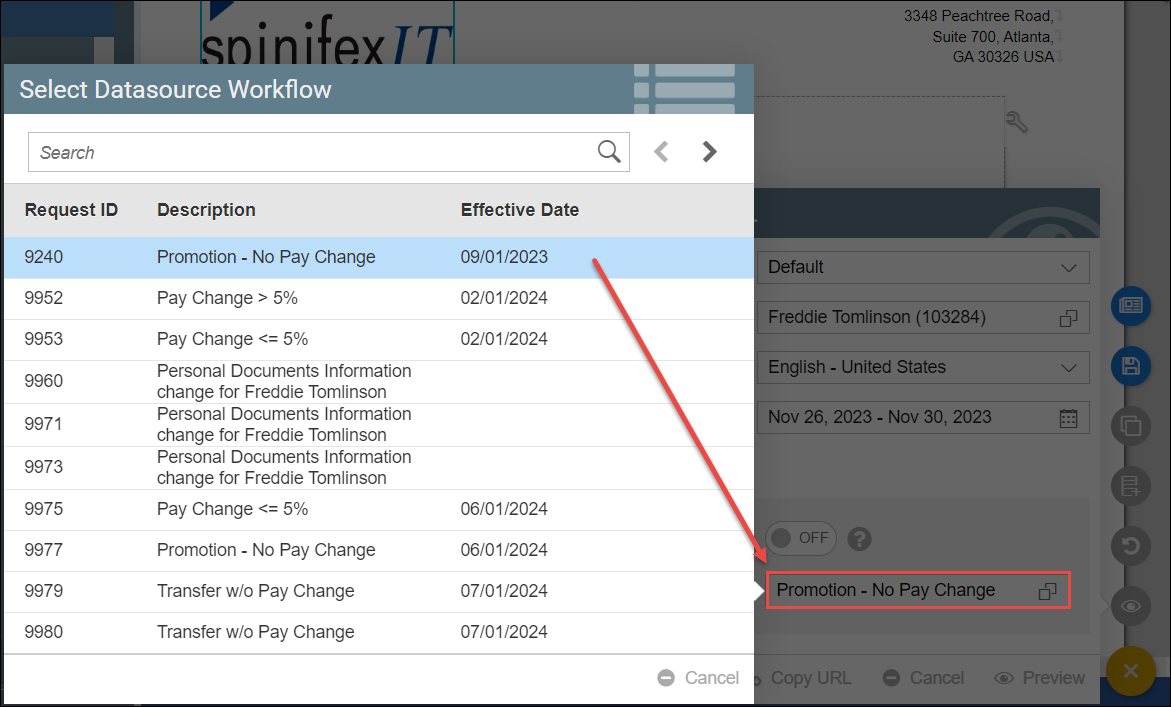
- Next, choose the relevant workflow from the Datasource Workflow field associated with the selected employee. In this example, we are selecting the Promotion - No Pay Change workflow.
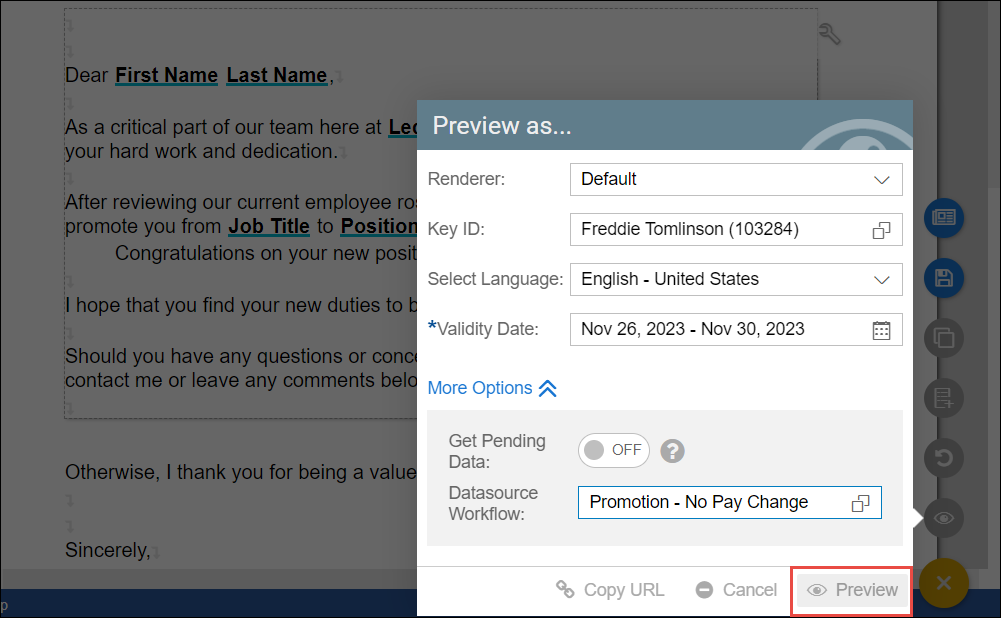
- Once you're done, click Preview, and then View Document.
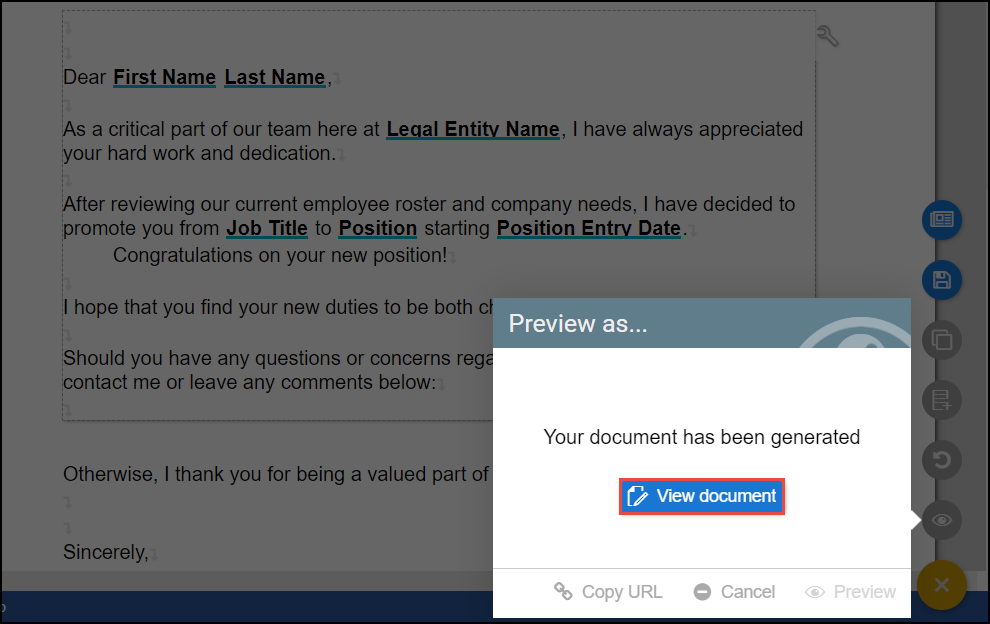
This will display the employee’s document with both current and pending information.