Create Documents with Data from Pending SuccessFactors Workflow
SuccessFactors pending data of employees from SuccessFactors can be applied in Strato Document templates. The Datasource workflow actions, involving changes to field values in a specific employee's profile that are ongoing or haven't been approved or completed, can be viewed and accessed from the template editor. This capability enables users to generate documents with pending information.
To learn more about applying pending data from SuccessFactors Workflow in Strato Document templates and accessing this information, read: Documents with Pending Data from SuccessFactors Workflow - Overview.
Additionally, ensure the Data Source Workflow is enabled in the Field Settings to access pending data. For guidance on configuring your Field Settings, please refer to Field Settings for Documents with Data from Pending SuccessFactors Workflow.
Applying SuccessFactors Pending Data in Document Templates
Follow these steps to incorporate SuccessFactors pending data into Strato Document templates:
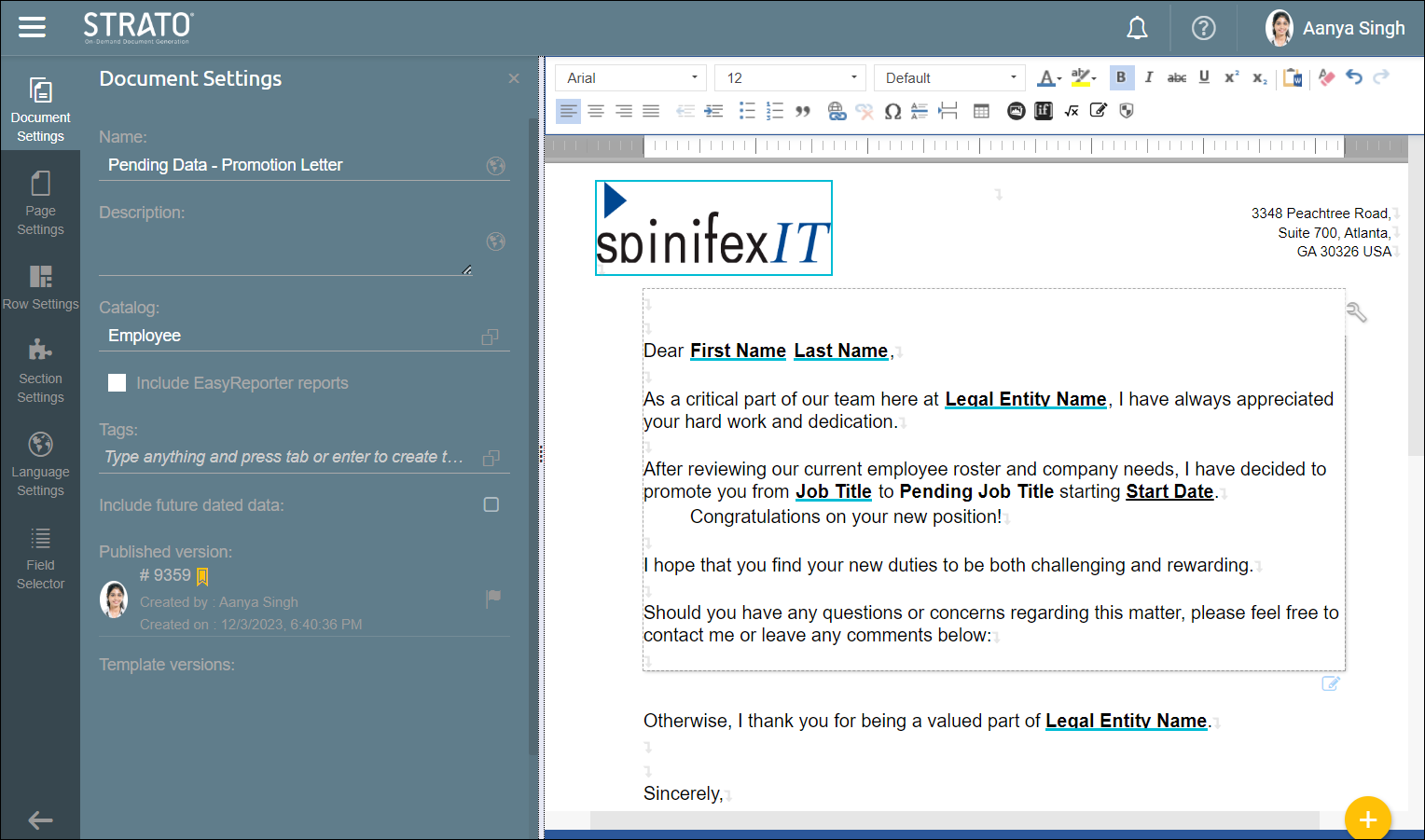
- Open or create a document in your Strato Document Editor that should include pending information for the employee. In this case, we will create a Promotion Letter displaying the current and pending Job Title, along with the Position Entry Date.
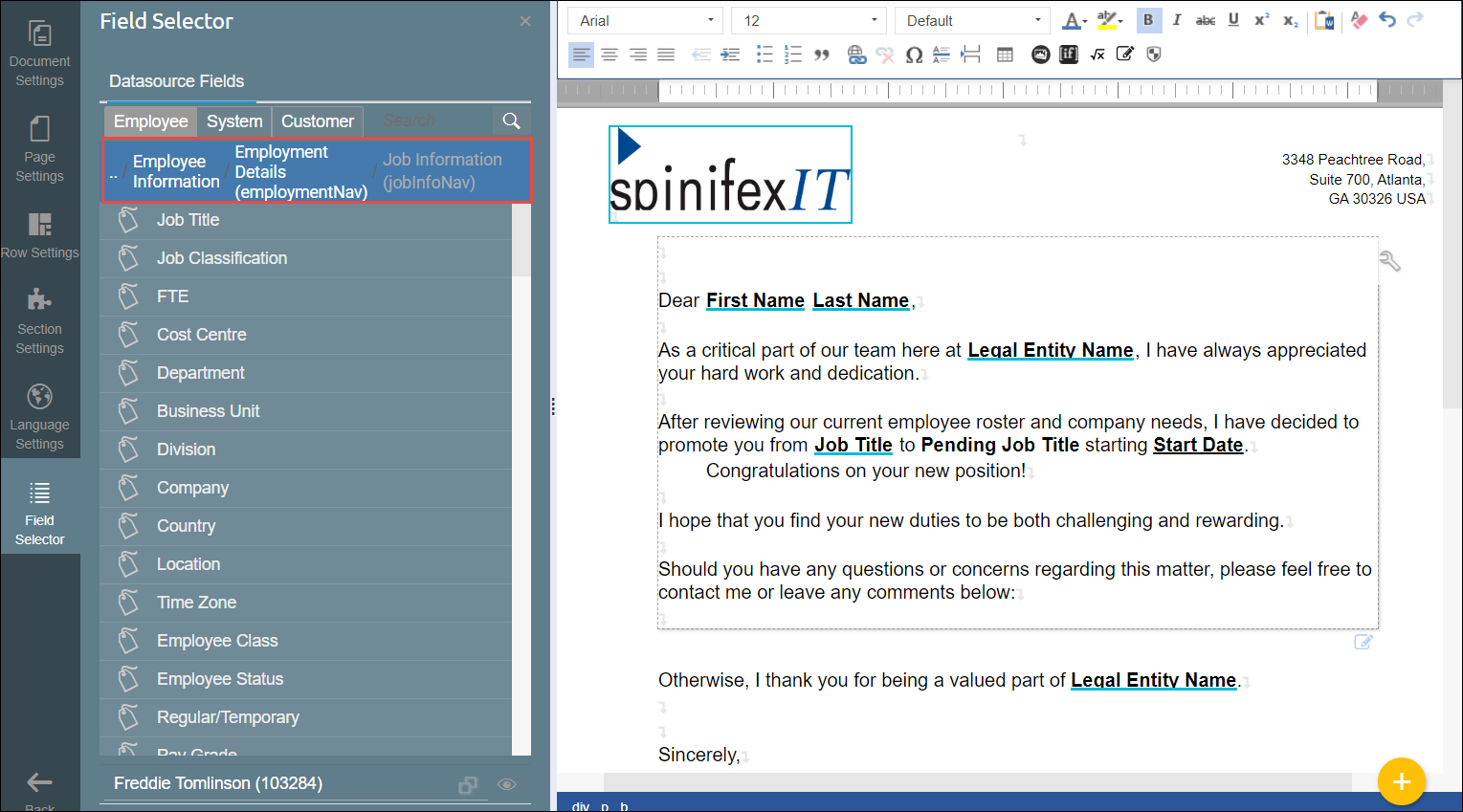
- Navigate to the Form Field Selector and find the group field from which the SuccessFactors pending data originates. For this instance, SuccessFactors pending data is located under the Job Information field group.
- Locate the Datasource Workflow field group, ensuring that you have activated the Link to Datasource Workflow toggle in the Field Settings (refer to, Field Settings for Documents with Data from Pending SuccessFactors Workflow).
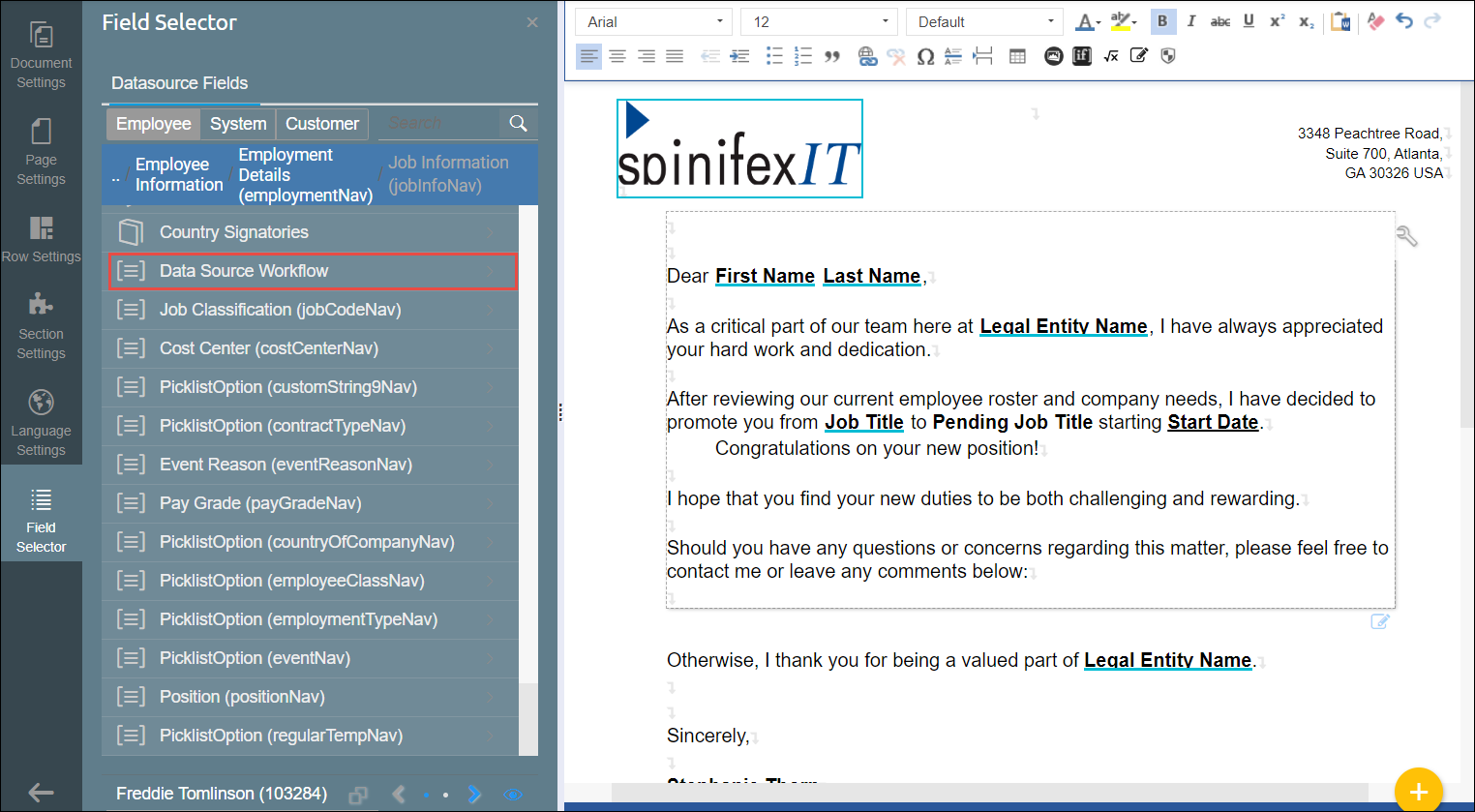
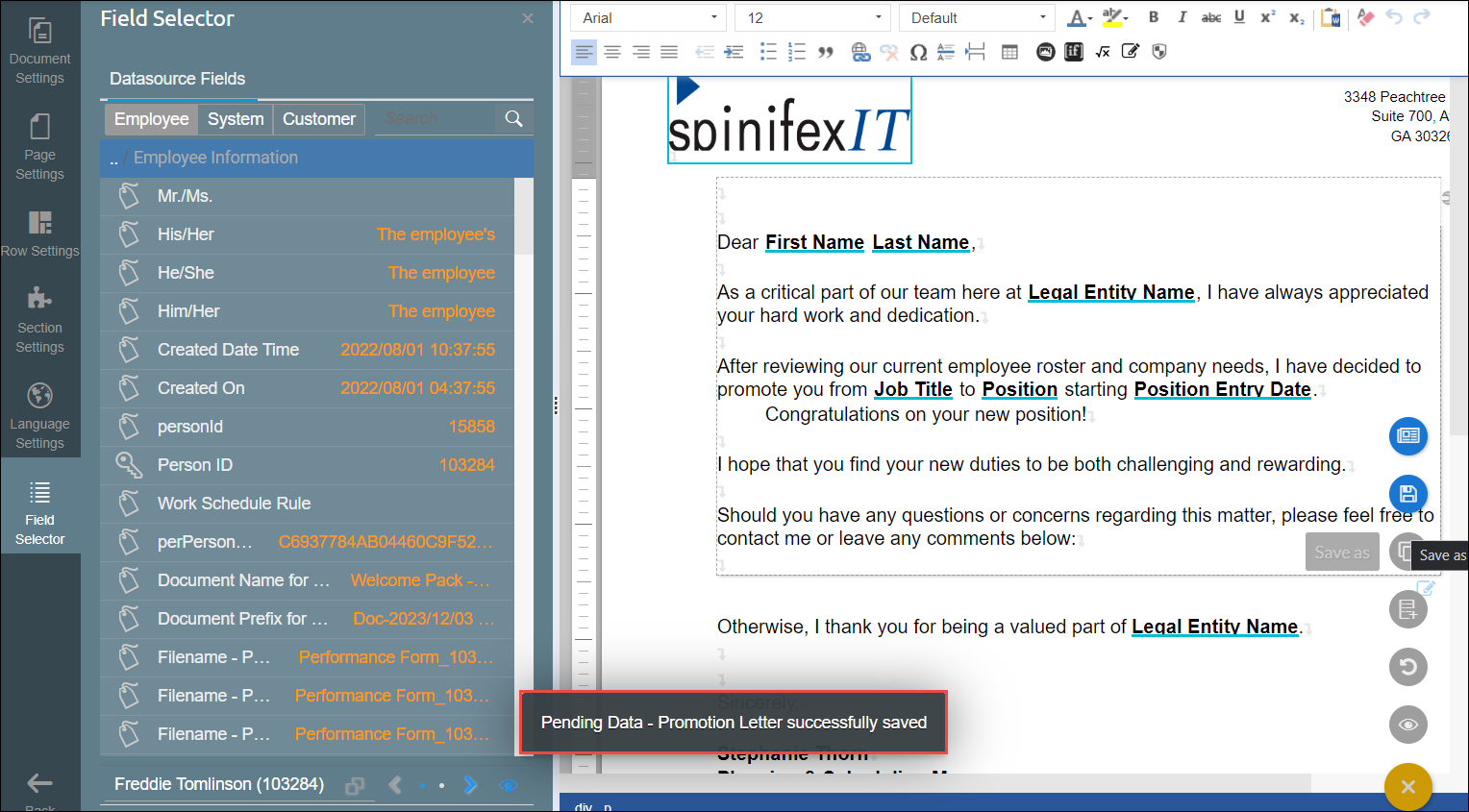
- Afterward, choose the relevant fields containing pending data to insert into your document template. In this case, the selected fields include Position and Position Entry Date.
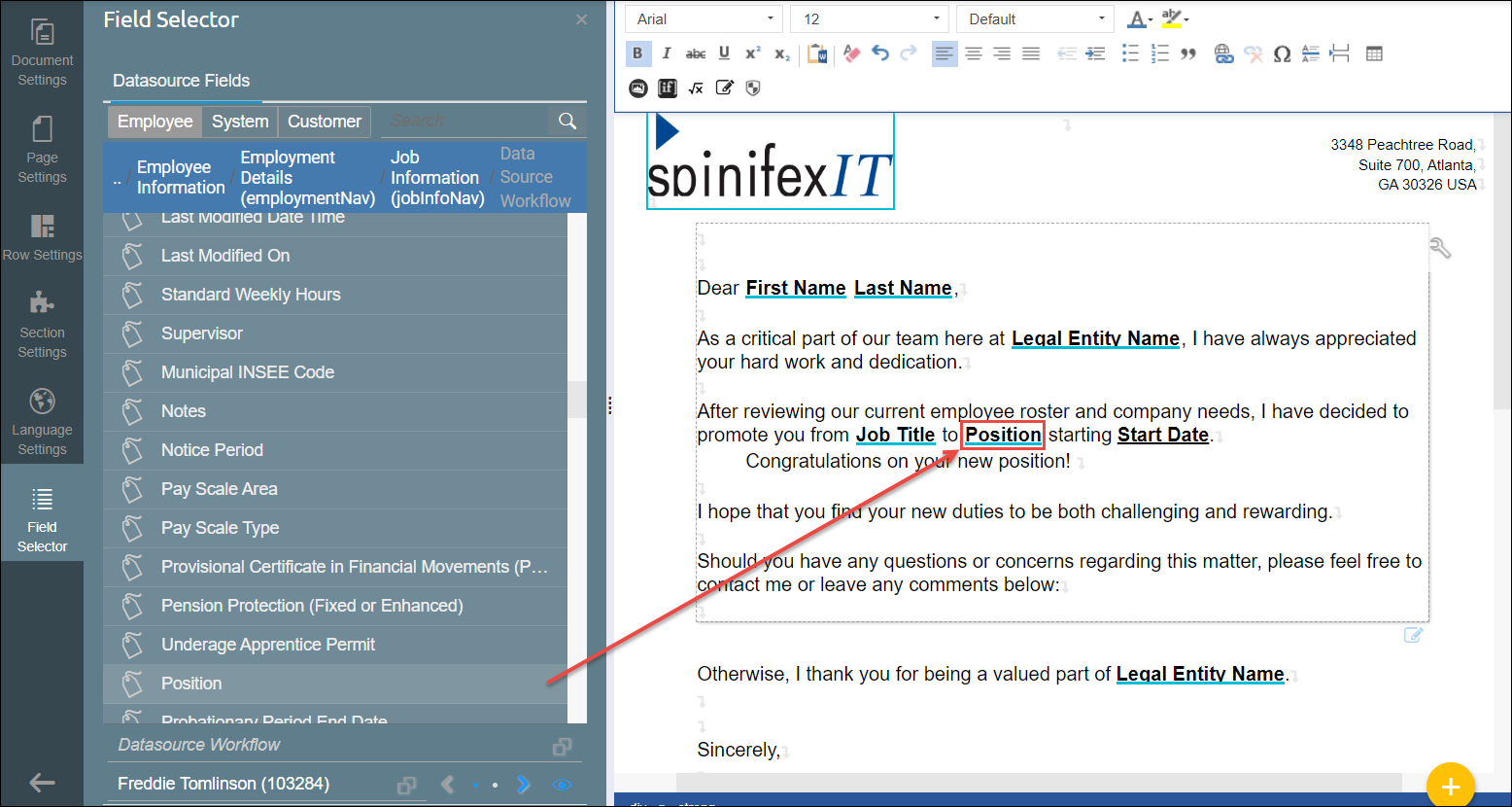
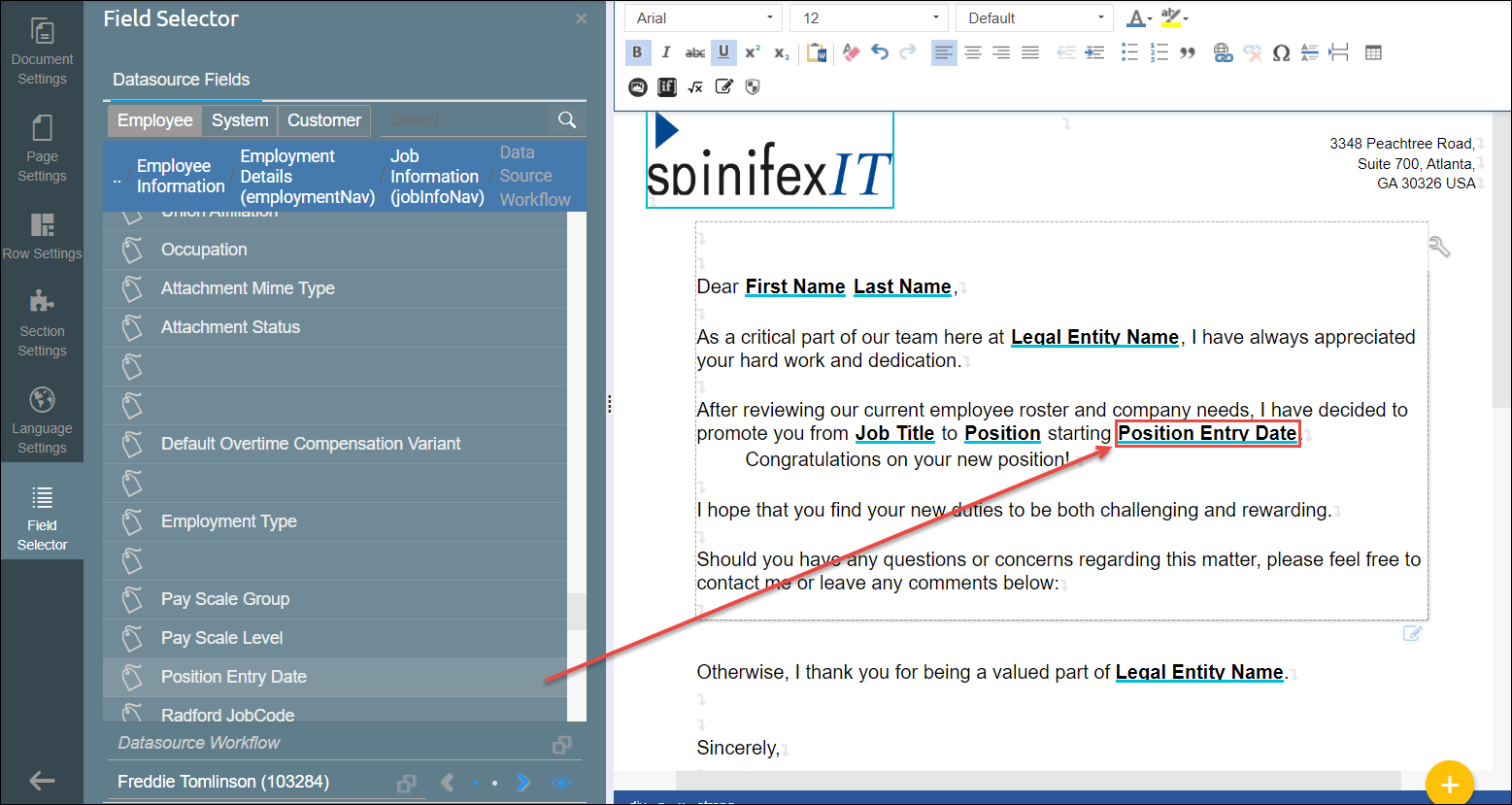
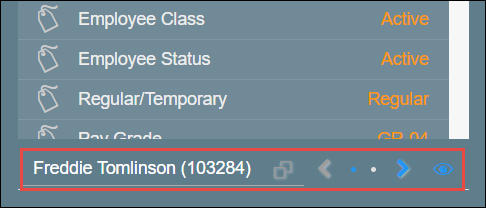
- Administrators also have the option to preview and verify the fields with pending SuccessFactors data by selecting the relevant pending workflow action from the Datasource Workflow field located at the bottom of the Field Selector tab.
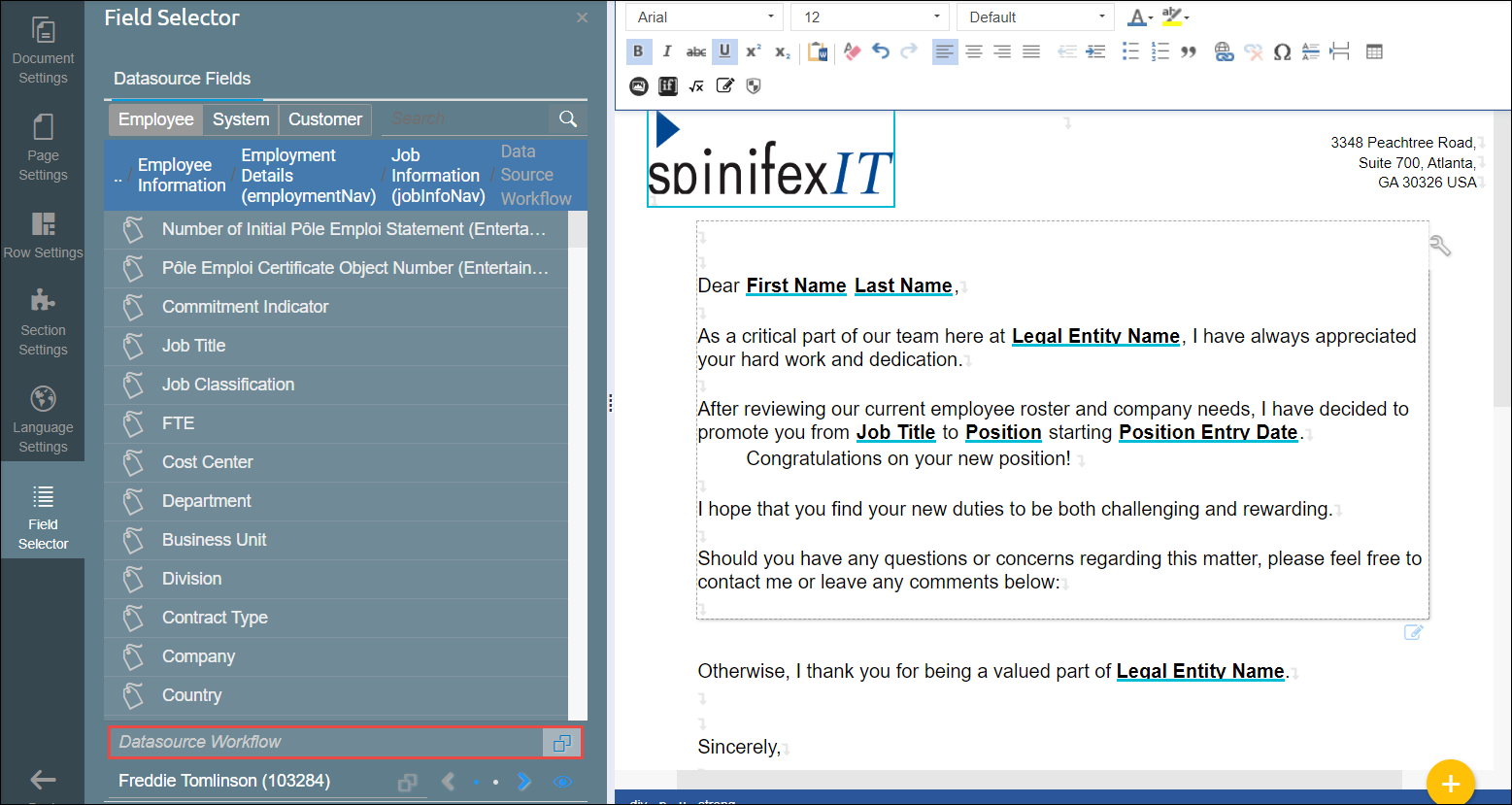
- In this example, the pending value is from the Promotion - No Pay Change action.
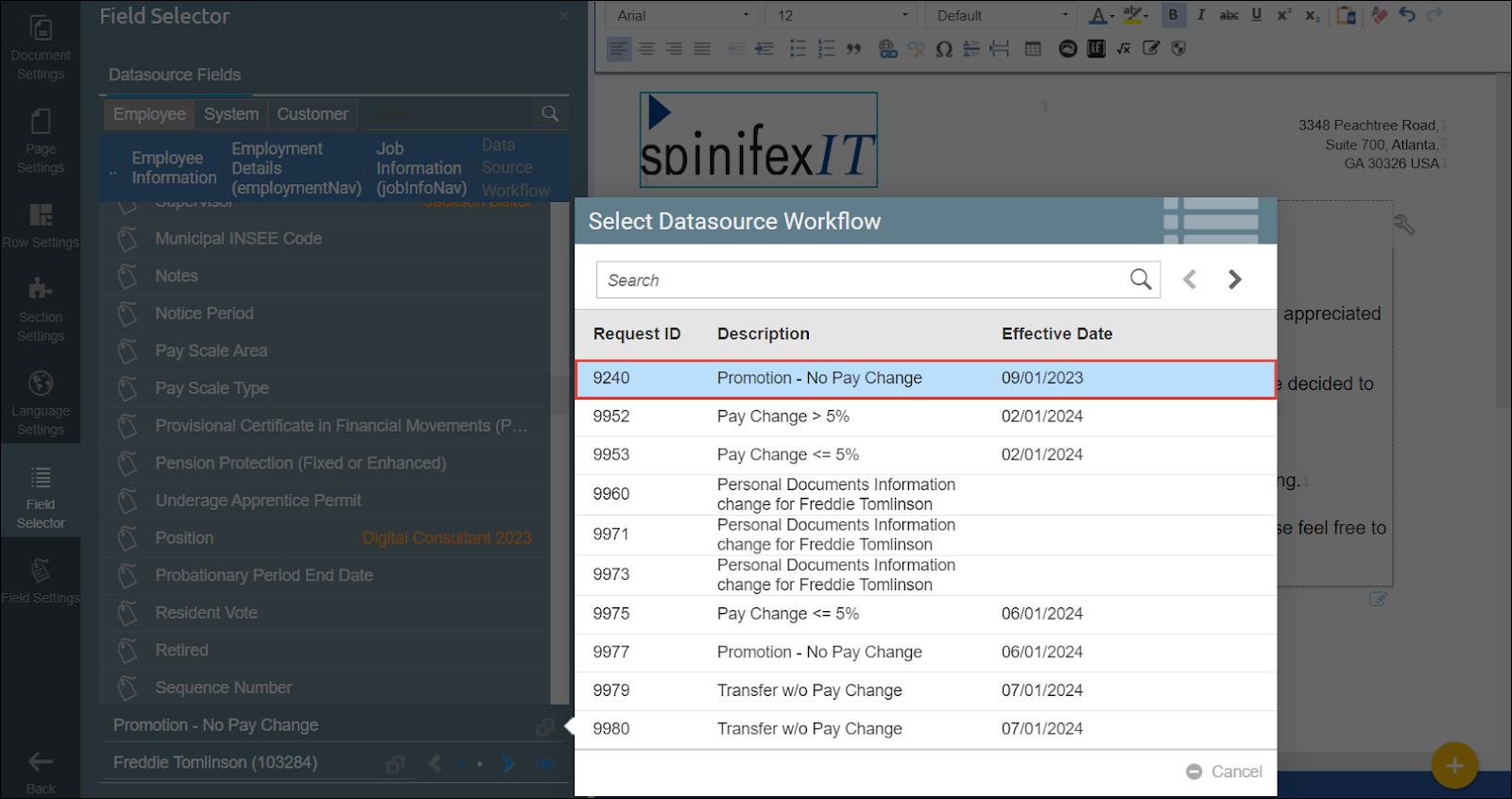
- After selecting a pending workflow action, values from each corresponding pending data field will be displayed. In this case, the value of the Position field is Digital Consultant 2023.
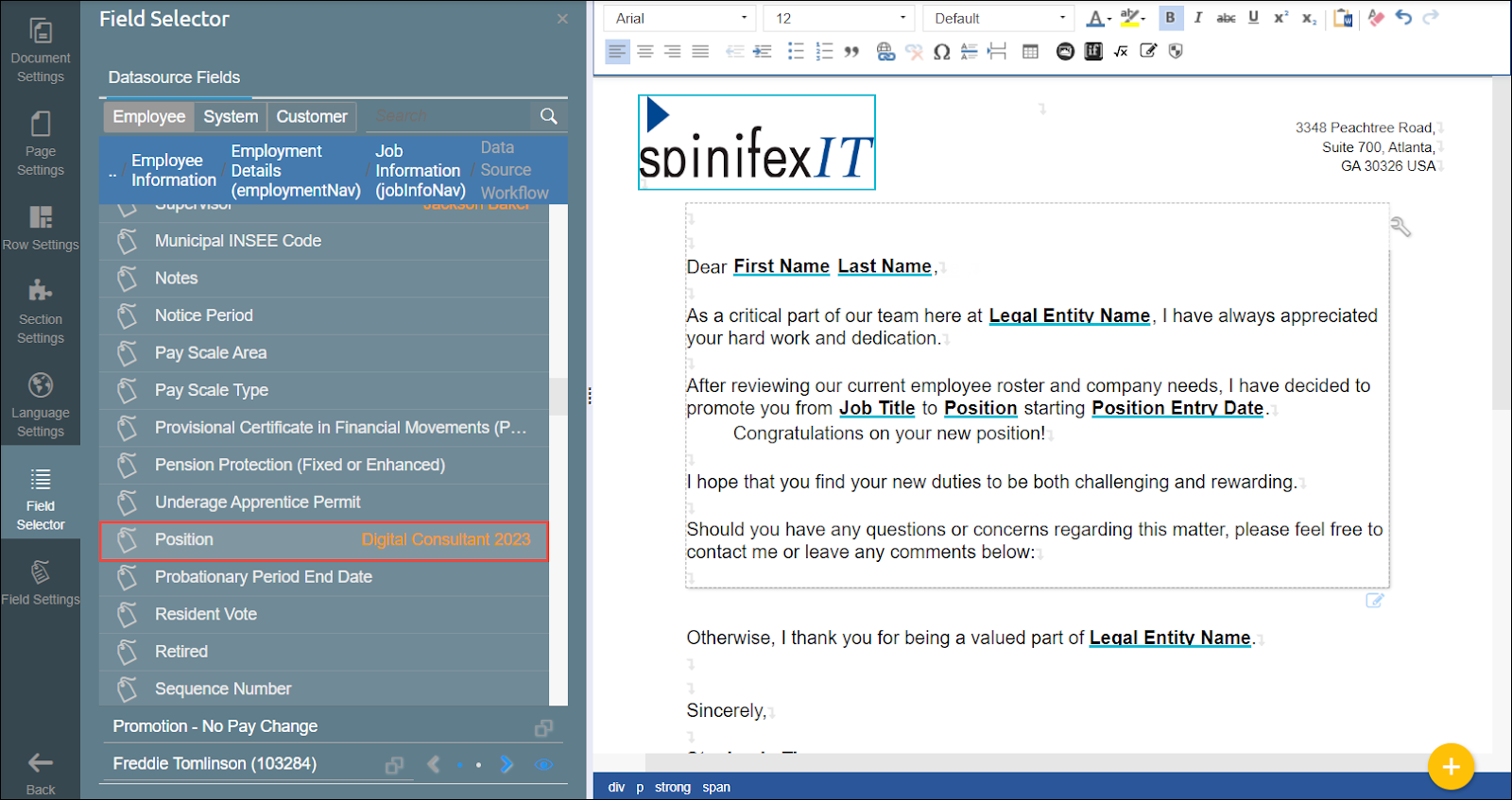
- Save your document template.