Add and Format Images in Text Sections [V1]
Images such as company logos, headers, icons, and related brand requirements can be inserted into text sections in the Document, Email, and Form Template editors. Users can either upload a new image or select a previously uploaded photo.
This article explains how to add and format images in text sections.
Add Images
Users can add images in the template editor from the pre-uploaded pictures in Strato or upload new images.
Follow the steps below to add an image to your document.
- Create a new document. In the formatting toolbar, click the Picture Library button.

- The Images window will appear where you can select one or multiple images from the pre-uploaded pictures in Strato.
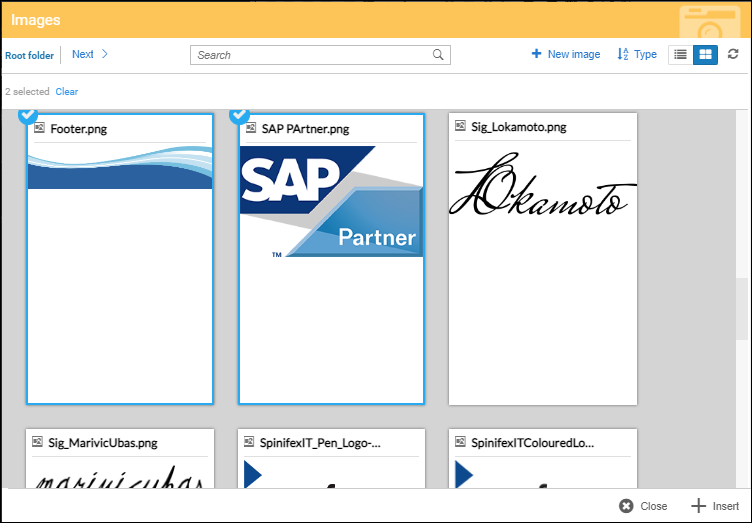
You can also upload a new image by clicking the + New Image button. This opens a pop-up window where you can upload an image by dragging and dropping a file, or clicking the button to upload from your local storage.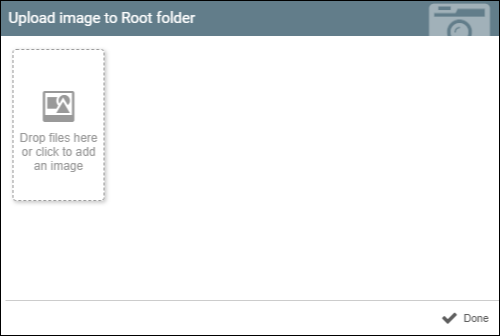
- After selecting your images, click Insert. The images you selected will be placed into your document.
You can change its alignment by using the left, right, and center alignment options. You can resize the image by clicking the image and dragging the corners to adjust its height and width.
Format Images
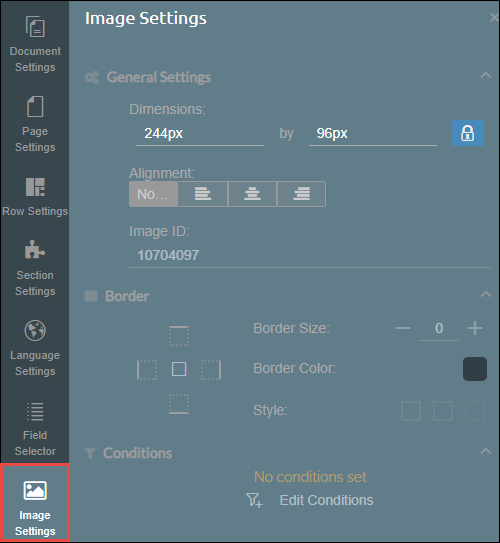
You can format an image by clicking on the image itself. While an image is selected, the Image Settings tab is available. This tab allows you to further customize the image and add conditions.